
1. Okwu mmalite
The Verbatim PowerBay Quad RAID system is designed to provide a robust and versatile direct attached storage solution. It offers advanced data protection and redundancy through various RAID configurations, making it suitable for server backup and high-capacity storage needs. Multiple connectivity options ensure broad compatibility and fast data transfer rates.
2. Ntuziaka Nhazi
2.1 Mwepu na njirimara akụrụngwa
Carefully remove all components from the packaging. Verify that the following items are present:
- Verbatim PowerBay Quad RAID System unit
- Ihe nkwụnye ọkụ na eriri
- eriri USB
- Firewire 800 cable
- eSATA eriri
- Hard drive cartridges (pre-installed or separate)
2.2 Njikọ anụ ahụ
- Njikọ ike: Connect the power adapter to the PowerBay unit and then to a power outlet.
- Njikọ data: Choose one of the following interfaces to connect the PowerBay to your computer or server:
- USB: Connect the USB cable from the PowerBay to an available USB port on your computer.
- Firewire 800: Connect the Firewire 800 cable from the PowerBay to an available Firewire 800 port on your computer.
- eSATA: Connect the eSATA cable from the PowerBay to an available eSATA port on your computer for maximum transfer speeds.
- Hard Drive Cartridge Insertion: If not pre-installed, gently slide the hard drive cartridges into the bays until they click into place. Ensure the locking mechanism is engaged if available.
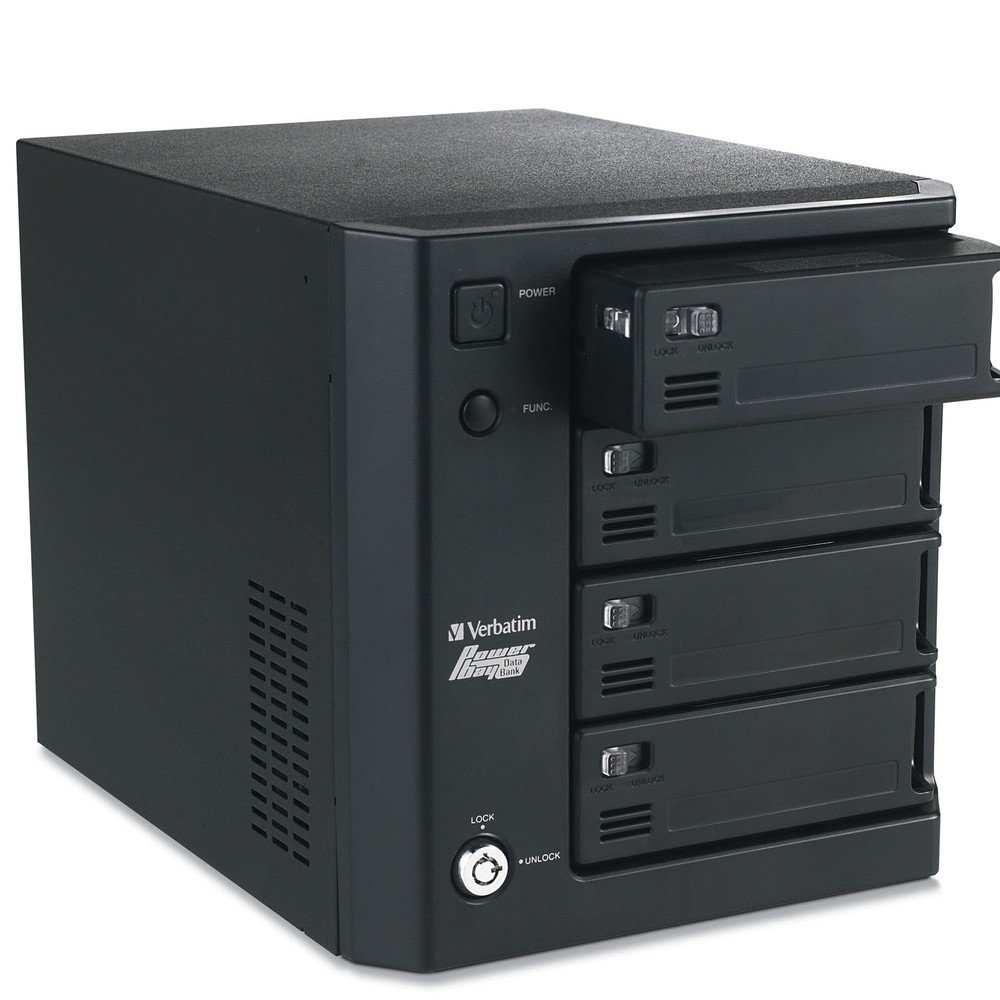
Foto 1: N'ihu view of the Verbatim PowerBay Quad RAID system. This image displays the black external storage device with four front-loading bays for hard drive cartridges. One cartridge is shown partially ejected. The front panel includes power and function buttons, along with a lock mechanism at the bottom.
2.3 Initial Configuration (RAID Modes)
The PowerBay Quad RAID system supports RAID modes 0, 5, and 10 for data protection and redundancy. The setup for these modes is designed to be straightforward and does not typically require a PC connection for initial configuration. Refer to the dedicated RAID configuration guide (if provided separately) or the device's display/buttons for specific instructions on selecting and initializing your desired RAID level.
3. Ntuziaka ọrụ
3.1 Gbanyụọ/ gbanyụọ
- Ike Na: Press the 'POWER' button located on the front panel. The power indicator light will illuminate.
- Gbanyụọ: Press and hold the 'POWER' button until the unit powers down. Always ensure data transfer is complete before powering off.
3.2 Nyefee data
Once connected to your computer, the PowerBay will appear as an external drive. You can drag and drop files, or use backup software to transfer data. For optimal performance, especially with large files, utilize the eSATA interface.
3.3 Hot-Swapping Drive Cartridges
The PowerBay supports hot-swapping of drive cartridges. This means you can remove and insert cartridges while the system is operational, provided the RAID configuration allows for it (e.g., in RAID 5 or 10 for drive replacement). When replacing a drive in a redundant RAID array, the system will automatically begin rebuilding the data set onto the new cartridge upon insertion.
3.4 Understanding RAID Modes
- RAID 0 (Ịgbapụta ihe): Offers increased performance and capacity by combining drives, but provides no data redundancy. If one drive fails, all data is lost.
- RAID 5 (Njikọ ya na Parity): Provides a balance of performance and data redundancy. Data is striped across drives with parity information, allowing the system to recover from a single drive failure.
- RAID 10 (Striping of Mirrors): Combines RAID 1 (mirroring) and RAID 0 (striping) for high performance and excellent data redundancy. It can withstand multiple drive failures, depending on which drives fail.
4. Nlekọta
4.1 Nlekọta n'ozuzu
Keep the unit in a clean, dust-free environment. Avoid exposing it to extreme temperatures or humidity. Clean the exterior with a soft, dry cloth. Do not use liquid cleaners.
4.2 Ndochi Fans
The PowerBay system includes a replaceable fan to ensure optimal cooling. If the fan becomes noisy or stops functioning, it may require replacement. Consult the manufacturer's support resources or a qualified technician for instructions on replacing the fan to avoid damaging internal components.
5. Nchọpụta nsogbu
5.1 Unit Does Not Power On
- Ensure the power adapter is securely connected to both the PowerBay unit and a working power outlet.
- Nyochaa na ntinye ọkụ na-arụ ọrụ site na nkwụnye na ngwaọrụ ọzọ.
5.2 PowerBay Not Detected by Computer
- Check that the data cable (USB, Firewire, or eSATA) is securely connected to both the PowerBay and your computer.
- Try a different port on your computer.
- Try a different data cable.
- Ensure the PowerBay unit is powered on.
- For eSATA connections, ensure your computer's eSATA controller is properly configured and drivers are installed.
5.3 Drive Cartridge Not Recognized
- Ensure the cartridge is fully inserted into the bay and the locking mechanism is engaged.
- If the drive is new, it may need to be initialized and formatted through your operating system's disk management utility.
- If replacing a drive in a RAID array, allow time for the system to rebuild the data.
6. Nkọwapụta
| Njirimara | Nkọwa |
|---|---|
| Ụdị | Okwu ọnụ |
| Nọmba nlereanya | 96956 |
| Ike Nchekwa Dijitalụ | TB 2 (2000 GB) |
| Ihe kpatara ụdị diski ike | 3.5 sentimita asatọ |
| Interface Hard Disk | USB 1.1, eSATA |
| Teknụzụ Njikọta | USB, eSATA |
| Ngwa dakọtara | Desktọpụ |
| Agba | Nwa |
| Ibu Ibu | 16 pound |
| Onye nrụpụta | SmartDisk |
| Ụbọchị mbụ dị | Disemba 19, 2005 |
7. Akwụkwọ ikike na nkwado
For detailed warranty information, please refer to the documentation included with your product or visit the official Verbatim website. Technical support and additional resources can be found on the Verbatim Store or by contacting SmartDisk, the manufacturer.