
1. Pendahuluan
This manual provides essential information for setting up, operating, maintaining, and troubleshooting your HP 14-em 14-inch HD Laptop. Please read this guide thoroughly to ensure optimal performance and longevity of your device.
The HP 14-em laptop features an AMD Athlon Silver 7120U processor, 4GB RAM, 512GB eMMC storage, and runs on Windows 11 Pro. It is designed for everyday tasks, offering a balance of performance and portability.
2. Pengaturan
2.1 Pembongkaran dan Pemeriksaan Awal
Keluarkan laptop dan semua aksesori dari kemasan dengan hati-hati. Pastikan semua komponen ada:
- HP 14-inch Laptop
- Adaptor Daya
- Mytrix 2.4GHz Wireless Gaming Headset
- Dokumentasi
Inspect the laptop for any physical damage. If any damage is found, contact your retailer immediately.
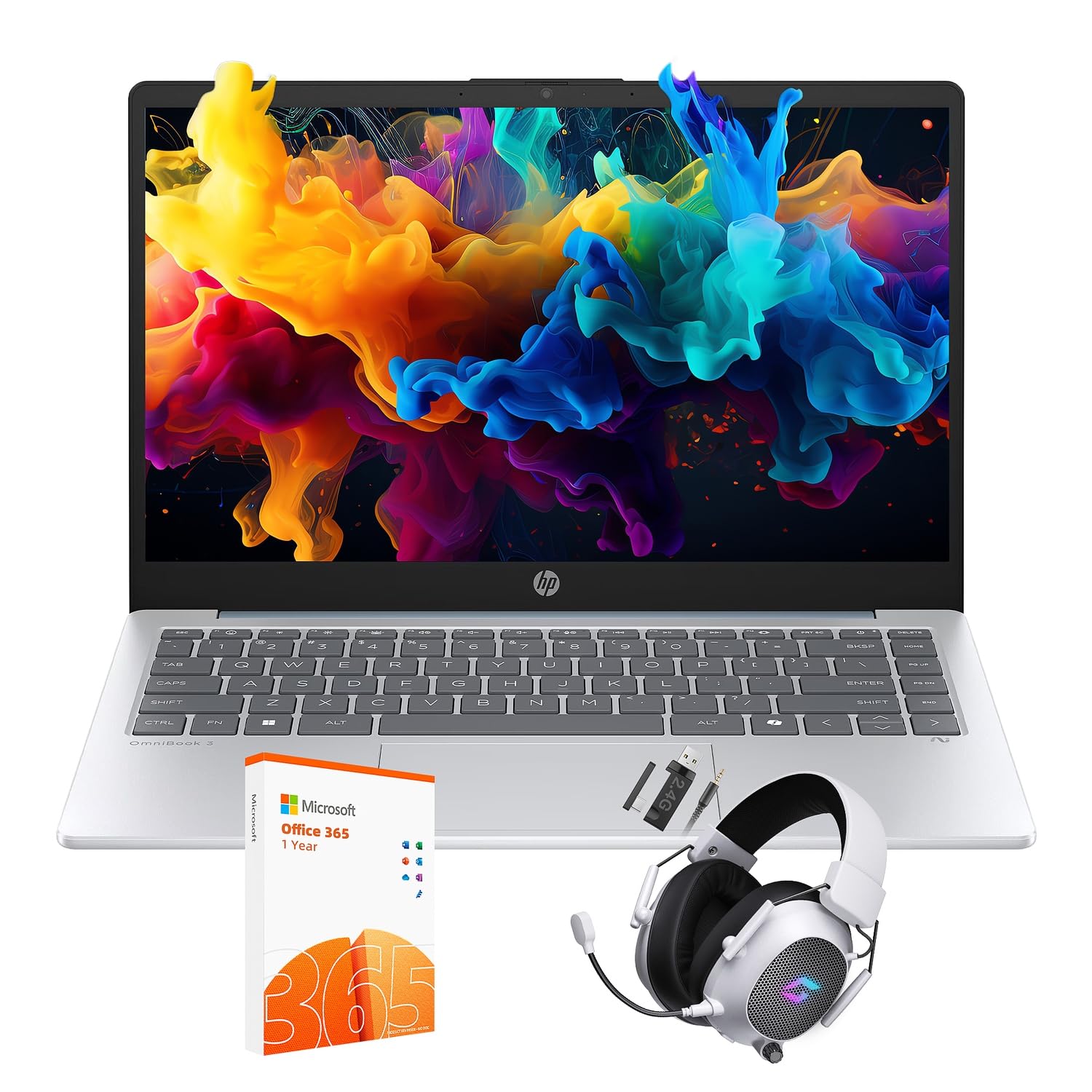
Figure 2.1: The HP 14-inch HD Laptop in Moonlight Blue, showcasing desainnya yang ramping.
2.2 Menghubungkan Adaptor Daya
Hubungkan adaptor daya ke port daya laptop, lalu colokkan ke stopkontak. Disarankan untuk mengisi daya baterai hingga penuh sebelum penggunaan pertama.
2.3 Initial Power On and Windows 11 Pro Setup
Press the power button located on the keyboard deck. The laptop will boot up and guide you through the Windows 11 Pro setup process. Follow the on-screen instructions to:
- Pilih wilayah dan bahasa Anda.
- Hubungkan ke jaringan Wi-Fi.
- Terima persyaratan lisensi.
- Buat akun pengguna atau masuk dengan akun Microsoft.
- Konfigurasikan pengaturan privasi.
2.4 Setting up the Mytrix Wireless Gaming Headset
Refer to the separate instructions provided with the Mytrix 2.4GHz Wireless Gaming Headset for detailed setup. Generally, this involves:
- Mengisi daya headset.
- Connecting the wireless dongle to an available USB port on the laptop.
- Powering on the headset and ensuring it pairs with the dongle.
- Configuring audio input/output settings in Windows 11 Pro.
3. Mengoperasikan Laptop
3.1 Manajemen Daya
- Nyalakan: Tekan tombol daya.
- Mode tidur: Close the lid or select "Sleep" from the Start Menu.
- Menutup: Select "Shut down" from the Start Menu.
- Mulai ulang: Select "Restart" from the Start Menu.
3.2 Menggunakan Touchpad
Touchpad ini mendukung gerakan multi-sentuh untuk navigasi. Gerakan umum meliputi:
- Mengetuk: Ketuk dengan satu jari untuk klik kiri.
- Ketukan dua jari: Klik kanan.
- Gulir dua jari: Gulir ke atas atau ke bawah.
- Cubit untuk memperbesar: Memperbesar atau memperkecil.
3.3 Connecting to Networks (Wi-Fi 6 and Bluetooth 5.4)
Untuk menyambung ke jaringan Wi-Fi:
- Klik ikon Wi-Fi di bilah tugas.
- Pilih jaringan yang Anda inginkan dari daftar.
- Masukkan kata sandi jaringan jika diminta.
Untuk menghubungkan perangkat Bluetooth:
- Pergi ke Pengaturan > Bluetooth & perangkat.
- Pastikan Bluetooth dihidupkan.
- Select "Add device" and follow the pairing instructions for your device.
3.4 External Port Usage
Laptop Anda dilengkapi dengan berbagai port untuk menghubungkan perangkat eksternal:

Figure 3.1: Available ports on the HP 14-inch HD Laptop.
- USB Tipe-A: For connecting standard USB devices like mice, keyboards, and external storage.
- USB Tipe-C: Untuk transfer data.
- HDMI: Untuk menghubungkan ke layar atau proyektor eksternal.
- Kombinasi Headphone/Mikrofon: For connecting a headset or external speakers/microphone.
3.5 Fitur Windows 11 Pro
Windows 11 Pro offers advanced security, management tools, and productivity features. Explore the Start Menu, Taskbar, and Settings app to customize your experience. The laptop also supports a 180-degree hinge for flexible viewsudut ing.
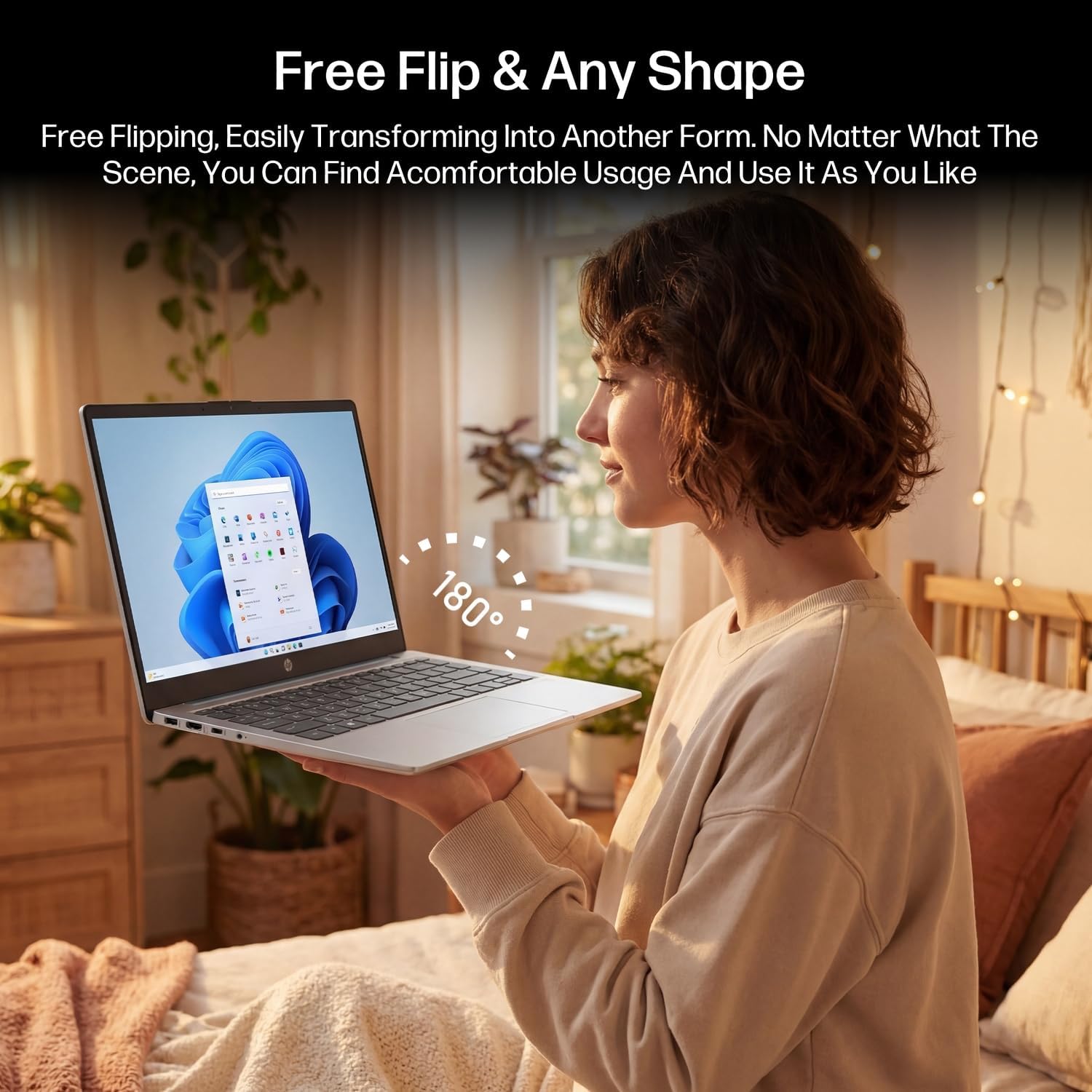
Figure 3.2: The laptop's 180-degree hinge for versatile use.

Figure 3.3: The HP laptop efficiently handles daily tasks.
4. Pemeliharaan
4.1 Membersihkan Laptop
- Layar: Gunakan kain yang lembut dan tidak berbulu secara tipis dampBersihkan dengan air atau pembersih layar. Jangan semprotkan pembersih langsung ke layar.
- Sasis dan Keyboard: Gunakan kain yang lembut dan kering. Untuk kotoran membandel, gunakan sedikit kain kering.amp Kain bisa digunakan. Hindari kelembapan berlebihan.
- Pelabuhan: Gunakan udara bertekanan untuk membersihkan debu dari lubang-lubang secara perlahan.
4.2 Perawatan Baterai
Untuk memaksimalkan masa pakai baterai:
- Hindari suhu ekstrem.
- Jangan biarkan baterai benar-benar habis terlalu sering.
- Utilize HP Fast Charge technology for quick recharging when needed.
4.3 Pembaruan Perangkat Lunak
Periksa dan instal pembaruan Windows secara berkala untuk memastikan sistem Anda memiliki patch keamanan dan peningkatan kinerja terbaru. Buka Pengaturan > Pembaruan Windows.
4.4 Manajemen Penyimpanan
The 512GB eMMC storage provides fast boot-ups and file access. To maintain performance, periodically:
- Hapus yang tidak perlu files.
- Hapus instalasi aplikasi yang tidak digunakan.
- Gunakan alat Pembersihan Disk bawaan Windows.
5. Penyelesaian masalah
Bagian ini membahas masalah umum yang mungkin Anda temui. Untuk masalah yang lebih kompleks, rujuk ke sumber daya dukungan resmi HP.
5.1 Laptop Tidak Menyala
- Pastikan adaptor daya tersambung dengan aman ke laptop dan stopkontak yang berfungsi.
- Verifikasi apakah stopkontak berfungsi dengan mencolokkan perangkat lain.
- Jika baterai benar-benar habis, biarkan terisi daya setidaknya selama 30 menit sebelum mencoba menyalakannya lagi.
5.2 Masalah Konektivitas Wi-Fi
- Periksa apakah Wi-Fi diaktifkan di pengaturan Windows.
- Mulai ulang router dan modem Anda.
- Lupakan jaringan dan sambungkan kembali, lalu masukkan kata sandi lagi.
- Ensure your laptop is within range of the Wi-Fi signal.
5.3 External Display Not Detected
- Ensure the HDMI cable is securely connected to both the laptop and the external display.
- Check the input source on your external display (e.g., HDMI 1, HDMI 2).
- Tekan Tombol Windows + P and select a display option (Duplicate, Extend, Second screen only).
5.4 Masalah Audio
- Check volume levels in Windows and on any connected external audio devices.
- Pastikan perangkat output audio yang benar telah dipilih di pengaturan suara Windows.
- If using the Mytrix headset, ensure it is powered on and properly paired.
6. Spesifikasi
Detailed technical specifications for your HP 14-em 14-inch HD Laptop:
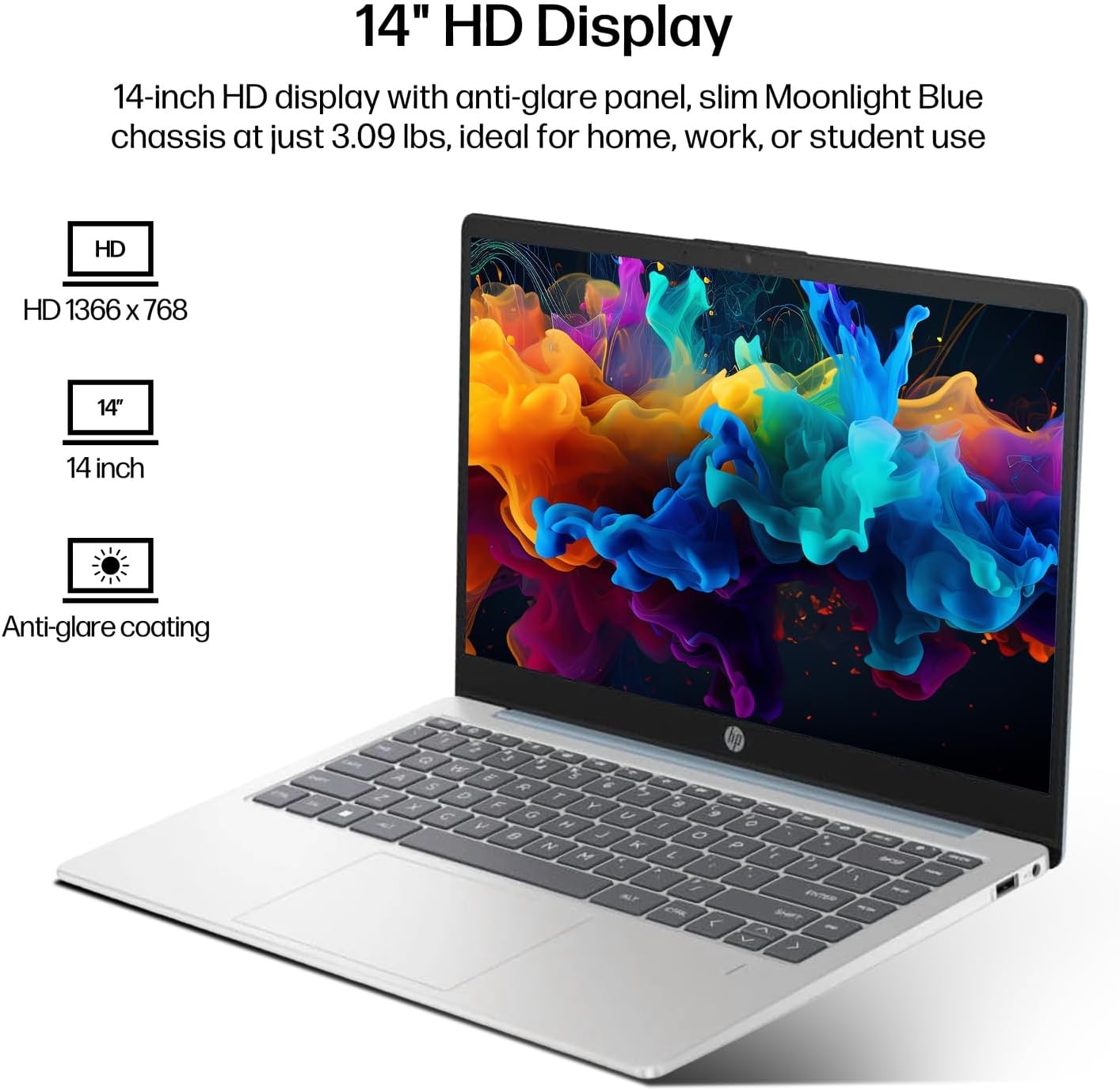
Figure 6.1: The 14-inch HD display features a resolution of 1366 x 768 pixels and an anti-glare coating.

Figure 6.2: The laptop is powered by an AMD Athlon Silver 7120U Processor with integrated AMD Radeon Graphics.
| Fitur | Spesifikasi |
|---|---|
| Merek | HP |
| Nama Model | 14-em |
| Prosesor | AMD Athlon Silver 7120U (2 Cores, 2 Threads, up to 3.5 GHz Boost Clock) |
| Grafik | Grafis AMD Radeon (Terintegrasi) |
| RAM | 4 GB DDR4 SODIMM |
| Penyimpanan | 512 GB eMMC (Solid State) |
| Menampilkan | 14-inch HD (1366 x 768) LED, Anti-Glare |
| Sistem Operasi | Windows 11 Pro |
| Konektivitas Nirkabel | Wi-Fi 6 (802.11ax), Bluetooth 5.4 |
| Pelabuhan | 2x USB Type-A, 1x USB Type-C (Data Transfer), 1x HDMI, 1x Headphone/Microphone Combo |
| Kamera | Menghadap ke depan |
| Suara | Suara HD |
| Dimensi (P x L x T) | 12.74" x 8.46" x 0.7" |
| Berat | Sekitar 3.09 pon |
| Aksesoris yang disertakan | Mytrix 2.4GHz Wireless Gaming Headset |

Figure 6.3: Physical dimensions of the HP 14-inch HD Laptop.
7. Garansi dan Dukungan
7.1 Garansi Produk
Your HP 14-em laptop comes with a 12-month manufacturer's warranty. This warranty covers defects in materials and workmanship under normal use. For specific terms and conditions, please refer to the warranty documentation included with your product or visit the official HP support weblokasi.
7.2 Dukungan Teknis
For technical assistance, troubleshooting beyond this manual, or warranty claims, please contact HP Customer Support. You can find contact information on the official HP website or through the support application pre-installed on your laptop.
Additional protection plans are available for purchase, including 2-Year and 4-Year Protection Plans, and a monthly Complete Protect plan. Details can be found where you purchased the product.