
Perkenalan
This manual provides comprehensive instructions for the ORICO X50 Thunderbolt 5 M.2 NVMe SSD Enclosure. This device is engineered for high-speed external data storage, offering compatibility with the latest Thunderbolt 5 standard, as well as backward compatibility with Thunderbolt 4/3 and USB4 ports. It supports 2280 M.2 NVMe SSDs up to 8TB, making it suitable for demanding tasks such as 4K/8K video editing and 3D rendering.
Apa yang ada di dalam kotak
The package for your ORICO X50 enclosure includes the following components:
- 1 x 80Gbps M.2 Enclosure
- 1 x USB Cable (Thunderbolt 5 compatible)
- 1 x Panduan Pengguna
- 1 x Bantalan Termal
- 1 x Obeng

Spesifikasi
| Fitur | Detil |
|---|---|
| Model | X50 |
| Teknologi Konektivitas | Thunderbolt 5, Thunderbolt 4/3, USB4 |
| Transmission Rate (Theoretical) | Read: 6000MB/s, Write: 5800MB/s (80Gbps bandwidth) |
| Kompatibilitas SSD | M-Key/(M&B) Key NVMe 2280 SSD (PCIe 4.0 x4 recommended). Not compatible with M.2 SATA SSDs or PCIe 5.0 SSDs. |
| Kapasitas Penyimpanan Digital Maksimum | Hingga 8 TB |
| Bahan | Paduan Aluminium |
| Sistem Pendingin | Fanless (Finned aluminum chassis, thermal grease, hydrogel coating) |
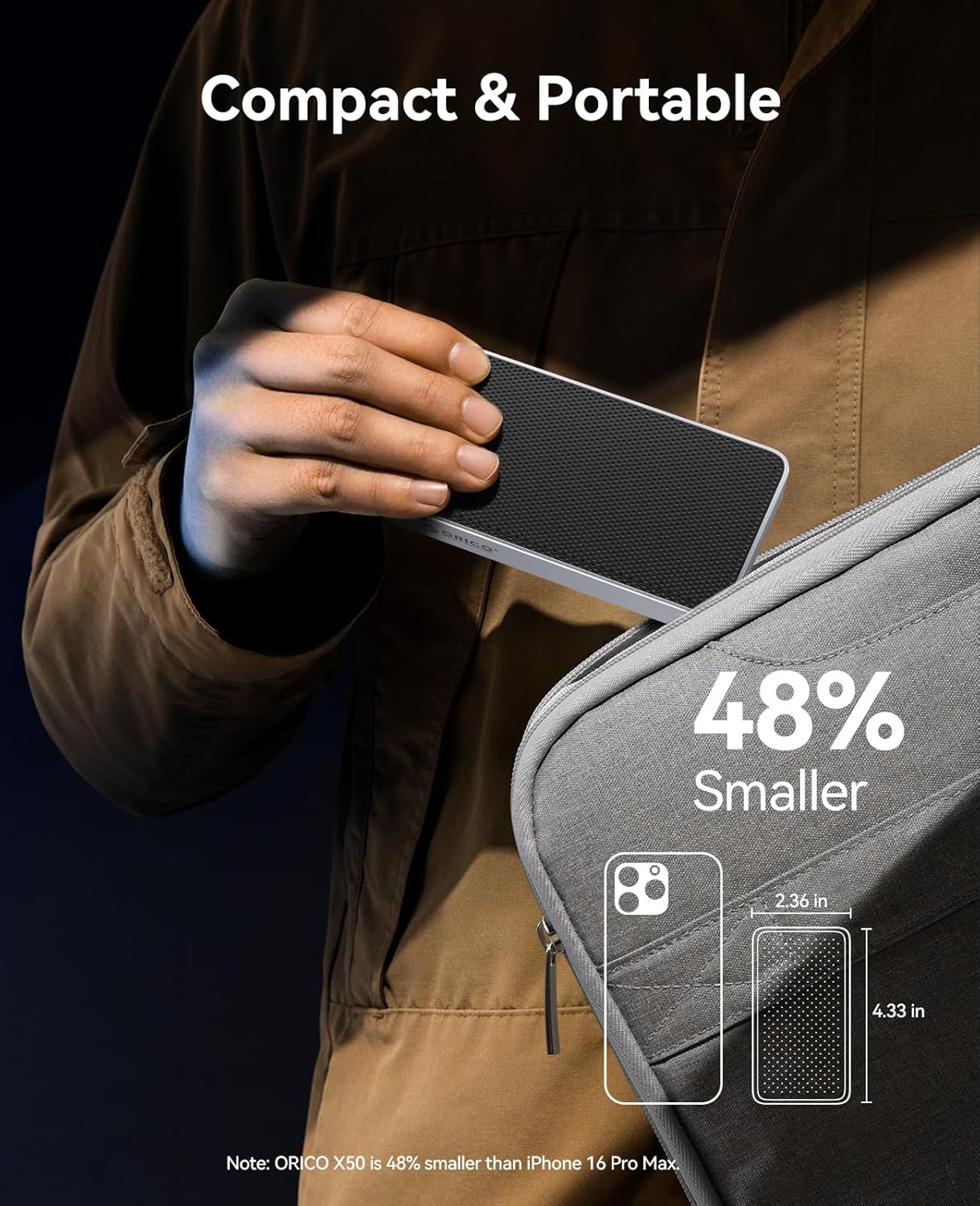
| Ukuran | 6.1 x 3.82 x 1.77 inci (perkiraan) |
| Berat Barang | 10.2 ons |
| Sistem Operasi yang Didukung | Jendela, macOS, Linux |
Setup: SSD Installation Guide
Follow these steps to install your M.2 NVMe SSD into the ORICO X50 enclosure:
- Lepaskan Penutup Belakang: Use the provided screwdriver to loosen the screw on the back of the enclosure. Carefully slide off the back cover.

Figure 2: Use the screwdriver to remove the back cover. - Masukkan SSD: Gently insert your M.2 NVMe SSD into the internal slot at a 30-degree angle. Push down to align it with the mounting hole and secure it with the small screw provided.

Gambar 3: Bagian dalam view of the enclosure showing the M.2 SSD slot and mounting screw. Note: Ensure your SSD is a 2280 M-Key or M&B-Key NVMe/PCIe type. M.2 SATA SSDs and PCIe 5.0 SSDs are not supported.
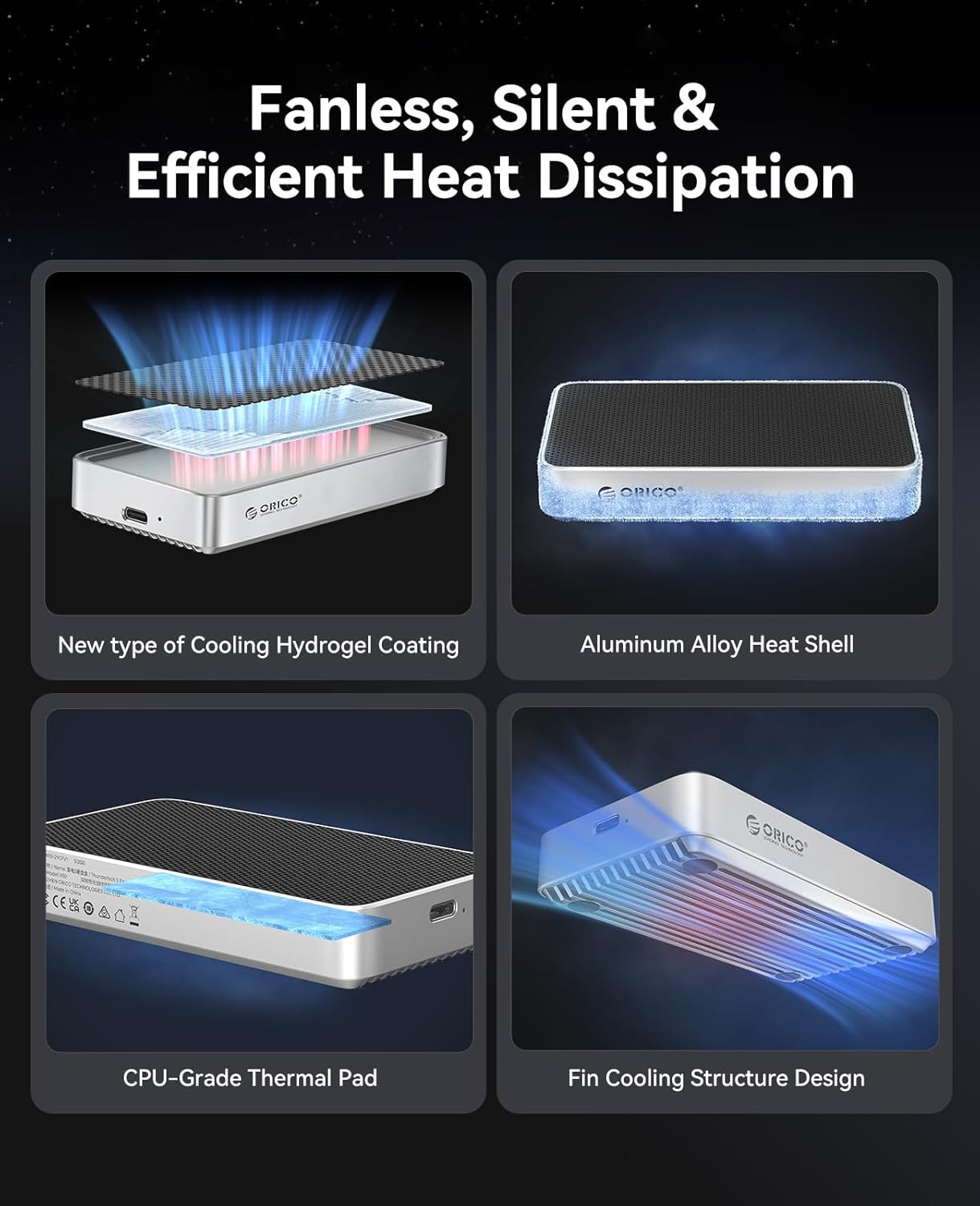
Figure 4: Diagram illustrating compatible M.2 NVMe SSD types (M-Key and M&B-Key 2280). - Cara Memasang Bantalan Termal: Peel off the protective films from both sides of the thermal pad. Carefully place the thermal pad onto the installed SSD, ensuring it covers the main chips for efficient heat transfer to the enclosure's aluminum body.

Figure 5: The thermal pad helps dissipate heat from the SSD to the enclosure. - Reinstall the Cover: Slide the back cover back into place, ensuring it aligns correctly. Tighten the screw to secure the cover.

Figure 6: The ORICO X50 enclosure ready for connection after SSD installation.
Petunjuk Pengoperasian
Menghubungkan ke Komputer Anda
Connect the ORICO X50 enclosure to your computer using the provided Thunderbolt 5 compatible USB-C cable. The enclosure is designed to work seamlessly with Thunderbolt 5, Thunderbolt 4/3, and USB4 ports.
Pengaturan Awal dan Pemformatan
Upon first connection, the newly installed SSD may need to be initialized and formatted by your operating system before use.
- Untuk macOS:
- Membuka Utilitas Disk (Aplikasi > Utilitas > Utilitas Disk).
- In the Disk Utility sidebar, click the "View" button and select "Show All Devices".
- Select the external ORICO X50 drive (usually listed under "External").
- Click the "Erase" button in the toolbar.
- Provide a name for the drive. For "Format", choose APFS for Mac-only use or EksFAT for compatibility with both macOS and Windows. For "Scheme", select GUID Partition Map.
- Klik "Hapus" untuk memformat drive.
- Untuk Windows:
- Right-click the Start button and select Manajemen Disk.
- Locate the unallocated space corresponding to your ORICO X50 SSD.
- Right-click the unallocated space and select "New Simple Volume". Follow the wizard to assign a drive letter and format the drive. Choose Bahasa Indonesia: NTFS for Windows-only use or EksFAT for compatibility with both Windows and macOS.
- Untuk Linux:
- Use a disk utility tool like GParted or the command line (e.g.,
fdisk,mkfs) to partition and format the drive. Common formats include Ekst4 for Linux-only or EksFAT for cross-platform compatibility.
- Use a disk utility tool like GParted or the command line (e.g.,

Pemindahan Data
Once formatted, the SSD will appear as a mounted external drive on your system. You can now drag and drop files, copy, paste, or use it as a target for backups and other storage needs.
Pertunjukan
The ORICO X50 enclosure is designed to deliver exceptional performance, especially with Thunderbolt 5 compatible systems.
- Next-Gen 80Gbps Speed: Experience theoretical speeds up to 6000MB/s read and 5800MB/s write. This allows for rapid transfer of large files, such as 6GB in seconds.
- Kapasitas Besar: Supports M.2 NVMe SSDs up to 8TB, providing ample space for all your projects and data.


Kasus Penggunaan Ideal
The high performance of the ORICO X50 makes it suitable for:
- 4K/8K Video Editing: Seamlessly edit high-resolution video files directly from the external SSD.
- 3D Modeling and Rendering: Accelerate workflows for complex 3D projects.
- VR/AR Content Development: Handle large assets and rapid iterations with ease.
- High-Speed Data Backup: Perform quick and efficient backups of critical data.
Pemeliharaan
Fanless Cooling System
The ORICO X50 features an advanced fanless cooling design to maintain optimal operating temperatures without noise. This system includes:
- A finned aluminum chassis for increased heat dissipation surface area.
- Integrated thermal grease and a hydrogel coating to efficiently transfer heat from the SSD.
This design ensures reliability and sustained performance during long, intensive workloads by preventing thermal throttling.

Perawatan Umum
- Jaga agar kandang tetap bersih dan bebas debu. Gunakan kain lembut dan kering untuk membersihkannya.
- Hindari memaparkan perangkat pada suhu ekstrem, sinar matahari langsung, atau kelembapan tinggi.
- Always safely eject the drive from your operating system before disconnecting the cable to prevent data corruption or loss.
Penyelesaian Masalah
Masalah Umum dan Solusinya
- Drive Tidak Dikenali:
- Pastikan SSD terpasang dengan benar dan aman di dalam casing.
- Check that the Thunderbolt 5 cable is securely connected to both the enclosure and your computer.
- Cobalah menghubungkan ke port USB-C/Thunderbolt lain di komputer Anda.
- Test the enclosure with another computer to rule out system-specific issues.
- If it's a new SSD, ensure it has been initialized and formatted (refer to "Initial Setup and Formatting" section).
- Kecepatan Lambat:
- Verify that your computer's port and the cable you are using support Thunderbolt 5 (80Gbps) or USB4 speeds.
- Ensure you are using a high-performance PCIe 4.0 x4 NVMe SSD. Older or slower SSDs will not achieve maximum speeds.
- For Thunderbolt 3 users: Some systems may default to USB speeds (~10Gbps). For full Thunderbolt 3 performance, a dedicated Thunderbolt 3/4 enclosure might be recommended, or ensure your system's Thunderbolt settings are optimized.
- Close any background applications that might be consuming significant system resources or disk I/O.
- Connection Drops (Mac users):
- Ensure your macOS is updated to the latest version.
- Try using a different Thunderbolt 5 cable.
- Connect the enclosure to a different Thunderbolt port on your Mac.
- Terlalu panas:
- While the enclosure is designed for efficient fanless cooling, prolonged heavy use (e.g., continuous large file transfers, 4K/8K video editing) may cause the aluminum body to become warm. This is normal and indicates effective heat dissipation.
- Ensure the enclosure is placed on a flat surface with adequate airflow around it. Avoid covering it.
Garansi dan Dukungan
The ORICO X50 Thunderbolt 5 M.2 NVMe SSD Enclosure is backed by a Garansi terbatas 3 tahun terhitung sejak tanggal pembelian. Garansi ini mencakup cacat produksi dan menjamin pengoperasian yang andal dalam kondisi penggunaan normal.
For technical support, product registration, or to initiate a warranty claim, please utilize the following contact information:
- Resmi Weblokasi: www.orico.com.cn
- Hotline Layanan Pelanggan: Nomor telepon 400-6696298
- Dukungan Email: dukungan@orico.com.cn
Harap simpan bukti pembelian Anda untuk validasi garansi.