
Perkenalan
The RICOH fi-8170 Deluxe Bundle is a professional high-speed document scanner designed to enhance productivity for organizations of all sizes. It features advanced feeding technologies and Clear Image Capture for high-quality digital imaging. This manual provides essential information for setting up, operating, maintaining, and troubleshooting your fi-8170 Deluxe scanner.

Figure 1: RICOH fi-8170 Deluxe Bundle, including the scanner and PaperStream Capture Pro software.
Fitur Utama
- Next Generation Scanning Excellence: Built on a best-selling scanner platform, includes PaperStream Capture Pro software.
- Fast and Robust: Scans up to 70 double-sided pages per minute and can handle thick documents such as ID cards and passports.
- Keandalan: Offers day-in and day-out reliability with industry-leading Clear Image Capture technology.
- Integrasi: Integrates seamlessly with ECM solutions across various industries via TWAIN/ISIS through USB or Ethernet connectivity.
- Powerful Software: PaperStream Capture Pro provides advanced features like data extraction, indexing, and other productivity-increasing factors.
Pengaturan
1. Membuka Kemasan dan Isi
Keluarkan semua komponen dari kemasan dengan hati-hati. Pastikan semua komponen tersedia:
- RICOH fi-8170 Document Scanner
- Adaptor AC dan kabel daya
- Kabel USB
- Panduan Memulai
- Help and Service information
- Software DVD (PaperStream IP TWAIN/ISIS drivers, PaperStream Capture, PaperStream Clickscan, Scanner Central Admin, Software Operation Panel)
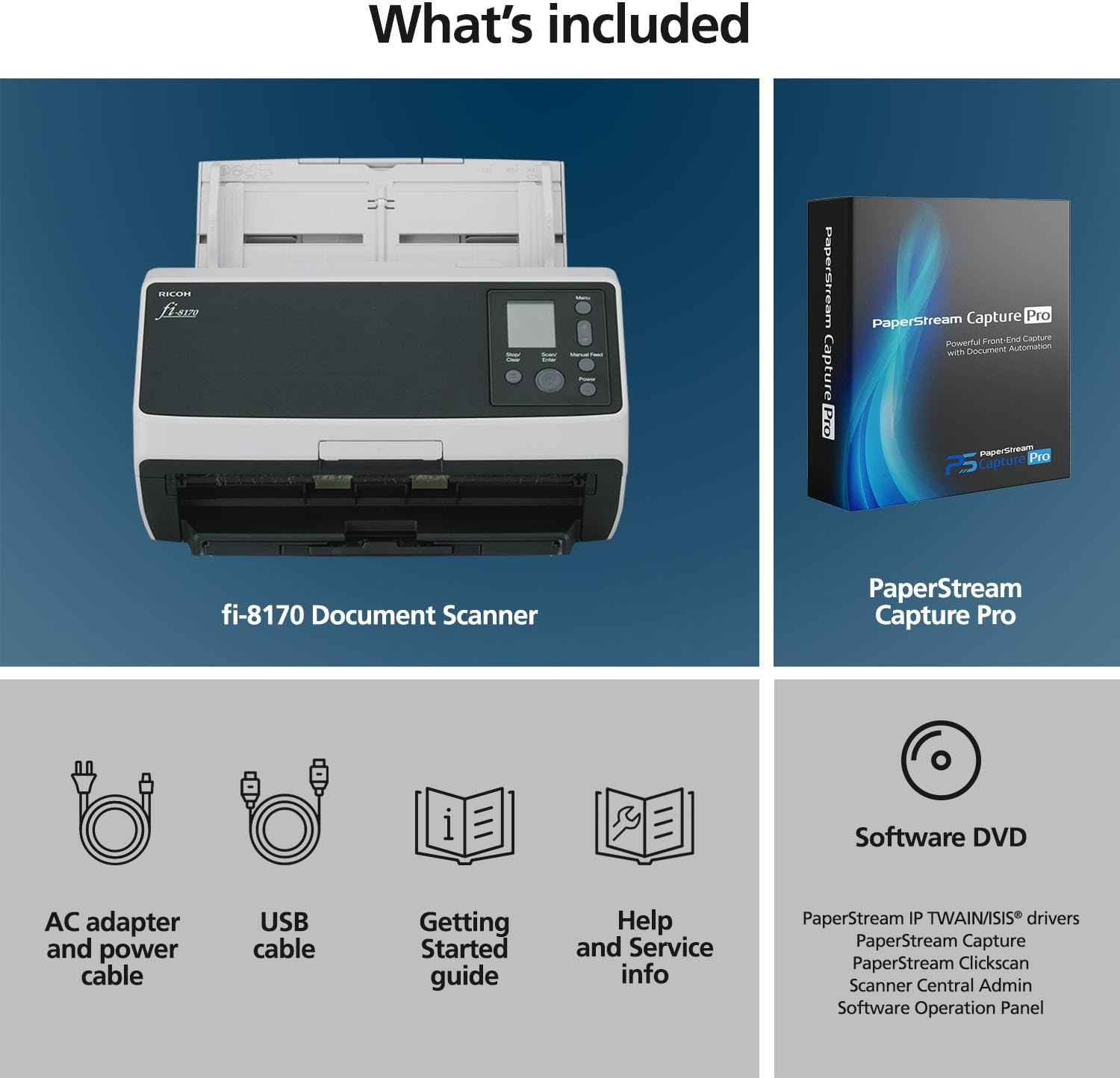
Figure 2: Included components of the fi-8170 Deluxe Bundle.
2. Physical Placement and Connections
Place the scanner on a stable, flat surface. Ensure adequate space around the unit for document feeding and exit. The scanner dimensions are approximately 6.4 x 11.8 x 6.7 inches and it weighs 8.8 pounds.
- Sambungan Daya: Connect the AC adapter to the scanner and then to a power outlet.
- Koneksi data: Connect the scanner to your computer using the provided USB cable, or connect to your network via an Ethernet cable for network scanning capabilities.

Figure 3: Physical features and connectivity options (USB, Ethernet) of the fi-8170 scanner.
3. Instalasi Perangkat Lunak
Insert the provided Software DVD into your computer's optical drive. Follow the on-screen instructions to install the necessary drivers (PaperStream IP TWAIN/ISIS) and the PaperStream Capture Pro software. If your computer does not have an optical drive, drivers and software can typically be downloaded from the official Ricoh support weblokasi.
During installation, ensure that the correct drivers for your operating system (e.g., Windows 11) are installed. Some users have reported issues with USB driver recognition, which may require manual verification or updates.
Mengoperasikan Pemindai
1. Memuat Dokumen
The fi-8170 features a 100-sheet automatic document feeder (ADF). Adjust the document guides to fit your paper size (up to 8.5 x 14 inches). The scanner can handle a wide variety of documents, including standard paper, thick documents, ID cards, and passports.

Figure 4: Documents loaded in the automatic document feeder of the fi-8170 scanner.
2. Proses Pemindaian
You can initiate a scan directly from the scanner's control panel or through the PaperStream Capture Pro software on your computer.
- From Scanner Control Panel: Use the LCD screen and buttons to select scan profiles (e.g., color, black and white) and press the 'Scan/Enter' button to begin. The scanner will feed documents and process them.
- From PaperStream Capture Pro: Launch the software on your computer. Select a scan profile (e.g., One Push Scan, Auto Color, Color, Black and White). Once selected, the software will prompt the scanner to begin feeding documents. Scanned images will appear in the software interface, allowing for review, rotation, and editing before saving.

Figure 5: The PaperStream Capture Pro software interface for managing scanned documents.
3. Software Features (PaperStream Capture Pro)
PaperStream Capture Pro offers comprehensive features for managing your scanned documents:
- Peningkatan Gambar: Clear Image Capture (CIC) technology improves color and provides crisp images, supporting high OCR accuracy rates while removing unwanted watermarks and artifacts.
- Data Extraction and Indexing: Automate the extraction of data from scanned documents and apply indexing for easy retrieval.
- Batch Management: Scan multiple documents in a batch, review them, and then complete, suspend, or cancel the batch.
- Opsi Keluaran: Save scanned documents to various formats and locations, integrating with your existing ECM solutions.
Pemeliharaan
1. Membersihkan Pemindai
Regular cleaning ensures optimal performance and image quality. Use a soft, lint-free cloth lightly dampened with water or a mild, non-abrasive cleaner. Avoid spraying liquids directly onto the scanner.
- Bersihkan permukaan luar.
- Gently wipe the glass scanning surfaces and rollers to remove dust and paper residue.
2. Membersihkan Kertas Macet
The fi-8170 features enhanced paper protection to prevent jams. In the event of a paper jam, carefully open the scanner covers as indicated in the Getting Started guide and gently remove any jammed paper. Ensure no torn pieces remain inside the paper path.
3. Roller Maintenance
The scanner's feed rollers are designed for durability. Over time, rollers may require cleaning or replacement. Refer to the detailed maintenance section in the full user manual for instructions on cleaning and replacing rollers to maintain optimal paper feeding performance.
Penyelesaian Masalah
Masalah Umum dan Solusinya
- Pemindai Tidak Terdeteksi: Ensure the USB or Ethernet cable is securely connected. Verify that the scanner drivers are correctly installed on your computer. Restarting both the scanner and computer can often resolve connectivity issues.
- Kualitas Gambar Buruk: Clean the scanner's glass surfaces and rollers. Adjust scanning settings in PaperStream Capture Pro (e.g., resolution, color mode) to match your document type.
- Kertas Macet: Ensure documents are properly aligned in the ADF and that the paper guides are adjusted correctly. Avoid overloading the ADF. Refer to the maintenance section for clearing jams.
- Masalah Instalasi Perangkat Lunak: If installing from a CD-ROM, ensure your computer has a functional optical drive. For modern systems, download the latest drivers and software directly from the Ricoh support website. Verify operating system compatibility.
Spesifikasi
| Fitur | Spesifikasi |
|---|---|
| Dimensi Produk | 6.4x11.8x6.7 inci |
| Berat Barang | 8.8 pon |
| Jenis Pemindai | Kartu Identitas, Dokumen |
| Teknologi Konektivitas | USB, Ethernet |
| Resolusi | 600 dpi (Optik) |
| Ukuran Lembar | Hingga ukuran 8.5 x 14 inci |
| Kapasitas Lembar Standar | 100 lembar (ADF) |
| Kecepatan Pemindaian | Up to 70 double-sided pages per minute |
| Nomor Model | CG01000-303001 |
Garansi dan Dukungan
Informasi Garansi
The RICOH fi-8170 Deluxe Bundle includes a 1-year Advance Exchange priority replacement protection. For detailed terms and conditions, please refer to the warranty documentation included with your product or visit the official Ricoh support weblokasi.
Dukungan Pelanggan
For technical assistance, troubleshooting beyond this manual, or warranty claims, please contact Ricoh customer support. Contact information can typically be found on the Ricoh website or in the Help and Service information included with your scanner.