
PIX-LINK LV-WR07
Panduan Pengguna Router Nirkabel PIX-LINK LV-WR07
Model: LV-WR07
1. Pendahuluan
Thank you for choosing the PIX-LINK LV-WR07 Wireless Router. This device is designed to provide a high-speed wireless network connection for your home or small office. With 300Mbps wireless speed and two external antennas, it ensures stable and wide-ranging Wi-Fi coverage. This manual will guide you through the setup, operation, and maintenance of your new router.

Image 1.1: The PIX-LINK LV-WR07 Wireless Router, showcasing its compact design and two external antennas.
2. Fitur Produk
- Nirkabel Berkecepatan Tinggi: Up to 300Mbps data transmission rate, ideal for smooth HD streaming, online gaming, and fast web menjelajah.
- Liputan yang Ditingkatkan: Equipped with two external antennas to ensure a strong and stable Wi-Fi signal across your space.
- Beberapa Port: Features 5 LAN ports for reliable wired connections to devices like desktop computers, smart TVs, and gaming consoles.
- Fungsi WPS: Supports Wi-Fi Protected Setup (WPS) for easy and secure wireless connection setup.
- Kompatibilitas Luas: Connects seamlessly with various devices including gaming consoles, tablets, and smart televisions.

Image 2.1: Illustration of the router's network coverage and compatibility with various devices, including laptops, smartphones, and PCs.
3. Isi Paket
Harap verifikasi bahwa semua item ada dalam paket Anda:
- PIX-LINK LV-WR07 Wireless Router
- Adaptor Daya
- Kabel Ethernet
- Panduan Instalasi Cepat (manual ini)
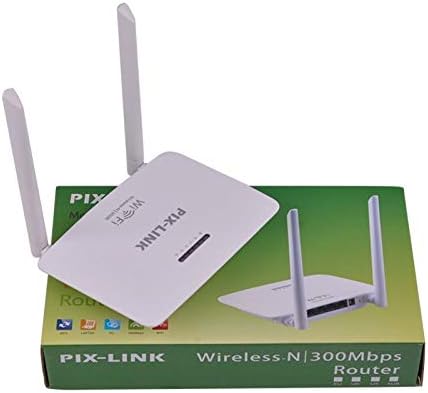
Image 3.1: The PIX-LINK LV-WR07 Wireless Router shown with its retail packaging, indicating the product as it appears in the box.

Image 3.2: The essential accessories included with the router: the power adapter for electrical connection and an Ethernet cable for wired network setup.
4. Panduan Pengaturan
4.1 Koneksi Perangkat Keras
- Nyalakan: Connect the power adapter to the router's power port and then plug the adapter into a standard electrical outlet. The power indicator light on the router should illuminate.
- Terhubung ke Sumber Internet: Connect one end of the provided Ethernet cable to your modem's LAN port or your internet service provider's (ISP) Ethernet wall jack. Connect the other end of the Ethernet cable to the WAN port (usually labeled differently or colored) on your PIX-LINK LV-WR07 router.
- Hubungkan Perangkat Anda:
- Koneksi Kabel: For initial setup or stable connection, connect your computer to one of the router's LAN ports (usually yellow) using another Ethernet cable.
- Koneksi Nirkabel: Locate the default Wi-Fi network name (SSID) and password printed on a label on the bottom or back of your router. Connect your wireless device (laptop, smartphone, tablet) to this network.
4.2 Konfigurasi Awal (Web Antarmuka)
After connecting the hardware, you can configure your router via a web peramban.
- Akses Pengaturan Router: Buka sebuah web browser (e.g., Chrome, Firefox, Edge) on a device connected to the router. In the address bar, type the default IP address (e.g.,
192.168.1.1or192.168.0.1) and press Enter. This IP address is usually found on the router's label. - Login: A login window will appear. Enter the default username and password (commonly
adminuntuk keduanya, atau seperti yang ditentukan pada label router). - Jalankan Panduan Pengaturan: Most routers have a Quick Setup Wizard. Follow the on-screen instructions to configure your internet connection type (e.g., DHCP, Static IP, PPPoE) and set up your new Wi-Fi network name (SSID) and a strong password.
- Simpan Pengaturan: After configuring, save your settings and restart the router if prompted.
5. Mengoperasikan Router Anda
5.1 Menghubungkan Perangkat ke Wi-Fi
Untuk menghubungkan perangkat ke jaringan Wi-Fi Anda:
- Di perangkat Anda, buka pengaturan Wi-Fi.
- Pilih nama jaringan Wi-Fi Anda (SSID) dari daftar.
- Enter the Wi-Fi password you set during configuration.
- Perangkat Anda sekarang seharusnya terhubung ke internet.
5.2 Menggunakan WPS (Wi-Fi Protected Setup)
WPS allows you to connect devices to your Wi-Fi network without entering the password manually.
- Press the WPS button on your router (usually located on the back or side, labeled 'WPS'). The WPS LED indicator will start blinking.
- Within two minutes, activate WPS on your client device (e.g., a wireless adapter, smartphone, or printer). Refer to your device's manual for specific instructions on activating WPS.
- Perangkat akan terhubung secara otomatis ke jaringan Wi-Fi Anda.
5.3 Wired Connections (LAN Ports)
The router provides multiple LAN ports for wired connections, offering stable and fast connectivity for devices like desktop computers, gaming consoles, and smart TVs.
- Simply connect an Ethernet cable from the device's Ethernet port to any available LAN port on the router.
- The corresponding LAN indicator light on the router should illuminate, indicating a successful connection.
6. Pemeliharaan
- Penempatan Optimal: Tempatkan router di lokasi sentral, jauh dari penghalang (dinding tebal, benda logam) dan sumber interferensi (oven microwave, telepon nirkabel) untuk memaksimalkan jangkauan Wi-Fi.
- Jaga kebersihan: Regularly clean the router's exterior with a soft, dry cloth. Ensure ventilation holes are not blocked to prevent overheating.
- Pembaruan Firmware: Periksa situs resmi PIX-LINK secara berkala. website for firmware updates. Updating firmware can improve performance, add new features, and fix bugs. Follow the instructions provided on the websitus dengan hati-hati.
- Mulai Ulang Secara Berkala: Memulai ulang router Anda setiap beberapa minggu dapat membantu membersihkan memorinya dan mengatasi masalah jaringan kecil, sehingga meningkatkan kinerja secara keseluruhan.
7. Penyelesaian masalah
7.1 Tidak Ada Koneksi Internet
- Check if the power adapter is securely connected and the router is powered on.
- Ensure the Ethernet cable from your modem/ISP is securely connected to the router's WAN port.
- Restart your modem and then your router. Wait a few minutes for them to fully boot up.
- Verifikasi pengaturan jenis koneksi internet Anda di router web interface (e.g., DHCP, Static IP, PPPoE).
- Hubungi Penyedia Layanan Internet (ISP) Anda untuk memastikan tidak ada gangguan layanan.tagdi daerah Anda.
7.2 Slow Wi-Fi Speed or Intermittent Connection
- Pindahkan router ke posisi yang lebih sentral, jauh dari penghalang dan gangguan.
- Pastikan firmware router Anda sudah yang terbaru.
- Reduce the number of devices connected to the network, especially those performing high-bandwidth activities.
- Try changing the Wi-Fi channel in the router's settings to avoid interference from neighboring networks.
7.3 Tidak Dapat Mengakses Router Web Antarmuka
- Ensure your device is connected to the router (either via Ethernet cable or Wi-Fi).
- Verify that you are typing the correct IP address (e.g.,
192.168.1.1) in the browser's address bar. - Bersihkan cache dan cookie browser Anda, atau coba cara lain web peramban.
- If you forgot the login credentials, you may need to perform a factory reset (see section 7.4).
7.4 How to Perform a Factory Reset
A factory reset will restore the router to its default settings, including the default Wi-Fi name and password, and login credentials.
- With the router powered on, locate the Reset button (often a small pinhole) on the back or bottom of the router.
- Use a paperclip or a thin object to press and hold the Reset button for about 5-10 seconds until the router's lights flash or change behavior.
- Release the button and wait for the router to restart. You will then need to reconfigure it using the initial setup steps.
8. Spesifikasi Teknis
| Fitur | Keterangan |
|---|---|
| Merek | Pix-link |
| Model | LV-WR07 |
| Kecepatan Nirkabel | 300 Megabit Per Detik (Mbps) |
| Antena | 2 Antena Eksternal |
| Jumlah Pelabuhan | 5 (1 WAN, 4 LAN) |
| Teknologi Konektivitas | Wi-Fi, LAN |
| Fitur Khusus | WPS (Pengaturan Terlindungi Wi-Fi) |
| Perangkat yang Kompatibel | Gaming Consoles, Tablets, Smart Televisions |
9. Informasi Garansi
PIX-LINK products are designed for reliability and performance. For specific warranty terms and conditions, please refer to the warranty card included with your product or visit the official PIX-LINK websitus. Simpan struk pembelian Anda sebagai bukti pembelian untuk klaim garansi.
10. Dukungan Pelanggan
If you encounter any issues that are not covered in this manual or require further assistance, please contact PIX-LINK customer support. You can usually find contact information (phone number, email, or support portal) on the official PIX-LINK websitus atau pada kemasan produk.
Sebelum menghubungi dukungan, harap siapkan informasi berikut:
- Product Model: LV-WR07
- Serial Number (found on the product label)
- Penjelasan mendetail tentang masalah yang Anda alami
- Steps you have already taken to troubleshoot