
1. Plis paseview
The GetPairr Vista 11-inch Portable Display Audio Android Navigation System is designed to enhance your in-car entertainment and navigation experience. Featuring a built-in Android system, it supports wireless connectivity for popular smartphone integration platforms and offers versatile audio output options.
Karakteristik kle:
- Integrated Android System: Equipped with a 4-core CPU, 2GB RAM, and 32GB ROM, allowing direct access to streaming applications like YouTube, Netflix, and Spotify via Wi-Fi tethering.
- CarPlay san fil/Android Auto: Seamlessly connect your smartphone via Bluetooth for wireless access to navigation, music, messaging, and calls, eliminating cable clutter.
- Smart Split Screen (PIP Function): The 11-inch wide display supports a 5:5 split-screen ratio, enabling simultaneous viewing of navigation and other Android applications.
- Dual Bluetooth Connectivity: Allows simultaneous connection to your smartphone for input and your car's audio system for wireless output to car speakers.
- Ekspozisyon segondè rezolisyon: An 11-inch screen with 1920x720 resolution provides clear visuals for maps, videos, and applications, improving visibility and operational ease while driving.

2. Enstalasyon
2.1 Kontni pake a
Verifye ke tout atik yo prezan nan pakè a:
- Portable Display Audio Main Unit
- Kanpe
- AUX kab
- Cigarette Lighter Plug Adapter
- Manyèl Itilizatè (dokiman sa a)

2.2 Enstalasyon
- Monte inite a: Attach the provided stand to the main unit. Secure the stand to your dashboard using the 3M tape. Ensure the unit is placed in a location that does not obstruct your view oubyen entèfere ak kondwi a.
- Koneksyon pouvwa: Connect the cigarette lighter plug adapter to the main unit's 5V power cable. Insert the cigarette lighter plug into your vehicle's accessory socket. The unit supports both 12V and 24V vehicle systems.
- Premye pouvwa sou: Once connected, the unit will power on automatically when the vehicle's ignition is turned on.


3. Operasyon Enstriksyon
3.1 Android System and App Usage
The GetPairr Vista unit runs on an Android operating system, allowing you to install and use various applications.
- Koneksyon Wi-Fi: To access online services and download apps, connect the unit to a Wi-Fi network. This can be done via your smartphone's tethering function or an in-car Wi-Fi hotspot.
- Enstalasyon aplikasyon an: Use the pre-installed app store or other compatible methods to download and install applications like YouTube, Netflix, Spotify, etc.
- Navigasyon: Utilize navigation apps directly on the unit or through connected CarPlay/Android Auto.

3.2 Wireless CarPlay / Android Auto Connection
Connect your smartphone wirelessly to access CarPlay or Android Auto features.
- Peyaj: On your smartphone, enable Bluetooth and search for the GetPairr Vista unit. Pair the devices.
- Koneksyon otomatik: Once paired, CarPlay or Android Auto will automatically connect when the unit powers on.
- Fonksyonalite: Access your phone's navigation, music, messages, and make calls directly from the unit's display.
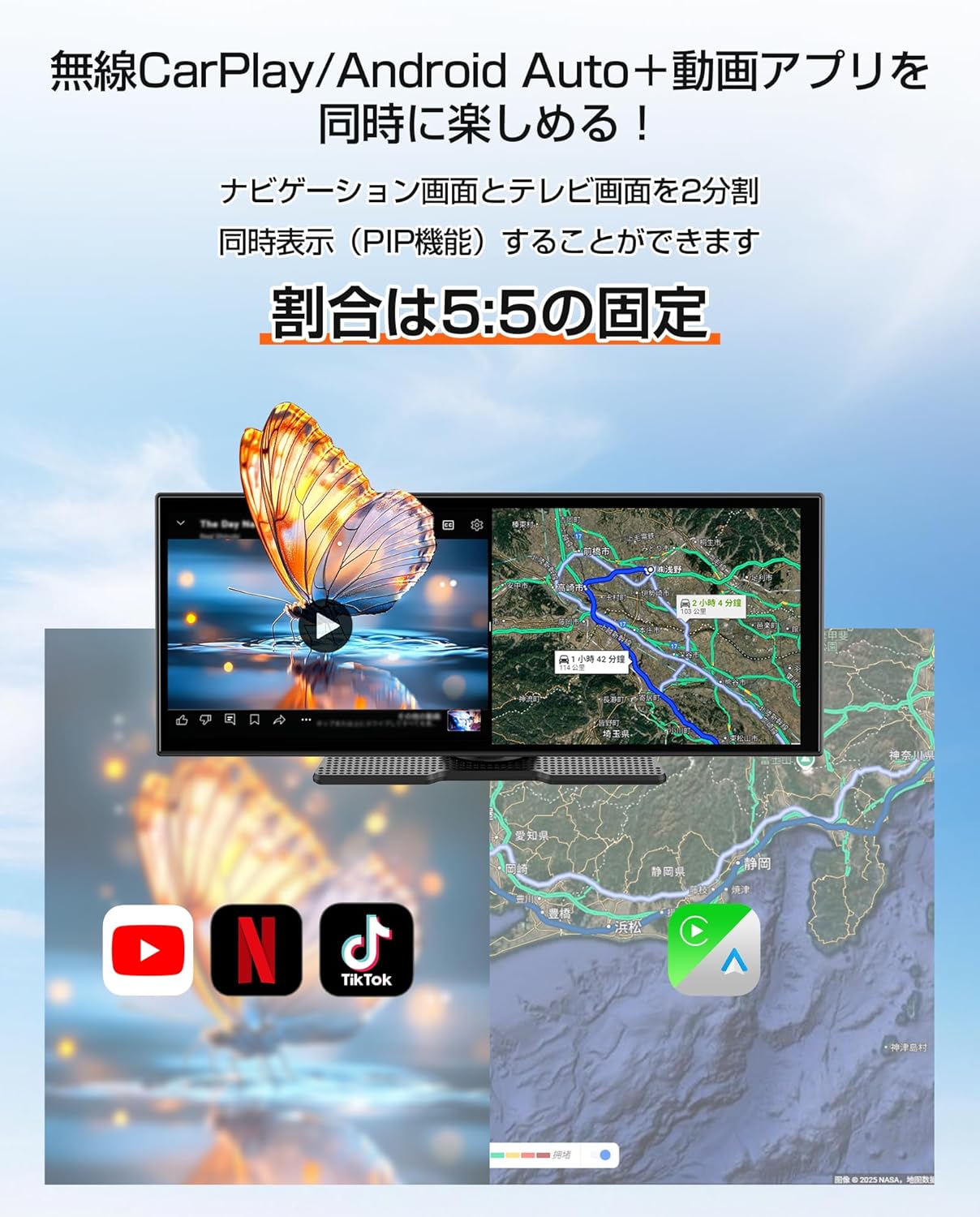
3.3 Split Screen Function (PIP)
The 11-inch display supports a 5:5 split-screen mode, allowing two applications to run side-by-side.
- Aktivasyon: Refer to the on-screen interface for activating split-screen mode.
- Itilizasyon: Pou egzanpample, display navigation on one half (via CarPlay/Android Auto) and a video streaming app (via the built-in Android system) on the other.

3.4 Opsyon Sòti Odyo
The unit offers multiple ways to output audio to your car's speakers.
- Doub Bluetooth: The unit can receive audio from your smartphone via Bluetooth and transmit it to your car's audio system (if it supports Bluetooth audio input).
- AUX Kab: Connect the provided AUX cable from the unit to your car's AUX input for a wired audio connection.
- FM emetris: The unit can transmit audio via an FM frequency, which you can tune into on your car's radio.
- Oratè entegre: The unit has a small built-in speaker for basic audio output. For optimal sound quality, connecting to your car's audio system is recommended.

4. Antretyen
4.1 Netwayaj
To maintain the display's clarity and unit's appearance:
- Siye ekran an dousman avèk yon twal mou ki pa gen pousyè. Pou tach ki difisil pou retire, siye l yon ti kras.ampSiye twal la avèk dlo oswa yon pwodui netwayaj ki san danje pou ekran.
- Avoid using abrasive cleaners, solvents, or aerosol sprays directly on the unit.
- Kenbe pò yo pwòp san pousyè ak debri.
4.2 Depo
Lè w pa itilize li pou yon bon bout tan:
- Dekonekte inite a soti nan sous pouvwa a.
- Sere aparèy la nan yon kote ki fre epi sèk, lwen limyè solèy dirèk ak tanperati ekstrèm.
NAN. Depanaj
If you encounter issues with your GetPairr Vista unit, refer to the following common solutions:
- Pa gen pouvwa: Ensure the cigarette lighter adapter is securely plugged into both the unit and the vehicle's accessory socket. Check if the vehicle's accessory socket is receiving power.
- Pa gen son: Verify the audio output method selected (Bluetooth, AUX, FM). Ensure your car's audio system is set to the correct input source. Adjust volume on both the unit and your car's audio system.
- CarPlay/Android Auto pa konekte: Ensure Bluetooth is enabled on your smartphone and the unit. Try unpairing and re-pairing the devices. Check for any software updates for your smartphone or the unit.
- Slow Performance/App Freezing: Close unused applications. Ensure a stable Wi-Fi connection for online activities. Restart the unit if necessary.
- Ekran an pa reponn: Perform a soft reset by holding the power button (if available) or disconnecting and reconnecting power.
Si pwoblèm yo pèsiste, tanpri kontakte sèvis kliyan.
6. Espesifikasyon
| Karakteristik | Detay |
|---|---|
| Gwosè ekran | 11 pous |
| Kalite ekspozisyon | LCD |
| Rezolisyon | 1920x720 |
| Sistèm operasyon | Android, Wireless Apple CarPlay, Wireless Android Auto |
| CPU | 4-nwayo |
| RAM | 2GB |
| ROM | 32GB |
| Koneksyon | Bluetooth, USB, Wi-Fi |
| Audio Sòti Mode | Stereo |
| Kalite aliye | 3M tep |
| Dimansyon pwodwi | 26 cm (L) x 2.7 cm (W) x 10.5 cm (H) |
| Pwa | 1 kg |
| Antre pouvwa | DC 12V/24V (via cigarette lighter adapter) |
| Konpozan ki enkli | AUX Cable, Cigarette Plug Adapter, Portable Display Audio Main Unit, User Manual |
7. Garanti & Sipò
7.1 Enfòmasyon sou Garanti
The GetPairr Vista unit comes with a Garanti manifakti 1 zan from the date of purchase. In the event of any defects or malfunctions, the manufacturer offers exchange or refund services.
7.2 Sipò pou Kliyan
For inquiries or support, please contact us via the official LINE account: @getpairr.