
1. Uvod
This manual provides essential information for setting up, operating, maintaining, and troubleshooting your HP Chromebook 14a-ne1013dx. This device is designed for productivity and entertainment, featuring a reliable Intel Celeron N4500 processor, a 14-inch HD display, and the Chrome OS operating system.
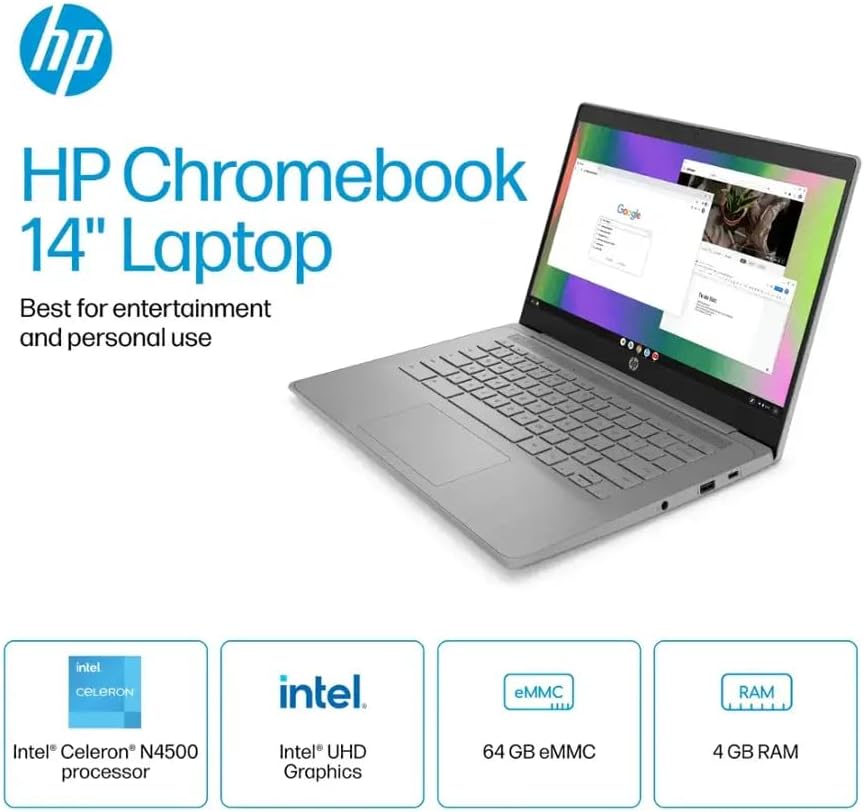
Slika 1.1: HP Chromebook 14a-ne1013dx overview, highlighting its core components: Intel Celeron N4500 processor, Intel UHD Graphics, 64GB eMMC storage, and 4GB RAM.
2. Postavljanje
2.1 Raspakiranje i početni pregled
Pažljivo izvadite sve komponente iz pakiranja. Provjerite jesu li sve dolje navedene stavke prisutne i neoštećene.

Slika 2.1: Items included in the box: HP Chromebook 14-inch Laptop, 45W USB Type-C power adapter, and setup instructions.
Što je u kutiji:
- HP Chromebook 14-inch Laptop (Model: 14a-ne1013dx)
- 45W USB Type-C Power Adapter
- Upute za postavljanje
- Integriran Webkamera
2.2 Uključivanje i početna konfiguracija
- Connect the 45W USB Type-C power adapter to the Chromebook and a power outlet.
- Open the laptop lid. The Chromebook should power on automatically. If not, press the power button located on the keyboard.
- Follow the on-screen prompts to select your language, connect to a Wi-Fi network, and sign in with your Google account. A Google account is required to use Chrome OS.
3. Upravljanje Chromebookom
3.1 Chrome OS Basics
Your HP Chromebook runs on Chrome OS, a lightweight operating system designed for speed, simplicity, and security. It integrates seamlessly with Google services and provides access to a wide range of web-based applications and Android apps.

Slika 3.1: Chrome OS security features, including built-in virus protection and automatic updates, ensuring a secure and efficient user experience.
3.2 Prikaz i multimedija
The 14-inch HD (1366 x 768) micro-edge, anti-glare display provides clear visuals for work and entertainment. Dual speakers enhance the audio experience.

Slika 3.2: The 14-inch micro-edge display is ideal for streaming and multimedia consumption, allowing multiple applications to be viewizd. istovremeno.
3.3 Portovi i povezivost
Your Chromebook is equipped with various ports for connecting peripherals and external displays.

Slika 3.3: Port layout of the HP Chromebook 14a-ne1013dx, including HDMI 1.4b, USB Type-A, USB Type-C, and a headphone/microphone combo jack.
- 1x SuperSpeed USB 3.1 Type-C: Za prijenos podataka, napajanje i prikaz na zaslonu.
- 2x SuperSpeed USB 3.0 Type-A: Za spajanje USB uređaja poput miševa, tipkovnica i vanjske memorije.
- 1x HDMI 1.4: Za spajanje na vanjske monitore ili televizore.
- 1x Kombinacija slušalica/mikrofona: Za audio ulaz i izlaz.
Wireless connectivity includes Wi-Fi (802.11a/b/g/n/ac) and Bluetooth for connecting to wireless networks and accessories.
4. Održavanje
4.1 Cleaning Your Chromebook
- Zaslon: Lagano koristite meku krpu koja ne ostavlja dlačice dampened with water or a screen cleaner specifically designed for electronics. Do not spray cleaner directly onto the screen.
- Tipkovnica i kućište: Koristite meku, suhu krpu. Za tvrdokornu prljavštinu, laganoamp Može se koristiti krpa. Izbjegavajte jake kemikalije ili abrazivne materijale.
- Priključci: Ensure ports are free of dust and debris. Use compressed air if necessary, holding the can upright to prevent liquid propellant from spraying.
4.2 Njega baterija
- Kako biste maksimalno produžili vijek trajanja baterije, izbjegavajte ekstremne temperature.
- Preporučuje se povremeno isprazniti bateriju ispod 20%, a zatim je potpuno napuniti.
- The Chromebook supports HP Fast Charge for quick recharging.
5. Rješavanje problema
5.1 Uobičajeni problemi i rješenja
| Izdati | Moguće rješenje |
|---|---|
| Chromebook does not power on. | Ensure the power adapter is securely connected to both the Chromebook and a working power outlet. Try a different outlet. If the battery is completely drained, it may take a few minutes to show signs of charging. |
| Ne mogu se spojiti na Wi-Fi. | Check if Wi-Fi is enabled in Chrome OS settings. Restart your router and modem. Verify the Wi-Fi password. Try connecting to a different network if available. |
| Vanjski zaslon nije otkriven. | Ensure the HDMI cable is securely connected to both the Chromebook and the external display. Check the input source on your external display. Try a different HDMI cable or port if available. |
| Spore performanse. | Close unnecessary browser tabs and applications. Clear browser cache and cookies. Ensure Chrome OS is up to date. Consider a powerwash (factory reset) as a last resort, backing up your data first. |
| Webkamera ne radi. | Ensure no physical cover is obstructing the webcam. Check privacy settings in Chrome OS to ensure applications have permission to access the camera. Restart the Chromebook. |
6. Specifikacije
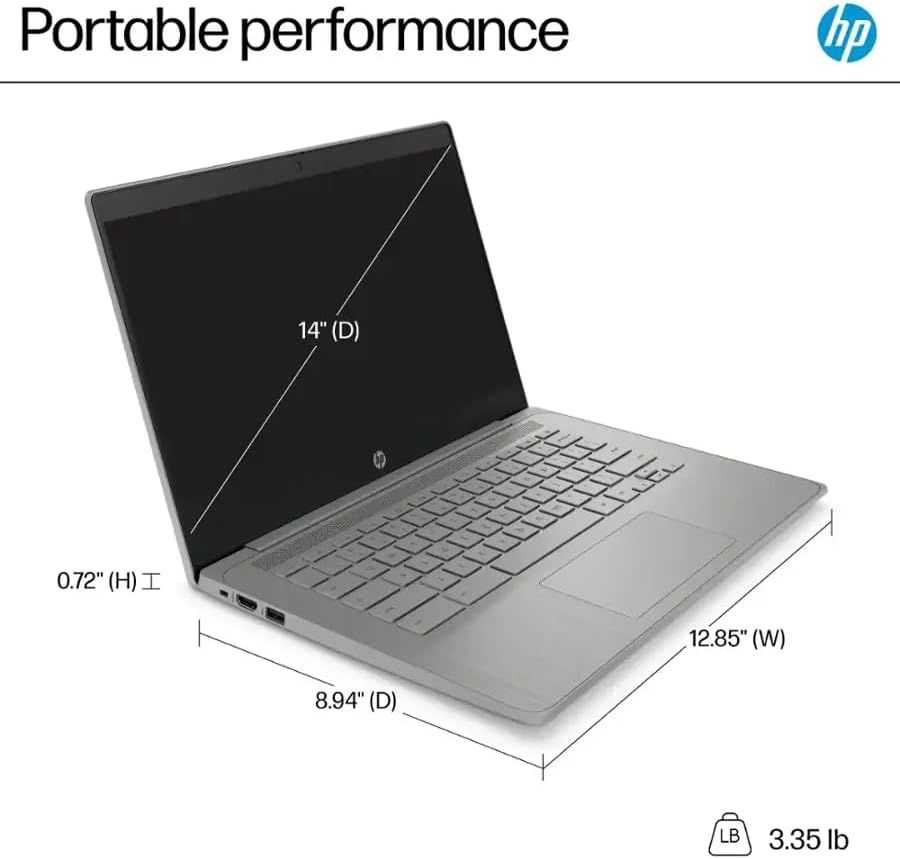
Slika 6.1: Physical dimensions and weight of the HP Chromebook 14a-ne1013dx.
| Značajka | Detalj |
|---|---|
| Naziv modela | 14a-ne1013dx |
| Procesor | Intel Celeron N4500 (1.1 GHz, up to 2.8 GHz burst) |
| Grafika | Intel UHD grafika (integrirana) |
| Prikaz | 14-inch diagonal, HD (1366 x 768), micro-edge, anti-glare, 250 nits, 60Hz LCD |
| OVAN | 4 GB DDR4 SDRAM |
| Skladištenje | 64 GB eMMC |
| Operativni sustav | OS Chrome |
| Bežično povezivanje | 802.11a/b/g/n/ac Wi-Fi, Bluetooth |
| luke | 1x SuperSpeed USB 3.1 Type-C, 2x SuperSpeed USB 3.0 Type-A, 1x HDMI 1.4, 1x Headphone/microphone combo |
| Ugrađeni mediji | Webkamera |
| Dimenzije (D x Š x V) | 32.64 cm x 22.71 cm x 1.83 cm |
| Težina | 3.35 lb (1.52 kg) |
| Boja | Sivo |
| Posebne značajke | Chrome OS, HP Fast Charge |
7. Informacije o jamstvu
Your HP Chromebook 14a-ne1013dx comes with a jednogodišnje ograničeno jamstvoZa potpune uvjete i odredbe pogledajte jamstvenu dokumentaciju koja je priložena uz vaš proizvod. Sačuvajte dokaz o kupnji za slučaj zahtjeva za jamstvo.
8. Podrška
Za tehničku pomoć, preuzimanje upravljačkih programa ili dodatne informacije o proizvodu posjetite službenu HP-ovu podršku website. You can typically find support resources by searching for your model number (14a-ne1013dx) on the HP support portal.
HP podrška Webstranica: www.hp.com/support


