1. Uvod
The Delton F75 Foldable Bluetooth Keyboard with Touchpad is designed for portability and convenience, offering a full-sized typing experience in a compact form factor. This manual provides detailed instructions for setting up, operating, and maintaining your keyboard to ensure optimal performance across various devices.
2. Sadržaj paketa
Molimo provjerite paket za sljedeće stavke:
- 1 x Delton F75 Foldable Bluetooth Keyboard with Touchpad
- 1 x USB-C kabel za punjenje
- 1 x Korisnički priručnik (ovaj dokument)
3. Proizvod je gotovview
Familiarize yourself with the key components of your Delton F75 keyboard.
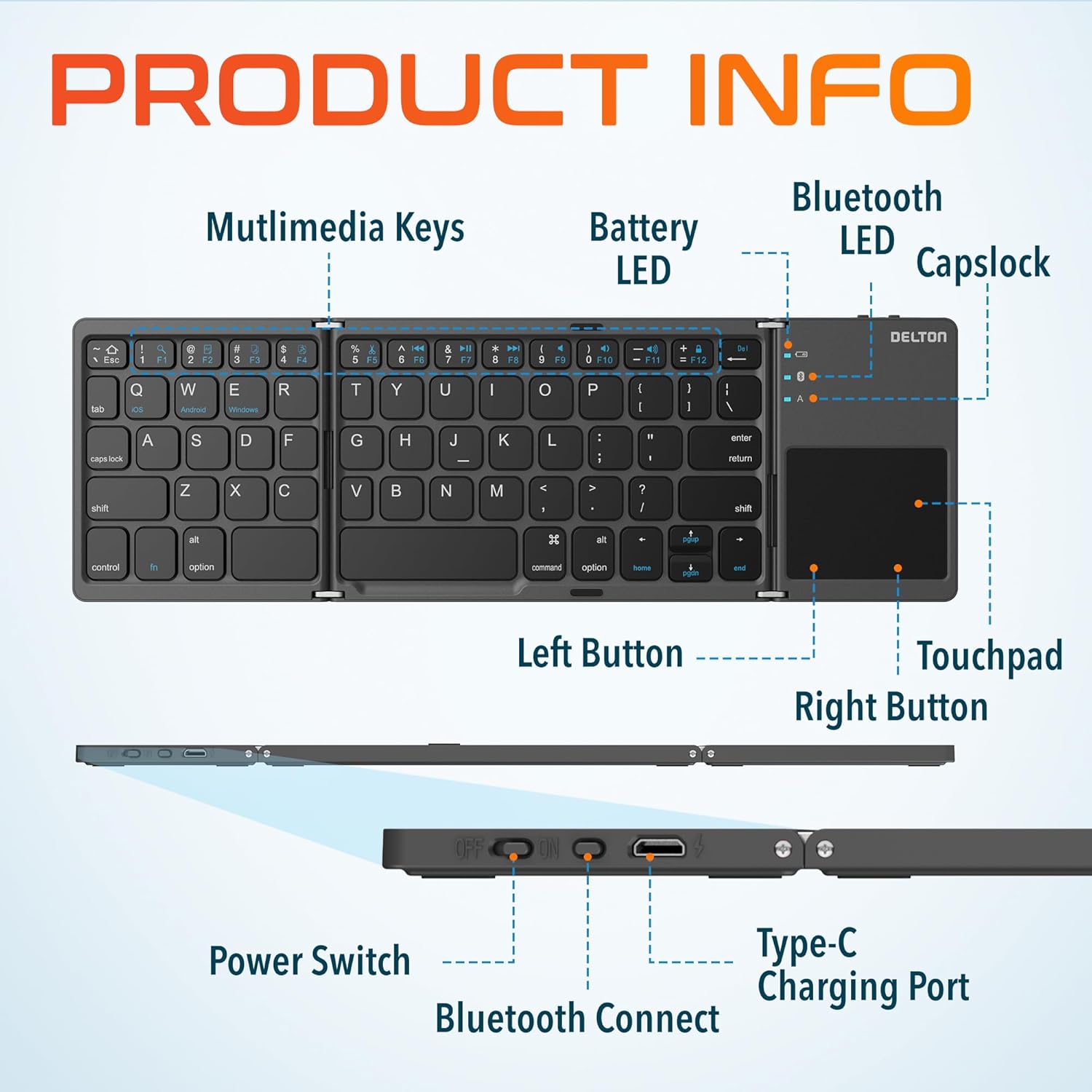
Image: Diagram showing multimedia keys, battery LED, Bluetooth LED, Capslock, Left/Right Touchpad Buttons, Touchpad, Power Switch, Bluetooth Connect button, and Type-C Charging Port.
- Multimedijske tipke: Access various functions like volume control, media playback, and more.
- LED za bateriju: Pokazuje status baterije.
- Bluetooth LED: Označava status Bluetooth veze.
- Capslock Indicator: Shows when Caps Lock is active.
- Touchpad: For navigation and gesture control.
- Left/Right Touchpad Buttons: Function as mouse clicks.
- Prekidač za napajanje: Uključuje ili isključuje tipkovnicu.
- Bluetooth tipka za povezivanje: Pokreće način uparivanja putem Bluetootha.
- Priključak za punjenje Type-C: For recharging the keyboard's internal battery.
4. Postavljanje i povezivanje
4.1 Početno punjenje
Before first use, fully charge the keyboard. Connect the provided USB-C charging cable to the keyboard's Type-C port and the other end to a USB power source (e.g., computer, wall adapter). The Battery LED will indicate charging status.
4.2 Uključivanje/isključivanje
To power on the keyboard, slide the Power Switch to the "ON" position. To power off, slide it to the "OFF" position.
4.3 Bluetooth uparivanje
- Unfold the keyboard completely. This action often automatically powers on the device.
- Pritisnite tipku Gumb za Bluetooth povezivanje (usually indicated by a Bluetooth icon) to enter pairing mode. The Bluetooth LED will blink, indicating it is discoverable.
- On your device (PC, laptop, tablet, smartphone), go to Bluetooth settings.
- Tražiti available Bluetooth devices and select "Delton F75" (or similar name).
- Follow any on-screen prompts to complete the pairing process. The Bluetooth LED will stop blinking and remain solid once connected.
The keyboard supports seamless integration across Windows, macOS, iOS, and Android operating systems.

Image: Visual representation of the Delton F75 keyboard's compatibility with various tablets, phones, and laptops/PCs, including iPad, Galaxy Tab, iPhone, Galaxy, Google Pixel, OnePlus, iMac, Macbook, Dell, and HP, and operating systems like Windows, macOS, and iOS.
5. Upute za rad
5.1 Tipkanje
The Delton F75 features an optimized key layout and scissor switch keys for comfortable and precise typing. The quiet keys minimize disturbance, making it suitable for various environments.
5.2 Korištenje dodirne podloge
The integrated touchpad supports full gesture functions, eliminating the need for an additional mouse. It includes left and right-click buttons for standard mouse operations.

Image: Close-up of the Delton F75 keyboard's sensitive touchpad, highlighting its gesture control capabilities with a finger touching the pad.
Refer to your device's operating system documentation for specific touchpad gestures supported.
5.3 Multimedijske tipke
The keyboard includes dedicated multimedia keys. These keys often require pressing the Fn (Function) key simultaneously with the desired multimedia key to activate their secondary functions (e.g., volume up/down, play/pause).
6. Punjenje i vijek trajanja baterije
The Delton F75 keyboard is equipped with a rechargeable battery that provides up to 50 hours of continuous use on a single charge. When the battery is low, the Battery LED will indicate this status. Connect the keyboard to a power source using the USB-C cable for recharging.
7. Održavanje
- Tipkovnicu održavajte čistom brisanjem mekom, suhom krpom.
- Izbjegavajte izlaganje tipkovnice ekstremnim temperaturama, vlazi ili izravnoj sunčevoj svjetlosti.
- Ne koristite jake kemikalije ili abrazivna sredstva za čišćenje.
- Store the keyboard in its folded, compact state when not in use to protect the keys and touchpad.
8. Rješavanje problema
- Tipkovnica se ne povezuje putem Bluetootha: Ensure the keyboard is charged and powered on. Make sure Bluetooth is enabled on your device and the keyboard is in pairing mode (Bluetooth LED blinking). Try unpairing and re-pairing the device.
- Tipke ne reagiraju: Check if the keyboard is powered on and connected. Ensure the battery is not depleted.
- Dodirna ploha ne radi: Verify the keyboard is connected. Some devices may require specific settings for external touchpads.
- Povremena veza: Ensure there are no obstructions between the keyboard and your device. Move closer to your device. Avoid strong electromagnetic interference.
- Typing lag: This can sometimes be due to interference or a low battery. Try recharging the keyboard or moving closer to your device.
9. Specifikacije
| Značajka | Specifikacija |
|---|---|
| Broj modela | F75 |
| Dimenzije proizvoda (rasklopljeno) | 11.9 x 6 x 0.7 inča (D x Š x V) |
| Težina artikla | 8.4 unci |
| Tehnologija povezivanja | Bluetooth |
| Kompatibilni uređaji | Laptop, PC, Tablet, Smartphone (Windows, macOS, iOS, Android) |
| Opis tipkovnice | Ergonomic, Scissor Switch Keys |
| Posebne značajke | Foldable, Portable, Touchpad, Rechargeable, Hotkeys and Media Keys, Lightweight, Compact |
| Trajanje baterije | Do 50 sati kontinuirane upotrebe |
| Priključak za punjenje | Tip-C |
| Materijal | Plastika i metal |
| Boja | Crna |
10. Jamstvo i podrška
For warranty information or technical support, please refer to the documentation included with your purchase or visit the official Delton webstranicu. Sačuvajte dokaz o kupnji za slučaj reklamacije.