


Flydigi Vader 3/3 Pro Game Controller

INSTRUCTIONS FOR USE
Innovative Force-switchable Trigger
Toggle the back gear switch to switch the trigger gear
- Linear gear: precise control, 9mm long key travel, Hall stepless magnetic induction, precision throttle
- Microswitch gear: fast trigger, 0.3mm ultra-short key travel, mouse-level micro motion response, easy continuous shooting

Flydigi Space Station For More Customize Setting
Visit Our official website www.flydigi.com download “Flydigi Space Station”, you can customize buttons, macros, body feeling, trigger and other functions.
- The trigger vibrates
Switch trigger vibration, set vibration mode - Somatosensory mapping
The motion can be mapped to a joystick/mouse, making shooting games more accurate - Joystick adjustment
Set the center dead band and sensitivity curve - Light conditioning
Set up a variety of light effects, adjust color and brightness
Connect With Computer
Wireless dongle connection
- Plug the dongle into the computer’s USB port
- Dial the back gear to
 , press the
 button, the controller will be connected automatically, and the first indicator light is solid white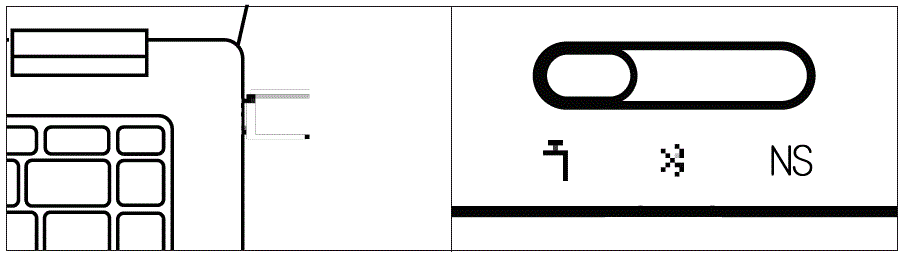
 If the indicator is blue, press and hold the
  key at the same time until the indicator turns white
- The next time you use it, press the button once, and the controller will be connected automatically
Wired connection
Connect the computer and the controller through the USB cable, and the indicator light is solid white to indicate that the connection is successful
BT connection
Turn the back mode gear to and connect the Xbox Wireless Controller to your computer’s BT Setting
Connect to Switch
- Click the controller icon on the Switch homepage to enter [Change grip/order]
- Shift the back gear to NS

- Press the button, the controller will be connected automatically, and the first indicator light is solid blue
- The next time you use it, press the button once and the controller will automatically connect

In Switch mode, the key and key-value mapping relationship is as follows
| A | B | X | Y | SELECT | START | |
O |
| B | A | Y | X | – | + | home page | Screenshot |
Connect an Android/iOS device
- Shift the back mode gear to
- Press the button once to wake up the controller

- Turn on the device’s Bluetooth, connect to the Xbox Wireless Controller, and the controller indicator
- The next time you use it, press the button once and the controller will automatically connect

Basic operations
- Power on: Press the [Home] button once
- Power off: switch back gear; After 5 minutes of no operation, the controller will automatically turn off
- Low battery: The second LED flashes red
- Charging: The second indicator is solid red
- Fully charged: The second indicator is solid green
Specification
| mode | Applicable Platforms | Light | Connection method | System requirements |
| |
PC | Long press +X to switch to XInput mode, the indicator is white Long press +A to switch to D Input mode, the indicator is blue | Dongle/ Wired | Win 7 and Above |
| |
PC/Android/iOS | BT/Wired | Win 7 and Above Android 10 and Above iOS 14 and Above | |
| NS | Switch | Blue | BT/Wired | Switch |
- X Input mode: suitable for the vast majority of games that natively support controllers
- D Input mode: For emulator games that natively support controllers
- D Input mode: For emulator games that natively support controllers
- Wireless RF: Bluetooth 5.0
- Service distance: less than 10 meters
- Battery information: rechargeable lithium-ion battery, battery capacity 800mAh, charging time 2 hours, charging voltage 5V, charging current 800mA
- Operating current: less than 45mA when in use, less than 45μA in standby
- Temperature range: 5 °C ~ 45 °C use and storage
Appearance

 The name and content of harmful substances in the product
| Toxic or Hazardous Substances and Elements | |||||
| Part Name Pb | Hg | Cd | Cr | PBB | PBDE |
| PCB Board | O | O | O | O | O |
| Shells | O | O | O | O | O |
| Packaging | O | O | O | O | O |
| Wires | O | O | O | O | O |
| Polymer battery | O | O | O | O | O |
| Silicone | O | O | O | O | O |
| Small structural parts such as metal and tape | O | O | O | O | O |
This form has been prepared in accordance with the provisions of SJ/T 11364
- O Indicates that the content of the hazardous substance in all homogeneous materials of this part is within the limit specified in GB/T 26572-2011 Require the following
- X Indicates that the content of the hazardous substance in at least one homogeneous material of the component exceeds the provisions of GB/T 26572-2011 The limited requirements
Scan QR code to read the user manual
Frequently Asked Questions
How to upgrade the controller firmware?
Install the Feizhi space station on the computer, or install the Feizhi game hall on the mobile phone, and upgrade the firmware according to the software boot
Documents / Resources
 |
Flydigi Vader 3/3 Pro Game Controller [pdf] User Manual Vader 3, Vader 3 Pro, Vader 3-3 Pro Game Controller, Pro Game Controller, Game Controller, Controller |