
1. Gabatarwa
Thank you for choosing the OOOUSE 1200Mbps Dual-Band WiFi Repeater. This device is designed to extend your existing wireless network coverage, eliminate Wi-Fi dead zones, and provide a strong, reliable internet connection throughout your home or office. It supports both 2.4GHz and 5GHz bands, offering high-speed data transfer rates up to 1200Mbps. This manual will guide you through the setup, operation, and troubleshooting of your new WiFi repeater.

Figure 1: OOOUSE 1200Mbps Dual-Band WiFi Repeater
2. Kayan Samfura
- Dual-Band High Speed: Supports 2.4GHz (up to 300Mbps) and 5GHz (up to 1200Mbps) for a combined speed of 1200Mbps, ensuring fast and stable connections.
- Faɗakarwa: Equipped with four 5dBi omni-directional antennas to boost WiFi signal and eliminate dead zones, covering an area of 80 to 100 square meters.
- Ayyukan 3-in-1: Operates as a WiFi Repeater, Access Point (AP), or Router, offering versatile networking solutions.
- Yarda da Duniya: Works with 99% of standard WiFi routers and all WiFi-enabled devices, including PCs, laptops, smartphones, tablets, Smart TVs, and TV boxes.
- Ethernet Ports: Features two RJ45 network ports for wired connections, allowing the repeater to function as a wireless access point for wired devices.
- Saita Sauƙi: Simple configuration via web interface or WPS button for quick and hassle-free installation.

Figure 2: High-Performance Antennas and Speed

Figure 3: Signal Coverage Extension

Figure 4: 3-in-1 Operating Modes
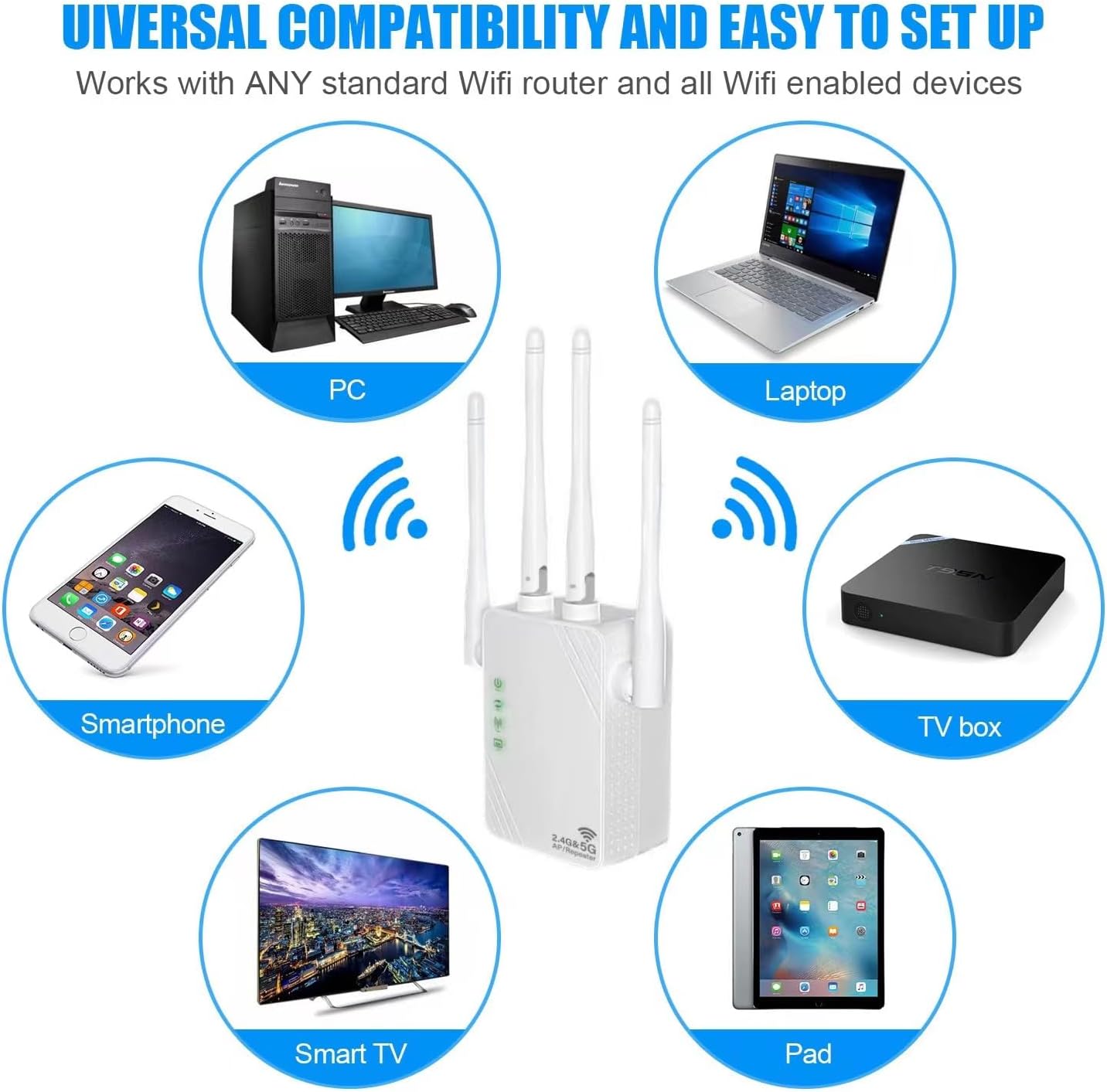
Figure 5: Universal Device Compatibility

Figure 6: Ethernet Ports and Controls
3. Abubuwan Kunshin
Upon opening the package, please verify that you have received the following items:
- OOOUSE 1200Mbps Dual-Band WiFi Repeater (XL-Z04)
- Jagorar mai amfani (wannan takaddar)
4. Jagorar Saita
4.1 Kunna Wutar Farko
- Plug the WiFi Repeater into an electrical outlet near your main router.
- Wait for the Power LED indicator to light up, indicating the device is powered on.
4.2 Configuring Repeater Mode via Web Interface (Recommended)
This method provides full control over settings and is recommended for optimal performance.
- Connect to Repeater's Network: On your smartphone, tablet, or computer, go to your Wi-Fi settings. Find and connect to the network named "Repeater_2.4G_XXXXXX" or "Repeater_5G_XXXXXX" (the XXXXXX will be part of the device's MAC address). No password is required for the initial connection.
- Shiga Web Interface: Bude a web browser (e.g., Chrome, Firefox, Safari) and type
192.168.11.1a cikin adireshin adireshin, sannan danna Shigar. - Shiga: If prompted, the default username and password are usually
admin(or check the label on the device). - Zaɓi Yanayin: On the setup page, select "Repeater Mode" (sometimes labeled "WISP Mode").
- Duba hanyoyin sadarwa: The repeater will scan for available Wi-Fi networks. Select your home Wi-Fi network (SSID) from the list.
- Shigar da kalmar wucewa: Enter the Wi-Fi password for your home network. You can choose to keep the same SSID for the extended network or create a new one.
- Aiwatar da Saituna: Click "Apply" or "Finish" to save the settings. The repeater will restart.
- Sake haɗawa: Once the repeater restarts, reconnect your devices to the newly extended Wi-Fi network (either your original SSID or the new one you created).

Figure 7: Wireless Configuration via Smartphone/Tablet
4.3 Saitin WPS (Saitin da aka Kare Wi-Fi)
WPS offers a quick way to connect without accessing the web interface, but it may not be supported by all routers.
- Plug the repeater into an electrical outlet.
- Danna maɓallin WPS a kan babban na'urar sadarwa ta ku.
- Within two minutes, press the WPS/Reset button on the side of the OOOUSE WiFi Repeater.
- Wait for the indicator lights on the repeater to show a stable connection, indicating successful pairing.
5. Hanyoyin Aiki
The OOOUSE WiFi Repeater supports three main operating modes:
- Repeater Mode (WISP Mode): Extends the range of an existing wireless network. It connects to your main router wirelessly and rebroadcasts the signal, effectively expanding coverage.
- Yanayin Shiga (AP): Converts a wired network connection into a wireless one. Connect the repeater to your router via an Ethernet cable, and it will create a new Wi-Fi hotspot.
- Yanayin na'ura mai ba da hanya tsakanin hanyoyin sadarwa: Functions as a basic router, creating a new private network. This mode is typically used when you have a modem but no router, or if you want to create a separate network.
6. Kulawa
- Wuri: For optimal performance, place the repeater halfway between your router and the Wi-Fi dead zone. Avoid placing it near large metal objects, concrete walls, or other electronic devices that may cause interference.
- Tsaftacewa: Yi amfani da kyalle mai laushi da busasshe don tsaftace na'urar. Kada a yi amfani da masu tsaftace ruwa ko kuma masu fitar da iska.
- Sake saita Na'urar: If you encounter persistent issues or wish to reconfigure the device from scratch, you can perform a factory reset. With the device powered on, press and hold the WPS/Reset button for approximately 7-8 seconds until the indicator lights flash. The device will then revert to its factory default settings.
7. Shirya matsala
- No Internet Access After Setup:
- Ensure the repeater is successfully connected to your main router's Wi-Fi network. Check the signal indicator lights.
- Verify that the Wi-Fi password entered during setup was correct.
- Try restarting both your main router and the repeater.
- Perform a factory reset on the repeater and try the setup process again.
- Slow Speed or Weak Signal:
- Relocate the repeater closer to your main router, but still within the area where you need extended coverage.
- Ensure there are no major obstructions (thick walls, large appliances) between the repeater and your devices, or between the repeater and the main router.
- Duba ko akwai tsangwama daga wasu na'urorin lantarki (wayoyin hannu marasa waya, microwaves).
- Ensure your main router is providing a strong signal to the repeater.
- Ba za a iya shiga ba Web Shafin Gudanarwa:
- Ensure your device is connected to the repeater's Wi-Fi network (e.g., "Repeater_2.4G_XXXXXX").
- Verify that you are typing the correct IP address:
192.168.11.1. - Gwada amfani da wani daban web mai bincike.
- Temporarily disable any VPN or firewall software on your device.
- Saitin WPS ya kasa:
- Ensure your main router supports WPS.
- Make sure you press the WPS button on both devices within the two-minute window.
- Gwada web interface setup method instead.
8. Ƙayyadaddun bayanai
| Siffar | Bayani |
|---|---|
| Alamar | OOOUSE |
| Lambar Samfura | XL-Z04 |
| Tsarin Mara waya | 802.11ac (backward compatible with a/b/g/n/ax) |
| Yawan Canja wurin Bayanai | Har zuwa 1200 Mbps (300 Mbps don 2.4GHz, 1200 Mbps don 5GHz) |
| Maɗaukakin Mitar | 2.4 GHz, 5 GHz |
| Antenna | 4 x 5dBi Omni-directional Antennas |
| Tashoshi | 2 x RJ45 Ethernet Ports |
| Rage | 80 to 100 square meters |
| Na'urori masu jituwa | iPad, PC, Android devices, Smart TV, Laptops, TV boxes |
9. Garanti da Tallafawa
For warranty information and technical support, please refer to the purchase platform or contact the seller directly. Keep your proof of purchase for any warranty claims.