
1. Introdución
1.1 Produto superadoview
The DBIT AC1200 Dual Band Gigabit WiFi Router (Model T18-21K) is designed to provide wireless internet connectivity for home and small office environments. It supports dual-band operation (2.4GHz and 5GHz) and offers Gigabit Ethernet ports for wired connections. The router includes features such as MU-MIMO, Beamforming, and multiple operating modes to enhance network performance and coverage.
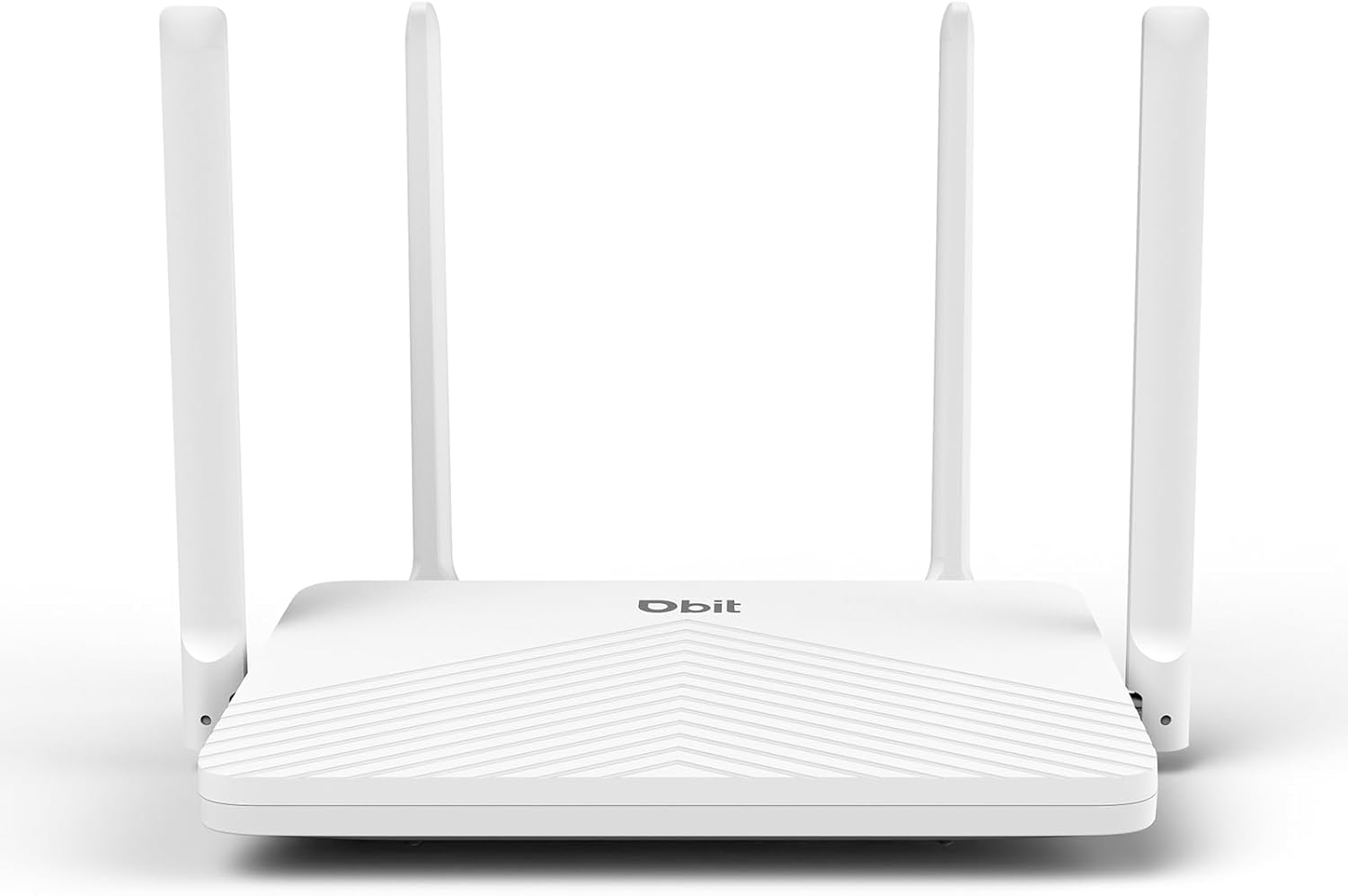
Figure 1: DBIT AC1200 WiFi Router
1.2 Características principais
- AC1200 Dual-Band WiFi: Provides wireless speeds up to 1200Mbps (300 Mbps on 2.4GHz and 867 Mbps on 5GHz). The 2.4GHz band handles general tasks, while the 5GHz band supports bandwidth-intensive activities like gaming or 4K video streaming.
- Portos Gigabit completos: Equipped with one Gigabit WAN port and three Gigabit LAN ports for high-speed internet plans and stable wired connections to devices such as smart TVs, gaming consoles, or PCs.
- Triple-Mode Flexibility: Functions as a Router, Repeater, or Bridge to suit various network requirements.
- Whole-Home Coverage with Beamforming: Four external 5dBi high-gain antennas and Beamforming technology focus Wi-Fi signals towards connected devices, improving coverage.
- Tecnoloxía MU-MIMO: Enables simultaneous communication with multiple devices, reducing network latency.
- Seguridade robusta: Features WPA2-PSK encryption and access control to protect the network and connected devices.
- Fácil configuración: Configuration is managed through an intuitive web user interface. WPS button for quick device connection.
- Compatibilidade universal: Compatible with major internet service providers (requires a functioning modem).
2. Contido do paquete
Verifica que todos os elementos estean presentes no teu paquete:
- DBIT AC1200 WiFi Router
- Adaptador de alimentación
- Cable Ethernet
- Guía de inicio rápido
3. Produto rematadoview (hardware)
3.1 Panel frontal
The front panel of the router typically features LED indicators that display the status of the power, internet connection, and wireless networks (2.4GHz and 5GHz).
3.2 Panel traseiro (portos e botóns)
The rear panel contains all the physical connection ports and control buttons:
- Botón RESET: Used to restore the router to factory default settings. Press and hold for approximately 5-10 seconds while the router is powered on.
- Botón WPS: For quickly connecting WPS-compatible devices to the wireless network without entering a password.
- Portos LAN (LAN1, LAN2, LAN3): Three Gigabit Ethernet ports for connecting wired devices such as computers, gaming consoles, or smart TVs.
- Porto WAN: One Gigabit Ethernet port for connecting to your modem or primary internet source.
- DC IN: Power input port for connecting the included power adapter.

Figure 2: Router Rear Panel with Ports and Buttons
4. Configuración inicial
4.1 Conexión do hardware
- Apagado: Disconnect power from your modem and router (if replacing an old one).
- Conectar o porto WAN: Connect one end of the provided Ethernet cable to the WAN port of the DBIT router and the other end to your modem's Ethernet port.
- Conectar enerxía: Connect the power adapter to the router's DC IN port and plug it into a power outlet.
- Encendido: Power on your modem first, wait for it to fully boot up (usually indicated by stable lights), then power on the DBIT router.
- Axuste da antena: Adjust the four external antennas for optimal signal reception.
4.2 Web Configuración da interface
After hardware connection, configure the router via its web interface:
- Conectar á wifi do router: On your computer or mobile device, connect to the default Wi-Fi network broadcast by the router. The default SSID and password are usually found on a label on the bottom of the router or in the Quick Start Guide.
- Acceso Web Interface: Abrir a web browser and enter the default login URL, typically
192.168.10.1, into the address bar. - Siga o asistente de configuración: O do router web interface will guide you through the initial setup process, including setting up your internet connection type, Wi-Fi network name (SSID), and password.
- Volver conectar: After configuration, reconnect your devices to the new Wi-Fi network using the updated SSID and password.

Figura 3: Web Management Setup Steps
5. Modos de funcionamento
The DBIT AC1200 router supports multiple operating modes to adapt to different network setups.
5.1 Modo enrutador
In Router Mode, the device acts as the primary internet gateway, connecting to your modem and distributing internet access to all connected wired and wireless devices. This is the default mode for most home networks.
5.2 Modo repetidor
Repeater Mode extends the coverage of an existing wireless network. The router connects wirelessly to your main router and re-broadcasts the signal, eliminating Wi-Fi dead zones.

Figure 4: Repeater Mode Configuration
5.3 Modo ponte
Bridge Mode allows the router to convert a wired network connection into a wireless one, or to connect two separate networks. When configured as a bridge, the device can provide wireless access to devices connected to a wired network, or extend a network segment.
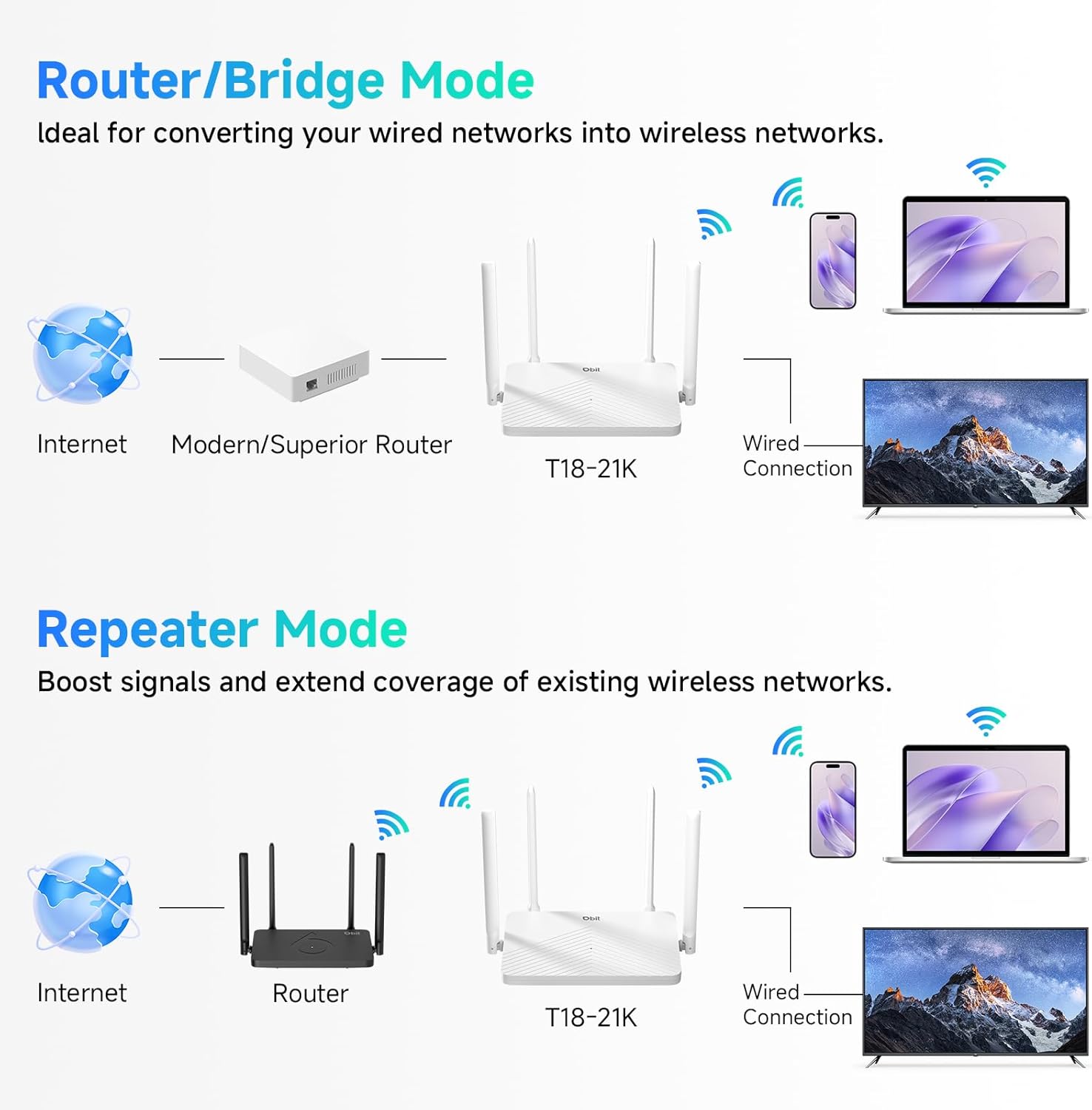
Figure 5: Router/Bridge Mode Setup
6. Funcións avanzadas
6.1 Dual-Band Wireless
The router operates on two distinct frequency bands: 2.4GHz and 5GHz. The 2.4GHz band offers broader coverage and better penetration through obstacles, suitable for general internet use. The 5GHz band provides higher speeds and lower latency, ideal for online gaming and high-definition video streaming.

Figure 6: Dual-Band Speed Distribution
6.2 Tecnoloxía MU-MIMO
Multi-User, Multiple-Input, Multiple-Output (MU-MIMO) technology allows the router to transmit data to multiple devices simultaneously, rather than sequentially. This improves network efficiency and reduces buffering when multiple devices are active on the network.

Figure 7: MU-MIMO Operation
6.3 Beamforming and Antennas
The router is equipped with four 5dBi high-gain antennas and utilizes Beamforming technology. Beamforming directs the Wi-Fi signal directly towards connected devices, improving signal strength and coverage, particularly in areas further from the router.

Figure 8: Beamforming Coverage
6.4 EasyMesh Functionality
The EasyMesh function allows for the creation of a seamless whole-home network. When multiple EasyMesh-compatible devices are used, they automatically select the best connection as you move around your home, ensuring consistent Wi-Fi coverage.

Figure 9: EasyMesh Network Coverage
6.5 Seguridade da rede
The router supports WPA2-PSK encryption to secure your wireless network. Access control features allow you to manage which devices can connect to your network, enhancing overall security.
6.6 Rede de convidados
A guest network feature allows you to provide separate Wi-Fi access for visitors, keeping your main network private and secure.
6.7 Control parental
Parental control features enable you to manage internet access times and block specific websites for connected devices, promoting a safer online environment.
7 Solución de problemas
- Sen acceso a Internet:
- Ensure your modem is working correctly and its internet indicator light is stable.
- Check that the Ethernet cable is securely connected between the modem's LAN port and the router's WAN port.
- Reinicia tanto o módem como o enrutador.
- Verifica a configuración da túa conexión a internet no router web interface.
- Sinal wifi débil ou zonas mortas:
- Adjust the router's antennas for optimal positioning.
- Relocate the router to a central location in your home, away from obstructions and interference sources (e.g., microwaves, cordless phones).
- Consider using Repeater Mode or adding another EasyMesh compatible device to extend coverage.
- Non se pode acceder aos enrutadores Web Interface:
- Asegúrate de que o dispositivo estea conectado á rede Wi-Fi do enrutador ou mediante un cable Ethernet a un porto LAN.
- Verify that you are entering the correct IP address (default is
192.168.10.1) in your browser. - Limpa a caché do teu navegador ou proba cun navegador diferente.
- If you have changed the router's IP address, use the new address. If forgotten, a factory reset may be necessary.
- Esqueciches o contrasinal da wifi ou o contrasinal de inicio de sesión:
- Perform a factory reset by pressing and holding the RESET button for 5-10 seconds while the router is powered on. This will revert all settings, including passwords, to their factory defaults.
8. Especificacións
| Característica | Detalle |
|---|---|
| Nome do modelo | Router WiFi AC1200 |
| Número de modelo do artigo | T18-21K |
| Dimensións do produto | 8.99 x 5.78 x 6.89 polgadas |
| Peso do elemento | 1.12 libras |
| Marca | DBIT |
| Fabricante | Shenzhen Dbit Network Equipment Co., Ltd. |
| Clase de banda de frecuencia | Dobre banda (2.4 GHz, 5 GHz) |
| Estándar de comunicación sen fíos | 802.11a, 802.11ac, 802.11b, 802.11g, 802.11n |
| Tecnoloxía de conectividade | Ethernet, Wi-Fi |
| Portos Ethernet | 1 WAN, 3 LAN (Gigabit) |
| Antenas | 4 antenas externas de 5 dBi |
| Características especiais | Beamforming, Guest Mode, Internet Security, MU-MIMO, Parental Control |
| Dispositivos compatibles | Gaming Console, Personal Computer, Tablet, Smart Television, Smartphone, Printer, Security Camera |
| Usos recomendados | Negocios, Fogar |
9. Garantía e soporte
9.1 Información da garantía
Please refer to the warranty card included in your product packaging for detailed warranty terms and conditions. The warranty typically covers manufacturing defects for a specified period from the date of purchase.
9.2 Soporte técnico
For technical assistance, troubleshooting, or further inquiries, please contact DBIT customer support. Contact information can usually be found on the manufacturer's official websitio web ou na Guía de inicio rápido.
Online resources, including FAQs and firmware updates, may also be available on the DBIT support page.