
Introdución
This manual provides essential information for the proper setup, operation, and maintenance of your Westinghouse WC27RX6250W 27-inch Curved Full HD Gaming Monitor. Please read this manual thoroughly before using the product and retain it for future reference.
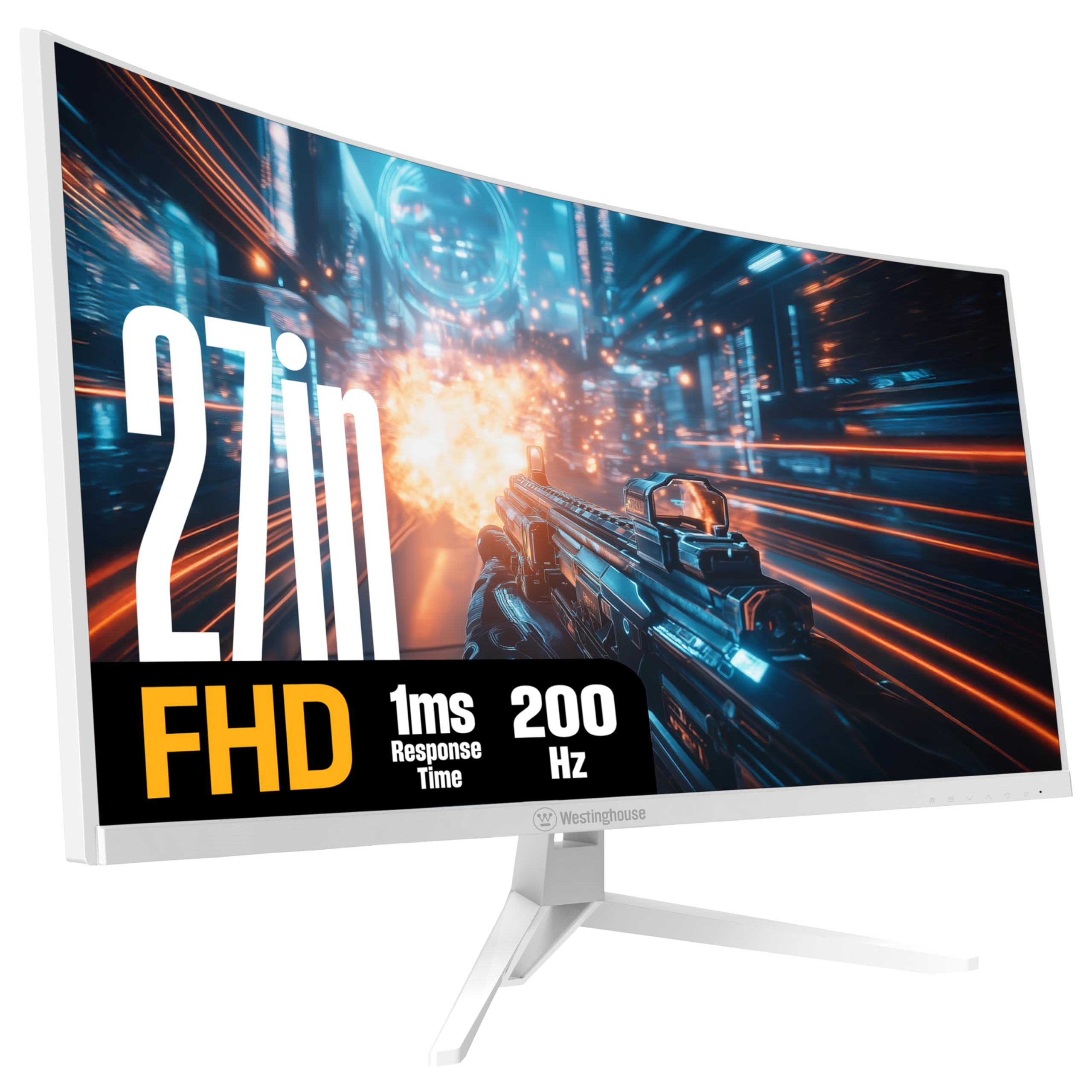
Imaxe: Fronte view of the Westinghouse 27-inch Curved Full HD Gaming Monitor.
Información de seguridade
Observe the following safety precautions to ensure safe operation and prevent damage to the monitor:
- Non expoña o monitor á choiva nin á humidade para evitar riscos de incendio ou descargas eléctricas.
- Non abra o monitor casing. Encomende todo o mantemento a persoal cualificado.
- Coloque o monitor sobre unha superficie estable e plana para evitar que caia.
- Asegúrate de que haxa unha ventilación axeitada arredor do monitor. Non bloquees as aberturas de ventilación.
- Use só o adaptador de corrente que se inclúe co monitor.
- Desconecte o enchufe da toma de corrente se non vai usar o monitor durante un período prolongado.
Contido do paquete
Verifica que todos os elementos estean presentes no paquete:
- Westinghouse 27-inch Curved Gaming Monitor
- Cable DisplayPort
- Adaptador de alimentación
- Base do monitor
- Manual do propietario (este documento)

Image: Diagram illustrating monitor dimensions, available ports, and a list of included items.
Configuración
1. Montaxe do monitor
Attach the monitor base to the monitor panel. Ensure the stand is securely fastened before placing the monitor on a desk.
The monitor supports VESA 100mm x 100mm mounting for wall or arm installation (mounting hardware not included).
2. Conectando a un ordenador
Conecta o monitor ao teu ordenador usando un dos seguintes métodos:
- DisplayPort: Use the included DisplayPort cable for optimal performance, especially for 200Hz refresh rate and AMD FreeSync.
- HDMI: Use an HDMI cable to connect to one of the two HDMI ports.
Connect external audio devices to the Saída de auriculares jack if desired. The monitor also features built-in speakers.
3. Acendido
Connect the power adapter to the monitor's power input and then plug it into a power outlet. Press the power button on the monitor to turn it on.
Instrucións de funcionamento
1. Menú de visualización en pantalla (OSD).
The OSD menu allows you to adjust various monitor settings. Refer to the quick start guide for specific button functions and navigation.
- Fonte de entrada: Select between DisplayPort and HDMI inputs.
- Configuración da imaxe: Axusta o brillo, o contraste, a nitidez e a temperatura da cor.
- Configuración de audio: Control volume for built-in speakers and headphone output.
- Configuración de xogos: Enable/disable AMD FreeSync, adjust response time, and select gaming modes.
2. Características dos xogos
This monitor is designed for an enhanced gaming experience:
- Frecuencia de actualización de 200 Hz: Provides smooth, fluid motion for fast-paced games. Ensure your graphics card and connection support this refresh rate.
- Tempo de resposta de 1 ms: Minimizes ghosting and motion blur for clear visuals during rapid action.
- Compatibilidade con AMD FreeSync: Synchronizes the monitor's refresh rate with your GPU's frame rate to eliminate screen tearing and stuttering. Enable this feature in the OSD menu and your graphics card settings.
- Modos de xogo: Optimized display settings for various game genres, including Tactical Advantage, Real-Time Strategy, Competitive Edge, and 1st-Person Shooter. Select these modes via the OSD menu.
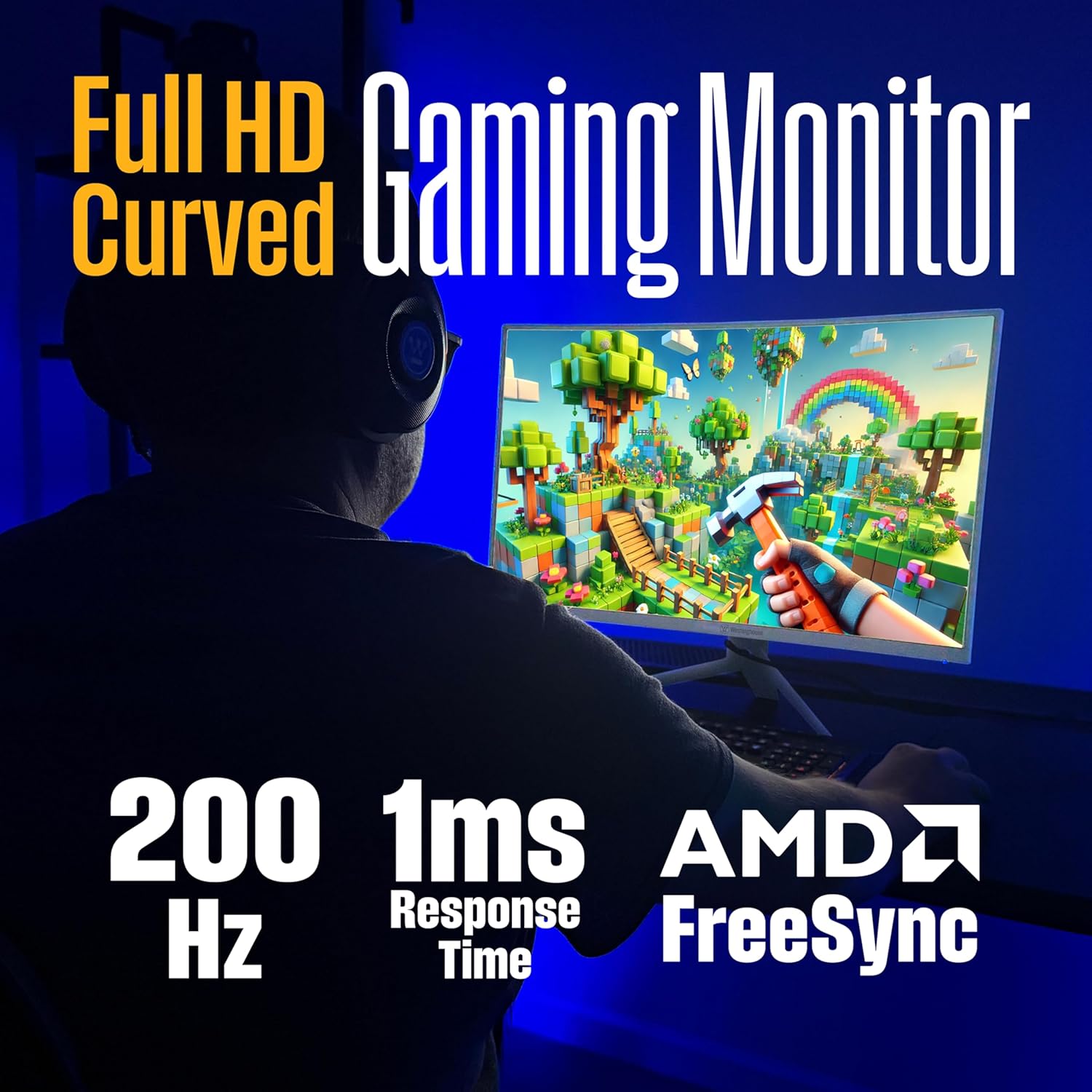
Image: Monitor highlighting 200Hz refresh rate, 1ms response time, and AMD FreeSync technology.

Image: Visual comparison demonstrating reduced screen tearing with AMD FreeSync at 200Hz versus 60Hz without FreeSync.

Image: Monitor showcasing different gaming modes for optimized performance in various game types.
3. Configuración da pantalla
- Full HD (1920x1080) Resolution: Provides a clear and detailed visual experience.
- Pantalla curva 1500R: Ofrece unha experiencia inmersiva viewing experience by wrapping the display around your field of view, reducing eye strain and glare.
- Soporte HDR: Enhances color and contrast for more vibrant and realistic images.
- Tecnoloxía EyeRest: Features flicker-free operation, anti-glare coating, low blue light mode, and adjustable color temperature to reduce eye fatigue during prolonged use.

Image: Top-down perspective of the monitor, emphasizing its 1500R curved screen for immersive viewing.

Image: Monitor screen showing a "You Win" message, highlighting HDR for true-to-life colors.

Image: Monitor promoting EyeRest Technology for reduced eye strain with features like flicker-free and low blue light.
4.Audio
The monitor includes built-in speakers for audio output. You can also connect headphones or external speakers to the 3.5mm audio out jack.
Mantemento
- Limpeza da pantalla: Limpa a pantalla con suavidade cun pano suave e sen pelusa. Para as marcas difíciles, usa unha solución de limpeza específica para o monitor aplicada ao pano, non directamente á pantalla.
- Limpeza do Casing: Use un pano suave e seco para limpar o monitor casing. Evitar produtos de limpeza abrasivos.
- Ventilación: Asegúrate de que as aberturas de ventilación do monitor estean libres de po e obstrucións para evitar o sobrequecemento.
Resolución de problemas
| Problema | Posible Solución |
|---|---|
| Non hai imaxe na pantalla |
|
| A imaxe está borrosa ou distorsionada |
|
| Non se escoita son dos altofalantes/auriculares |
|
| Pantalla rachada ou trepidación durante o xogo |
|
Especificacións
| Característica | Descrición |
|---|---|
| Número de modelo | WC27RX6250W |
| Tamaño da pantalla | 27 polgadas |
| Resolución | 1920 x 1080 (Full HD) |
| Taxa de actualización | 200 Hz |
| Tempo de resposta | 1 ms |
| Tipo de panel | VA |
| Curvatura | 1500R |
| Sincronización adaptativa | Soporte AMD FreeSync |
| Conectividade | 1x DisplayPort, 2x HDMI, 1x Audio Out |
| Altofalantes incorporados | Si |
| Compatibilidade de montaxe VESA | 100 mm x 100 mm |
| Dimensións (LxWxH) | 9.74 x 24.22 x 19.41 polgadas |
| Peso | 16.14 libras |
| Cor | Branco |
Vídeo do produto
Vídeo: Presentación oficial do produto en vídeoasing the features and benefits of the Westinghouse Curved Gaming Monitor.
Garantía e Soporte
For warranty information and technical support, please refer to the warranty card included with your product or visit the official Westinghouse websitio. Garde o recibo da compra como xustificante da mesma.
Soporte en liña: www.westinghouseelectronics.com/support