
PeriPage A6
Manual do usuario da impresora térmica portátil PeriPage A6 Mini
Marca: PeriPage | Modelo: A6
1. Introdución
Thank you for choosing the PeriPage A6 Mini Portable Thermal Printer. This compact and versatile device allows you to print photos, labels, notes, lists, and more directly from your smartphone or PC. With its high-resolution thermal printing technology, you can enjoy clear and crisp prints without the need for ink cartridges. This manual provides essential information on setting up, operating, maintaining, and troubleshooting your new printer.
2. Información de seguridade
Please read all safety instructions carefully before using the printer to ensure safe and proper operation.
- Do not disassemble, repair, or modify the printer yourself.
- Keep the printer away from water, moisture, and high temperatures.
- Use só o cable de carga e o adaptador de corrente especificados.
- Avoid exposing the print head to direct contact, as it can be hot after prolonged use.
- Manter fóra do alcance dos nenos pequenos.
3. Contido do paquete
Verifica que todos os elementos estean presentes no teu paquete:
- PeriPage A6 Mini Printer
- Rollo de papel térmico
- Cable USB
- Manual de usuario

Image: Contents of the PeriPage A6 Mini Printer package, showing the printer, a roll of thermal paper, a USB charging cable, and the user manual.
4. Produto rematadoview
4.1 Características principais
- Ultra HD Printing: 304 DPI resolution for clear and detailed prints.
- Impresión térmica sen tinta: No ink cartridges required, reducing operating costs.
- Multifuncional: Supports printing of photos, labels, notes, lists, QR codes, web páxinas e moito máis.
- Conectividade Bluetooth: Seamless wireless connection to iOS and Android smartphones.
- Deseño portátil: Compact and lightweight with a built-in 1000mAh rechargeable battery.
- Versatile Paper Support: Compatible with various thermal paper types including standard, sticky, transparent, and colorful options.
4.2 Compoñentes da impresora
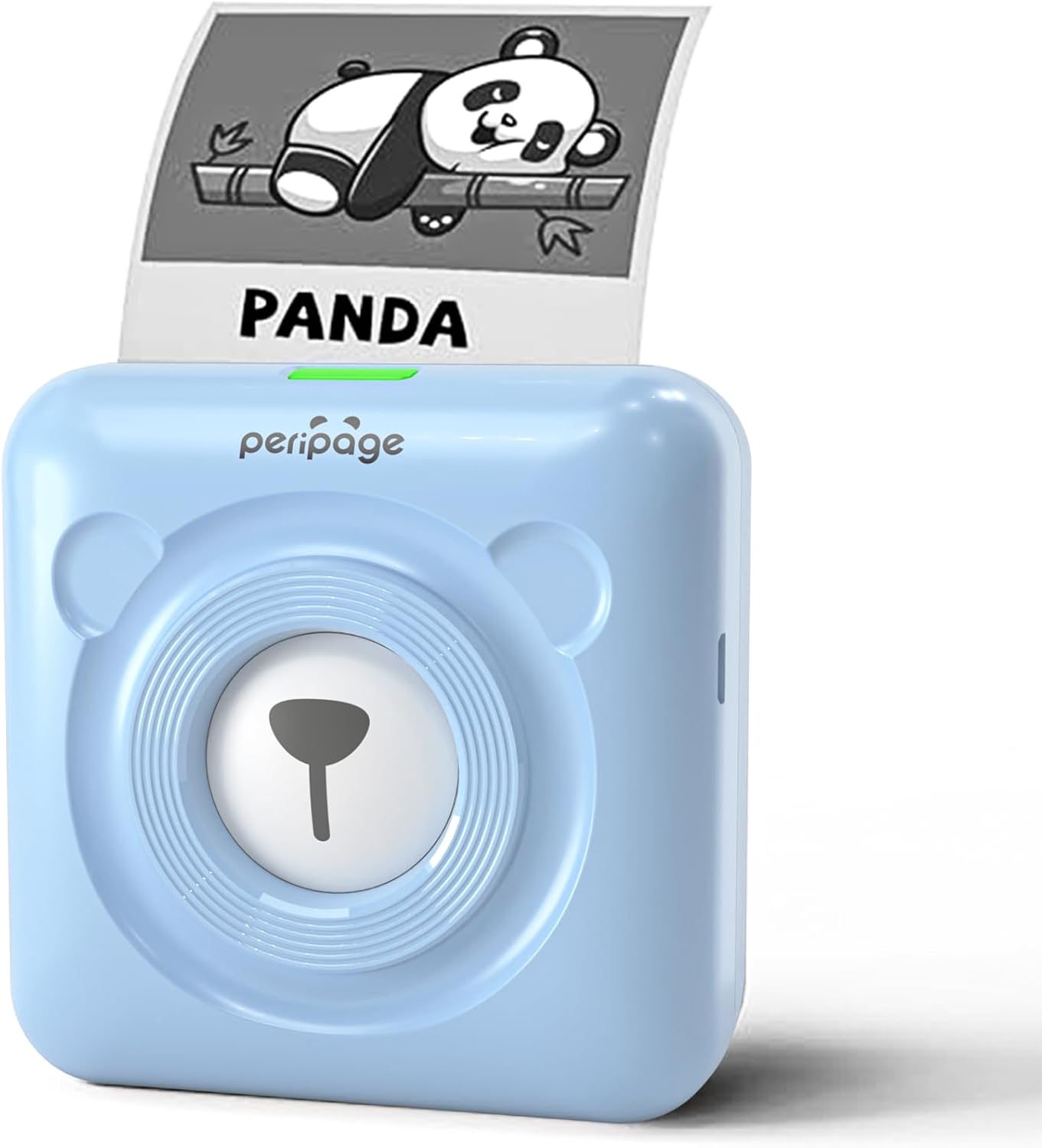
Image: The PeriPage A6 Mini Printer in blue, demonstrating a printed output. The printer features a bear-like design on its front.

Image: A visual comparison highlighting the superior print resolution of the PeriPage A6 Mini Printer (304 DPI) compared to a standard definition printer, showing finer details in the printed image.
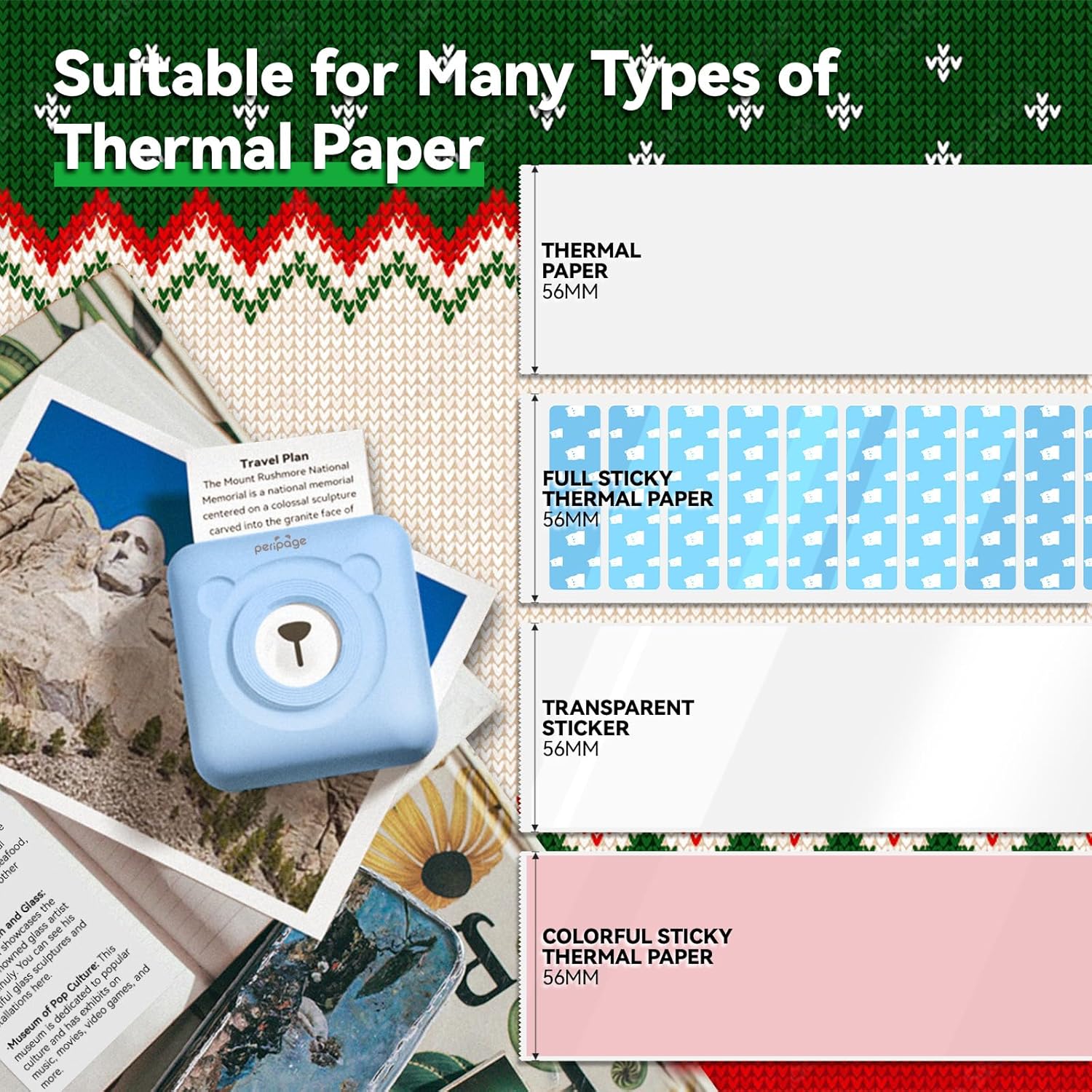
Image: An illustration showing the different types of thermal paper that can be used with the PeriPage A6 Mini Printer, such as standard thermal paper, full sticky thermal paper, transparent stickers, and colorful sticky thermal paper, all 56mm wide.
5. Guía de configuración
5.1 Carga da impresora
Before first use, fully charge the printer using the provided USB cable. Connect the USB cable to the printer's charging port and the other end to a USB power adapter (not included) or a computer's USB port. The indicator light will show charging status.
5.2 Installing Thermal Paper
- Open the printer cover by gently sliding the release button or pressing the designated area.
- Insert the thermal paper roll into the paper compartment, ensuring the printing side faces the print head.
- Pull a small amount of paper out beyond the print head.
- Peche a tapa da impresora firmemente ata que encaixe no seu lugar.
5.3 Downloading the PeriPage App
The PeriPage A6 Mini Printer requires the official PeriPage APP for full functionality. You can download it via:
- Searching for "PeriPage" in your device's APP store (Apple App Store for iOS, Google Play Store for Android).
- Scanning the QR code provided in the instruction manual or on the product packaging.
- Visiting the official download page: https://www.ileadtek.com/download/app/peripage.html

Image: A guide illustrating two methods to download the PeriPage App: searching on Google Play or Apple App Store, or scanning a QR code.
5.4 Connecting to Your Device (Bluetooth)
- Ensure your PeriPage A6 printer is turned on.
- Activa o Bluetooth no teu smartphone.
- Open the PeriPage App. The app will guide you to connect to the printer.
- Select your printer from the list of available Bluetooth devices within the app. The printer's name usually starts with "PeriPage".
- Unha vez conectada, a aplicación indicará que a conexión se realizou correctamente.

Image: A visual representation of connecting the PeriPage A6 Mini Printer to a smartphone via the PeriPage App, showing the app interface and Bluetooth icon.
6. Instrucións de funcionamento
The PeriPage App offers a wide range of functions to maximize your printer's utility.
6.1 Basic Printing Steps (via App)
- Acende a impresora: Prema o botón de acendido da impresora.
- Open the PeriPage App: Asegúrate de que a impresora estea conectada por Bluetooth.
- Select Printing Type: On the app's homepage, choose the type of content you wish to print (e.g., Photo Print, Label Print, Notes, Web Page Printing, OCR Text Recognition).
- Import/Create Content: Select the image, text, or template you want to print. The app provides various fonts and themes.
- Axustar a configuración (opcional): Modify print density, size, or other parameters as needed.
- Imprimir: Tap the print button in the app. The printer will begin printing.

Image: A five-step visual guide demonstrating the printing process using the PeriPage App: 1. Press button to boot, 2. Enter PeriPage app, 3. Import file, 4. Connect via Bluetooth, 5. Get printed document.
6.2 Escenarios de uso
The PeriPage A6 is suitable for a variety of applications:
- Cociña: Print labels for jars and containers.
- Estudo: Print study notes, lists, or quick references.
- Fotos: Print black and white photos for journaling or scrapbooking.
- Adhesivos DIY: Create custom stickers for various purposes.
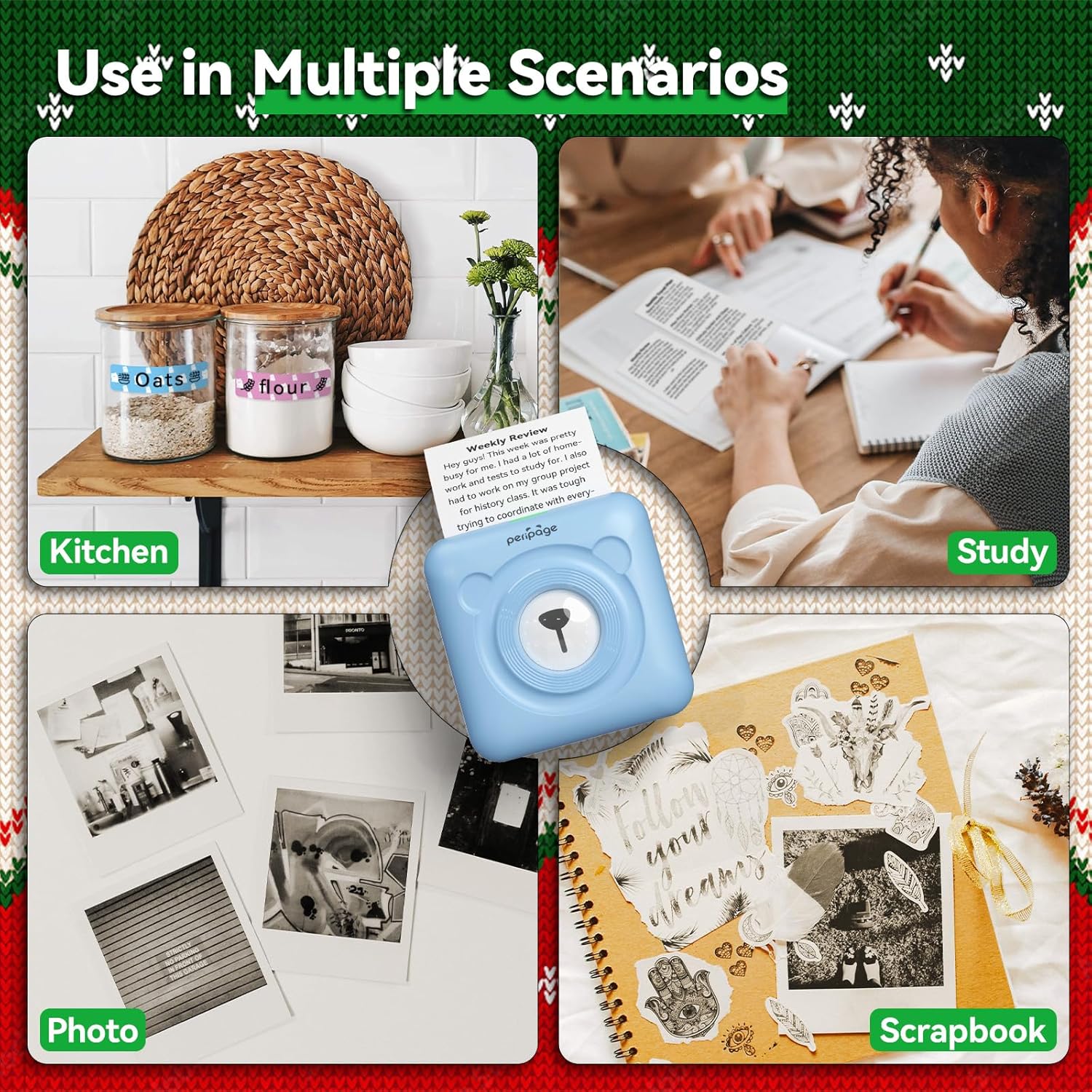
Imaxe: Examples of the PeriPage A6 Mini Printer's use in multiple scenarios, including creating kitchen labels, printing study notes, printing photos, and enhancing scrapbooks.
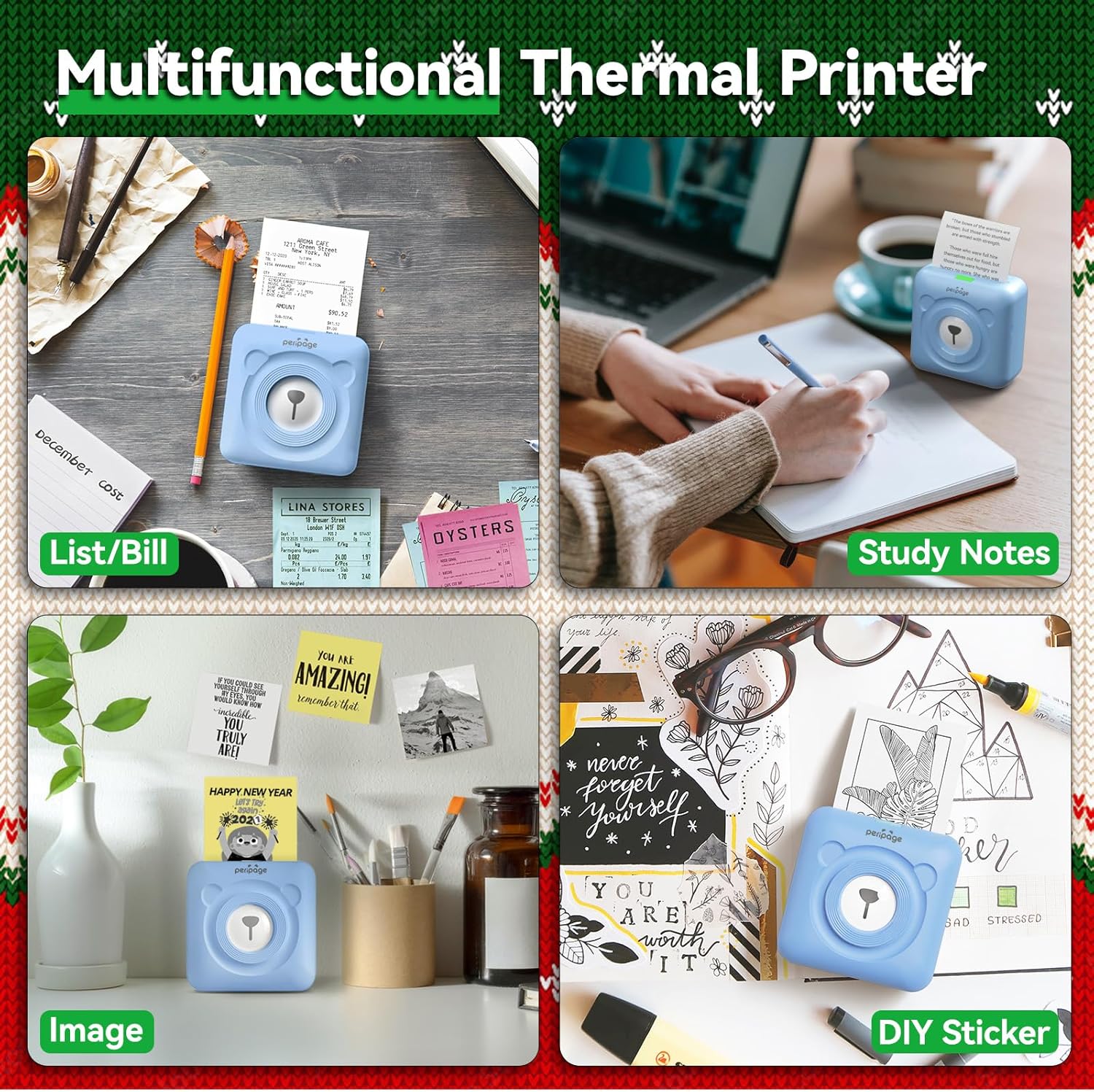
Image: A display of the PeriPage A6 Mini Printer's multifunctional thermal printing capabilities, showing its use for lists/bills, study notes, images, and DIY stickers.
7. Mantemento
7.1 Limpeza da impresora
Para garantir unha calidade de impresión óptima e prolongar a vida útil da impresora, recoméndase unha limpeza regular.
- Apague a impresora e desconecte o cable de alimentación antes de limpala.
- Use a soft, dry, lint-free cloth to wipe the exterior of the printer.
- For the print head, gently wipe it with a cotton swab lightly dampenriquecido con alcohol isopropílico. Déixeo secar completamente antes de usalo.
- Non use produtos de limpeza ou disolventes abrasivos.
7.2 Coidado coa batería
- Cargue a impresora regularmente, mesmo se non a está a usar, para manter o estado da batería.
- Evite descargar completamente a batería con frecuencia.
- Garde a impresora nun lugar fresco e seco cando non a use durante períodos prolongados.
8 Solución de problemas
If you encounter issues with your PeriPage A6 Mini Printer, refer to the following common problems and solutions:
| Problema | Causa posible | Solución |
|---|---|---|
| A impresora non se acende | Batería baixa; o botón de acendido non se premeu correctamente | Cargar a impresora; manter premido o botón de acendido durante uns segundos. |
| Non se pode conectar a través de Bluetooth | Bluetooth desactivado; Impresora non detectable; Problema coa aplicación | Ensure Bluetooth is enabled on your phone; Restart printer and phone; Reinstall PeriPage App. |
| Mala calidade de impresión / Impresións tenues | Paper installed incorrectly; Low battery; Dirty print head; Expired thermal paper | Reinstall paper with printing side facing up; Charge printer; Clean print head; Use new thermal paper. |
| Atasco de papel | Paper not inserted straight; Too much paper pulled out | Open cover and carefully remove jammed paper; Reinsert paper correctly. |
| App is buggy or freezes | Software glitch; Outdated app version | Close and reopen the app; Check for app updates; Reinstall the app. |
9. Especificacións
| Característica | Detalle |
|---|---|
| Marca | PeriPage |
| Nome do modelo | PeriPage A6 |
| Tecnoloxía de impresión | Térmica |
| Resolución | 304 DPI |
| Conectividade | Bluetooth, USB |
| Dispositivos compatibles | Smartphones (iOS & Android), PC, Laptops |
| Tamaño máximo de medios | 57mm (width) x 30mm (roll diameter) |
| Batería | Ión de litio de 1000 mAh (incluída) |
| Peso do elemento | 5.6 onzas (160 gramos) |
| Dimensións do produto | 2.95" D x 2.95" W x 1.57" H |
| Compoñentes incluídos | Papel |
10. Garantía e soporte
10.1 Información da garantía
Please note that this product is listed with Sen garantía. For specific details regarding returns or defects, please refer to the retailer's policy where the product was purchased.
10.2 Atención ao cliente
For further assistance, technical support, or inquiries not covered in this manual, please contact PeriPage customer service through their official website or the contact information provided by your retailer. Ensure you have your product model number (A6) and purchase details ready when contacting support.
Ask a question about this manual
Ask about setup, troubleshooting, compatibility, parts, safety, or missing instructions. Manuals+ will review the question and use this page’s manual context to help answer it.