
1. Introdución
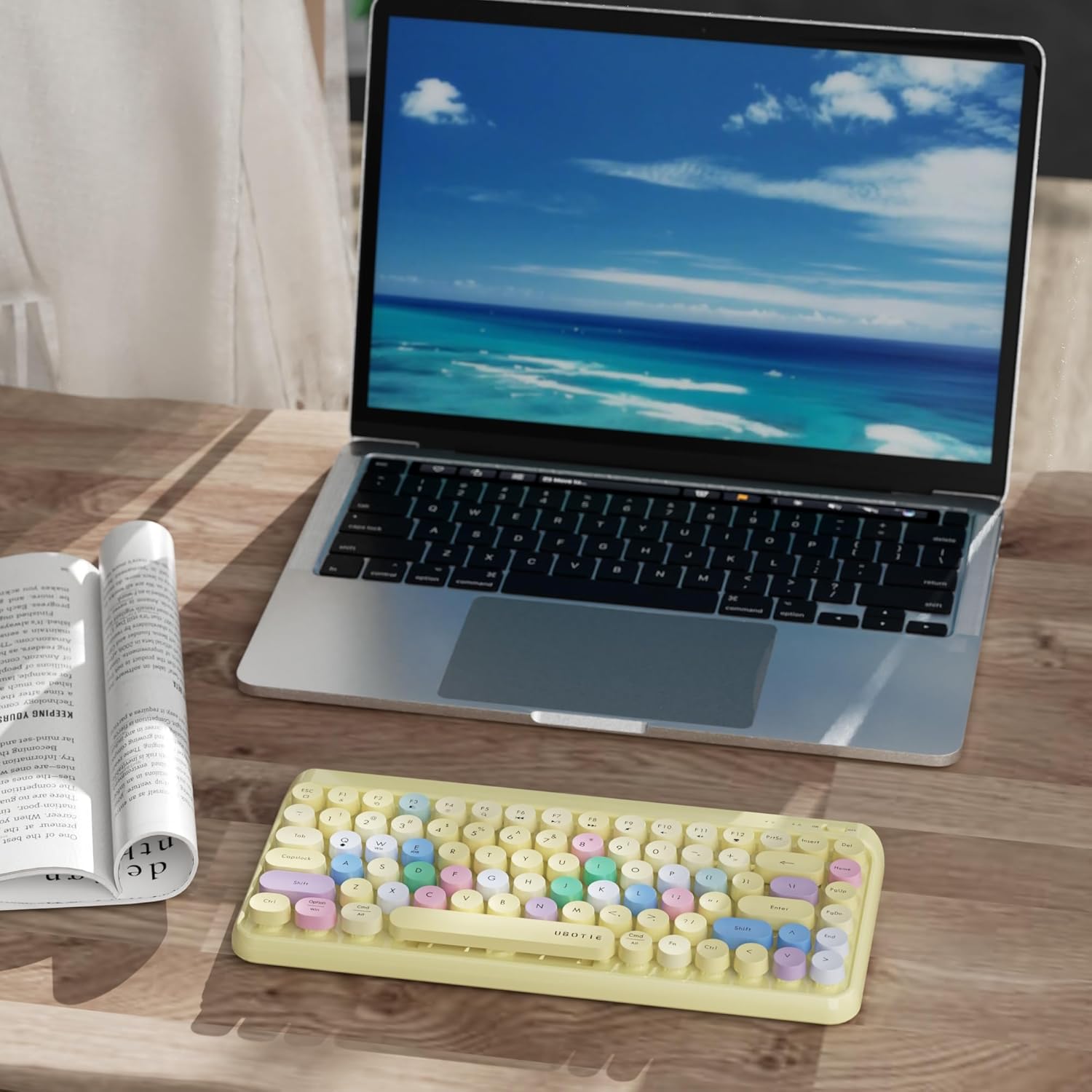
This manual provides detailed instructions for the setup, operation, and maintenance of your UBOTIE Portable Bluetooth Colorful Computer Keyboard (Model SK-621BT). Please read this manual thoroughly before using the product to ensure optimal performance and longevity.
2. Características do produto
- Deseño colorido: Each keyboard features a multicolor design.
- Retro Round Keycaps: Designed with a classic typewriter aesthetic.
- Ampla compatibilidade: Compatible with Windows, Mac OS, iOS, and Android devices.
- Conexión Bluetooth estable: Offers a 10m connecting range, quick re-connection, auto-sleep function, and an On/Off switch.
- Conectividade multidispositivo: Provides BT1, BT2, and BT3 connection channels, allowing simultaneous connection to multiple devices (PC, laptop, mobile phones).
- Portátil e compacto: Mini size and lightweight for easy transport.
3. Contido do paquete
- UBOTIE Portable Bluetooth Colorful Computer Keyboard (SK-621BT)
- Manual de usuario
- 2 pilas AAA (incluídas)
- Cleaning brush (may be included)
- Decorative stickers (may be included)
4. Especificacións
| Dimensións do produto | 12.6 x 5.51 x 0.98 polgadas |
| Peso do elemento | 1.35 libras |
| Número de modelo do artigo | SK-621BT |
| Pilas necesarias | 2 pilas AAA |
| Tecnoloxía de conectividade | Bluetooth |
| Descrición do teclado | Membrane Round Key Colorful Wireless Keyboard Bluetooth |
| Dispositivos compatibles | Portátil, PC, Tablet |
5. Configuración
5.1 Instalación da batería
- Localiza o compartimento da batería na parte inferior do teclado.
- Abra a tapa da batería.
- Introduza 2 pilas AAA, asegurándose de manter a polaridade correcta (+/-).
- Pecha a tapa da batería de forma segura.

Image: The underside of the UBOTIE keyboard with the battery compartment visible.
5.2 Emparejamento Bluetooth
- Acende o teclado usando o interruptor On/Off situado na parte superior dereita.
- Hold down the 'Fn + C' keys for 2 seconds. The battery indicator light will turn on and flash, indicating pairing mode.
- On your computer, tablet, or mobile phone, navigate to the Bluetooth settings.
- Busca available devices. The device list should display 'UBOTIE'.
- Click on 'UBOTIE' to pair and connect.
- Wait for the connection success indicator to stop flashing.
- To switch between operating systems, press and hold the 'Fn' key, then press 'Q' for Android, 'W' for Windows, or 'E' for iOS (Apple system) for 1 second.

Image: The UBOTIE keyboard showing the key layout for pairing.
6. Instrucións de funcionamento
6.1 teclas de función
The top row of keys (F1-F12) on your UBOTIE keyboard includes various multimedia and system control functions. These functions are typically accessed by pressing the 'Fn' key simultaneously with the desired function key.
- Controis multimedia: Keys such as F7 (Play/Pause), F8 (Fast Forward), F9 (Mute), F10 (Volume Down), and F11 (Volume Up) allow for convenient control of media playback and audio levels.
- Funcións do sistema: Other keys may include shortcuts for common tasks like opening web browsers or accessing system settings. Refer to the keycap legends for specific functions.
6.2 Conmutación multidispositivo
The keyboard supports connecting to up to three devices simultaneously using BT1, BT2, and BT3 channels. To switch between paired devices:
- Ensure all devices are paired to their respective BT channels (BT1, BT2, or BT3).
- Press the 'Fn' key along with the corresponding channel key (e.g., 'Fn + 1' for BT1, 'Fn + 2' for BT2, 'Fn + 3' for BT3) to switch the active connection.
7. Mantemento
7.1 Limpeza
To maintain the cleanliness and functionality of your keyboard:
- Usa o cepillo de limpeza incluído para eliminar o po e os residuos que hai entre as tapas das teclas.
- For deeper cleaning, gently remove the round keycaps. Clean the keyboard base and the keycaps separately with a soft, damp cloth. Ensure all parts are completely dry before reattaching the keycaps.
- Evita o uso de produtos químicos agresivos ou materiais abrasivos, xa que poden danar o acabado do teclado ou as lendas das teclas.
Imaxe: Primeiro plano view of the keyboard with keycaps removed for cleaning.
8 Solución de problemas
- Keyboard Not Connecting/Blinking Red Light:
Ensure the keyboard has fresh batteries and is turned on. Re-initiate the Bluetooth pairing process (Fn + C for 2 seconds) and ensure your device's Bluetooth is enabled and searching. Verify the correct operating system mode is selected (Fn + Q/W/E). If issues persist, try removing the keyboard from your device's Bluetooth list and re-pairing. - Frequent Disconnections/Lag:
Check battery levels and replace if low. Ensure the keyboard is within the 10m Bluetooth range of your device. Minimize interference from other wireless devices. If using with a Mac, ensure Bluetooth settings are optimized for external devices and not set to aggressive power-saving modes that might cause disconnections. - As teclas non responden:
Check for any debris under the keycaps. If a specific key is not responding, try removing and reattaching its keycap. Ensure the keyboard is properly connected via Bluetooth.
9. Garantía e soporte
This UBOTIE product comes with a one-year service warranty. For any product-related issues or inquiries, please consult our 24-hour customer service. We are committed to providing a satisfactory solution for you.