
Ro-ràdh
This manual provides essential information for the safe and efficient use of your HP 15 Professional Slim High-Performance Laptop. Please read these instructions carefully before using your device. Keep this manual for future reference.
1. Suidheachadh tòiseachaidh
1.1 Unboxing and Connecting Power
Carefully remove the laptop and all accessories from the packaging. Connect the provided AC adapter to the laptop's power port and then to a power outlet. It is recommended to fully charge the battery before first use.

Image: The HP 15 laptop shown from the front, with the power adapter connected to the side. This illustrates the initial connection for charging.
1.2 A’ chiad bhòtadh agus suidheachadh an t-siostaim obrachaidh
Press the power button to turn on the laptop. Follow the on-screen instructions to complete the Windows 11 Home operating system setup. This includes selecting your region, connecting to a Wi-Fi network, and creating a user account.

Image: The HP 15 laptop open, displaying the Windows 11 desktop interface, indicating successful operating system initialization.
2. Ag Obrachadh an Laptop agad
2.1 Cumhachd Air/Dheth agus Modh Cadail
- Cumhachd air: Brùth am putan cumhachd a tha suidhichte air deic a’ mheur-chlàir.
- Cumhachd dheth: Briog air a’ phutan Tòisich, an uair sin air a’ phutan Cumhachd, agus tagh “Dùin sìos”.
- Modh cadail: Close the lid or click the Start button, then Power, and select "Sleep."
2.2 Meur-chlàr agus Pad-suathaidh
The laptop features a full-size island-style QWERTY keyboard and a multi-touch touchpad. Use the touchpad for navigation and gestures. Refer to Windows 11 settings for touchpad customization.
2.3 Ceangalachd
Your HP 15 laptop offers various connectivity options:
- Wi-Fi: Supports Realtek Killer Wi-Fi 6 (802.11ax) for high-speed wireless internet access.
- Bluetooth: Integrated Bluetooth 5.3 for connecting wireless peripherals like headphones and mice.
- Puirt USB:
- Two (2) USB 3.2 Gen 1.0 Type-A ports (5 Gbps signaling rate).
- One (1) USB 3.2 Gen 1.0 Type-C port (5 Gbps signaling rate, data transfer only; charging or external monitors not supported).
- HDMI: One (1) HDMI v1.4b output port for connecting to external displays.
- Seacaid claisneachd: One (1) headphone/microphone combo port.
Ìomhaigh: Taobh view of the HP 15 laptop, highlighting the various input/output ports for external device connectivity.
2.4 Fuaim agus Camara
- Fuaim: Equipped with dual speakers for audio output and HD Audio support.
- Camara: Features an HP True Vision 720p HD camera with integrated dual array digital microphones, suitable for video calls and online meetings.

Image: The HP 15 laptop displaying a video conference call, demonstrating the use of the integrated camera and microphone.
3. Cumail suas agus Cùram
3.1 Glanadh do choimpiutair-uchd
- Sgrion: Cleachd clò bog gun lint gu h-aotrom dampair a nighe le uisge no le inneal-glanaidh sgrion. Na spraeadh leaghan gu dìreach air an sgrion.
- Meur-chlàr agus Chassis: Cleachd clò bog, tioram. Airson salachar stòlda, cleachd clò beagan tioram.amp faodar clò a chleachdadh, a’ dèanamh cinnteach nach tèid taiseachd a-steach do na fosglaidhean.
- Feansaichean: Periodically check and gently clean the ventilation openings to prevent dust buildup, which can affect cooling.
3.2 Cùram Bataraidh
To maximize battery lifespan, avoid extreme temperatures and prolonged full discharge or full charge states. For long-term storage, charge the battery to approximately 50%.
3.3 Ùrachaidhean bathar-bog
Regularly check for and install Windows updates and HP driver updates to ensure optimal performance, security, and compatibility. Access Windows Update via Settings > Windows Update.
3.4 Beachdachaidhean Àrainneachdail
This laptop is built with recycled materials, including ocean-bound plastic. Please dispose of the device and its components responsibly at the end of its life cycle, following local regulations for electronic waste.
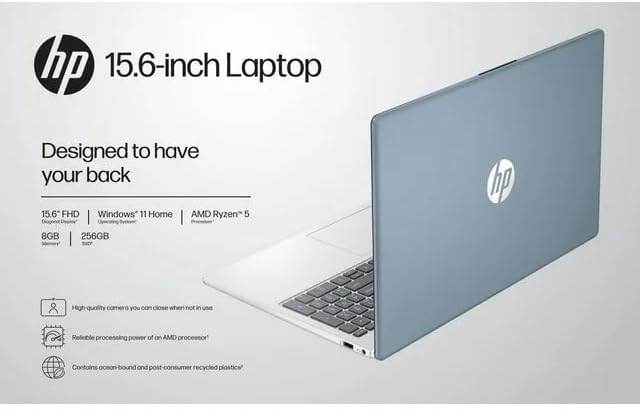
Image: The HP 15 laptop shown from the rear, illustrating its design and potential ventilation areas for maintenance.
4. Fuasgladh cheistean cumanta
This section addresses common problems you might encounter. For more complex issues, refer to the HP support weblàrach.
4.1 Gun chumhachd no coimpiutair-uchd gun a bhith a’ tionndadh air
- Dèan cinnteach gu bheil an inneal-atharrachaidh AC ceangailte gu tèarainte ris an laptop agus ri socaid cumhachd a tha ag obair.
- Dearbhaich gu bheil an socaid cumhachd ag obair le bhith a’ cur inneal eile a-steach.
- Feuch ionad cumhachd eadar-dhealaichte.
- Ma tha am bataraidh air a dhrèanadh gu tur, leig leis cosgais a chuir air airson co-dhiù 30 mionaid mus feuch thu ri cumhachd a chuir air.
4.2 Cùisean Taisbeanaidh
- Sgrion Bhàn: Ceangail monitor taobh a-muigh tro HDMI gus faicinn a bheil a’ chùis le taisbeanadh an laptop no an toradh grafaigean.
- Taisbeanadh Dim: Adjust screen brightness using the function keys (usually F2/F3 or similar icons) or through Windows display settings.
- Rùn ceàrr: Adjust the display resolution in Windows Settings > System > Display.
4.3 Duilgheadasan Ceangail Wi-Fi no Bluetooth
- Ensure Wi-Fi and Bluetooth are enabled in Windows Settings > Network & internet or Devices > Bluetooth & devices.
- Ath-thòisich an router/modem agad airson duilgheadasan Wi-Fi.
- Update wireless drivers through HP Support Assistant or Device Manager.
- Forget and reconnect to the Wi-Fi network or re-pair the Bluetooth device.
4.4 Fuaim gun a bhith ag obair
- Check volume levels in Windows and ensure speakers are not muted.
- Verify that the correct audio output device is selected in Windows Sound settings.
- Update audio drivers.
- Test with headphones to determine if the issue is with the internal speakers or the audio output.
5. Sònrachaidhean Bathar
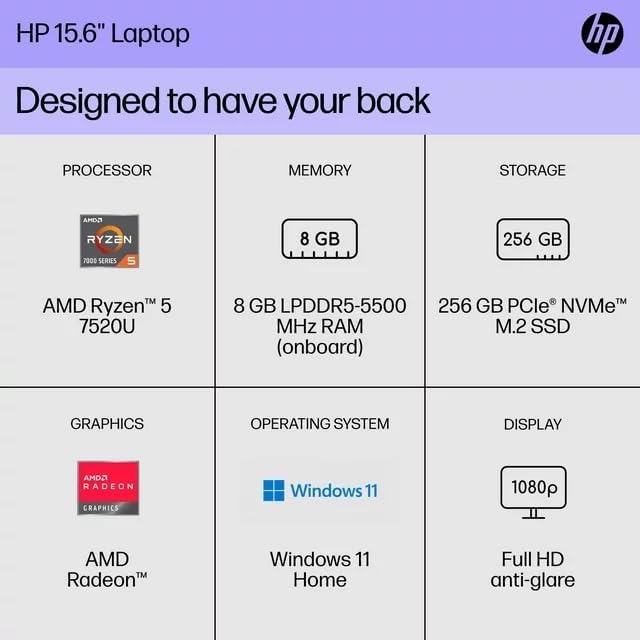
The following are the technical specifications for the HP 15 Professional Slim High-Performance Laptop (Model 15):
| Feart | Mion-fhiosrachadh |
|---|---|
| Ainm Modail | HP 15 |
| Pròiseasar | AMD Ryzen 5 7520U (up to 4.3 GHz max boost, 4 cores, 8 threads) |
| Grafaigean | Grafaigean AMD Radeon (Amailte) |
| Cuimhne (RAM) | 8 GB DDR4 SDRAM |
| Stòradh | SSD PCIe NVMe M.2 256GB |
| Taisbeanadh | 15.6-inch diagonal, Full HD (1920 x 1080), micro-edge, anti-glare, 250 nits, 45% NTSC |
| Siostam-obrachaidh | Windows 11 dachaigh |
| Ceangal gun uèir | Realtek Killer Wi-Fi 6 (2x2), Bluetooth 5.3 |
| Puirt |
|
| Camara | Camara HP True Vision 720p HD le microfònan didseatach sreath dùbailte aonaichte |
| Fuaim | Dual speakers, HD Audio |
| Meur-chlàr | Full-size island-style QWERTY keyboard |
| Inneal cumhachd | Adaptor AC |
| UPC | 196337455771 |
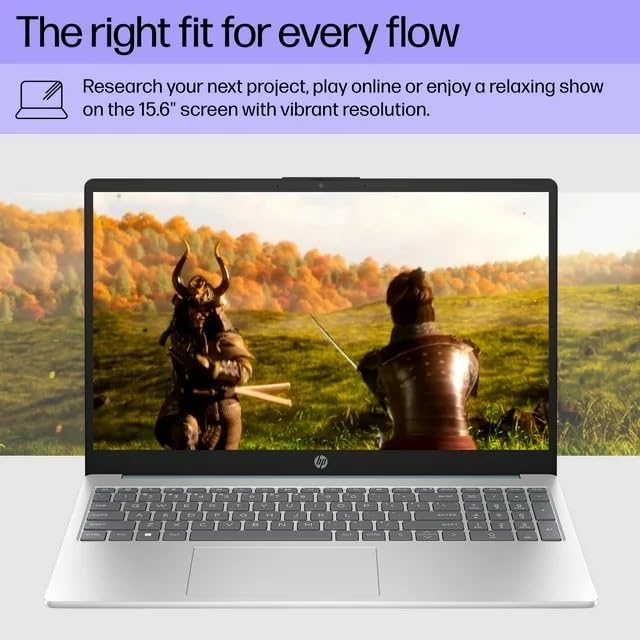
Image: A visual representation of the HP 15 laptop, complementing the detailed specifications listed.
6. Fiosrachadh Barantais
This HP 15 laptop is a renewed product and comes with a Barantas cuibhrichte 90-latha. This warranty covers defects in materials and workmanship under normal use. For specific terms and conditions, please refer to the warranty documentation included with your product or contact HP support.
7. Taic teachdaiche
For further assistance, technical support, or to download updated drivers and software, please visit the official HP support website. You can typically find support resources by searching for "HP Support" and your specific model number (HP 15) on their weblàrach.
Goireasan air-loidhne: https://support.hp.com