
Ro-ràdh
This manual provides essential information for the proper setup, operation, and maintenance of your Trimble GeoXT GeoExplorer Series Pocket PC, model 50950-20. Please read this manual thoroughly before using the device to ensure optimal performance and longevity.
Dè th' anns a' Bhocsa
Upon unboxing your Trimble GeoXT GeoExplorer Series Pocket PC, please verify that all the following components are present:
- 1 x Trimble GeoXT GeoExplorer Series Terminal
- 1 x inneal càr
- 1 x Charger bataraidh
- 1 x Hard Case (for storage and transport)
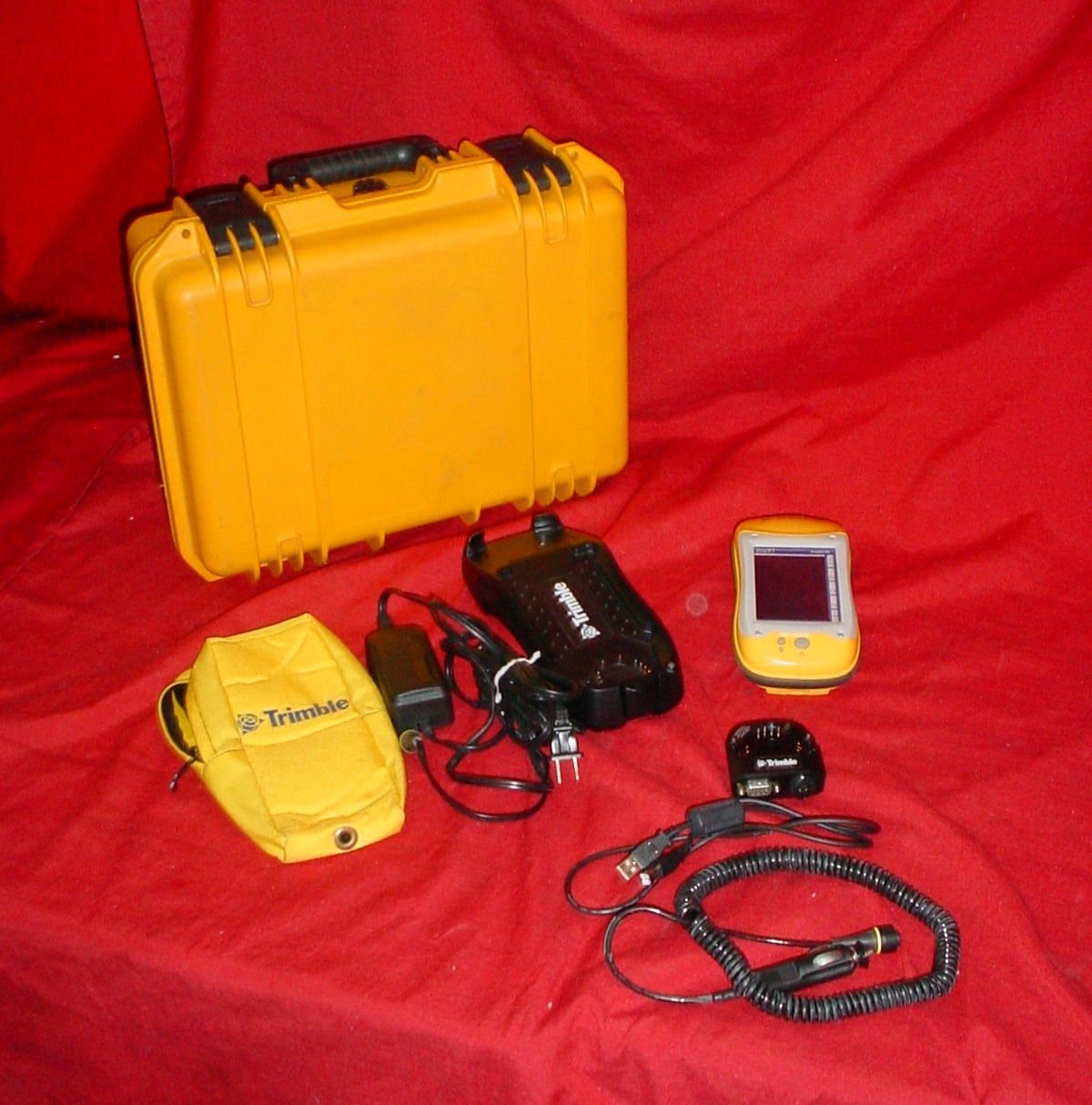
Image: The complete package contents of the Trimble GeoXT GeoExplorer Series Pocket PC, showing the yellow hard case, the black handheld device, a yellow soft pouch, various charging cables, and the yellow-cased display unit.
Suidhich
1. Cosgais Tùsail
Before first use, fully charge the device's battery. Connect the battery charger to a power outlet and then to the Trimble GeoXT terminal. The charging indicator will typically show the charging status. A full charge ensures optimal battery life and performance.
2. Device Power On/Off
To power on the device, press and hold the power button located on the side or top of the unit until the screen illuminates. To power off, press and hold the power button again and follow the on-screen prompts to shut down.
3. A’ ceangal ri coimpiutair (USB)
Use the provided USB cable to connect the Trimble GeoXT to a computer for data transfer or software updates. Ensure the necessary drivers are installed on your computer for proper recognition of the device.
Ag obrachadh an inneal
1. Seòladh agus Eadar-aghaidh
The Trimble GeoXT features a touch-sensitive screen and physical buttons for navigation. Familiarize yourself with the main menu and application icons. Use the stylus or your finger for precise input on the screen.
2. Gnìomhachd GPS
For accurate GPS readings, ensure the device has a clear view of the sky. Navigate to the GPS application to view satellite status and acquire position fixes. Refer to the specific software documentation for detailed instructions on data collection and mapping.
3. Riaghladh Dàta
Data collected on the device can be stored internally or on an external memory card (if supported). Regularly back up your data to a computer to prevent loss. Use the USB connection for efficient data transfer.
Cumail suas
1. Glanadh
Wipe the device's screen and body with a soft, damp, lint-free cloth. Avoid using harsh chemicals or abrasive materials, which can damage the screen or casing. Ensure all ports are free of dust and debris.
2. Cùram Bataraidh
To prolong battery life, avoid exposing the device to extreme temperatures. If the device will not be used for an extended period, store it with a partial charge (around 50%) and recharge it periodically.
3. Stòradh
When not in use, store the Trimble GeoXT in its hard case to protect it from physical damage, dust, and moisture. Keep it in a cool, dry place.
Fuasgladh thrioblaidean
Inneal nach eil a 'toirt cumhachd air
- Ensure the battery is fully charged. Connect to the charger and wait a few minutes before attempting to power on.
- Check the power button for any physical damage or obstruction.
Cùisean Comharran GPS
- Gluais gu àite fosgailte le solas soilleir view na speuran, air falbh bho thogalaichean àrda no duilleach dùmhail.
- Ensure the GPS antenna (if external) is properly connected.
Connectivity Problems (USB)
- Feuch port USB eile air a’ choimpiutair agad.
- Dèan cinnteach nach eil milleadh air a’ chàball USB.
- Verify that the necessary device drivers are installed on your computer.
Sònrachaidhean
| Feart | Mion-fhiosrachadh |
|---|---|
| Modail Àireamh | 50950-20 |
| Brand | TRIMBLE |
| Teicneòlas ceangail | USB |
| Seòrsa ceangail | USB seòrsa A |
| Innealan co-fhreagarrach | Trimble GeoExplorer series devices |
| Modalan fòn co-fhreagarrach | Trimble GeoXT, GeoExplorer series |
| Co-phàirtean air an toirt a-steach | 1 x TERMINAL, 1 x CAR CHARGER, 1 x BATTERY CHARGER |
| Stòr cumhachd | Cumhachd bataraidh |
| Raon tricead | 50-60 Hz |
| So-ghiùlain | Tha |
Barantas agus Taic
For detailed warranty information and technical support, please refer to the official Trimble website or contact Trimble customer service directly. Keep your purchase receipt as proof of purchase for warranty claims.
Dèanadair: Trimble
A’ chiad fhear ri fhaighinn: 1 an t-Iuchar, 2016