1. Ynlieding
This manual provides essential information for the safe and efficient operation of your iProda 2 in 1 Laptop, Model M1169YM. Please read this manual thoroughly before using the device and retain it for future reference. This convertible laptop features an 11.6-inch touchscreen, powered by an Intel N4100 processor, and runs on Windows 10 Pro.

Image: The iProda 2 in 1 Laptop can be used in multiple configurations, including traditional laptop, tent, stand, and tablet modes, showcasing syn alsidichheid.
2. Safety Information
Folgje de folgjende feilichheidsmaatregels om skea oan jo apparaat of ferwûning oan josels te foarkommen:
- Stel it apparaat net bleat oan ekstreme temperatueren, direkt sinneljocht of hege fochtigens.
- Foarkom dat it apparaat falle lit of oan swiere stoten bleatsteld wurdt.
- Use only the provided or approved power adapter for charging.
- Hâld it apparaat fuort fan wetter en oare floeistoffen.
- Besykje it apparaat net sels útinoar te heljen of te reparearjen. Rieplachtsje kwalifisearre servicepersoniel.
3. Package Ynhâld
Kontrolearje oft alle items yn jo pakket oanwêzich binne:
- iProda 2 in 1 Laptop (Model M1169YM)
- Stromadapter
- User Manual (dit dokumint)
4. Produkt Overview
The iProda 2 in 1 Laptop is designed for versatility, offering multiple usage modes and essential connectivity options.
4.1. Key Features
- 11.6-inch IPS-touchscreen: A responsive 10-point precision touchscreen with 1920x1080 resolution for interactive use.
- Convertible Design: 360-degree hinge allows seamless transition between laptop, tablet, tent, and stand modes.
- Intel N4100 Processor: Provides efficient performance for daily tasks.
- Windows 10 Pro: Pre-installed operating system for productivity and security.
- útwreide opslach: Supports M.2 2242 SSD for additional storage capacity.

Image: Key features of the iProda laptop, including its touchscreen, operating system, display specifications, and camera resolution.

Image: The laptop's 360-degree hinge allows it to convert into a tablet, enabling direct interaction via its precision touchscreen.
4.2. Poarten en knoppen
Familiarize yourself with the various ports and buttons on your laptop:
- Type-C Port: Used for power supply and data transfer.
- Micro HDMI: Foar it ferbinen mei eksterne skermen.
- Micro USB: Foar it ferbinen fan USB-apparaten.
- TF-kaartslot: For expanding storage with a TF (MicroSD) card.
- Power knop: Om it apparaat oan/út te skeakeljen of yn sliep te setten.
- Volume knoppen: To adjust audio output.
- Oortelefoonkontakt: Foar it oansluten fan koptelefoanen of eksterne sprekkers.

Ofbylding: In detaillearre view of the laptop's side panels, indicating the location and function of each port and button for easy identification.
5. Opsette
5.1. It opladen fan de batterij
Before first use, fully charge the laptop's battery. Connect the provided power adapter to the Type-C port on the laptop and plug it into a power outlet. The charging indicator light will illuminate.
5.2. Earste opstart en Windows-ynstelling
- Press and hold the Power Button until the screen turns on.
- Folgje de ynstruksjes op it skerm om de earste ynstelling fan Windows 10 Pro te foltôgjen, ynklusyf taalseleksje, netwurkferbining en oanmeitsjen fan brûkersakkounts.
6. Betsjinjen fan jo laptop
6.1. Mei help fan it Touchscreen
The 10-point precision touchscreen allows for intuitive interaction with Windows 10 Pro. Use gestures such as tapping, swiping, pinching, and stretching to navigate, zoom, and interact with applications.
6.2. Toetseboerd en touchpad
The integrated keyboard and touchpad provide traditional input methods. The touchpad supports multi-touch gestures for scrolling, zooming, and switching applications.

Image: The laptop's full-size American keyboard and responsive touchpad, designed for comfortable typing and navigation.
6.3. Convertible Modes
The 360-degree hinge allows you to switch between various modes:
- Laptopmodus: Standertkonfiguraasje foar typen en produktiviteit.
- Tabletmodus: Fold the screen back completely for a tablet experience, ideal for browsing or drawing.
- Tintemodus: Position the laptop like a tent for media consumption or presentations.
- Steanmodus: Flip the keyboard face down to use the screen as a display, suitable for watching videos.

Image: The laptop configured in tent mode, demonstrating its flexibility for viewynhâld sûnder it toetseboerd yn 'e wei.
7. Storage Utwreiding
The laptop comes with 64GB eMMC storage. You can expand the storage capacity by installing an M.2 2242 SSD (128GB/256GB/512GB, not included).
7.1. Installing an M.2 2242 SSD
To install an M.2 2242 SSD:
- Power off the laptop and disconnect the power adapter.
- Carefully open the back cover of the laptop.
- Locate the M.2 slot.
- Insert the M.2 2242 SSD into the slot and secure it with the appropriate screw (if provided).
- Ferfang de efterklep.
- Upon booting, you may need to initialize and format the new SSD through Windows Disk Management.
Note: If you are unsure about this procedure, it is recommended to seek professional assistance.

Image: Visual representation of the M.2 SSD slot, illustrating how additional storage can be integrated into the laptop.
8. Konnektivität
8.1. Wi-Fi Ferbining
The laptop supports dual-frequency 2.4GHz/5GHz Wi-Fi. To connect to a wireless network:
- Klik op it Wi-Fi-ikoantsje yn it systeemfak.
- Selektearje jo winske netwurk út 'e list.
- Fier it netwurkwachtwurd yn as jo dêrom frege wurde en klik op 'Ferbine'.
8.2. External Display (Micro HDMI)
Connect an external monitor or TV using a Micro HDMI to HDMI cable. Once connected, you can configure display settings (duplicate, extend, second screen only) through Windows display settings.
8.3. USB Apparaten
Use the Micro USB port or the Type-C port (with an appropriate adapter) to connect peripherals such as a mouse, keyboard, or external storage devices.
9. Underhâld
9.1. Cleaning
To clean the laptop, power it off and disconnect the power adapter. Use a soft, lint-free cloth slightly dampened with water or a screen cleaner for the display. Avoid harsh chemicals or abrasive materials.
9.2. Batterij Soarch
Om de batterijlibben te ferlingjen:
- Foarkom it faak folslein ûntladen fan 'e batterij.
- Do not expose the laptop to high temperatures.
- As jo de laptop foar in langere perioade opslaan, soargje derfoar dat de batterij oant sawat 50-70% opladen is.
10. Probleemoplossing
Hjir binne oplossingen foar faak foarkommende problemen dy't jo tsjinkomme kinne:
| Probleem | Oplossing |
|---|---|
| Laptop giet net oan. | Ensure the battery is charged. Connect the power adapter and try again. If still unresponsive, perform a hard reset by holding the power button for 10-15 seconds. |
| It skerm is leech of flikkert. | Restart the laptop. Check if an external display is connected and interfering. Update display drivers if possible. |
| Problemen mei Wi-Fi-ferbining. | Ensure Wi-Fi is enabled. Restart your router and the laptop. Check network settings in Windows. |
| It touchscreen reagearret net. | Restart the laptop. Ensure the screen is clean. Check for any pending Windows updates or driver updates for the touchscreen. |
11. Spesifikaasjes
Technical specifications for the iProda 2 in 1 Laptop (Model M1169YM):
| Eigenskip | Detail |
|---|---|
| Merk | iProda |
| Model Number | M1169YM |
| Bestjoeringssysteem | Windows 10 Pro |
| Skermgrutte | 11.6 ynms |
| Skermresolúsje | 1920 x 1080 piksels (1080p) |
| Prozessor | Intel N4100 (up to 2.4 GHz Burst Frequency) |
| RAAM | 4 GB DDR4 |
| Hard Drive | 64 GB eMMC |
| Grafike kaart | Integrated (UHD 600 Graphics) |
| Wireless Type | 2.4 GHz / 5 GHz Dual-frequency Wi-Fi |
| Gemiddelde Batterielebensdauer | 8 Hours (3500mAh, 27Wh) |
| Item Gewicht | 3.63 pyk |
| Produkt Ofmjittings | 11.99 x 11.6 x 0.5 inch |
| Konnektivität Technology | HDMI, USB Type-C, Micro USB |
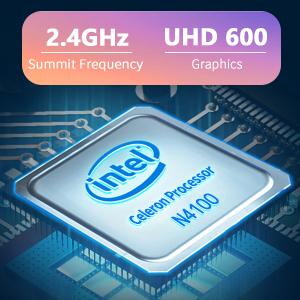
Image: The Intel Celeron N4100 processor, central to the laptop's performance, highlighting its clock speed and integrated graphics capabilities.

Image: The laptop's battery specifications, indicating its power capacity for extended use.
12. Garânsje en stipe
For warranty information and technical support, please refer to the documentation included with your purchase or visit the official iProda website. Contact information for customer service can typically be found on the manufacturer's support page.