
1. Introduction
Thank you for choosing the ACEMAGIC LX16PRO Gaming Laptop. This manual provides essential information for setting up, operating, maintaining, and troubleshooting your new device. The LX16PRO is designed for performance and productivity, featuring an AMD Ryzen 7 7730U processor, a 16-inch IPS display, 16GB DDR4 RAM, and a 512GB NVMe SSD, running on Windows 11 Pro.

Image : Terminéview of the ACEMAGIC LX16PRO laptop, highlighting its AMD Ryzen 7 7730U processor, AMD Radeon Graphics, 16-inch FHD IPS display, up to 64GB DDR4 RAM, up to 4TB NVMe SSD, WiFi 6, and backlit keyboard.
2. Installation
2.1 Mise sous tension initiale
- Déballer: Retirez soigneusement l'ordinateur portable et tous ses accessoires de leur emballage.
- Connecter l'alimentation : Plug the power adapter into the DC jack on the laptop and then into a power outlet.
- Mise sous tension : Ouvrez le couvercle de l'ordinateur portable et appuyez sur le bouton d'alimentation, généralement situé sur le clavier.
- Installation de Windows: Suivez les instructions à l'écran pour terminer la configuration initiale de Windows 11 Pro, notamment la langue, la région, la connexion réseau et la création du compte utilisateur.
2.2 Connexion de périphériques
The LX16PRO offers various ports for connecting external devices:
- USB 3.2 : Connectez des périphériques USB tels que des souris, des claviers ou des disques de stockage externes.
- Type-C (Fonctionnalités complètes) : Use for data transfer, video output, or charging compatible devices.
- HDMI: Connectez-vous à des moniteurs ou téléviseurs externes pour un affichage étendu.
- Prise casque 3.5 mm: Connectez un casque ou des haut-parleurs externes.
- Prise de carte TF : Insérez une carte TF (microSD) pour un stockage supplémentaire ou le transfert de données.

Image : Côté droit view of the laptop, displaying the DC power input, a full-function Type-C port, an HDMI port, and a USB 3.2 port.
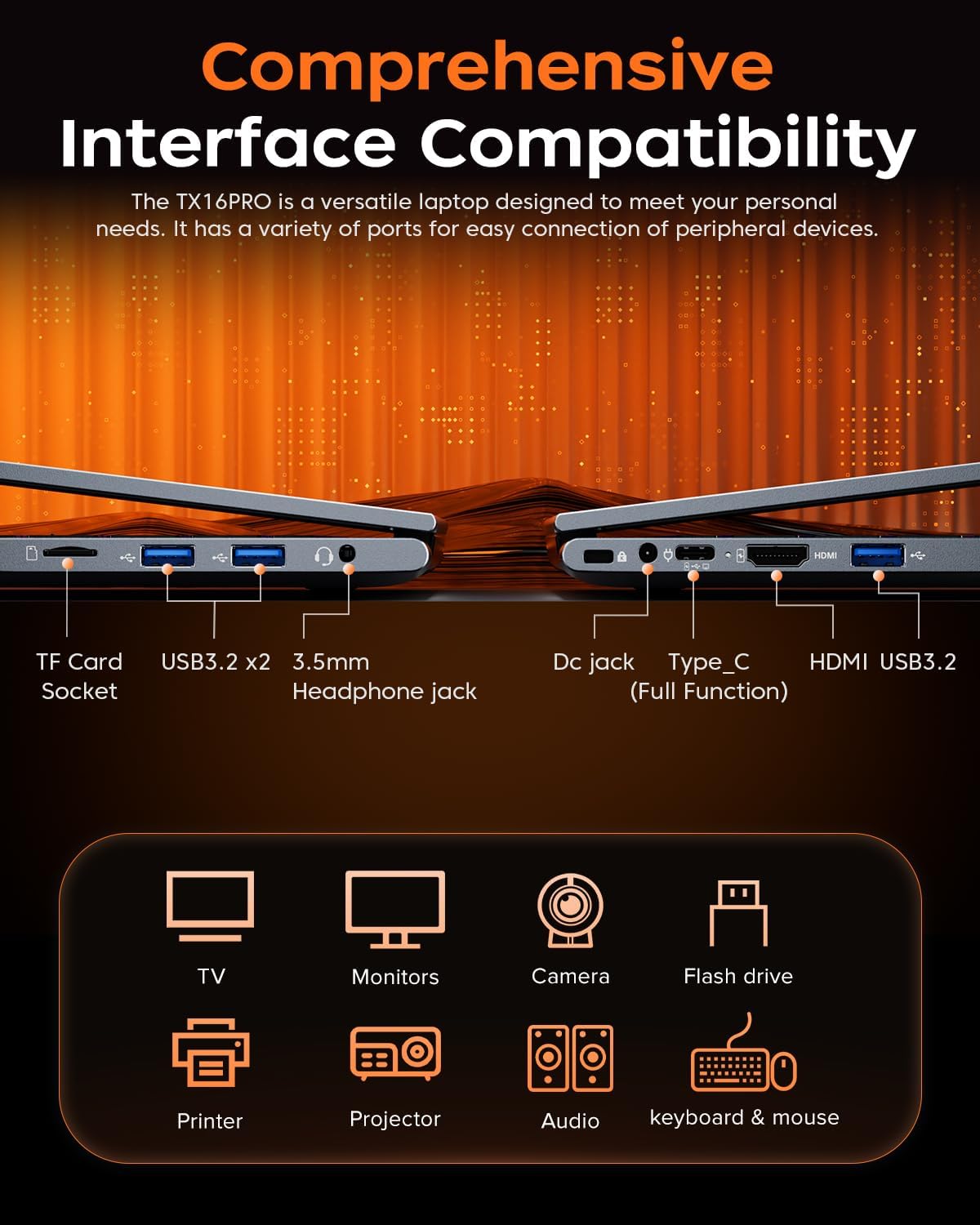
Image : Côté gauche view of the laptop, showing the TF card socket, two USB 3.2 ports, and the 3.5mm headphone jack.
3. Mode d'emploi
3.1 Clavier et pavé tactile
The laptop features a backlit keyboard and a responsive touchpad with multi-touch capabilities. The backlit keyboard enhances visibility in low-light conditions, and the numeric keypad provides convenience for data entry.
- Contrôle du rétroéclairage : Use the dedicated function keys (e.g., Fn + Fx) to adjust keyboard backlight brightness or toggle it on/off.
- Gestes du pavé tactile : Utilize multi-touch gestures for navigation, zooming, and other functions within Windows 11 Pro.

Image: Close-up of the laptop's backlit keyboard and large touchpad, illustrating its design and functionality.
Affichage 3.2
The 16-inch IPS display offers Full HD (1920x1200) resolution for clear and vibrant visuals. Adjust display settings through Windows settings for optimal viewexpérience de travail.

Image : L'écran de l'ordinateur portable montreasing vivid graphics, emphasizing the 16-inch display with Full HD (1920x1200) resolution and IPS technology.
3.3 Connectivité sans fil
The LX16PRO supports WiFi 6 and Bluetooth 5.2 for fast and reliable wireless connections.
- Wi-Fi 6 : Connect to high-speed wireless networks for internet access and online activities.
- Bluetooth 5.2: Pair with Bluetooth-enabled devices such as headphones, speakers, or other peripherals.

Image: A visual comparison demonstrating the improved transfer speeds and reduced latency of WiFi 6 over WiFi 5, beneficial for gaming and streaming.
3.4 Modes d'alimentation
Optimize performance and battery life by adjusting power modes in Windows settings (Settings > System > Power & battery).
- Meilleure performance: Maximizes system speed for demanding tasks like gaming.
- Équilibré: Offers a good compromise between performance and power efficiency for everyday use.
- Best Power Efficiency: Conserves battery life for extended usage, suitable for light tasks.

Image: The laptop displayed alongside three power modes, indicating their respective performance levels and recommended uses for gaming, work, and extended battery life.
4. Entretien
4.1 Entretien de la batterie
- Évitez de décharger complètement la batterie fréquemment.
- Rangez l'ordinateur portable dans un endroit frais et sec lorsqu'il n'est pas utilisé pendant une période prolongée.
- Pour une durée de vie optimale de la batterie, évitez d'exposer l'ordinateur portable à des températures extrêmes.

Image : Un interne view of the laptop highlighting the 54Wh battery, indicating its capacity for extended use.
4.2 Gestion du stockage
- Nettoyez régulièrement les déchets inutiles files and applications to maintain optimal performance of the 512GB NVMe SSD.
- Consider external storage or cloud services for large files to free up internal drive space.

Image: A visual representation of the laptop's memory (16GB DDR4 RAM, upgradable to 64GB) and storage (512GB NVMe SSD, upgradable to 4TB) capabilities.
4.3 Nettoyage
- Utilisez un chiffon doux non pelucheux pour nettoyer l'écran et les surfaces extérieures.
- Évitez les produits chimiques agressifs ou les matériaux abrasifs.
- Periodically clean the cooling vents to ensure proper airflow and prevent overheating.

Image: An illustration of the laptop's internal cooling system, featuring dual copper pipes and a dedicated fan designed to maintain low temperatures during operation.
5. Dépannage
If you encounter issues with your ACEMAGIC LX16PRO laptop, refer to the following common solutions:
- Pas d'alimentation : Assurez-vous que l'adaptateur secteur est correctement branché à la fois à l'ordinateur portable et à une prise de courant fonctionnelle. Vérifiez le voyant d'alimentation.
- Problèmes d'affichage : If the screen is blank, try connecting an external monitor via HDMI to check if the issue is with the laptop's display or graphics output. Adjust display settings in Windows.
- Problèmes de connectivité : For WiFi issues, restart your router and the laptop. For Bluetooth, ensure the device is discoverable and within range.
- Performances lentes : Close unnecessary applications, check for background processes, and ensure your system is up to date. Consider running a disk cleanup.
- Gel du système : If the system becomes unresponsive, press and hold the power button for 10-15 seconds to force a shutdown. Restart the laptop.
Pour obtenir de l'aide supplémentaire, veuillez contacter le service client d'ACEMAGIC.
6. Spécifications
Below are the detailed specifications for the ACEMAGIC LX16PRO Gaming Laptop:
| Fonctionnalité | Détail |
|---|---|
| Nom du modèle | LX16PRO |
| Processeur | AMD Ryzen 7 7730U (8 cœurs, 16 threads, jusqu'à 4.5 GHz) |
| Graphique | AMD Radeon ™ Graphics |
| BÉLIER | 16 Go de mémoire DDR4 (2666 MHz), jusqu'à 64 Go. |
| Stockage | 512GB NVMe SSD (PCIE x 4), Max 4TB |
| Afficher | 16-inch IPS, 1920x1200 (FHD), 60 Hz |
| Système opérateur | Windows 11 Pro |
| Connectivité | Wi-Fi 6 (802.11ax), Bluetooth 5.2 |
| Ports | 1x HDMI, 1x Type-C (Full Function), 3x USB 3.2, 1x 3.5mm Audio Jack, 1x TF Card Socket, 1x DC Jack |
| Clavier | Backlit Keypad, QWERTY Layout |
| Pavé tactile | Multitouch |
| Webcame | Oui (avant) |
| Batterie | 1 Lithium Ion, 55 Watt Hours (approx. 4 hours life) |
| Dimensions | 35.73 x 22.86 x 1.67 cm |
| Poids | 1.78 kg |
7. Garantie et assistance
ACEMAGIC provides customers with a one-year limited warranty and 30-day returns. Lifetime technical support and offline maintenance are also available. For any issues or inquiries, please feel free to contact ACEMAGIC customer support.
8. Produit terminéview Vidéo
Vidéo : Un bref aperçuview of the ACEMAGIC TX16PRO Laptop, showcasing its 16-inch FHD display, 180-degree hinge, backlit keyboard, and various connectivity ports including DC jack, Type-C, HDMI, USB 3.2, TF card socket, and 3.5mm headphone jack. This video highlights the physical features and design of the laptop.