
1. Produit terminéview
The Magcubic Smart Projector HY350GT is a portable projector designed for versatile entertainment and presentation needs. It features 4K support, native 1080P resolution, and a built-in 4K TV stick for direct access to streaming applications. Key functionalities include automatic focus, keystone correction, obstacle avoidance, and screen alignment, ensuring a clear and properly framed image with minimal manual adjustment. Dual-band Wi-Fi and Bluetooth 5.1 provide robust connectivity options for various devices and audio accessories.
2. Contenu de la boîte
- Magcubic Smart Projector HY350GT
- Adaptateur secteur
- Télécommande
- Manuel de l'utilisateur (ce document)
3. Instructions de configuration
3.1 Installation initiale et raccordement électrique
Place the projector on a stable, flat surface. The flexible rotating stand allows for projection onto walls or ceilings. Connect the power adapter to the projector's power input port and then to a power outlet.

Image: The Magcubic HY350GT projector demonstrating its flexible rotating stand for various projection angles, including walls and ceilings.
3.2 Correction automatique d'image
Upon powering on, the projector will automatically perform several corrections:
- Mise au point automatique: The image will automatically sharpen.
- Correction trapézoïdale automatique : The image will adjust to be rectangular, even if the projector is at an angle.
- Évitement automatique des obstacles : The projector detects walls and barriers, adjusting the image to avoid interference.
- Alignement automatique de l'écran : The image will align itself to the projection surface.
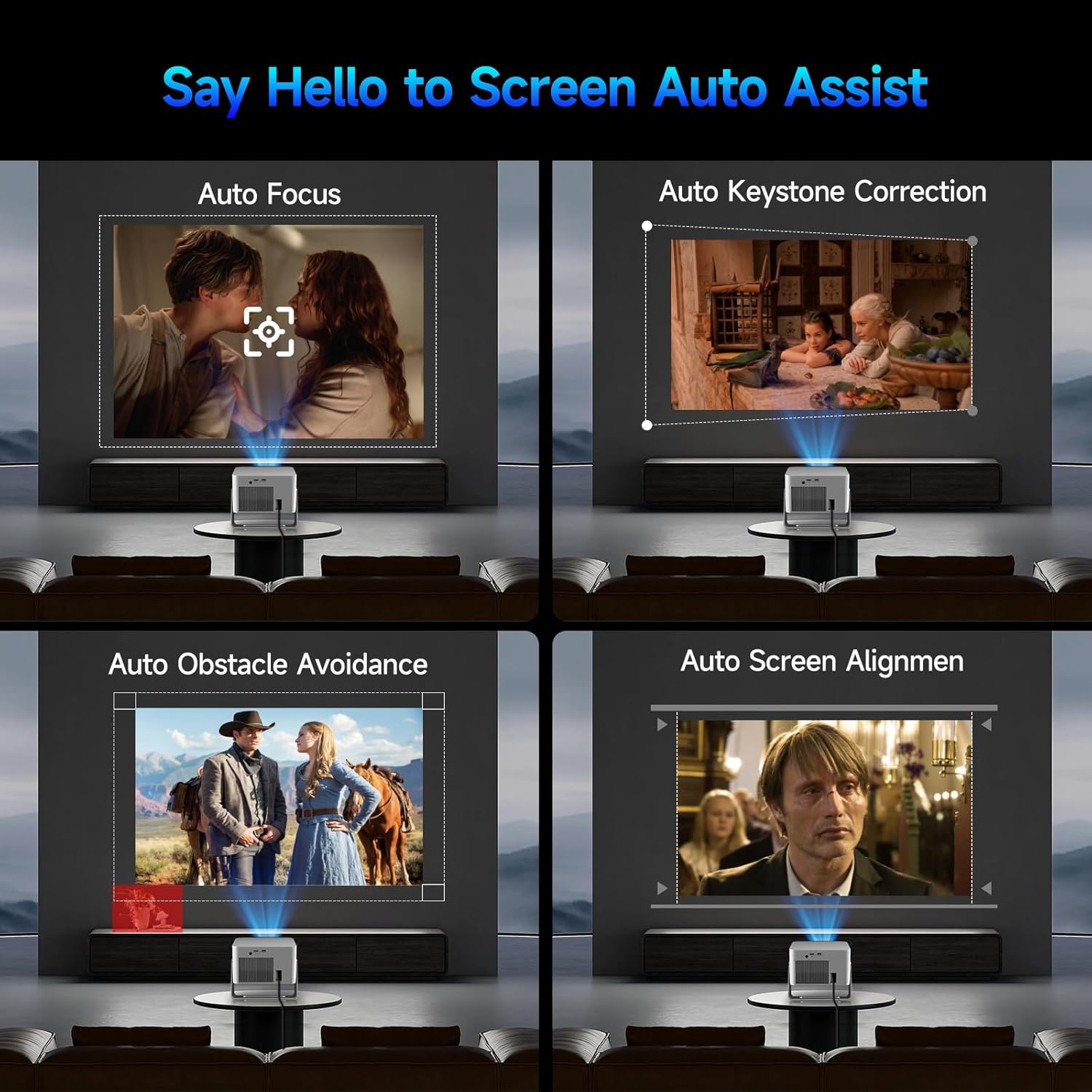
Image: Visual representation of the projector's automatic screen assist features, including auto focus, keystone correction, obstacle avoidance, and screen alignment.
Connexion réseau 3.3
Navigate to the 'Settings' menu using the remote control. Select 'Network settings' to connect to your Wi-Fi network (2.4G or 5G). This enables access to built-in streaming apps and online content.
4. Mode d'emploi
4.1 Télécommande et assistant vocal
The included remote controls both the projector and the built-in streaming stick. Utilize the Voice Assistant feature by pressing the voice command button to quickly open apps, play movies, adjust volume, or check information.
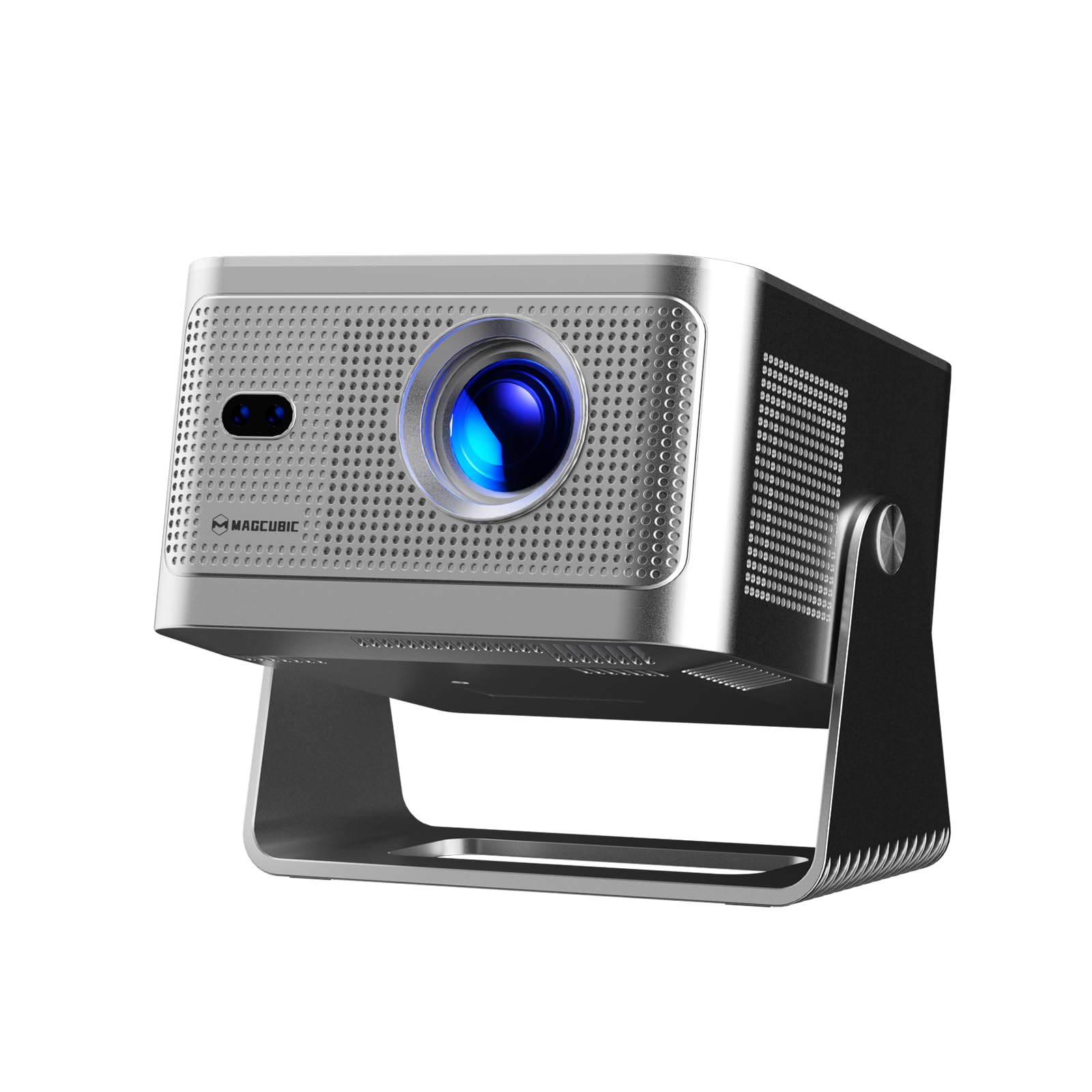
Image: The projector's main screen showing various streaming apps and the remote control, highlighting its voice assistant capabilities.
4.2 Accéder aux applications
The projector comes with a built-in 4K TV stick, providing access to a wide range of applications. Navigate to 'My Apps' or the 'Store' to browse and download additional streaming services and utilities.

Image: The projector's interface showing pre-installed and downloadable streaming applications.
4.3 Paramètres de projection
In the 'Settings' menu, select 'Projection settings' to fine-tune your display:
- Mode appareil : Switch between Standard and Energy Saving modes.
- Mode d'installation: Adjust for front projection, rear projection, or ceiling mounting.
- Digital Scaling: Ajustez la taille de l'image de 80 % à 100 %.
- Mise au point automatique: Activer/désactiver la mise au point automatique.
- Auto Four Corner Correction: Enable automatic trapezoidal correction.
- Évitement intelligent des obstacles : Enable automatic image adjustment around obstacles.
- Screen Recognition: Enable automatic screen detection and alignment.
4.4 Sortie audio
The projector features a built-in 15W high-fidelity stereo speaker. For external audio, connect Bluetooth 5.1 compatible speakers or headphones via the 'Bluetooth' setting in the main menu.
4.5 Connectivité externe
The rear panel of the projector includes:
- Port HDMI: Connect external devices such as laptops, gaming consoles (Switch, PS5), TV sticks, tablets, or smartphones.
- Port USB : Connect USB storage devices or a mouse for navigation.

Image : détaillée view of the projector's rear ports for HDMI, USB, and power connections.
4.6 écran miroir
The projector supports screen mirroring from both Android and iOS devices. Access this feature through the main menu to cast content directly from your phone or tablet.

Image: A smartphone wirelessly casting its screen to the projector, demonstrating the screen mirroring capability.
5. Entretien
- Nettoyage des lentilles : Essuyez délicatement la lentille du projecteur avec un chiffon doux non pelucheux. Évitez les matériaux abrasifs et les produits chimiques agressifs.
- Ventilation: Ensure the projector's ventilation ports are clear of obstructions to prevent overheating. Do not block the air vents during operation.
- Stockage: Lorsqu'il n'est pas utilisé, rangez le projecteur dans un endroit frais et sec, à l'abri de la lumière directe du soleil et des températures extrêmes.
6. Dépannage
- Pas d'image: Ensure the projector is powered on and the correct input source (HDMI, USB, or internal apps) is selected. Check all cable connections.
- Image floue : Allow the auto-focus feature to complete. If needed, manually adjust focus via the projection settings. Ensure the projection surface is flat.
- Pas de son : Check the volume level on both the projector and any connected external audio devices. Verify Bluetooth connection if using external speakers.
- Problèmes de connectivité : For Wi-Fi, ensure the network password is correct and the projector is within range. For Bluetooth, ensure the external device is in pairing mode.
- Distorsion de l'image : Allow auto keystone correction to complete. If necessary, manually adjust keystone settings in the projection menu.
7. Spécifications
| Fonctionnalité | Spécification |
|---|---|
| Nom de marque | Magcubique |
| Modèle | HY350GT |
| Poids de l'article | 3.08 livres |
| Dimensions du colis | 9.61 x 8.27 x 5.39 pouces |
| Résolution d'affichage | 1920 x 1080 (Natif 1080p, prise en charge 4K) |
| Luminosité | 650 ANSI Lumens |
| Rapport de contraste | 10,000:1 |
| Gamme de couleurs | 120% |
| Technologie de connectivité | Bluetooth 5.1, Dual-Band Wi-Fi (2.4G&5G) |
| Caractéristiques spéciales | 15W Speaker, Auto Focus, Auto Keystone Correction, Auto Obstacle Avoidance, Auto Screen Alignment |
| Utilisations recommandées | Entreprises, Éducation, Jeux vidéo, Cinéma à domicile |
8. Garantie et assistance
Magcubic offers a 30-day return guarantee for this product. Additionally, 24-hour live customer support and lifetime technical support are included to assist with any inquiries or issues.