
1. Consignes de sécurité
Please read all instructions carefully before installing or operating the WAVLINK 10G PCIe Network Card. Retain this manual for future reference.
- Always power off your computer and disconnect it from the power source before opening the case or installing any internal components.
- Discharge any static electricity from your body by touching a grounded metal object (e.g., the computer chassis) before handling the network card.
- Handle the network card by its edges to avoid touching the gold contacts or components.
- Ensure proper ventilation inside your computer case to prevent overheating.
- Important: Remove the protective plastic film from the PCI-e interface before connecting the card to the PC's PCI-e slot.
2. Contenu du colis
Vérifiez que tous les éléments sont présents dans votre colis :
- WAVLINK 10G PCIe Network Card (Model: WL-NWP004-10G)
- Standard Profile Support (préinstallé)
- Faible Profile Support
- Vis de montage
- Clé USB (contenant les pilotes)
- Guide d'installation rapide

Image: Contents of the WAVLINK 10G PCIe Network Card package, including the card, brackets, screws, and USB drive.
3. Produit terminéview
The WAVLINK 10G PCIe Network Card is designed to provide high-speed network connectivity for desktop computers. It features the AQC113 controller for reliable performance and supports multiple speed options.
Caractéristiques principales :
- 10G High-Speed Transmission: Achieves network speeds up to 10 times faster than traditional gigabit rates, supporting 10000/5000/2500Mbps.
- Compatibilité PCIe : Compatible with PCIe x4, x8, and x16 slots. Note: Not compatible with PCI slots.
- Support du système d'exploitation: Seamless compatibility with Windows 11, Windows 10, and Linux operating systems.
- Flexible Bracket Versatility: Inclut les modèles standard et à profil basfile brackets for installation in various computer case sizes.
- Robust Metal Shielding & Heat Sink: Minimizes electromagnetic interference and provides excellent heat dissipation for stable network transmission.
- Thickened Gold Finger: Ensures stable and reliable connection to the PCIe slot.
Identification des composants :

Image: The WAVLINK 10G PCIe Network Card highlighting the AQC113C-B1 controller for stable transmission.
- Interface PCIe : Connects to the motherboard's PCIe slot.
- Port Ethernet RJ45 : Connects to your network cable.
- AQC113C-B1 Controller: The main chip responsible for network processing.
- Dissipateur de chaleur: Dissipates heat from the controller for optimal performance.
- Gold Finger: The gold-plated contacts that interface with the PCIe slot.

Image: The WAVLINK 10G PCIe Network Card showing both standard and low-profile parenthèses.
4. Setup: Physical Installation
Follow these steps to physically install the WAVLINK 10G PCIe Network Card into your computer:
Video: A detailed guide on how to install a PCIe network card into a desktop computer. This video demonstrates the process of opening the PC case, identifying an available PCIe slot, removing the slot cover, inserting the card, and securing it with a screw.
- Power Off and Open PC Case:
Completely power off your computer and disconnect all cables. Open the computer case to access the motherboard.

Image: Illustration of powering off a PC and opening its side panel to reveal internal components.
- Identify an Available PCIe Slot:
Locate an available PCIe x4, x8, or x16 slot on your motherboard. Ensure it is clear of obstructions.
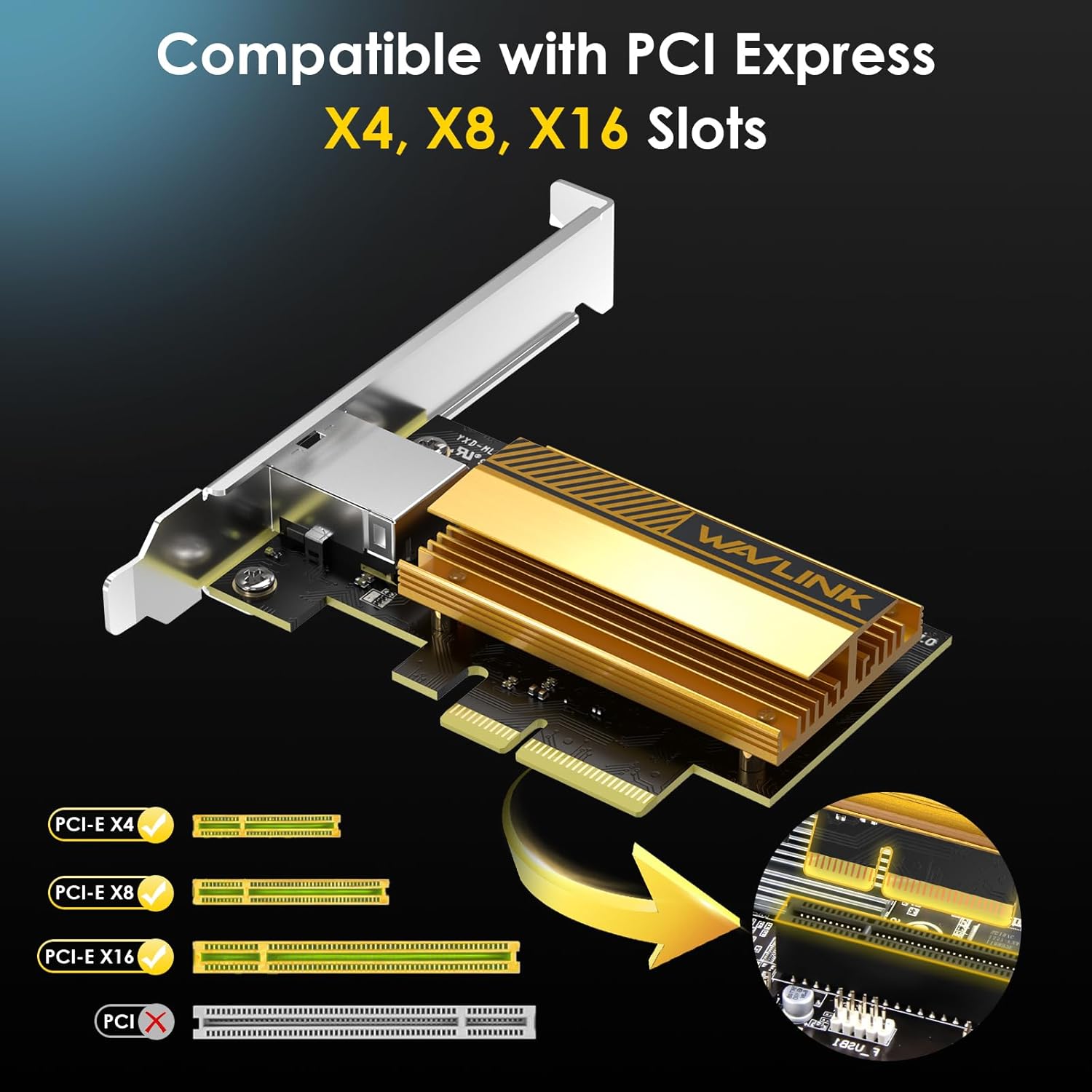
Image: Diagram showing compatible PCIe x4, x8, and x16 slots on a motherboard.
- Retirer le cache de la fente :
Unscrew and remove the metal slot cover corresponding to the chosen PCIe slot from the back of your computer case.

Image: Illustration of inserting the PCIe network card into an available slot on the motherboard.
- Installez la carte réseau :
Carefully align the network card with the PCIe slot and press it firmly until it is fully seated. Ensure the bracket aligns with the opening in the case.
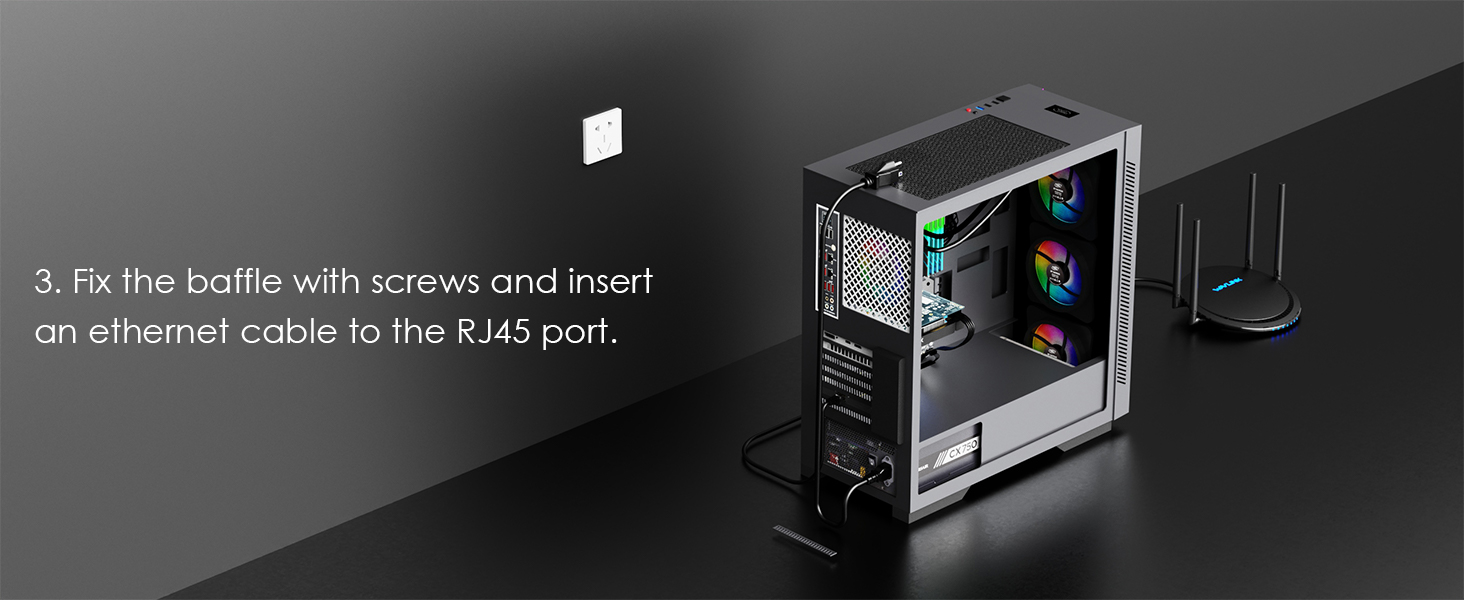
Image: Illustration of securing the network card with screws and connecting an Ethernet cable to its RJ45 port.
- Sécurisez la carte :
Use the screw removed earlier to secure the network card's bracket to the computer case.
- Clôturer le dossier et renouer le contact :
Close the computer case, reconnect all cables, and power on your PC.
5. Mode d'emploi
Installation du pilote :
Après l'installation physique, vous devez installer les pilotes appropriés pour que la carte réseau fonctionne correctement.
- Using the Included USB Flash Drive:
Insert the provided USB flash drive into an available USB port on your computer. Navigate to the drive and run the driver installation executable. Follow the on-screen prompts to complete the installation.

Image: A USB flash drive, typically included for driver installation.
- Téléchargement de pilotes en ligne :
Alternatively, you can download the latest drivers from the official WAVLINK webplacer. Visite www.wavlink.com, navigate to the support section, and search for model WL-NWP004-10G. Download and install the drivers according to the instructions provided on the website.
- Vérification:
After installation, check Device Manager (Windows) or network settings (Linux) to ensure the network card is recognized and functioning correctly.
Network Cable Requirements:
To achieve optimal performance, use appropriate Ethernet cables:
- For 10Gbps speeds, a Cat6A or higher Ethernet cable is recommended.
- Cat5E and Cat6 cables can support lower speeds (2.5G/5G) but may not consistently achieve 10Gbps over longer distances.

Image: Chart detailing recommended Ethernet cable types for 2.5G, 5G, and 10G network speeds.
Advanced Network Configuration (Optional):
- Cadres géants : For maximum throughput, especially with large file transfers, enable Jumbo Frames (e.g., 9K MTU) on your network card, router, and other network devices. Ensure consistent settings across all devices.
- Un duplex plein: The card supports full duplex operation. In most cases, leaving this setting on "Auto" is sufficient. If manual configuration is required, set it to "10Gbps Full Duplex".
6. Entretien
Proper maintenance ensures the longevity and optimal performance of your network card:
- Garder propre: Periodically clean your computer's interior to prevent dust buildup on the network card and its heat sink. Dust can impede heat dissipation.
- Débit d'air : Ensure good airflow within your PC case. The card's excellent heat sink helps manage temperature, but proper case ventilation is crucial.
- Mises à jour du pilote: Vérifiez régulièrement le WAVLINK webSite web proposant des pilotes mis à jour pour garantir la compatibilité et améliorer les performances.

Image: Close-up of the WAVLINK 10G PCIe Network Card's heat sink, designed for efficient heat dissipation.
7. Dépannage
If you encounter issues with your WAVLINK 10G PCIe Network Card, refer to the following common solutions:
- No Network Connection / Card Not Detected:
- Assurez-vous que la carte est complètement insérée dans le slot PCIe.
- Vérifiez que les pilotes appropriés sont installés. Réinstallez les pilotes si nécessaire.
- Check the network cable connection to both the card and your router/switch.
- Essayez un autre emplacement PCIe si disponible.
- Débits réseau lents :
- Confirm you are using a Cat6A or higher Ethernet cable for 10Gbps.
- Check if Jumbo Frames are enabled and consistently configured across all network devices (card, switch, router).
- Assurez-vous que votre routeur/commutateur prend en charge les vitesses de 10 Gbit/s.
- Mettez à jour les pilotes de votre carte réseau vers la dernière version.
- Driver Installation Warnings (e.g., Antivirus Flags):
Some antivirus software may flag driver installation files as suspicious. If you encounter such warnings, download the drivers directly from the official WAVLINK website (www.wavlink.com) to ensure authenticity. Temporarily disable antivirus during installation if confident in the source, then re-enable immediately.
- Connexion intermittente :
- Vérifiez les connexions desserrées.
- Ensure the card is not overheating; verify proper case ventilation.
- Essayez avec un autre câble Ethernet.
8. Spécifications
| Marque | WAVLINK |
| Numéro de modèle | WL-NWP004-10G |
| Interface matérielle | PCIe x1 (Compatible with x4, x8, x16 slots) |
| Appareils compatibles | Ordinateur de bureau |
| Protocole de liaison de données | Gigabit Ethernet (10G Base-T) |
| Taux de transfert de données | 10 gigabit par seconde (10000/5000/2500 Mbps) |
| Jeu de puces du contrôleur | AQC113C-B1 (Marvell AQtion) |
| Prise en charge du système d'exploitation | Windows 11, Windows 10, Linux |
| Poids de l'article | 0.15 kilogrammes |
9. Garantie et assistance
Informations sur la garantie :
The WAVLINK 10G PCIe Network Card comes with a Garantie d'un an À compter de la date d'achat, cette garantie couvre les défauts de fabrication et assure la fiabilité du produit. Veuillez conserver votre preuve d'achat pour toute réclamation au titre de la garantie.
Assistance clientèle :
For technical assistance, troubleshooting, or warranty inquiries, please contact WAVLINK customer support:
- E-mail: support@wavlink.com
- Assistance par chat en direct : Visite www.wavlink.com (Mon-Fri 08:30 am - 5:30 pm UTC+8)
- Téléphone (États-Unis) : +1(888)973-0883 (du lundi au vendredi de 09h00 à 10h00 UTC-5)

Image: WAVLINK customer support contact details.