
1. Introduction
This manual provides detailed instructions for the installation, configuration, and operation of the D-Link Guardian 700 Pro Multi-Gig Business Router (DBR-700). The DBR-700 is designed to provide enterprise-level networking capabilities for small and medium businesses, offering high-speed connectivity, robust security features, and simplified management.
Key features include a 2.5GbE WAN port, six 2.5GbE LAN ports, a 2.5GbE SFP uplink for flexible fiber connections, Multi-WAN failover, SPI Firewall, VPN support (IPSec, WireGuard, OpenVPN), and centralized management for up to 15 D-Link Guardian Wi-Fi 6 Smart Access Points (DBR-X3000-AP, sold separately).

Image: The D-Link Guardian 700 Pro Multi-Gig Router (DBR-700) designed for small and medium business environments.
2. Contenu du colis
Vérifiez que votre colis contient les éléments suivants :
- D-Link Guardian 700 Pro Multi-Gig Business Router (DBR-700)
- Adaptateur secteur
- Guide d'installation rapide (QIG)
Si des articles sont manquants ou endommagés, veuillez contacter votre revendeur D-Link local.
3. Matériel terminéview
3.1. Panneau avant
The front panel of the DBR-700 features status indicators and network ports.

Image : Avant view of the DBR-700 router, showing LED indicators, Console port, LAN ports, WAN port, and LAN/WAN SFP port.
- Voyant SYS : Indique l'état du système.
- Voyant SFP : Indicates status of the SFP port.
- Bouton de réinitialisation : Utilisé pour réinitialiser l'appareil ou restaurer les paramètres d'usine.
- Port de console : For command-line interface access.
- Ports LAN (1-6) : Six 2.5GbE LAN ports for connecting local network devices.
- Port LAN/WAN : A 2.5GbE port configurable as either a LAN or WAN interface.
- Port WAN : A dedicated 2.5GbE WAN port for internet connectivity.
- LAN/WAN SFP Port: A 2.5GbE/1GbE SFP port for fiber or copper connections, configurable as LAN or WAN.
3.2. Panneau arrière
The rear panel includes the power input and power switch.

Image : Arrière view of the DBR-700 router, showing the DC 12V/2A power input and On/Off switch.
- CC 12V/2A : Connecteur d'entrée d'alimentation.
- Interrupteur marche/arrêt : Contrôle de l'alimentation de l'appareil.
4. Installation
Follow these steps for the initial setup of your DBR-700 router:
- Connexion électrique : Connect the provided power adapter to the DC 12V/2A port on the rear panel of the router and plug it into a power outlet. Turn on the router using the On/Off switch.
- Connexion WAN : Connect your internet service provider's modem or main network line to the BLÊME port on the router using an Ethernet cable. If using fiber, insert the SFP module (sold separately) into the LAN/WAN SFP port and connect the fiber cable.
- Connexion LAN: Connect your local network devices (e.g., computers, switches, access points) to the Réseau local ports (1-6) or the configurable Réseau local/réseau étendu port using Ethernet cables.
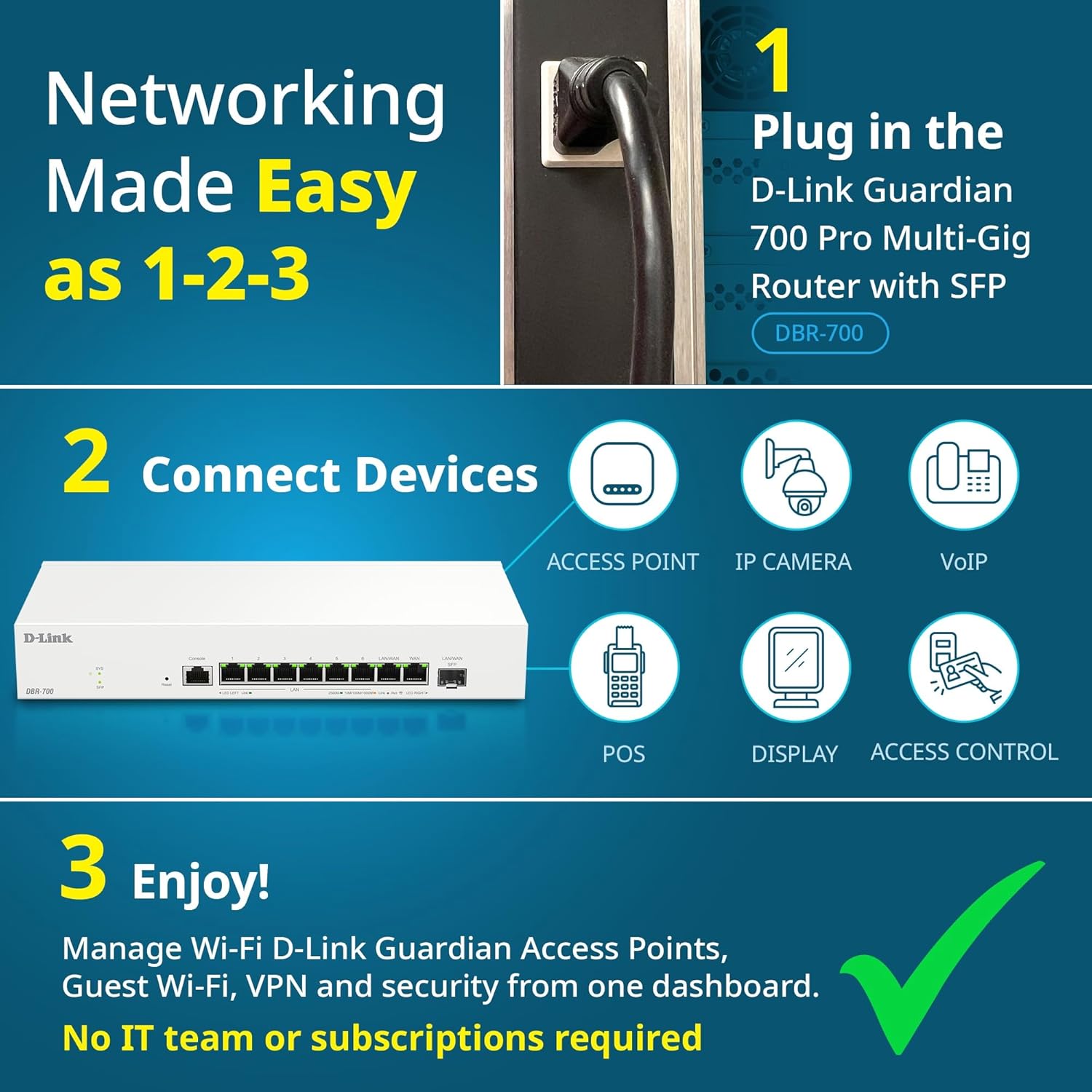
Image: Visual guide for router installation: 1. Plug in the DBR-700 router. 2. Connect devices like access points, IP cameras, VoIP, POS, displays, and access control. 3. Enjoy managed Wi-Fi, Guest Wi-Fi, VPN, and security from one dashboard.
5. Configuration
5.1. Accéder au Web Interface
To configure the DBR-700, access its web- interface de gestion basée :
- Assurez-vous que votre ordinateur est connecté à l'un des ports LAN du routeur.
- Ouvrir un web navigateur (par exemple, Chrome, Firefox, Edge).
- Enter the router's default IP address (typically
192.168.1.1or similar, refer to the Quick Installation Guide for the exact address) into the address bar and press Enter. - Enter the default username and password when prompted. (Refer to the Quick Installation Guide for default credentials).
5.2. Basic Network Settings
Once logged in, you can configure basic network settings:
- Paramètres WAN : Configure your internet connection type (e.g., DHCP, Static IP, PPPoE) as provided by your ISP.
- Paramètres lan: Adjust the router's internal IP address, subnet mask, and DHCP server settings for your local network.
- Paramètres de l'heure : Set the correct time zone and synchronize the router's clock.
6. Fonctionnalités avancées
6.1. Multi-WAN Failover
The DBR-700 supports Multi-WAN with intelligent failover, ensuring business continuity by providing redundant internet connections. If the primary WAN link fails, the router automatically switches to a secondary WAN link.

Image: The DBR-700's ports, illustrating the Primary 2.5GbE WAN, Secondary 2.5GbE LAN/WAN, and SFP Uplink for Multi-WAN failover capabilities.
6.2. Configuration du VPN
The router includes built-in VPN support for IPSec, WireGuard, and OpenVPN, enabling secure remote access for employees and branch office connectivity. It supports up to 100 VPN tunnels.
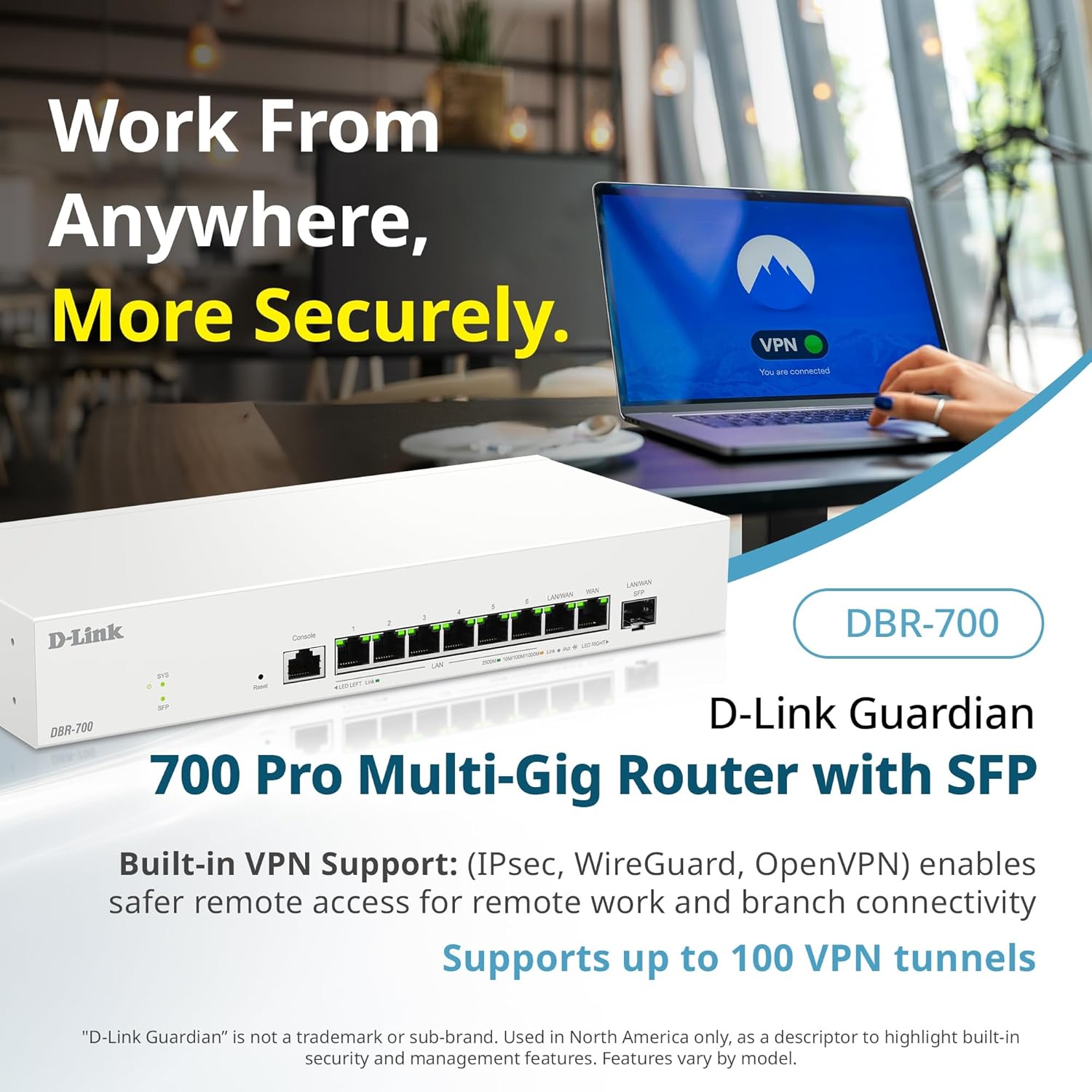
Image: A laptop displaying a 'VPN Connected' status, with the DBR-700 router in the foreground, illustrating secure remote access.
6.3. Centralized Access Point Management
The DBR-700 can discover and manage up to 15 D-Link Guardian Wi-Fi 6 Smart Access Points (DBR-X3000-AP, sold separately) from a single intuitive dashboard. This simplifies Wi-Fi network deployment and management.

Image: A tablet showing the D-Link Wi-Fi management dashboard, demonstrating centralized control over D-Link Guardian Access Points, with the DBR-700 router and a DBR-X3000-AP in the background.
6.4. Guest Wi-Fi Management
Set up and manage guest Wi-Fi networks with a Captive Portal. This allows for branded sign-in pages for guests while keeping business systems separate and secure. Configuration and management are done from the router dashboard.

Image: A smartphone screen showing a customizable guest Wi-Fi login portal, highlighting the DBR-700's ability to manage and customize guest networks.
7. Entretien
7.1. Mises à jour du micrologiciel
Vérifiez et installez régulièrement les mises à jour du micrologiciel pour garantir des performances optimales, une sécurité renforcée et l'accès aux nouvelles fonctionnalités. Les mises à jour du micrologiciel sont généralement disponibles sur le site d'assistance de D-Link. website dédié à votre modèle spécifique.
7.2. Réinitialisation d'usine
If you encounter persistent issues or wish to clear all configurations, you can perform a factory reset. To do this, locate the Reset button on the front panel. With the router powered on, use a paperclip or similar pointed object to press and hold the Reset button for approximately 5-10 seconds until the SYS LED blinks. Release the button, and the router will restart with factory default settings.
8. Dépannage
This section addresses common issues you might encounter with your DBR-700 router.
8.1. Pas de connexion Internet
- Vérifiez les câbles : Assurez-vous que tous les câbles Ethernet sont correctement connectés aux ports appropriés (WAN, LAN).
- État du modem : Verify that your internet service provider's modem is working correctly and has an active internet connection.
- Configuration WAN : Connectez-vous au routeur web interface and verify that the WAN settings (e.g., IP address, DNS) are correctly configured according to your ISP's requirements.
- Redémarrer les appareils : Redémarrez votre modem, puis votre routeur, et enfin vos appareils connectés.
8.2. Accès impossible Web Interface
- Adresse IP: Ensure your computer is configured to obtain an IP address automatically (DHCP) or has a static IP address within the router's subnet.
- IP du routeur : Double-check the router's default IP address. It might be printed on a label on the router itself or in the Quick Installation Guide.
- Pare-feu/Antivirus : Désactivez temporairement tout pare-feu ou logiciel antivirus susceptible de bloquer l'accès sur votre ordinateur.
- Cache du navigateur : Effacez votre web Videz le cache et les cookies de votre navigateur, ou essayez un autre navigateur.
8.3. Slow Network Speeds
- Qualité du câble : Ensure you are using high-quality Ethernet cables (Cat5e or Cat6) for multi-gig connections.
- Compatibilité des appareils : Verify that connected devices and network adapters support 2.5GbE speeds.
- Vitesse du FAI : Confirm your internet service plan provides the expected speeds.
- Gestion du trafic : Check router settings for any Quality of Service (QoS) or bandwidth limits that might be affecting performance.
9. Spécifications techniques
| Fonctionnalité | Spécification |
|---|---|
| Marque | Lien D |
| Numéro de modèle | DBR-700 |
| Ports WAN | 1x 2.5GbE WAN, 1x 2.5GbE/1GbE SFP (configurable as WAN) |
| Ports LAN | 6x 2.5GbE LAN, 1x 2.5GbE (configurable as LAN) |
| Prise en charge VPN | IPSec, WireGuard, OpenVPN (up to 100 tunnels) |
| Gestion AP | Manages up to 15 D-Link Guardian Wi-Fi 6 Smart Access Points |
| Fonctionnalités de sécurité | SPI Firewall, WPA3 encryption, VLANs |
| Dimensions (L x l x H) | 11.02 x 1.73 x 4.96 pouces |
| Poids de l'article | 2 livres |
| Voltage | 120 Volts (CA) |
| Couleur | Blanc |
10. Garantie et assistance
Pour obtenir des informations détaillées sur la garantie, l'assistance technique et des ressources supplémentaires, veuillez consulter le site officiel de D-Link. website. You can find product registration, FAQs, firmware downloads, and contact information for customer service.
D-Link Officiel Website: www.dlink.com
Please have your product model number (DBR-700) and serial number ready when contacting support.