
1. Introduction
Welcome to the user manual for your new TABWEE K10 Kids Tablet. This guide provides essential information to help you set up, operate, and maintain your tablet, ensuring a safe and enriching experience for children. The TABWEE K10 is designed to offer both educational content and entertainment, featuring Google Kids Space, YouTube Kids compatibility, and robust parental controls.
2. Produit terminéview
2.1 Composants
- TABWEE K10 Tablet
- Lightweight EVA Protective Case
- Touch Pen (Stylus)
- Câble USB Type-C
- Adaptateur secteur
- Manuel d'utilisation (japonais)
2.2 Principales caractéristiques
- Afficher: 10-inch HD IPS screen (1280x800 resolution) with Widevine L1 support.
- Système opérateur: Android 15 Édition Go.
- Processeur: RK3562 Quad-Core (Cortex-A55, up to 2.0GHz) with Mali-G52 GPU.
- Stockage de mémoire: 12GB RAM (4GB physical + 8GB virtual) and 64GB ROM, expandable up to 2TB via microSD card.
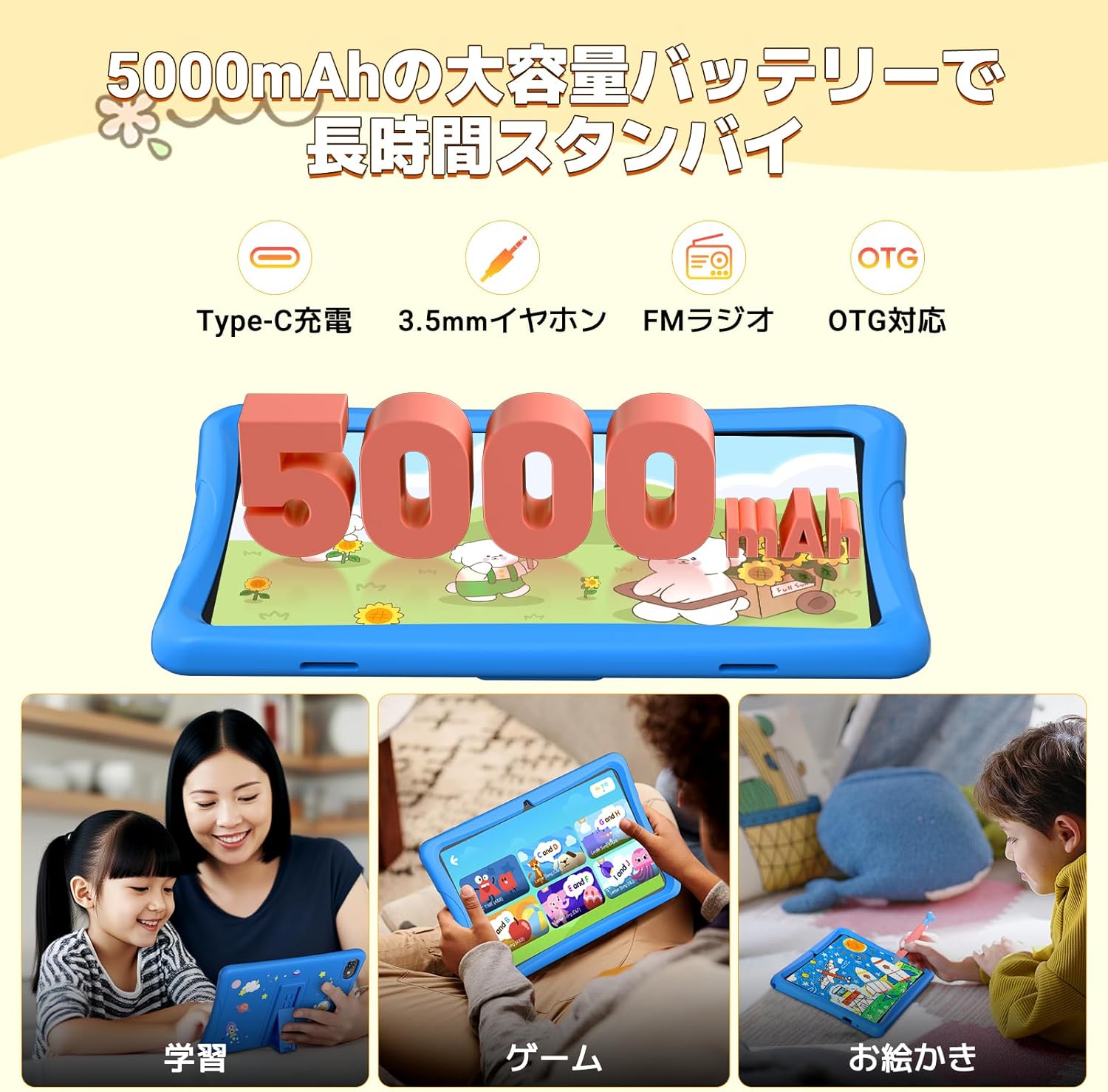
- Batterie: 5000 mAh pour une utilisation prolongée.
- Connectivité : 5G Wi-Fi, Bluetooth.
- Caméras : Caméra frontale 2 MP, caméra arrière 5 MP.
- Caractéristiques spéciales : Google Kids Space, YouTube Kids, Google Family Link parental controls, EVA protective case, touch pen.
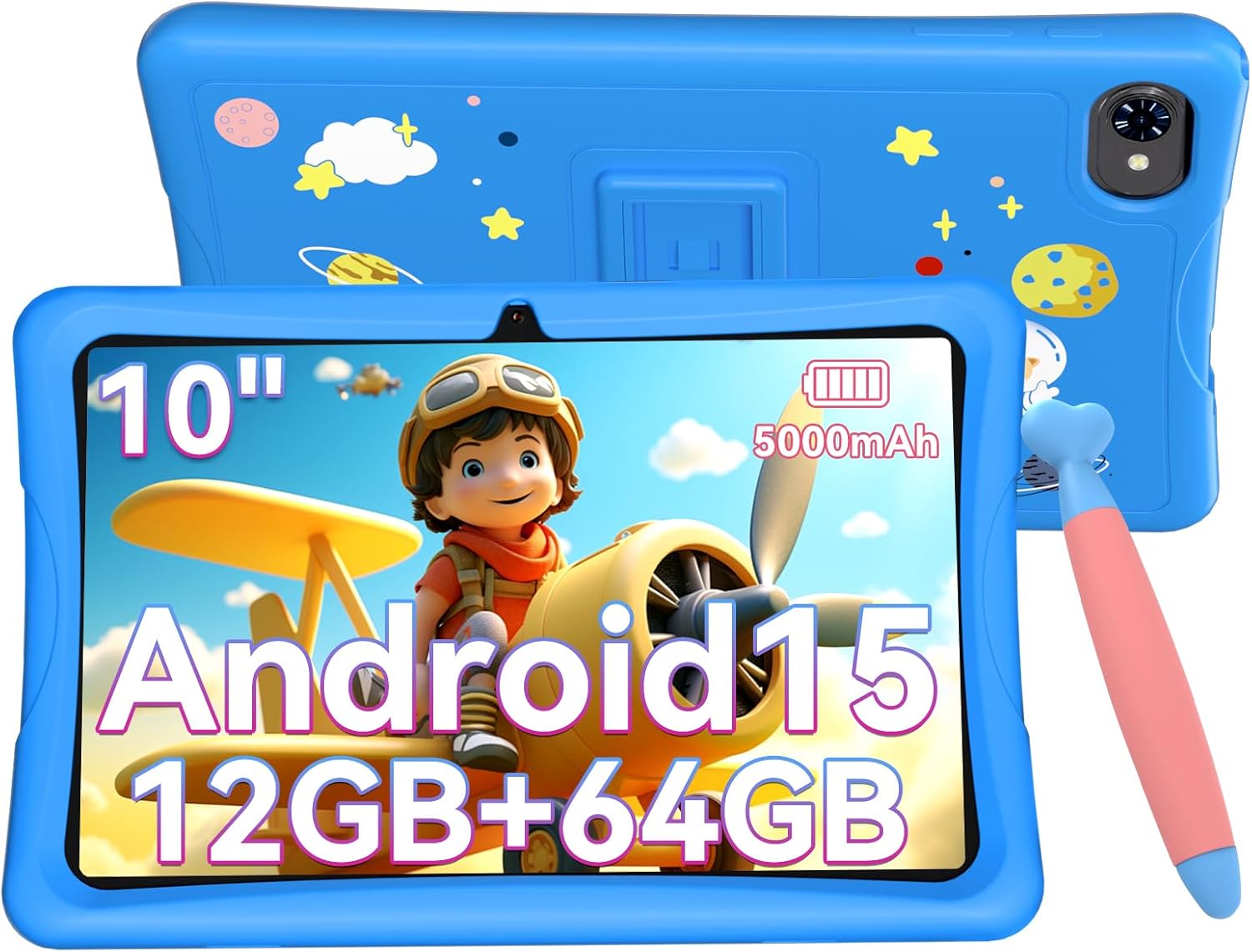
The TABWEE K10 Kids Tablet in blue, featuring a 10-inch screen, Android 15, 12GB RAM, 64GB ROM, and a 5000mAh battery, shown with its protective EVA case and a stylus.
An illustration of the TABWEE K10 tablet highlighting its physical features including the rear camera, flashlight, front camera, volume buttons, power button, 3.5mm audio jack, microphone, MicroSD slot, and Type-C port.
3. Mise en route
3.1 Charge initiale
Before first use, fully charge the tablet using the provided USB Type-C cable and power adapter. The battery indicator on the screen will show charging status.
3.2 Mise sous/hors tension
- Pour allumer : Maintenez le bouton Marche/Arrêt enfoncé jusqu'à ce que le logo TABWEE apparaisse.
- Pour éteindre : Maintenez le bouton Marche/Arrêt enfoncé, puis sélectionnez « Éteindre » parmi les options affichées à l'écran.
3.3 Sélection de la langue
Upon first boot or if you need to change the language:
- Aller à Paramètres (icône d'engrenage).
- Faites défiler vers le bas et appuyez sur Système.
- Appuyez sur Langues et saisie.
- Appuyez sur Langues.
- Robinet Ajouter une langue et sélectionnez votre langue préférée.
- Drag your preferred language to the top of the list to set it as the primary language.
This video demonstrates how to access the system settings and change the display language on the tablet.
3.4 Connexion Wi-Fi
To connect your tablet to the internet:
- Aller à Paramètres.
- Appuyez sur Réseau et internet.
- Basculer Wifi à Activé.
- Sélectionnez le réseau Wi-Fi souhaité dans la liste.
- Saisissez le mot de passe si vous y êtes invité, puis appuyez sur Connecter.
This video illustrates the steps to connect the tablet to an available Wi-Fi network through the settings menu.
4. Mode d'emploi
4.1 Navigation de base
- Robinet: Sélectionnez un élément ou ouvrez une application.
- Glisser: Faites défiler les écrans ou les listes.
- Pincer: Zoomer ou dézoomer sur les images et web pages.
4.2 Espace Google Kids
The TABWEE K10 comes pre-installed with Google Kids Space, a dedicated environment for children to learn and play. It features content categorized into 'Play', 'Read', 'Watch', and 'Make', guiding children to explore and grow independently.

A visual representation of the Google Kids Space interface, showing various educational apps and content categorized for children.
4.3 YouTube Kids
Access YouTube Kids for a safe and curated video experience for children. The app provides age-appropriate content and allows parents to manage viewpréférences.
This video shows how to launch the YouTube Kids application from the tablet's home screen.
4.4 Fonctionnalités d'Android 15
The tablet runs on the optimized Android 15 Go Edition, offering smoother operation, improved power efficiency, and enhanced notification management and privacy protection. It supports Kids Mode and multiple user profiles, making it easy for siblings to share or for parents to manage.

A graphic illustrating key features of Android 15, such as multitasking capabilities and enhanced notification management.
5. Parental Controls (Google Family Link)
Utilize Google Family Link to manage your child's tablet usage remotely. This feature allows you to:
- Monitor usage status and screen time.
- Set time limits in 15-minute increments.
- Approve or block apps from the Google Play Store.
- Filter content based on age.

A screenshot of the Google Family Link interface, demonstrating options for remote operation, activity reports, usage time management, and application control.
6. Affichage et audio
6.1 Screen Quality
The 10-inch HD IPS display with 1280x800 resolution provides clear and vibrant images. With Widevine L1 support, you can enjoy high-quality video streaming from platforms like YouTube, Prime Video, and HBO.
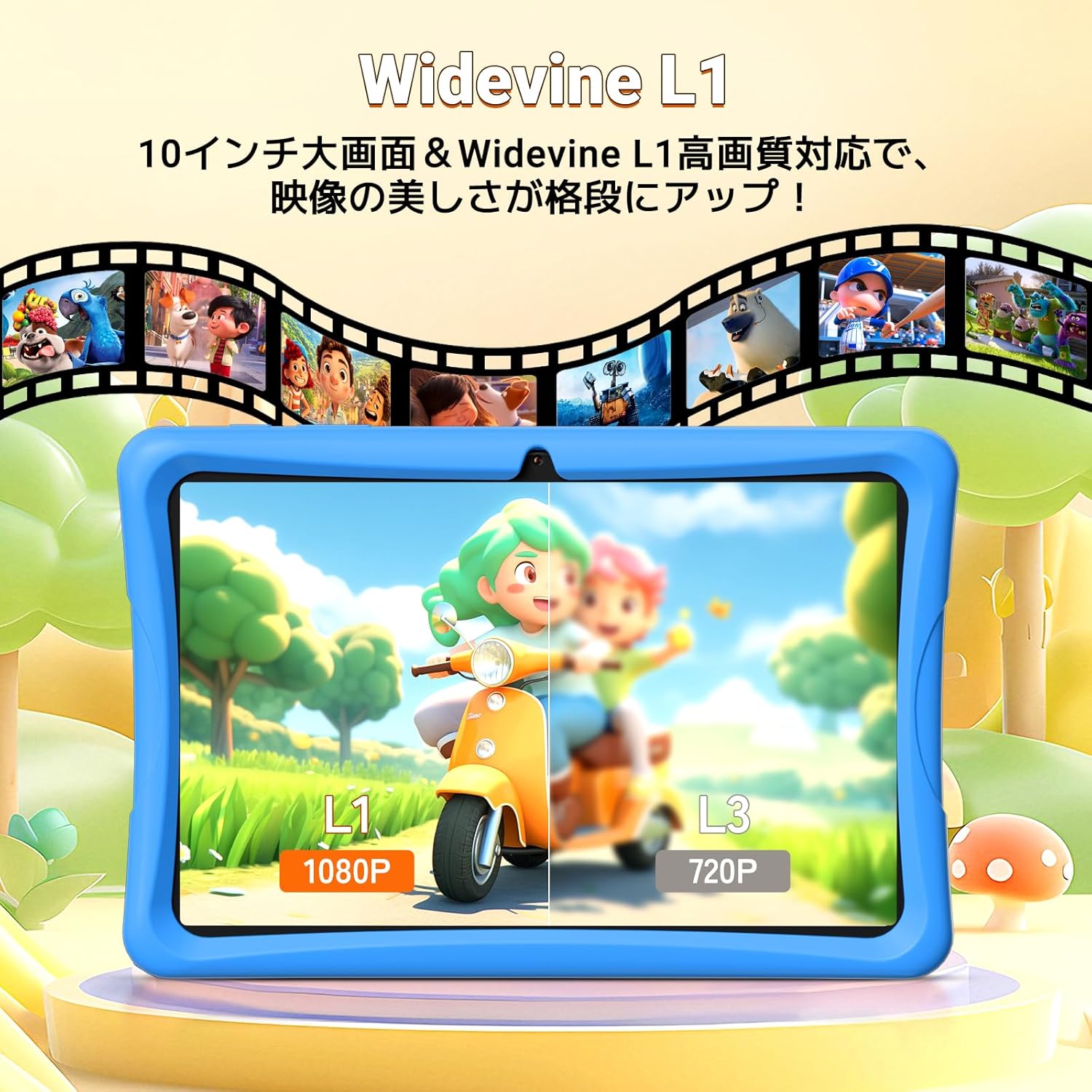
A comparison image showing the difference between Widevine L1 (1080P) and L3 (720P) display quality on the tablet, highlighting enhanced visual clarity.
6.2 Modes d'affichage
The tablet offers three special display modes to enhance eye comfort:
- Mode nuit : Réduit la lumière bleue pour un confort optimal. viewen basse lumière.
- Mode sombre : Uses a darker color scheme to reduce eye strain.
- Mode lecteur : Displays content in black and white, mimicking a paper book.

Illustrations of the tablet's three special display modes: Night Mode for reduced blue light, Dark Mode for eye strain reduction, and Reader Mode for a black-and-white paper-like display.
6.3 Audio
Equipped with dual speakers, the tablet delivers an immersive sound experience for videos, games, and educational apps.
7. Stockage et batterie
7.1 Mémoire et stockage
The tablet features 12GB RAM (4GB physical + 8GB virtual) and 64GB of internal storage (ROM). This allows for smooth multitasking and ample space for apps and content. Storage can be expanded up to 2TB using a microSD card (sold separately).

A graphic detailing the tablet's storage capabilities: 12GB RAM, 64GB ROM, and support for up to 2TB TF card expansion, with examples of how many photos, videos, and songs can be stored.
7.2 Autonomie de la batterie
The 5000mAh large-capacity battery supports long hours of video viewing, gaming, and learning, ensuring the tablet is ready when your child needs it.
8. Caractéristiques de l'appareil photo
The TABWEE K10 is equipped with a 2MP front camera and a 5MP rear camera, suitable for video calls, capturing photos, and engaging in educational apps that utilize camera functions.

Une présentation graphiqueasing the tablet's 2MP front camera and 5MP rear camera, with example photos of children and pets.
9. Entretien
9.1 Nettoyage
Use a soft, lint-free cloth to clean the screen and tablet body. Avoid using harsh chemicals or abrasive materials.
9.2 Mises à jour logicielles
Vérifiez régulièrement les mises à jour du système dans Paramètres > Système > Mise à jour du système pour garantir des performances et une sécurité optimales.
Étui de protection 9.3
The included lightweight EVA case provides excellent shock absorption and drop prevention, protecting the tablet from accidental damage. It also features a 3-stage adjustable stand for comfortable viewing.

A graphic illustrating the features of the EVA protective case, including its high impact resistance, 3-stage angle adjustment, and superior shock absorption.
10. Dépannage
- La tablette ne s'allume pas : Assurez-vous que la tablette est suffisamment chargée. Branchez-la au chargeur et attendez quelques minutes avant de tenter de la rallumer.
- Problèmes de connexion Wi-Fi : Vérifiez si le Wi-Fi est activé dans les paramètres. Redémarrez votre routeur et votre tablette. Assurez-vous d'avoir saisi le bon mot de passe Wi-Fi.
- Applications qui plantent ou se bloquent : Fermez les applications en arrière-plan. Videz le cache de l'application problématique (Paramètres > Applications > [Nom de l'application] > Stockage > Vider le cache). Si le problème persiste, désinstallez puis réinstallez l'application.
- Performances lentes : Close unused apps. Clear unnecessary files to free up storage space. Consider performing a factory reset if performance issues continue (backup data first).
- L'écran ne répond pas : Redémarrez la tablette. Si le problème persiste, contactez le service client.
11. Spécifications
| Fonctionnalité | Spécification |
|---|---|
| Marque | TABWEE |
| Nom du modèle | K10 |
| Système opérateur | Android 15 |
| Taille de l'écran | 10.1 pouces |
| Résolution | 1280x800 pixels |
| Marque de CPU | Puce de roche |
| Vitesse du processeur | 2 GHz |
| Marque de GPU | ARM (Mali G52 3EE) |
| Capacité de stockage de la mémoire | 64 Go |
| BÉLIER | 12 Go (4 Go + 8 Go virtuels) |
| Type sans fil | 802.11ac (Wi-Fi), Bluetooth |
| Résolution de la caméra frontale | 2 MP |
| Capacité de la batterie | 5000 mAh |
| Poids de l'article | 1.16 kilogrammes |
| Dimensions du colis | 32.6 x 20.1 x 3.9 cm |
12. Garantie et assistance
The TABWEE K10 tablet comes with a 24-month warranty. For any questions or support needs, please contact customer service. Support is available in Japanese and English.
You can typically find contact information on the product page or through the seller's store on Amazon.