
1. Produit terminéview
The ORICO 6-in-1 USB C Docking Station (Model: PW11-6PR) is a versatile multiport adapter designed to expand the connectivity of your USB-C enabled devices. It provides essential ports for display output, high-speed data transfer, network connectivity, and power delivery, enhancing productivity and convenience for users of Windows, Mac, and other compatible systems.

Figure 1: ORICO 6-in-1 USB C Hub Overview
2. Contenu du colis
- ORICO 6-in-1 USB C Docking Station (Model: PW11-6PR)
- Manuel d'utilisation
3. Disposition de l'appareil
The docking station features a compact design with clearly labeled ports for easy identification and connection.

Figure 2: Port Layout of the Docking Station
- Câble d'entrée USB-C : Se connecte à votre appareil hôte (ordinateur portable, tablette, smartphone).
- 3 ports USB-A 3.0 : For connecting USB peripherals such as keyboards, mice, external hard drives, or USB flash drives. Supports data transfer speeds up to 5 Gbps.
- Port HDMI: For connecting to an external display (monitor, TV, projector). Supports resolutions up to 4K@30Hz.
- Port Ethernet (RJ45) : Provides stable wired network connectivity with speeds up to 1 Gbps.
- Port USB-C PD (Power Delivery) : For connecting a power adapter to charge your host device and power the docking station. Supports up to 100W power input.
4. Caractéristiques
- Hub multiport 6 en 1 : Expands a single USB-C port into 6 functional ports: 4K@30Hz HDMI, 3 USB-A 3.0, 1G Ethernet, and 100W PD.
- Sortie HDMI 4K à 30 Hz : Supports high-resolution video output to external displays, backward compatible with 1080P@60Hz and 720P@60Hz.
- Transfert de données de 5 Gbit/s : Three USB-A 3.0 ports enable rapid data transfer, allowing a 1GB video file to be transferred in seconds.
- Alimentation 100 W : The PD port allows simultaneous charging of your laptop while using other connected USB accessories, eliminating the need to choose between charging and connectivity.
- 1G High-Speed Ethernet: Provides a stable and fast wired internet connection (10 Mbps–1 Gbps), ideal for streaming, video calls, and large file downloads. A Cat 5e cable is recommended for optimal performance.
- Large compatibilité : Compatible with Windows 11/10/8/7, Mac OS X, and Linux. Supports laptops, tablets, and smartphones with a compatible USB-C port.
- Conception compacte et portable : Features a sleek, lightweight aluminum alloy build, making it easy to carry for business trips, mobile work, or meetings.
5. Instructions de configuration
- Se connecter au périphérique hôte : Plug the integrated USB-C cable of the docking station into a compatible USB-C port on your laptop, tablet, or smartphone. Ensure your device's USB-C port supports DisplayPort Alternate Mode for video output.
- Connexion électrique (facultative mais recommandée) : For stable operation and to charge your host device, connect your original USB-C power adapter to the USB-C PD port on the docking station.
- Connectez les périphériques :
- Affichage HDMI : Connectez un câble HDMI de votre moniteur/téléviseur au port HDMI de la station d'accueil.
- Réseau Ethernet: Connect an Ethernet cable (Cat 5e or higher recommended) from your router/modem to the RJ45 Ethernet port on the docking station.
- Périphériques USB : Plug your USB-A peripherals (e.g., mouse, keyboard, USB drive) into the USB-A 3.0 ports.
- Installation du pilote : The docking station is plug-and-play for most operating systems and typically does not require additional drivers. If prompted, follow on-screen instructions.

Figure 3: Broad Compatibility of the Docking Station
6. Mode d'emploi
6.1. Sortie vidéo via HDMI
Connect an HDMI-enabled display to the docking station's HDMI port. Your host device should automatically detect the external display. You can configure display settings (e.g., mirror, extend) through your operating system's display settings.

Figure 4: 4K@30Hz HDMI Display Connection
6.2. Data Transfer via USB-A 3.0 Ports
Plug your USB devices into the three USB-A 3.0 ports. These ports support data transfer speeds up to 5 Gbps, allowing for quick synchronization and file transferts.

Figure 5 : Transfert de données à haut débit
6.3. Wired Network Connection via Ethernet
Connect an Ethernet cable to the RJ45 port for a stable and fast wired internet connection. This is particularly useful in environments with unreliable Wi-Fi or for tasks requiring high bandwidth.
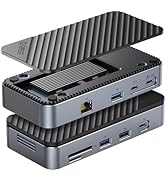
Figure 6: 1Gbps Ethernet Connection
6.4. Charge par Power Delivery (PD)
Connect your laptop's USB-C power adapter to the docking station's USB-C PD port. The docking station will pass through up to 85W of power to charge your laptop while simultaneously powering the hub and connected devices.

Figure 7: 100W Power Delivery
7. Compatibilité
The ORICO 6-in-1 USB C Docking Station is designed for broad compatibility. Please ensure your host device's USB-C port supports the necessary functions for optimal performance.
- Compatibilité avec le périphérique hôte : Devices with a full-featured USB-C port (supporting data, power delivery, and DisplayPort Alternate Mode). This includes many modern laptops (e.g., MacBook Pro/Air, Dell XPS, Surface Pro, ThinkPad/Yoga), tablets (e.g., iPad Pro/Air), and some smartphones.
- Compatibilité du système : Windows 11/10/8/7, macOS X, Linux, Android.
- Important Note on USB-C Ports: Not all USB-C ports are created equal. Please confirm your laptop's USB-C port supports DisplayPort Alternate Mode for video output.

Figure 8: Understanding USB-C Port Functionality
8. Dépannage
- Aucune sortie vidéo :
- Assurez-vous que le port USB-C de votre appareil hôte prend en charge le mode alternatif DisplayPort.
- Vérifiez la connexion du câble HDMI entre la station d'accueil et l'écran.
- Verify the display input source is set correctly.
- Essayez de redémarrer votre appareil hôte.
- Périphériques USB non reconnus :
- Ensure the docking station is properly connected to your host device.
- Essayez de connecter le périphérique USB directement à votre appareil hôte pour vérifier qu'il fonctionne de manière indépendante.
- If using high-power USB devices, ensure the docking station is connected to an external power source via its PD port.
- Pas de connexion Ethernet :
- Vérifiez la connexion du câble Ethernet à la fois à la station d'accueil et à votre routeur/modem.
- Vérifiez les paramètres réseau de votre appareil hôte.
- Vérifiez que votre routeur/modem fonctionne correctement.
- Problèmes de charge :
- Ensure your USB-C power adapter is connected to the PD port and is capable of providing sufficient power (e.g., 100W).
- Vérifiez si votre appareil hôte prend en charge la technologie USB-C Power Delivery.
9. Spécifications
| Fonctionnalité | Spécification |
|---|---|
| Dimensions du produit | 3.74 x 1.75 x 0.67 pouces |
| Poids de l'article | 3.52 onces |
| Numéro de modèle | PW11-6PR |
| Marque | ORICO |
| Couleur | Gris |
| Interface matérielle | Ethernet, HDMI, USB 3.0 Type A, USB-C PD |
| Dossier spécial | Powered, Plug and Play |
| Sortie HDMI | 4K@30Hz (backward compatible with 1080P@60Hz, 720P@60Hz) |
| USB-A 3.0 Data Transfer Speed | Jusqu'à 5 Gbit/s |
| Vitesse Ethernet | 10 Mbps / 100 Mbps / 1 Gbps |
| Chargement USB-C PD | Up to 100W input (85W output to host) |
10. Entretien
- Veillez à ce que l'appareil reste propre et exempt de poussière. Utilisez un chiffon doux et sec pour le nettoyer.
- Évitez d'exposer la station d'accueil à des températures extrêmes, à l'humidité ou à la lumière directe du soleil.
- N'essayez pas de démonter ou de réparer l'appareil vous-même. Contactez le service client pour obtenir de l’aide.
- Disconnect the device when not in use for extended periods.
11. Consignes de sécurité
- Cet appareil est destiné à être utilisé en intérieur uniquement.
- N'exposez pas l'appareil à l'eau ou à d'autres liquides.
- Évitez de laisser tomber ou de soumettre l'appareil à des impacts violents.
- Tenir hors de portée des enfants.
- Utilisez uniquement des adaptateurs secteur et des câbles compatibles.
12. Vidéo officielle du produit
Video: ORICO 6-in-1 USB C Docking Station with 1G Ethernet. This video demonstrates the features and connectivity of the ORICO 6-in-1 USB C Docking Station, including its HDMI, Ethernet, USB-A, and PD charging capabilities.
13. Garantie et assistance
ORICO products come with a standard manufacturer's warranty. For detailed warranty information, technical support, or customer service inquiries, please refer to the official ORICO webConsultez le site ou contactez votre revendeur. Veuillez conserver votre preuve d'achat pour toute réclamation au titre de la garantie.