
1. Produit terminéview
The We Technology S11Y Slim Smart Lock is designed for sliding doors, offering multiple access methods for enhanced security and convenience. This manual provides detailed instructions for installation, operation, and configuration of your smart lock.

Image 1.1 : Terminéview of the S11Y Smart Lock, including its front and back panels, mortise, and a representation of the mobile app interface.
Caractéristiques principales :
- 6-in-1 Access: Fingerprint, Passcode, IC Card, Tuya App, Mechanical Key, One-time codes.
- Sliding Door Specific: Engineered with a 2885 hook mortise for aluminum/glass sliding doors.
- Télécommande: Manage and monitor your lock from anywhere via the Tuya Smart App.
- Sonnette intégrée : Built-in doorbell for visitor notification.
- Sécurité avancée : Auto-lock function and anti-peep code protection.
- Design élégant : Mince profile in black aluminum.
- Fonctionne sur batterie : Powered by 4 AAA batteries with low battery alerts.
Vidéo 1.1 : Un overview of the S11Y Smart Lock, demonstrating its design and basic features.
2. Composants et contenu de l'emballage
Avant de commencer l'installation, vérifiez que tous les composants sont présents et en bon état.

Image 2.1: All components included with the S11Y Smart Lock, including the lock body, panels, screws, keys, IC cards, and user manual.
Inclus dans la boîte :
- 1 x corps de verrouillage
- 1 x Manuel d'utilisation
- 2 x Touches mécaniques
- 2 cartes à puce
- Vis et quincaillerie de montage
- 1 x USB Cable (for emergency power)
3. Configuration et installation
This section guides you through the physical installation of the smart lock. Ensure your door meets the specified thickness requirements (35-55mm).

Image 3.1: Detailed dimensions of the S11Y Smart Lock and its mortise, along with illustrations for left-handed and right-handed door configurations.
3.1 Vérifications avant l'installation
- Vérifiez que l'épaisseur de la porte est comprise entre 35 mm et 55 mm.
- Ensure the door frame is suitable for the 2885 hook mortise.
3.2 Réglage de la direction de la poignée
The handle direction can be adjusted to suit your door's opening. Loosen the screw on the handle, pull out the handle, and turn it 180 degrees down to adjust its direction.
3.3 Mortise and Panel Installation
Install the mortise into the door edge first. Then, install the front panel, ensuring the square rod is correctly inserted into the handle. Finally, install the back panel and secure it with screws.
Video 3.1: A step-by-step guide on how to install the S11Y Smart Lock, including mortise and panel assembly.
3.4 Installation de la batterie
The lock is powered by 4 AAA batteries. Install them into the battery compartment on the back panel. Ensure correct polarity. Replace the back cover and secure it with screws.

Image 3.2: Illustration showing the battery compartment for the S11Y Smart Lock, highlighting its long battery life and emergency power option.
4. Mode d'emploi
The S11Y Smart Lock offers multiple ways to unlock your door.
Video 4.1: Demonstration of various unlocking methods for the S11Y Smart Lock, including fingerprint, password, IC card, and mechanical key.
4.1 Méthodes de déverrouillage
- Déverrouillage par empreinte digitale: Placez votre empreinte digitale enregistrée sur le capteur.
- Déverrouillage par code d'accès : Saisissez votre code d'accès enregistré sur le clavier.
- Déverrouillage de carte à puce : Tap your registered IC card on the card reader area.
- Déverrouillage par clé mécanique : Use the provided mechanical key as a backup.
- Déverrouillage de l'application Tuya : Use the Tuya Smart App for remote unlocking.
Video 4.2: A closer look at the different entry methods available with the S11Y Smart Lock.
4.2 Sonnette intégrée
The smart lock features an integrated doorbell. When a visitor presses the doorbell button, you will receive a notification on your connected Tuya Smart App.
4.3 Auto-Lock and Anti-Peep Code
- Verrouillage automatique: Le verrou s'enclenchera automatiquement après un délai déterminé une fois la porte fermée.
- Anti-Peep Code: To prevent others from guessing your passcode, you can enter random digits before or after your actual passcode. The lock will still recognize the correct sequence within the longer input.
5. Guide de configuration
This section details how to configure the settings of your S11Y Smart Lock.
Video 5.1: A comprehensive guide to configuring the S11Y Smart Lock settings, including administrator and system settings.
5.1 Enter Lock Menu
Press '*' then '#' on the keypad. Input your admin information (e.g., admin passcode or fingerprint) to enter the lock menu. The menu options are:
- Paramètre administrateur
- Paramètre utilisateur
- Configuration du système
- Restaurer en usine
Note: '*' is for return/delete, '#' is for confirm.
5.2 Paramètres administrateur
From the lock menu, press '1' to enter Administrator Setting.
- Add Admin: Press '1'. Follow prompts to add a password (6 digits twice), fingerprint (multiple scans), or IC card.
- Delete Admin: Press '2'. Input the admin ID and press '#' to delete.
- Paramètre réseau: Press '3'. (See section 5.5 for details).
Note: User settings (option '2' in the main menu) follow the same steps as admin settings for adding/deleting users.
5.3 Configuration du système
From the lock menu, press '3' to enter System Setting.
- Réglage du volume : Press '1' to enable speaker, '2' to disable speaker.
- Unlock Mode Setting: Press '2'. Options include Single Unlock Mode, Combination Unlock Mode, Enable Passage Mode (always open), Disable Passage Mode.
- Paramètre de langue : Press '3'. Options include Chinese and English.
- Réglage de l'heure : Press '4'. Input date based on the format: Year (2 digits)_Month_Day_Hour_Minute (e.g., 2505160712 for May 16, 2025, 07:12).
5.4 Restore to Factory
From the lock menu, press '4' to initialize the system. Note: All data will be cleared after initialization. Please operate carefully.
5.5 Network Setting (Tuya App)
To connect your smart lock to the Tuya Smart App:
- Enter the lock menu, then press '1' for Admin Setting, then '3' for Network Setting.
- Select '2' for Smart Connection.
- Download the 'Tuya Smart' app on your smartphone and register an account.
- In the app, follow the instructions to add a new device. The app will guide you through the pairing process.
6. Entretien
- Remplacement de la batterie : The lock will provide intelligent low battery alerts. Replace all 4 AAA batteries promptly when alerted to ensure continuous operation.
- Alimentation de secours: In case of complete battery depletion, emergency power can be supplied via the Type-C port on the outer panel using a power bank.
- Nettoyage: Use a soft, dry cloth to clean the lock's surface. Avoid abrasive cleaners or solvents.
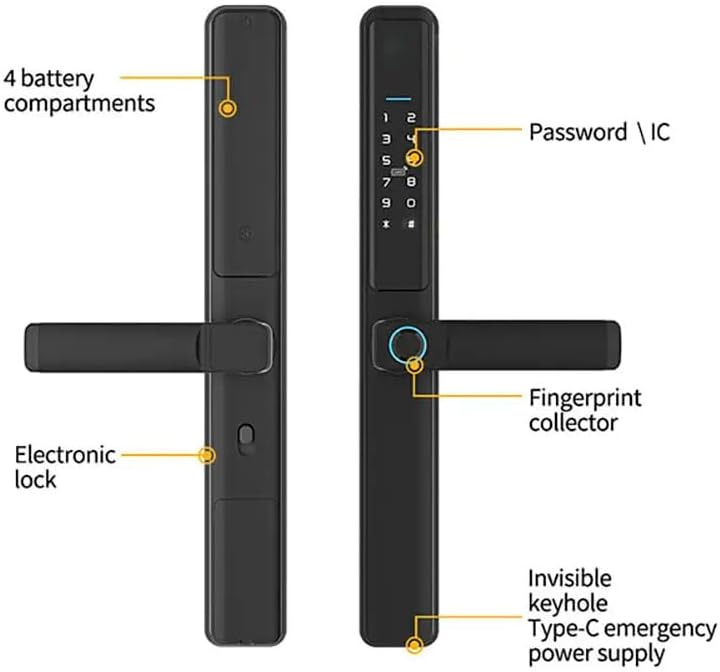
Image 6.1: Labeled diagram of the S11Y Smart Lock, indicating the 4 battery compartments, password/IC area, fingerprint collector, invisible keyhole, and Type-C emergency power supply port.
7. Dépannage
- La serrure ne répond pas : Check battery levels. If batteries are low or depleted, replace them or use emergency Type-C power.
- Empreinte digitale non reconnue : Assurez-vous que votre doigt est propre et sec. Réenregistrez votre empreinte digitale si le problème persiste.
- Code d'accès non fonctionnel : Verify the correct passcode is entered. Ensure anti-peep code is used correctly if enabled.
- Problèmes de connectivité de l'application : Ensure your Wi-Fi network is stable and the lock is within range. Re-pair the device with the Tuya Smart App if necessary.
- La porte ne se verrouille/déverrouille pas correctement : Check for any obstructions in the door frame or mortise. Ensure the lock is installed correctly and aligned.
- Forgotten Admin Passcode: If the admin passcode is forgotten and no other admin access method is available, a factory reset may be required (see section 5.4).
8. Spécifications
| Fonctionnalité | Détail |
|---|---|
| Marque | We Technology |
| Nom du modèle | Sliding Smart Door (S11Y) |
| Type de serrure | Biometric, Mortise Lock, Sliding Lock |
| Matériel | Aluminium |
| Couleur | Noir |
| Dimensions de l'article L x l x H | 27.56 x 3.5 x 8.5 pouces |
| Poids de l'article | 5.5 livres |
| Caractéristiques spéciales | Alarm, Anti-Peeping Password, Auto-Lock, One-Touch Lock |
| Méthode de contrôle | Application, télécommande, tactile |
| Type de contrôleur | Android, iOS (Tuya App) |
| Source d'énergie | Piles 4 x AAA (non incluses) |
| Fabricant | Solutions de sécurité intelligentes |
9. Garantie et assistance
For warranty information or technical support, please refer to the contact details provided with your purchase or visit the official We Technology website. Conservez votre reçu d’achat pour les réclamations au titre de la garantie.