
1. Introduction
This manual provides detailed instructions for the installation, operation, and maintenance of your AWESAFE Android 13 Car Radio. This unit is designed to upgrade your vehicle's infotainment system with modern features such as Wireless CarPlay, Android Auto, GPS Navigation, and Bluetooth connectivity. Please read this manual thoroughly before installation and use to ensure proper function and safety.

Image: The AWESAFE 10-inch Car Radio seamlessly integrated into a Chevy Silverado dashboard, displaying a vibrant user interface.
2. Modèles de voitures concernés
This AWESAFE Car Radio is compatible with the following vehicle models:
- Pour Chevy : Silverado 1500 (2007-2013), Silverado 2500HD (2007-2013), Silverado 3500HD (2007-2013)
- PourChevrolet: Avalanche (2007-2011), Express Van (2008-2011), Impala (2006-2012)
- Pour GMC : Acadia (2007-2012), Savana (2008-2013), Sierra (2007-2011), Yukon (2007-2013)

Image: A visual representation of the compatible vehicle models for this car radio unit.
3. Contenu du colis
Vérifiez que tous les éléments sont présents dans l'emballage avant de procéder à l'installation :
- AWESAFE Car Radio Unit (10.1 inch display)
- Câble RCA
- Câble d'alimentation (x2, spécifique aux modèles de véhicules)
- Décodeur CAN Bus
- pied-de-biche (pour le démontage des garnitures)
- Reversing Line (for backup camera connection, if applicable)
- Antenne
- Tournevis
- Back Video Input Cable
- Câble USB (x2)
- Microphone
- Speaker (for chime/alerts)
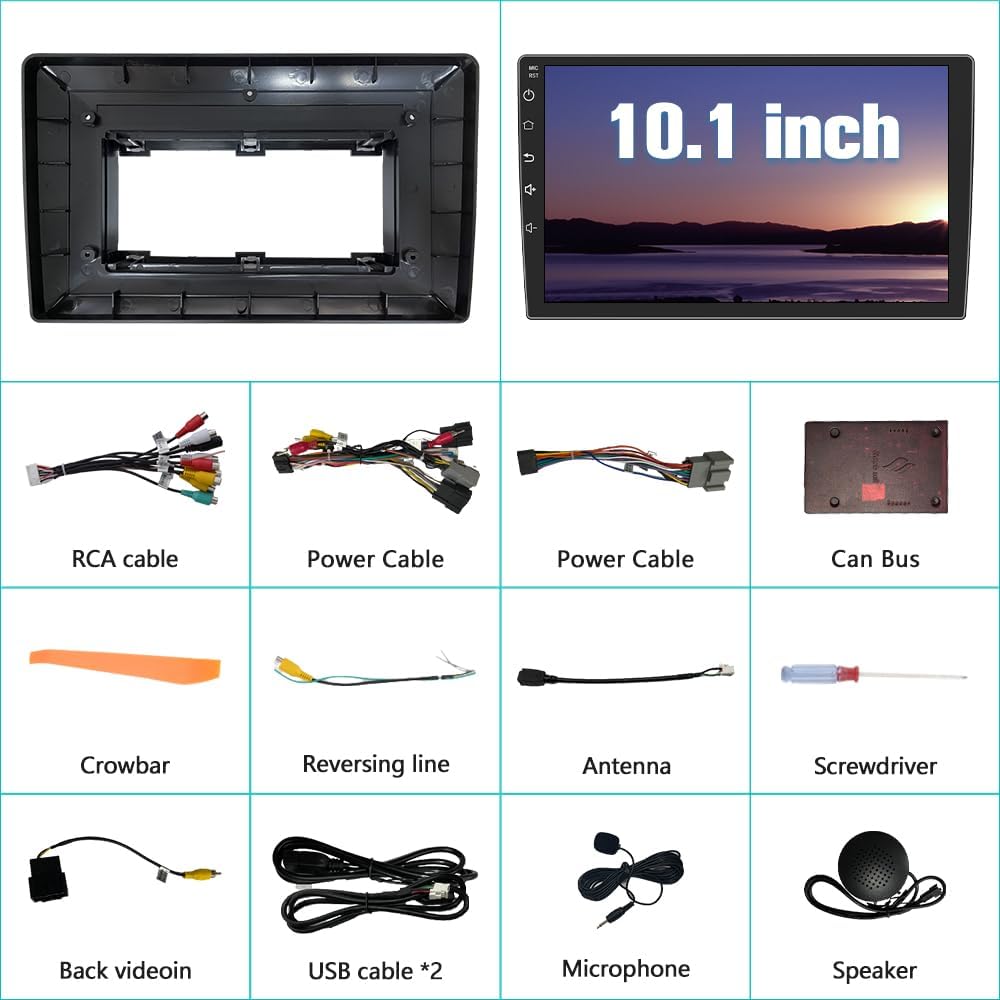
Image : Un surview of the 10.1-inch display unit and all accompanying cables and tools provided in the package.
4. Configuration et installation
Installation of this car radio requires basic automotive electrical knowledge. If you are unsure about any steps, it is recommended to seek professional installation to prevent damage to the unit or your vehicle.
4.1 Étapes générales d'installation :
- Préparation: Débranchez la batterie du véhicule pour éviter les courts-circuits.
- Retirer l'ancienne unité : Carefully remove the existing car radio and trim using the provided crowbar and screwdriver. Refer to your vehicle's specific service manual for detailed trim removal instructions.
- Connexion de câblage : Connect the provided power cables, RCA cables, USB cables, antenna, microphone, and Can Bus decoder to the new AWESAFE unit. Ensure all connections are secure. Refer to the wiring diagram below.
- Fonctionnalité de test : Before fully reassembling, temporarily connect the battery and test the basic functions of the radio (power on, sound, touch screen, steering wheel controls, etc.).
- Unité sécurisée : Fixez solidement le nouvel autoradio au tableau de bord.
- Remonter: Reinstall the vehicle's trim and reconnect the battery.
4.2 Schéma de câblage :
The following diagram illustrates the ISO wiring harness and RCA cable connections. Match the labels on the cables to the corresponding ports on the head unit and your vehicle's wiring.

Image: A comprehensive diagram showing the ISO wiring harness and RCA cable connections for proper installation.
5. Mode d'emploi
5.1 Contrôles de base
The unit features a responsive touchscreen interface. Power on/off, volume adjustment, and menu navigation are typically performed via on-screen controls or physical buttons/knobs if present on your specific model.
5.2 Connectivité Bluetooth
Associez votre smartphone via Bluetooth pour passer des appels mains libres et écouter de la musique en streaming sans fil.
- Access the Bluetooth settings on the car radio.
- Activez Bluetooth sur votre smartphone et recherchez les appareils disponibles.
- Select the car radio's Bluetooth name (e.g., "AWESAFE") from your phone's list and confirm pairing.
- Once connected, you can make/receive calls and play music wirelessly. The built-in microphone captures your voice, and car speakers output audio.

Image: The Bluetooth interface on the car radio display, showing a phone call in progress and music streaming capabilities.
5.3 Navigation GPS
The unit comes with a built-in offline map of North America. Online navigation is also supported when connected to Wi-Fi.
- Accédez à l'application Navigation depuis le menu principal.
- For offline maps, ensure the map data is downloaded and updated.
- For online navigation, connect to a Wi-Fi hotspot (see section 5.5).
- Saisissez votre destination pour recevoir un itinéraire détaillé.

Image: A GPS navigation map showing a route with distance and estimated arrival time on the car radio display.
5.4 CarPlay sans fil et Android Auto
Connect your iPhone or Android phone wirelessly or via USB cable to access CarPlay or Android Auto features.
- Assurez-vous que le Bluetooth et le Wi-Fi de votre téléphone sont activés.
- Sur l'autoradio, sélectionnez l'icône CarPlay ou Android Auto.
- Follow the on-screen prompts to connect your device. For wireless connection, pair via Bluetooth first, then confirm the Wi-Fi connection.
- Once connected, you can use voice assistants, get directions, make calls, send messages, and enjoy music through the car radio interface.
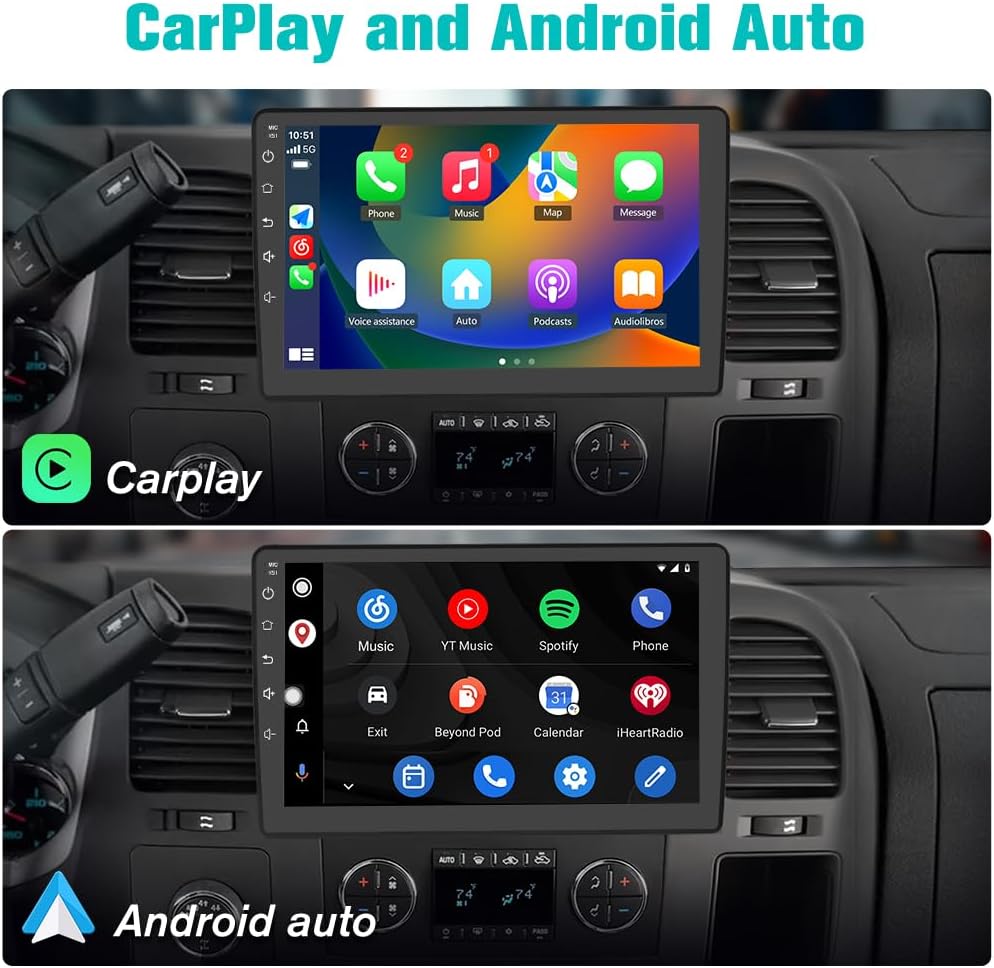
Image: The car radio displaying both Apple CarPlay and Android Auto interfaces, showing various app icons.
5.5 Connectivité Wi-Fi
Connect the car radio to a Wi-Fi hotspot (e.g., from your smartphone) to access online features, download apps, and use online navigation.
- Go to the system settings and select 'Wi-Fi'.
- Turn on Wi-Fi and scan for available networks.
- Sélectionnez le réseau souhaité et entrez le mot de passe si nécessaire.
- Once connected, you can browse the internet, stream online music, and use online navigation applications.

Image: The car radio display showing Wi-Fi connectivity options and a web interface du navigateur.
5.6 Commande au volant
The unit supports steering wheel controls, allowing you to manage audio and calls without taking your hands off the wheel. This feature requires proper wiring and configuration.
- After installation, access the 'Steering Wheel Control' settings in the unit's menu.
- Follow the on-screen instructions to program each button on your steering wheel to its corresponding function (e.g., volume up/down, track skip, answer/end call).
- Test all programmed buttons to ensure they function correctly.

Image: The car radio display showing the interface for programming steering wheel controls, with examples of button functions.
5.7 Fonction d'écran partagé
La fonction d'écran partagé vous permet d'exécuter simultanément deux applications sur l'écran, telles que la navigation et la lecture de musique.
- Ouvrez la première application que vous souhaitez utiliser.
- Long-press the recent apps button or follow the specific gesture/button combination for split-screen mode (refer to the unit's on-screen guide).
- Select the second application to occupy the other half of the screen.

Image: The car radio display demonstrating the split-screen feature, showing navigation on one side and music playback on the other.
5.8 Radio FM
Accédez à l'application Radio FM pour écouter les stations de radio locales.
- Open the 'FM Radio' app from the main menu.
- Utilisez les commandes à l'écran pour rechercher des stations, effectuer un réglage manuel ou sélectionner une station parmi les préréglages enregistrés.

Image: The car radio display showing the FM radio interface with frequency tuning and preset options.
5.9 Processeur de signal numérique (DSP) intégré
The integrated DSP allows for advanced audio customization, including equalization and sound field adjustments, to optimize your listening experience.
- Navigate to the 'Sound Settings' or 'DSP' application.
- Adjust equalizer bands, balance, fader, and other audio parameters to suit your preferences.

Image: The car radio display showing the Built-in DSP interface with various audio adjustment options like equalizer and sound field.
6. Entretien
Pour garantir la longévité et les performances optimales de votre autoradio AWESAFE, suivez ces consignes d'entretien :
- Nettoyage: Utilisez un chiffon doux et sec pour nettoyer l'écran et l'extérieur. Évitez les nettoyants abrasifs ou les solvants qui pourraient endommager la surface.
- Mises à jour logicielles : Periodically check for software updates provided by AWESAFE to ensure you have the latest features and bug fixes. Updates can often be performed via Wi-Fi.
- Température: Évitez d'exposer l'appareil à des températures extrêmes pendant des périodes prolongées.
- Relations: Assurez-vous que tous les câbles restent bien connectés. Des connexions desserrées peuvent entraîner des problèmes intermittents.
7. Dépannage
Si vous rencontrez des problèmes avec votre autoradio, reportez-vous aux étapes de dépannage courantes suivantes :
| Problème | Cause/solution possible |
|---|---|
| L'unité ne s'allume pas | Vérifiez les connexions du câble d'alimentation. Assurez-vous que la batterie du véhicule est connectée et chargée. Vérifiez le boîtier à fusibles du véhicule : aucun fusible n'est grillé. |
| Pas de son | Vérifiez les connexions des câbles des haut-parleurs. Assurez-vous que le volume n'est pas coupé ou à zéro. Vérifiez que la source audio sélectionnée est correcte. |
| Les commandes au volant ne fonctionnent pas | Ensure the steering wheel control wires are correctly connected. Re-program the steering wheel buttons in the unit's settings. Some vehicles may require an additional interface (not included). |
| Problèmes de connexion Bluetooth | Assurez-vous que le Bluetooth est activé sur l'appareil et sur votre téléphone. Supprimez les anciens appairages et essayez de vous reconnecter. Redémarrez les deux appareils. |
| Signal GPS faible ou imprécis | Assurez-vous que l'antenne GPS est correctement installée et qu'elle est dégagée. view of the sky (e.g., on the dashboard). Avoid obstructions. |
| CarPlay/Android Auto ne se connecte pas | For wireless, ensure Bluetooth and Wi-Fi are active on your phone. For wired, try a different USB cable. Ensure your phone's operating system is up to date. |
| Sound stops when reversing | This is often a default setting for safety. Check the unit's system settings for options to adjust or disable this behavior, if available. |
If the issue persists after attempting these steps, please contact AWESAFE customer support.
8. Spécifications
| Fonctionnalité | Détail |
|---|---|
| Taille de l'écran | 10 pouces |
| Système opérateur | Android 13 |
| Mémoire (RAM) | 2 Go |
| Stockage (ROM) | 32 Go |
| Connectivité | Bluetooth, Wi-Fi, USB |
| Caractéristiques spéciales | Wireless CarPlay, Android Auto, GPS Navigation (North America Map), Steering Wheel Control, Split Screen, Built-in DSP |
| Poids de l'article | 3.98 livres (1.81 kilogramme) |
| Dimensions du colis | 11.46 x 7.76 x 5 pouces |
| Fabricant | IMPRESSIONNANT |
9. Garantie et assistance
Votre autoradio AWESAFE est livré avec un Garantie de 1 ans à compter de la date d'achat, couvrant les défauts de fabrication.
For technical assistance, troubleshooting, or warranty claims, please contact AWESAFE Customer Support:
- E-mail: AWESAFE-US@outlook.com
- Heures d'assistance : Assistance client 24h / XNUMX

Image : Un représentant du service clientèle prêt à répondre aux demandes de renseignements.