
1. Produit terminéview
The Wildgame Innovation Trail Pad Tablet is a compact, weather-resistant device designed for viewing and managing images and videos captured by trail cameras. It features an oversized 7-inch HD backlit TFT touchscreen, dual standard-size SD card ports, and a built-in speaker, making it suitable for outdoor use and game tracking.
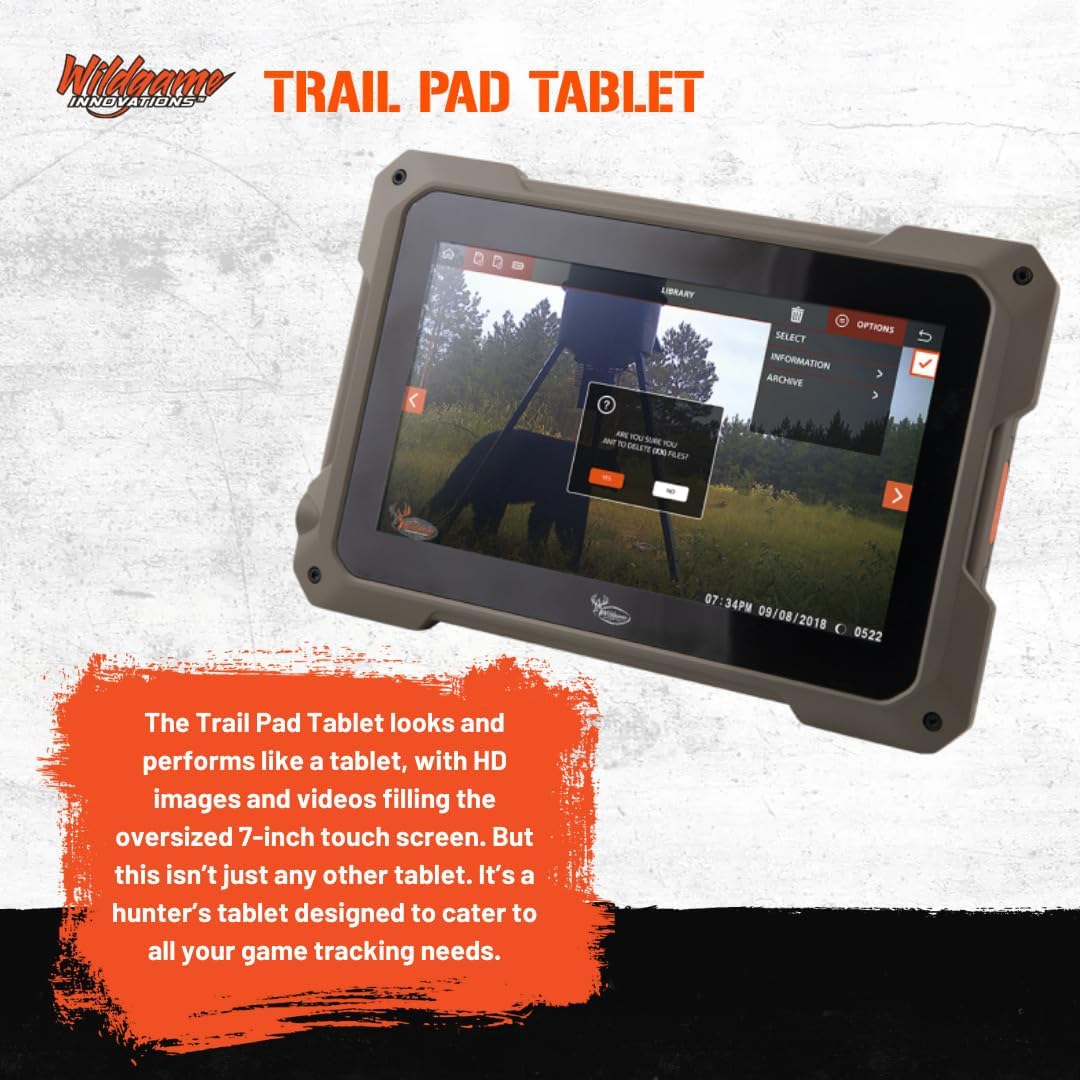
Image 1.1: The Wildgame Innovation Trail Pad Tablet. This image shows the tablet displaying a trail camera photo of a deer in a forest setting, highlighting its primary function as a viewer for game tracking.
Caractéristiques principales :
- Oversized 7-inch HD Backlit TFT Touchscreen for clear viewing.
- Dual Standard-Size SD Card Ports for easy file gestion.
- Weather-Resistant Housing for durability in outdoor conditions.
- Built-in Speaker for audio playback of video files.
- Designed for game tracking, allowing users to view and archive trail camera footage.
2. Contenu de la boîte
Vérifiez que tous les composants sont présents dans votre colis :
- Wildgame Innovation 7-Inch HD Backlit TFT Touchscreen Compact Trail Pad Tablet
- Lecteur de cartes
- 4 x 32GB Ultra SDHC UHS-I Memory Cards

Image 2.1: Package Contents. This image displays the Wildgame Innovation Trail Pad Tablet alongside four 32GB SD cards and a multi-format card reader, illustrating all items included in the bundle.
3. Installation
3.1. Insertion des cartes SD
- Locate the dual standard-size SD card ports on the side of the Trail Pad Tablet.
- Pour Viewment: Insert an SD card from your trail camera into the designated 'Library' port. Ensure the card is inserted correctly with the contacts facing down.
- For Archiving: Insert one of the included 32GB Ultra SDHC UHS-I Memory Cards into the 'Archive' port. This card will be used to store selected images and videos.

Image 3.1: Inserting an SD Card. This image shows a user's hands inserting an SD card into one of the dual ports on the side of the Wildgame Innovation Trail Pad Tablet, demonstrating the card insertion process.
3.2. Mise sous tension
Press and hold the power button, typically located on the side or top edge of the tablet, until the screen illuminates. The tablet will boot up and display the main interface.
4. Mode d'emploi
4.1. Naviguer dans l'interface
The Trail Pad Tablet features a touchscreen interface. Use your finger to tap icons, swipe through content, and interact with menus.
4.2. ViewImages et vidéos
- After inserting your trail camera's SD card into the 'Library' port, tap the 'Library' icon on the main screen.
- Browse through the images and videos. The 7-inch HD screen provides clear playback.
- Tap on an image or video thumbnail to view en plein écran.

Image 4.1: Viewing Media. This image shows a user's finger tapping on a 'Video' icon on the Wildgame Innovation Trail Pad Tablet screen, indicating the process of selecting and viewmédias files.
4.3. Archiving Files
To save important images or videos from your trail camera's SD card to the archive SD card:
- Alors que viewing an image or video, look for an 'Archive' or 'Save' option on the screen.
- Tap this option to transfer the selected file to the SD card in the 'Archive' port. This allows you to curate your best footage without endless scrolling through the original card.
5. Entretien
5.1. Nettoyage de l'appareil
- Use a soft, lint-free cloth to gently wipe the touchscreen and exterior of the tablet.
- Pour les taches tenaces, légèrement dampNettoyez le chiffon avec de l'eau. Évitez les produits chimiques agressifs et les matériaux abrasifs.
5.2. Stockage
When not in use, store the Trail Pad Tablet in a cool, dry place away from direct sunlight and extreme temperatures. Ensure all SD cards are properly ejected or stored securely.
6. Dépannage
6.1. L'appareil ne s'allume pas
- Ensure the battery is charged. Connect the tablet to a power source and allow it to charge for at least 30 minutes before attempting to power it on again.
- Appuyez fermement sur le bouton d'alimentation et maintenez-le enfoncé pendant plusieurs secondes.
6.2. SD Card Not Recognized
- Ensure the SD card is fully and correctly inserted into the port.
- Check if the SD card is locked (small switch on the side of the card). Unlock it if necessary.
- Try a different SD card to determine if the issue is with the card or the tablet.
- Ensure the SD card is formatted to a compatible file système (par exemple, FAT32).
6.3. No Image/Video Display
- Verify that the SD card contains images or videos.
- Ensure the correct SD card port (Library) is selected on the tablet's interface.
- Vérifiez le file formats of the images/videos; the tablet supports standard formats.
7. Spécifications
| Fonctionnalité | Détail |
|---|---|
| Numéro de modèle | FC-CR1_K205 |
| Taille de l'écran | 7 pouces |
| Type d'affichage | HD Backlit TFT LCD |
| Entrée de l'interface humaine | Touchscreen (Capacitive) |
| Technologie de connectivité | USB |
| Capacité de stockage de la mémoire | 32 GB (per included SD card) |
| Poids de l'article | 1 livre |
| Dimensions du produit | 9.1 x 9.1 x 9.1 pouces |
| Dossier spécial | Hunting-specific Game Tracking Features |
8. Garantie et assistance
8.1. Informations sur la garantie
For specific warranty details, please refer to the warranty card included with your product or visit the official Wildgame Innovations webConsultez le site. Conservez votre preuve d'achat pour toute réclamation au titre de la garantie.
8.2. Assistance clientèle
If you encounter issues not covered in this manual or require further assistance, please contact Wildgame Innovations customer support. Contact information can typically be found on the manufacturer's website ou dans l'emballage du produit.