
XunFox K30 Pro
Manuel d'utilisation du clavier mécanique transparent XunFox K30 Pro
Modèle: K30 Pro
Brand: XunFox
Introduction
Welcome to the XunFox K30 Pro Transparent Mechanical Keyboard user manual. This guide provides detailed instructions for setting up, operating, and maintaining your new keyboard. The K30 Pro features a unique transparent design, 61-key layout, RGB backlighting, and versatile 3-mode connectivity (2.4GHz wireless, Bluetooth 5.1, and wired USB).
Contenu du colis
- XunFox K30 Pro Mechanical Keyboard
- Câble USB-C vers USB-A (pour connexion filaire et chargement)
- Récepteur sans fil 2.4 GHz
- Manuel de l'utilisateur (ce document)
Produit terminéview
The XunFox K30 Pro keyboard features a compact 61-key layout with transparent keycaps and a translucent bottom shell, showcasing its internal mechanical components.
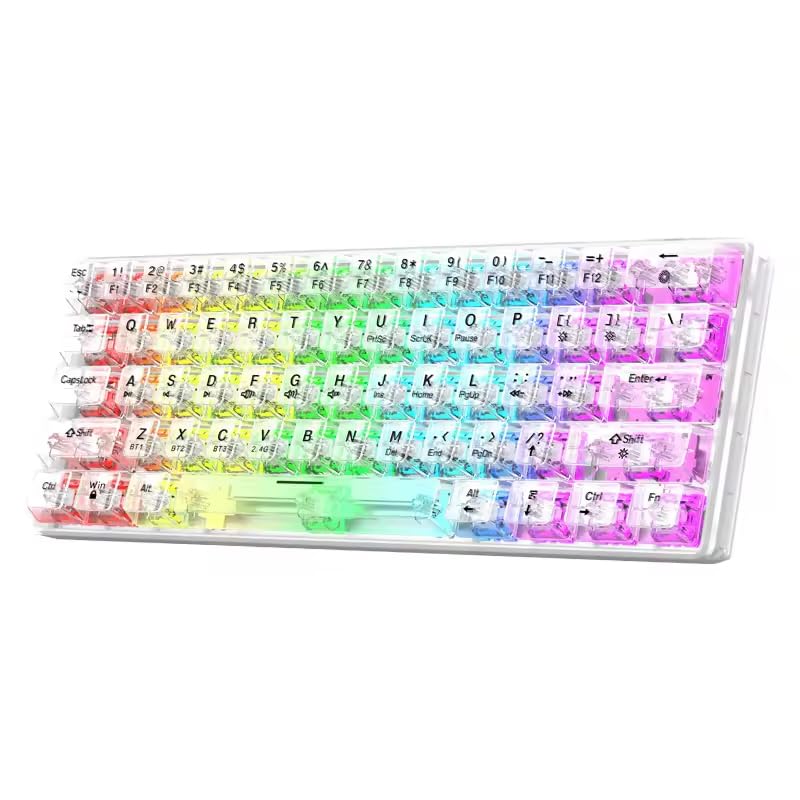
Image : Avant view of the XunFox K30 Pro Transparent Mechanical Keyboard, showcasing its compact 61-key layout and vibrant RGB backlighting through transparent keycaps.

Image: Diagram highlighting the 61-key minimalist layout of the XunFox K30 Pro keyboard, emphasizing space-saving design compared to traditional 104-key keyboards.

Image: Exploded diagram illustrating the internal layers of the keyboard, including transparent keycaps, customized mechanical shafts, positioning plate, PCB board, and translucent bottom shell.
Caractéristiques principales :
- 61-Key Minimalist Layout: Conception compacte.
- Conception transparente : Crystal clear hard shell and keycaps.
- Connectivité à 3 modes : 2.4GHz Wireless, Bluetooth 5.1, and Wired USB.
- Rétroéclairage RVB : Customizable colorful lighting effects.
- Hot-Swappable Mechanical Axis: Permet un remplacement facile de l'interrupteur.
- Batterie rechargeable 2000 mAh : For extended wireless use.
- Conception ergonomique : Comfortable grip for prolonged use.
Installation
1. Chargement de la batterie
Before first use, or when the battery is low, connect the keyboard to a USB power source (e.g., computer USB port, USB wall adapter) using the provided USB-C cable. The charging port is typically located on the back or side of the keyboard.
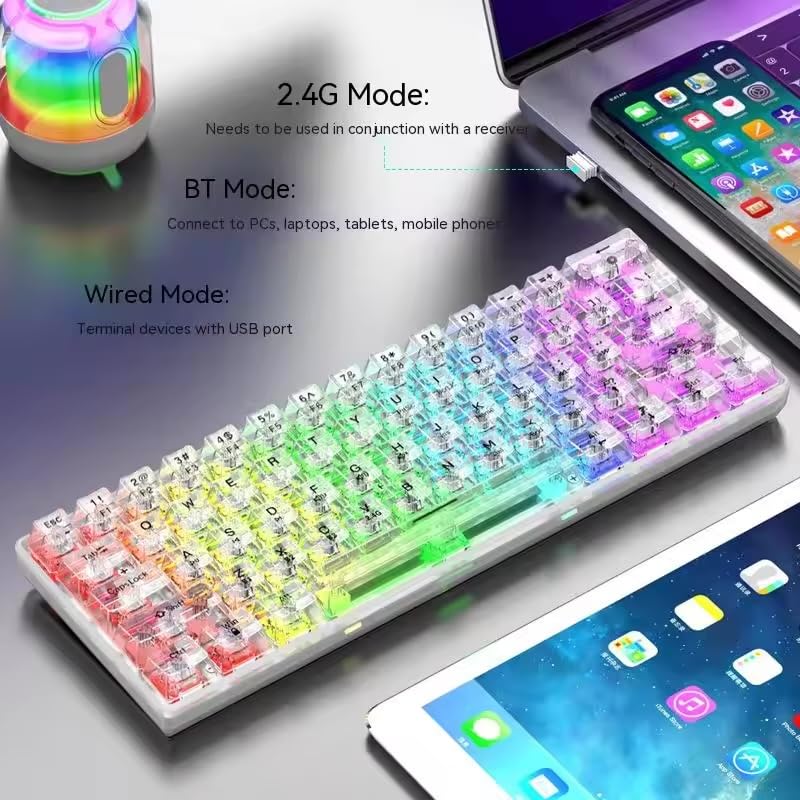
Image: The XunFox K30 Pro keyboard connected via a USB-C cable to a laptop, illustrating the charging process and highlighting the 2000mAh battery capacity.
A full charge provides approximately 2000mAh of battery life.
2. Connexion via le mode sans fil 2.4 GHz
- Locate the 2.4GHz wireless receiver, usually stored in a compartment on the keyboard or included separately.
- Branchez le récepteur 2.4 GHz sur un port USB disponible de votre ordinateur.
- Switch the keyboard's connection mode to 2.4GHz. This is typically done using a switch on the keyboard or an FN key combination (e.g., FN + V).
- Le clavier devrait se connecter automatiquement à votre appareil.
3. Connexion via le mode Bluetooth
- Switch the keyboard's connection mode to Bluetooth. This is typically done using a switch on the keyboard or an FN key combination (e.g., FN + Z pour BT1, FN + X pour BT2, FN+C for BT3).
- For first-time pairing, long-press the corresponding FN key combination (e.g., FN + Z for 3 seconds) to enter pairing mode. The keyboard's indicator light will flash.
- On your device (computer, laptop, tablet, phone), open Bluetooth settings and search for new devices.
- Select "XunFox K30 Pro" (or similar name) from the list of available devices to pair.
- Une fois l'appairage effectué, le voyant cessera de clignoter.
4. Connecting via Wired USB Mode
- Connectez une extrémité du câble USB-C fourni au port USB-C du clavier.
- Connectez l'autre extrémité du câble USB-A à un port USB disponible sur votre ordinateur.
- Switch the keyboard's connection mode to Wired. This is typically done using a switch on the keyboard or an FN key combination.
- Le clavier sera reconnu comme un clavier USB standard et sera prêt à l'emploi.

Image: Diagram illustrating the three connection modes: Bluetooth (BT), 2.4GHz Wireless (with receiver), and Wired (USB-C cable). Shows the keyboard connected to various devices.
Mode d'emploi
Changer de mode de connexion
The keyboard supports three connection modes. Use the dedicated switch or FN key combinations to switch between them:
- Sans fil 2.4 GHz : Presse FN + V (short press to switch, long press for 3 seconds to enter pairing mode). Requires the 2.4GHz receiver.
- Bluetooth 1 (BT1) : Presse FN + Z (short press to switch, long press for 3 seconds to enter pairing mode).
- Bluetooth 2 (BT2) : Presse FN + X (short press to switch, long press for 3 seconds to enter pairing mode).
- Bluetooth 3 (BT3) : Presse FN+C (short press to switch, long press for 3 seconds to enter pairing mode).
- Mode filaire: Connect the USB-C cable. The keyboard will automatically switch to wired mode or may require a specific FN key combination (refer to specific product documentation if FN key is needed).
Contrôle du rétroéclairage RVB
The XunFox K30 Pro features customizable RGB backlighting. Specific FN key combinations are used to control lighting effects, brightness, and speed. Please refer to the quick start guide or product packaging for exact FN key combinations for RGB control, as these can vary.
Special Function Keys (FN Combinations)
The 61-key layout utilizes the FN Touche permettant d'accéder aux fonctions secondaires imprimées sur les touches.
- FN + [Number Keys]: Accédez aux fonctions F1 à F12.
- FN + [Other Keys]: Access multimedia controls, volume, and other system functions.
A detailed list of FN key combinations can usually be found in the quick start guide or on the product's official support page.
Entretien
Nettoyage
Pour nettoyer votre clavier :
- Débranchez le clavier de toutes les sources d'alimentation et de tous les appareils.
- Utilisez un chiffon doux et non pelucheux légèrement dampTerminer par un rinçage à l'eau ou avec une solution nettoyante douce pour essuyer les touches et le châssis.
- Pour la poussière et les débris entre les touches, utilisez de l'air comprimé.
- Évitez d’utiliser des produits chimiques agressifs ou des matériaux abrasifs.
Commutateurs échangeables à chaud
The K30 Pro features hot-swappable mechanical switches, allowing you to change switches without soldering. Use a switch puller tool (not included unless specified) to carefully remove and insert compatible 3-pin or 5-pin mechanical switches.
Dépannage
Le clavier ne répond pas
- Assurez-vous que le clavier est chargé.
- Check the connection mode (2.4GHz, Bluetooth, Wired) and ensure it matches your device's connection.
- For 2.4GHz, ensure the receiver is properly plugged in.
- For Bluetooth, ensure it's paired correctly and within range. Try re-pairing.
- Pour les connexions filaires, assurez-vous que le câble USB est correctement connecté à la fois au clavier et à l'ordinateur.
- Essayez de vous connecter à un autre port USB ou à un autre périphérique.
Problèmes de connexion Bluetooth
- Ensure the keyboard is in Bluetooth pairing mode (indicator light flashing).
- Remove the keyboard from your device's Bluetooth list and try pairing again.
- Assurez-vous que le Bluetooth de votre appareil est activé.
- Reduce distance between keyboard and device.
Les lumières RGB ne fonctionnent pas
- Assurez-vous que le clavier est allumé et chargé.
- Check if the backlight has been turned off via an FN key combination.
- Adjust brightness settings using FN key combinations.
Caractéristiques
| Fonctionnalité | Spécification |
|---|---|
| Marque | XunFox |
| Modèle | K30 Pro |
| Type de clavier | Mécanique |
| Mise en page | 61 touches |
| Connectivité | Sans fil 2.4 GHz, Bluetooth 5.1, filaire (USB-C) |
| Capacité de la batterie | 2000mAh |
| Rétroéclairage | RVB |
| Caractéristiques spéciales | Backlit, Ergonomic, Rechargeable, Hot-swappable mechanical axis |
| Dimensions du produit | 40 x 8 x 4 cm |
| Poids de l'article | 900 g |
| Appareils compatibles | Laptop, PC, Tablet, Phone |
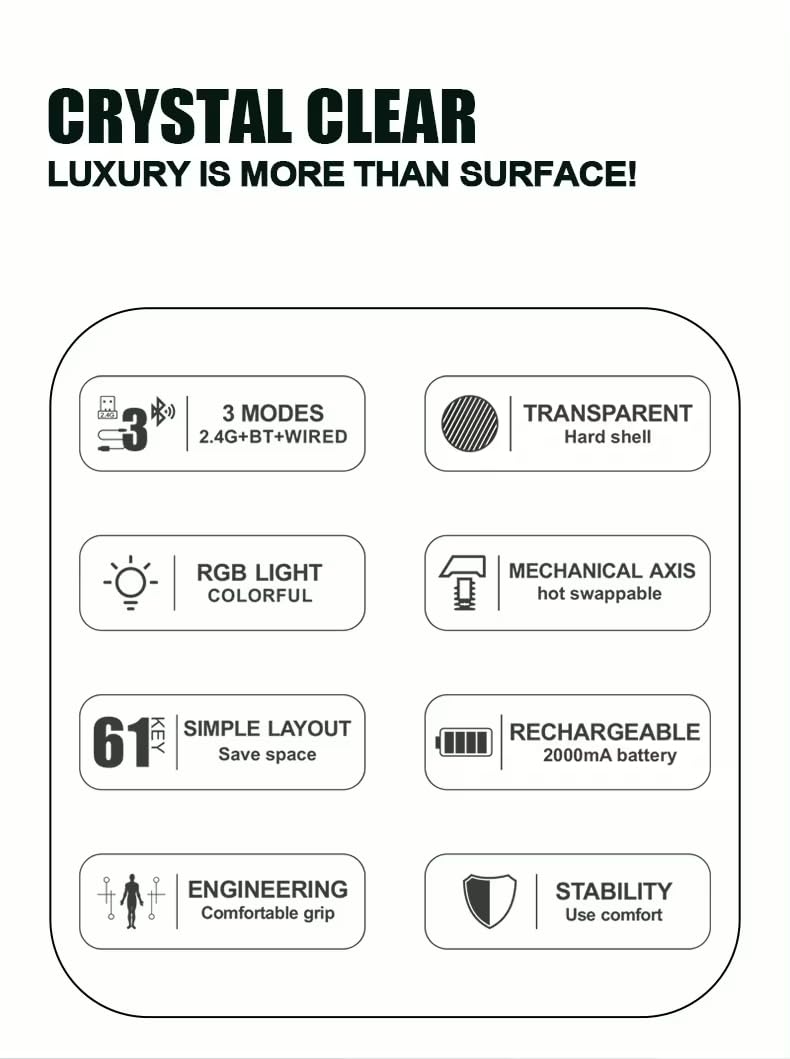
Image : Vue de dessus view of the XunFox K30 Pro keyboard with key dimensions (292mm length, 102mm width, 40mm height) indicated.
Garantie et assistance
This XunFox K30 Pro keyboard comes with a Garantie de 2 ans.
Pour toute assistance technique, réclamation au titre de la garantie ou autre demande d'assistance, veuillez contacter :
- Service client : +91 9906910066
- Importateur/Emballeur : NJ Infotech
Veuillez conserver votre preuve d'achat à des fins de garantie.
Ask a question about this manual
Ask about setup, troubleshooting, compatibility, parts, safety, or missing instructions. Manuals+ will review the question and use this page’s manual context to help answer it.