
1. Introduction
Thank you for choosing the OBZ USB Wired Desktop Barcode Scanner. This device is designed for efficient and reliable scanning of 1D and 2D barcodes, offering a hands-free operation experience. It is suitable for various applications including retail, inventory management, and point-of-sale systems. This manual provides essential information for the proper setup, operation, and maintenance of your scanner.

Image: The OBZ Desktop Barcode Scanner is versatile, suitable for diverse environments such as bookstores, supermarkets, retail outlets, and medical facilities, demonstrating its broad applicability.
2. Principales caractéristiques
- Fonctionnement mains libres : Designed for desktop use, eliminating the need to hold the scanner, thereby improving efficiency.
- Décodage polyvalent : Capable of scanning 1D, 2D, and QR codes from labels, paper, and digital displays. It can decode challenging barcodes including blurred, damaged, distorted, colorful, or reflective types.
- Connectivité Plug & Play : Requires no software or driver installation. Connects directly via USB cable to laptops, PCs, and POS systems.
- Automatic Smart Sensing: Features an auto-sensing scanning function that allows the device to enter a sleep mode when inactive and automatically wake up when an item is presented for scanning.
- High Resolution Scanning Module: Upgraded module ensures quick and accurate capture of moving codes.

Image: This image illustrates the hands-free advantage of the OBZ Desktop Barcode Scanner compared to traditional handheld scanners or mobile phone scanning, highlighting its convenience.
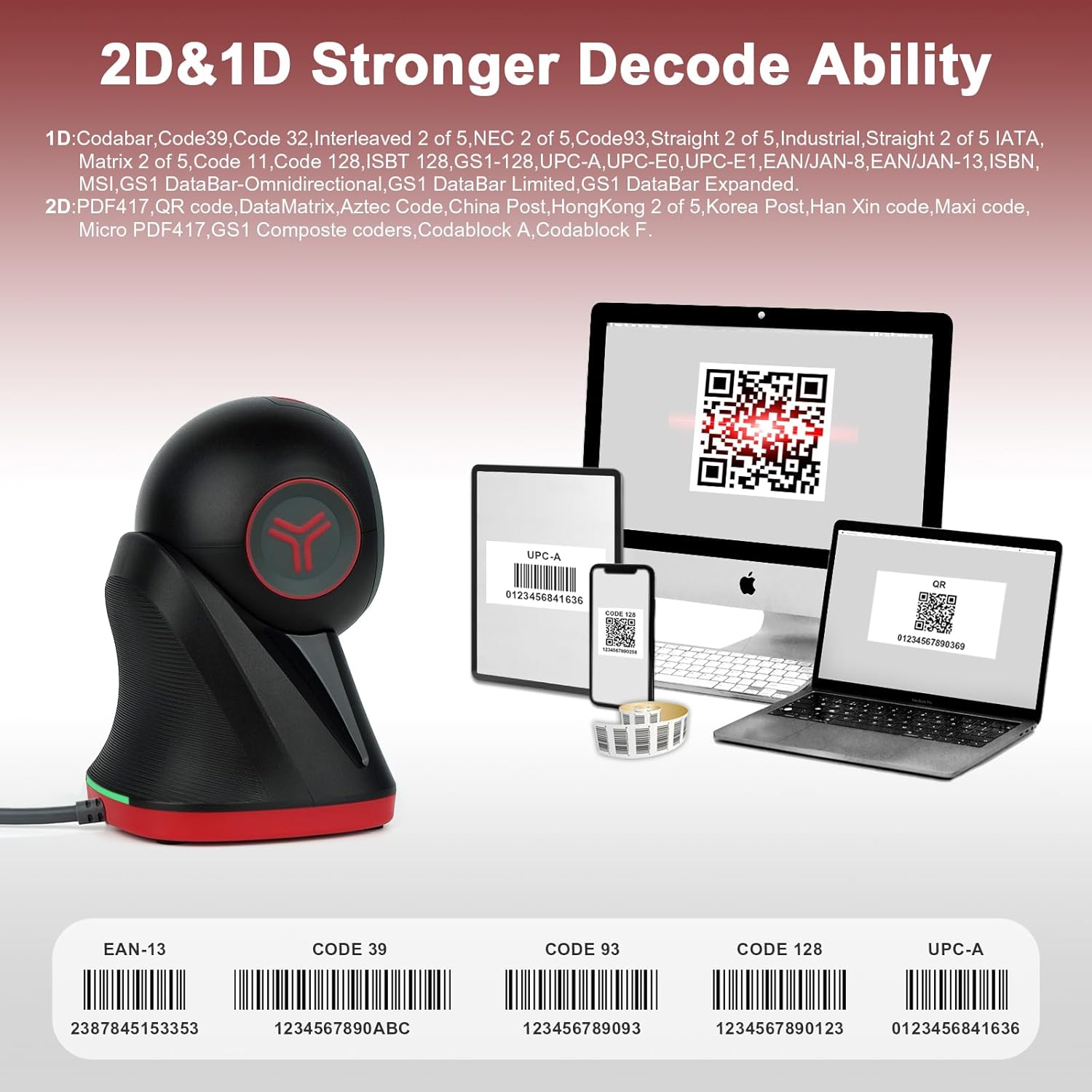
Image: The scanner is shown decoding multiple 1D and 2D barcode types, such as UPC-A, EAN-13, Code 39, Code 93, and Code 128, emphasizing its strong decoding capabilities.

Image: Un détail view of the scanner highlights its high-resolution scanning module and the simple USB cable connection, indicating ease of use and advanced technology.
3. Instructions de configuration
The OBZ Desktop Barcode Scanner is designed for simple plug-and-play installation. Follow these steps to set up your device:
- Déballez le scanner : Retirez délicatement le scanner de son emballage.
- Connectez le câble USB : Insert the USB cable from the scanner into an available USB port on your computer (Desktop, Laptop, or POS system).
- Reconnaissance du système : Your operating system (Windows, Android, Mac OS, Linux) will automatically detect and install the necessary drivers. No manual software installation is required.
- Prêt à l'emploi : Une fois reconnu, le scanner est prêt à être utilisé immédiatement.

Image: This image shows the scanner connected to a laptop, emphasizing its plug-and-play functionality and compatibility with Windows, Android, Linux, MAC, PC, Laptop, and POS systems. It also indicates incompatibility with iPad and iPhone.
4. Mode d'emploi
4.1 Numérisation de base
- Place the item with the barcode directly under the scanner's reading window.
- Le scanner détectera automatiquement le code-barres et émettra une indication de lecture réussie (par exemple, un bip ou un changement de lumière).
- Les données scannées seront transmises à votre appareil connecté sous forme de saisie clavier.
4.2 Automatic Smart Sensing
The scanner features an automatic sleep and wake-up function to conserve energy and enhance convenience:
- If the scanner is not used for a period, it will automatically enter a sleep mode, and the fill light will turn off.
- To wake the scanner, simply move an item with a barcode into its scanning area. The scanner will activate and read the barcode.

Image: This visual illustrates the scanner's automatic sleep and wake-up capabilities. The top panel shows the scanner in a dormant state, while the bottom panel depicts it activating upon detecting an object for scanning.
4.3 Paramètres personnalisés
The scanner supports custom settings to tailor its output:
- Add/Hide Prefix or Suffix: You can configure the scanner to add specific characters before or after the scanned data.
- Ajouter des touches du clavier : Integrate keyboard keys such as TAB or CR (Carriage Return) after each scan for automated data entry.
- Refer to the separate programming guide (if provided) for detailed instructions on configuring these advanced settings.
5. Entretien et sécurité
5.1 Nettoyage
- To clean the reading window, use a soft, dry cloth.
- Avoid using abrasive materials or harsh chemicals that could scratch or damage the window.
- Ensure the reading window remains clear of dust and debris for optimal scanning performance.
5.2 Entretien général
- Le scanner est pas étanche. Avoid spilling liquids onto the device, especially near the reading window.
- Protect the scanner from extreme temperatures and direct sunlight.
- Ne laissez pas tomber le scanner et évitez de le soumettre à des chocs violents.
5.3 Avertissement de sécurité
- Do not stare directly into the LED light when the scanner is active, as it may cause eye discomfort.
6. Dépannage
- Le scanner ne répond pas : Vérifiez que le câble USB est bien connecté au scanner et à l'ordinateur. Essayez un autre port USB.
- Le code-barres ne se scanne pas : Make sure the barcode is clean, undamaged, and properly aligned within the scanning window. Check for sufficient lighting.
- Sortie de données incorrecte : Verify that the scanner is correctly recognized by your system. If custom settings were applied, ensure they are configured as intended.
- Aucun bip sonore : Check if the scanner's sound settings are enabled (if applicable, refer to advanced configuration options).
- If problems persist, try restarting your computer or contacting customer support.
7. Spécifications
| Marque | OBZ |
| Modèle | Scanner de codes-barres de bureau |
| Technologie de connectivité | Câble USB |
| Appareils compatibles | Desktop, Laptop, POS Systems |
| Source d'énergie | Électrique avec fil |
| Poids de l'article | 302 gramme |
| Fabricant | GUANGZHOU XUNBAO ELECTRONICS TECHNOLOGY CO.LTD |
8. Garantie et assistance
Pour toute information relative à la garantie et pour obtenir une assistance technique, veuillez consulter la documentation fournie avec votre achat ou contacter votre revendeur. Conservez votre reçu d'achat comme preuve d'achat pour toute réclamation au titre de la garantie.


