
Introduction
This manual provides detailed instructions for the assembly, operation, and maintenance of your Andonstar AD249S-Max 10.1-inch HDMI Digital Microscope. Designed for precision tasks such as electronics repair, soldering, and detailed observation of various specimens, this device offers high-resolution imaging and a versatile working environment. Please read this manual thoroughly before using the product to ensure proper function and longevity.
Qu'y a-t-il dans la boîte
Carefully unpack all components and verify that all items listed below are present. If any items are missing or damaged, please contact customer support.
- 10.1'' Microscope Monitor with Lens A (pre-installed)
- Lens L (for soldering and repairing)
- Lens D (for biological slides)
- Column and Metal Base
- Beam for stand assembly
- Porte-outil
- Soldering Helping Hands with rotatable clamps
- Soldering Mat
- Bottom Light Stage
- Kit de diapositives
- Observation Box
- Pince à épiler
- Télécommande
- Carte Micro SD 32 Go
- Adaptateur secteur
- Câble de commutation
- Câble USB
- Câble HDMI
- Manuel d'utilisation

Image: All components included with the Andonstar AD249S-Max digital microscope, laid out for inspection.
Caractéristiques du produit
Versatile 3-Lens System
- Lens L (60-240x): Optimized for soldering and repair work, providing a suitable working distance.
- Objectif A (18-720x) : Ideal for observing larger objects such as coins, plants, and stones.
- Lens D (1560-2040x): Conçu pour un fort grossissement viewing of biological slides.
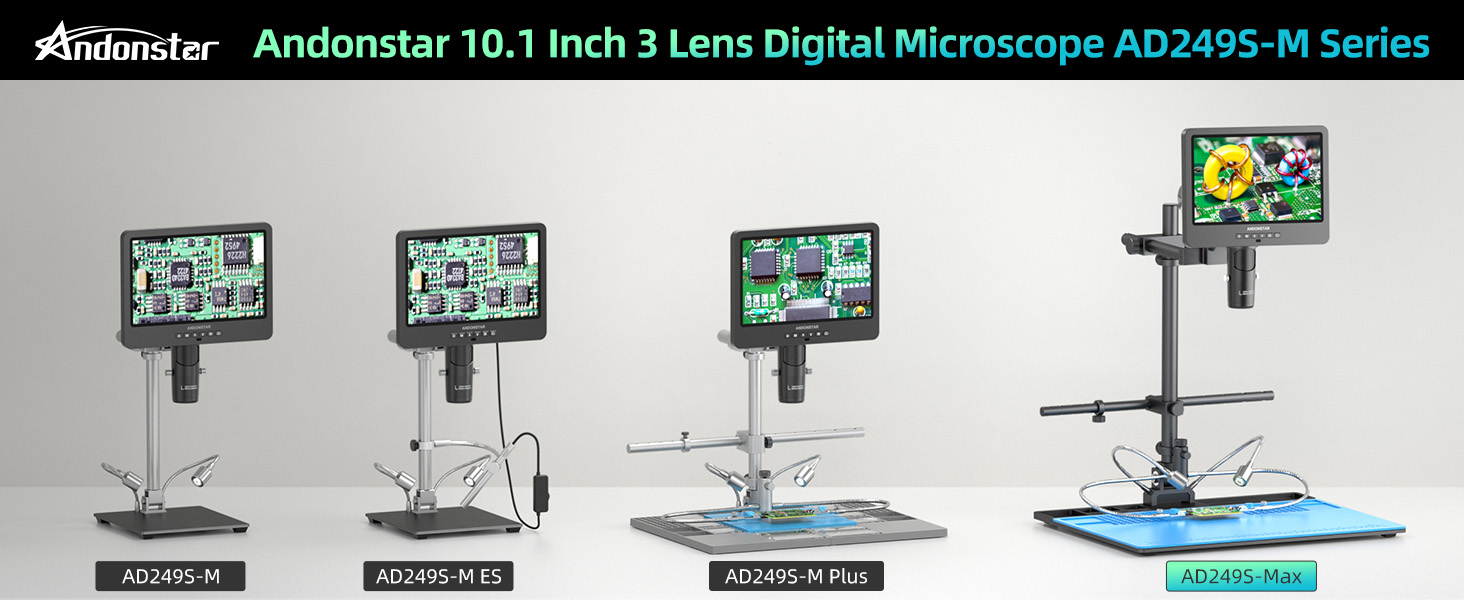
Image: An illustration of the three distinct lenses (L, A, D) and their recommended uses for various observation tasks.

Image: Visual comparison of 30x magnification (showing a coin) and 2000x magnification (showing a biological slide) as displayed on the microscope screen.
UHD 2160P Display and Output
The microscope features a 10.1-inch LCD display for direct viewing. It supports ultra-high-definition 2160P video recording and offers HDMI output for seamless viewing on larger external screens, as well as USB output for PC connection.

Image: The microscope demonstrating its HDMI output to a large monitor and USB output to a laptop for PC software use.
Super Max Soldering Station
The AD249S-Max includes an upgraded oversized Max station, providing a significantly larger working area (370% increase compared to previous models). This station is equipped with a tool holder and flexible soldering helping hands with rotatable clamps, enhancing efficiency for professional soldering and repair tasks.
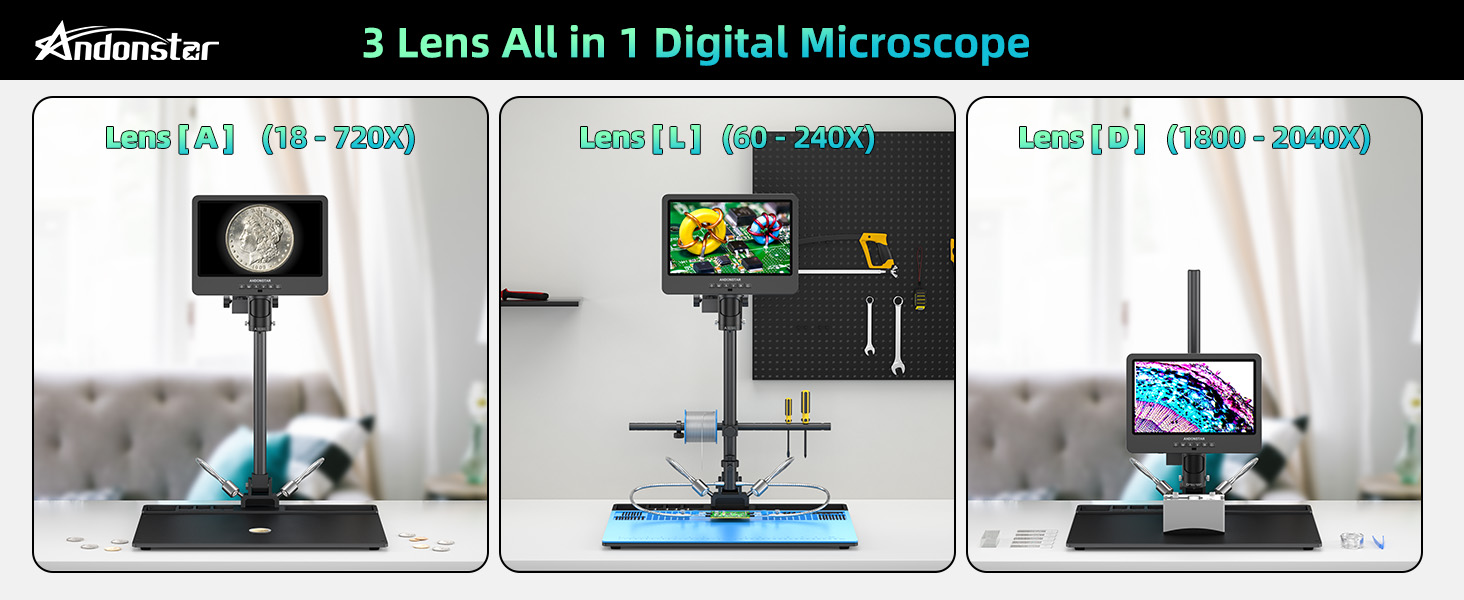
Image: A visual comparison illustrating the larger metal base area of the AD249S-Max soldering station compared to the standard AD249S-M.
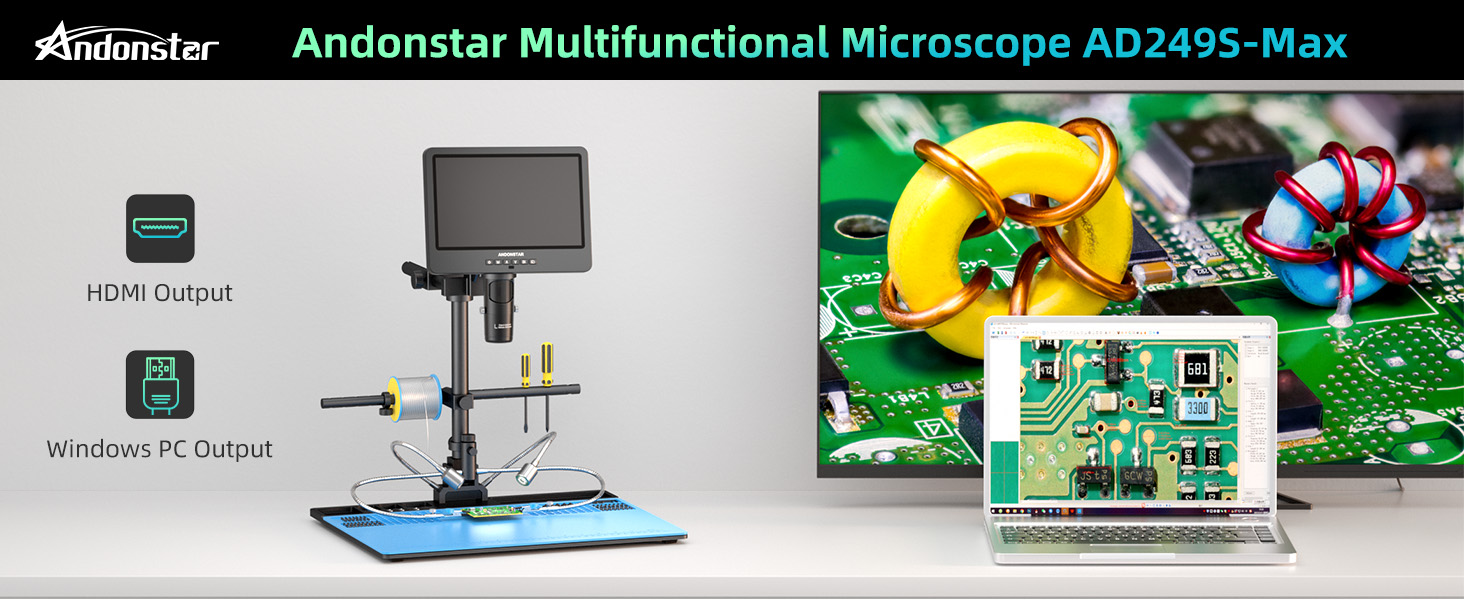
Image : détaillée view of the integrated tool holder for easy access to tools and the flexible soldering helping hands with 360-degree rotatable clamps.
Lumières LED réglables
Eight intensity levels of LED lighting are available to meet various image brightness requirements, ensuring optimal illumination for your observations.
Enregistrement photo et vidéo
Capture and store images and videos of your micro-world observations directly onto the provided 32GB Micro SD card.
Installation
Assemblée
- Fixez la colonne à la base métallique à l'aide des vis fournies.
- Mount the microscope monitor assembly onto the column.
- Install the beam, tool holder, and soldering helping hands onto the column as desired for your workspace.
- Select the appropriate lens (L, A, or D) and screw it onto the microscope camera.
- Place the soldering mat onto the metal base.

Image : Un surview of the assembled microscope, highlighting its dimensions and the placement of components like the tool holder and soldering helping hands.
Adjusting the Boom Arm Stand
The innovative Max boom arm stand allows for 360-degree rotation and flexible adjustments in height and horizontal position. Use the bracket knob and thumb screws to secure the desired position for optimal viewing and working distance.

Image: Visual guide demonstrating the flexibility of the boom arm stand, including height, horizontal, and rotational adjustments.
Connexion électrique
Connect the power adapter to the microscope and plug it into a suitable power outlet. Use the switch cable to power the device on or off.
Mode d'emploi
Fonctionnement de base
- Marche/Arrêt : Appuyez sur le bouton d’alimentation (1) du moniteur pour allumer ou éteindre l’appareil.
- Navigation dans les menus : Use the Mode/Menu button (2) to access settings and navigate through options.
- Mise au point : Rotate the focusing wheel on the microscope body to achieve a clear image.
- Distance de l'objet: Rotate the bracket knob to adjust the distance between the lens and the object.
- Zoom numérique : Use the Up/Down buttons (3, 4) to apply digital zoom to the image.
- Réglage des lumières LED : Use the controls on the switch cable or remote to adjust the intensity of the LED lights.

Image : Avant et arrière views of the microscope monitor, detailing the function of each button and port, including power, menu, zoom, SD card slot, USB, and HDMI.
Lens Exchange
To change lenses, carefully unscrew the currently installed lens from the microscope camera. Select the desired lens (L, A, or D) and screw it firmly into place. Ensure the lens is securely attached before operation.
Prendre des photos et des vidéos
Insert the provided 32GB Micro SD card into the SD card slot (10). Use the 'Take pictures' button (6) for still images or the 'OK/Start recording' button (5) to begin and end video recording. Captured media will be saved to the SD card.
Fonctions de la télécommande
The remote control allows for convenient operation from a distance. Functions include image discoloration, digital zoom, and other menu navigations. Point the remote towards the remote signal receiver (7) on the monitor.
PC Connection and Measurement Software
To connect the microscope to a Windows PC and utilize the professional measurement software:
- Download and install the 'Microscope Measure' software from the official Andonstar website according to the provided instructions.
- Connect the microscope to your computer using the separate USB cable (not the one with the dimmer).
- On the microscope screen, when the mode box pops up, press the 'Down' and 'OK' buttons to select 'PC Camera'.
- Open the 'Microscope Measure' software on your PC, select 'Device', and then choose 'USB Camera' to display the image and access measurement, photo, and video capture functions.

Image: Step-by-step instructions for connecting the microscope to a Windows PC and using the 'Microscope Measure' software.
Sortie HDMI
Connect the provided HDMI cable from the microscope's HDMI port (12) to an HDMI input on a larger monitor or TV for an expanded view of your observations.
Entretien
- Keep the lenses clean using a soft, lint-free cloth specifically designed for optical surfaces. Avoid abrasive materials.
- Nettoyez régulièrement l'écran du moniteur avec un chiffon doux et sec.
- Rangez le microscope dans un endroit sec et exempt de poussière lorsqu'il n'est pas utilisé.
- Assurez-vous que toutes les connexions sont bien fixées, mais ne serrez pas trop les vis.
Dépannage
- Pas d'alimentation : Check if the power adapter is securely connected and the switch cable is turned on. Ensure the power outlet is functional.
- Aucune image à l'écran : Verify that the lens is correctly installed and the microscope is powered on. Adjust focus and object distance.
- Image floue : Rotate the focusing wheel and adjust the bracket knob to find the optimal focus and working distance for the selected lens. Ensure the lens is clean.
- Problèmes de connexion aux logiciels PC : Ensure you are using the correct USB cable (not the dimmer cable). Confirm 'PC Camera' mode is selected on the microscope. If installation issues arise, check your PC's security settings or firewall, as some systems may block executable files provenant de sources inconnues.
- La télécommande ne répond pas : Vérifiez la pile de la télécommande. Assurez-vous qu'aucun obstacle ne se trouve entre la télécommande et le récepteur infrarouge du microscope.
Caractéristiques
| Fonctionnalité | Détail |
|---|---|
| Nom du modèle | AD249S-Max |
| Taille de l'écran | 10.1 pouces |
| Résolution vidéo | 2160p UHD |
| Magnification (on 28-inch HDMI monitor) | Lens A: 18-720x, Lens D: 1800-2040x, Lens L: 60-240x |
| Options de sortie | HDMI, USB (PC) |
| Type de source lumineuse | LED (8 intensity levels) |
| Stockage | Carte microSD (jusqu'à 32 Go incluse) |
| Dimensions du produit | 18.1"L x 14.6"l x 18.7"H |
| Poids de l'article | 1.13 ounces (microscope unit) |
| Matériel | Metal stand, various components |
Garantie et assistance
Andonstar provides professional after-sales service. For any inquiries, technical assistance, or support needs, please contact our customer service team. While specific warranty details are not provided in this manual, please refer to your purchase documentation or the official Andonstar website pour obtenir des informations sur la garantie.