
1. Introduction
Merci pour votre achatasing the WiMiUS S27 Pro Mini Projector. This manual provides detailed instructions for setting up, operating, and maintaining your projector to ensure optimal performance and longevity. The S27 Pro features 4K support, 1080P native resolution, 18000LM brightness, 270° rotation, automatic keystone correction, Wi-Fi 6, and Bluetooth 5.3 connectivity, offering a versatile and immersive viewexpérience de travail.
2. Consignes de sécurité
- Ne regardez pas directement l'objectif du projecteur lorsque le lamp est allumé, car cela peut causer des lésions oculaires.
- Assurez une ventilation adéquate autour du projecteur afin d'éviter toute surchauffe. Ne bloquez pas les ouvertures de ventilation.
- Utilisez uniquement l'adaptateur secteur fourni avec le projecteur.
- Tenez le projecteur à l'écart de l'eau, de l'humidité et des températures extrêmes.
- N’essayez pas de démonter ou de réparer le projecteur vous-même. Contactez un technicien qualifié pour obtenir de l’aide.
- Gardez le projecteur hors de portée des enfants.
3. Produit terminéview
3.1. Composants et ports
The WiMiUS S27 Pro Mini Projector is designed for portability and ease of use. It features a compact design with various ports for connectivity.

Image : Arrière view of the WiMiUS S27 Pro Projector, highlighting the HDMI, USB, and Audio ports for connecting various devices.
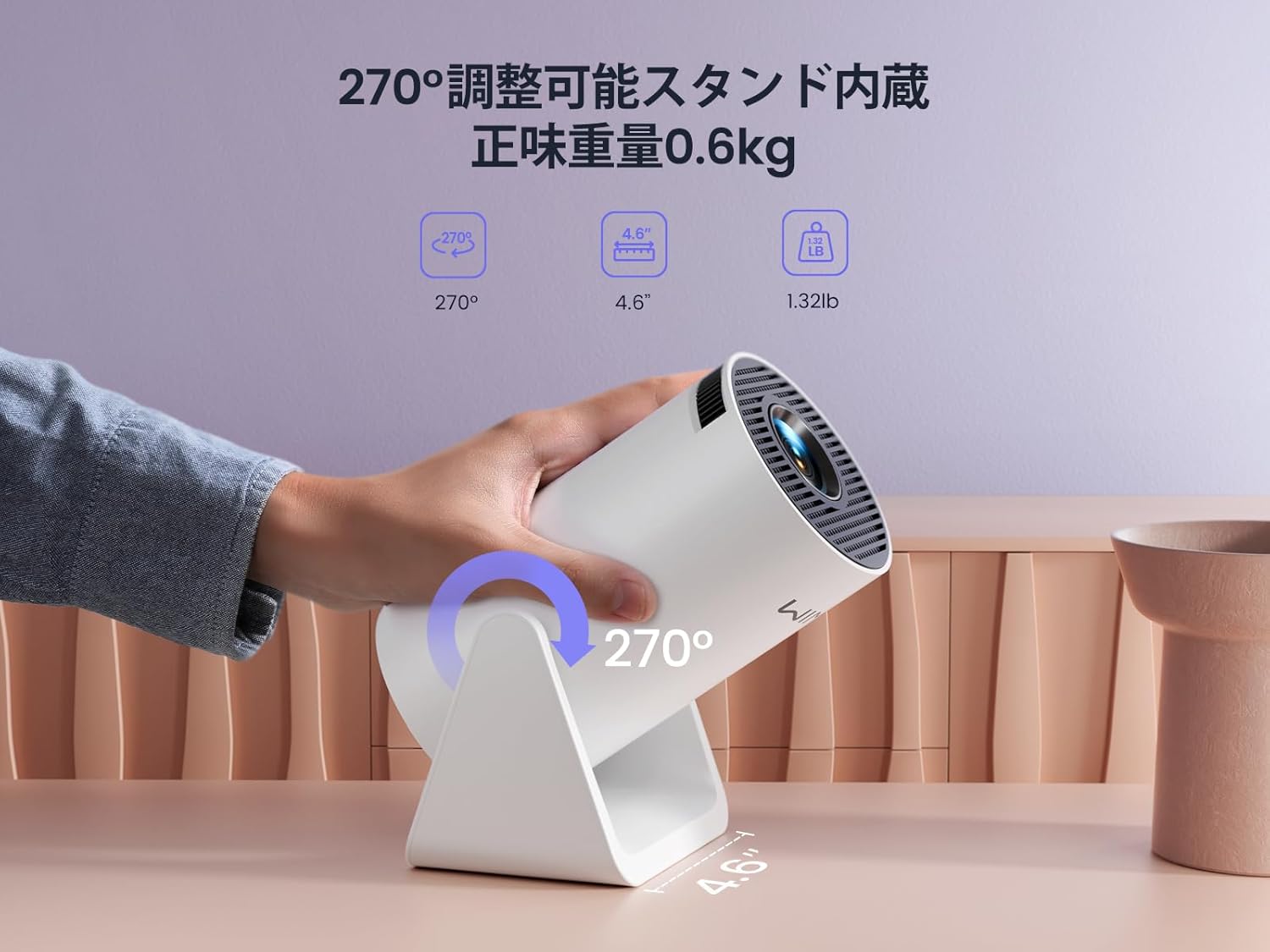
Image: The WiMiUS S27 Pro Projector on its integrated 270° adjustable stand, demonstrating its flexible projection angles and compact size (0.6kg).
4. Installation
4.1. Placement
The S27 Pro's 270° rotatable stand allows for flexible placement, including ceiling projection. Position the projector between 0.8 meters and 5 meters from the projection surface to achieve a screen size of 40 to 200 inches.

Image: The projector displaying an image on a wall, demonstrating its automatic vertical keystone correction feature for a perfectly rectangular picture.
4.2. Connexion électrique
Connect the provided power adapter to the projector's DC input port and then plug it into a power outlet.
4.3. Mise sous tension initiale
Press the power button on the projector or the remote control to turn on the device. The projector will display the main menu.
4.4. Correction de la mise au point et de la distorsion trapézoïdale
- Correction trapézoïdale verticale automatique : The projector automatically corrects vertical image distortion.
- Mise au point manuelle : Réglez la bague de mise au point de l'objectif du projecteur jusqu'à ce que l'image soit nette.
- Zoom numérique : Use the remote control to adjust the image size from 85% to 100% to fit your screen.

Image: A projected image demonstrating the 85% to 100% zoom function, allowing adjustment for various room sizes.
5. Mode d'emploi
5.1. Navigation
Use the remote control to navigate through the projector's menu and select desired functions.
5.2. Connexion Wifi
The S27 Pro supports ultra-fast Wi-Fi 6 (5G and 2.4G dual-band) for stable and quick streaming.
- From the homepage, select "Set" (Settings).
- Enter the "WiFi" menu and turn on the WiFi function.
- Wait for the projector to detect available WiFi networks.
- Select your home WiFi network and enter the password to connect.

Image: The projector's interface displaying options for Wi-Fi 6 and Bluetooth 5.3, indicating advanced wireless connectivity.
5.3. Connexion Bluetooth
The built-in Bluetooth 5.3 chip allows connection to headphones, speakers, and AirPods for enhanced audio.
- From the homepage, select "Set" (Settings).
- Enter the "BT Model" (Bluetooth) menu and turn on Bluetooth.
- Rechercher available Bluetooth devices and select your device to pair.

Image: The WiMiUS S27 Pro Projector connected wirelessly to headphones and a smart speaker via Bluetooth 5.2, illustrating its audio connectivity options.
5.4. Duplication d'écran
Dupliquez sans fil l'écran de votre smartphone, tablette ou PC sur le projecteur.
- From the homepage, select "Mirroring".
- Choose "Wireless screen" for wireless mirroring.
- Pour les appareils iOS : Connect your iPhone to the same Wi-Fi network as the projector. Open Control Center, tap "Screen Mirroring", and select the projector from the list (e.g., "VB6_3AF9_itv").
- Pour les appareils Android : Connect your Android device to the same Wi-Fi network as the projector. Open the screen mirroring function (often called "Smart View", "Cast", "Wireless Display", etc.) and select the projector.

Image: A smartphone wirelessly mirroring its screen content to the WiMiUS S27 Pro Projector, demonstrating the seamless screen mirroring function.
Video: iPhone Screen Mirroring Method
Video: This video demonstrates the steps to connect your iPhone to the WiMiUS S27 Pro Projector using the screen mirroring function.
5.5. Connexion de périphériques externes
Le projecteur prend en charge diverses connexions filaires :
- HDMI: Connect devices like TV Sticks, PS5, Switch, iPad, or PCs.
- USB: Connectez des clés USB ou des smartphones pour la lecture multimédia.
- Sortie audio 3.5 mm : Connect external speakers, headphones, or earphones.
Video: Connecting with TV Stick
Video: This video illustrates how to connect a TV Stick to the WiMiUS S27 Pro Projector via the HDMI port for streaming content.
6. Entretien
- Nettoyage des lentilles : Use a soft, lint-free cloth and lens cleaning solution to gently wipe the lens. Avoid abrasive materials.
- Ventilation: Regularly check and clean the ventilation openings to prevent dust buildup, which can affect performance and lead to overheating. The projector features a dustproof design to minimize internal dust accumulation.
- Mises à jour logicielles (OTA) : The projector supports Online Over-The-Air (OTA) updates. Check for new firmware versions in the settings menu to ensure your device has the latest features and improvements.
7. Dépannage
- L'image est floue : Adjust the manual focus ring on the lens. Ensure the projector is within the recommended projection distance (0.8m-5m).
- Pas de signal: Check if the correct input source (HDMI, USB) is selected. Verify all cables are securely connected.
- Problèmes de connexion Wi-Fi/Bluetooth : Ensure the projector and your device are connected to the same Wi-Fi network. Restart both devices and try reconnecting.
- Cannot play copyrighted content (Netflix, Prime Video, Hulu): Due to copyright restrictions, these apps cannot be mirrored directly from a smartphone. Use an external streaming device like a TV Stick or Roku connected via HDMI.
- Surchauffe: Ensure the projector has adequate ventilation and that the vents are not blocked. Allow the projector to cool down if it becomes excessively hot.
- Image distortion: The projector features automatic vertical keystone correction. If horizontal distortion occurs, adjust the projector's physical position.
8. Spécifications
| Marque | WiMiUS |
| Modèle | S27 Pro |
| Taille du produit | 9 x 11 x 17 cm |
| Poids | 600 g |
| Résolution native | 1920 x 1080 (Full HD) |
| Résolution prise en charge | Jusqu'à 3840 x 2160 (4K) |
| Luminosité | 18000LM (400 ANSI) |
| Connectivité | Wi-Fi 6 (5G/2.4G), Bluetooth 5.3, HDMI, USB, 3.5mm Audio Out |
| Ratio de projection | 1.26:1 (lancer court) |
| Taille de la projection | 40-200 pouces |
| Correction trapézoïdale | Verticale automatique |
| Fonction zoom | 50% Digital Zoom (85%-100%) |
| Consommation d'énergie | 59.99 W |
9. Garantie et assistance
The WiMiUS S27 Pro Mini Projector comes with a Garantie de 3 ans. If you encounter any issues or have questions regarding your product, please contact our customer support team. For technical assistance or warranty claims, refer to the contact information provided in your purchase documentation or visit the official WiMiUS website.