
1. Produit terminéview
The POLONO P31S is a compact and portable thermal label printer designed for various labeling needs in home, office, and school environments. It connects wirelessly via Bluetooth to your smartphone or tablet, allowing you to design and print labels using the dedicated mobile application. This device features a built-in cutter and operates without ink, utilizing thermal printing technology for clear, durable labels.
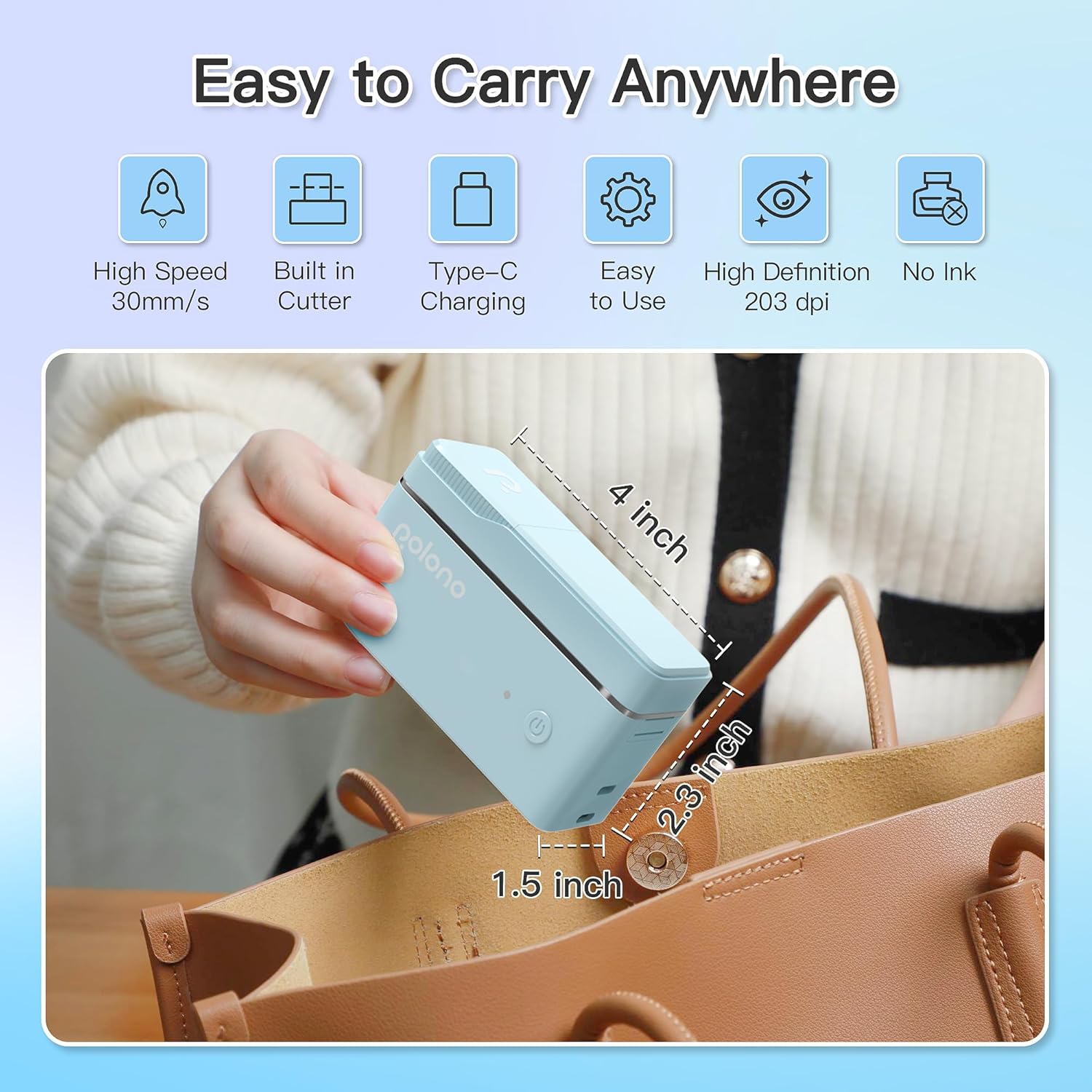
Figure 1 : POLONO P31S Label Printer highlighting its compact design and dimensions (approximately 4 inches long, 2.3 inches high, 1.5 inches wide).
Caractéristiques principales :
- Conception portable et légère.
- Bluetooth connectivity for wireless printing.
- Thermal printing technology (no ink required).
- Built-in label cutter.
- Supports various label types including text, QR codes, barcodes, and images.
- Batterie rechargeable.
2. Consignes de sécurité
Please read and understand all safety instructions before using the POLONO P31S label printer to prevent injury or damage to the device.
- Ne démontez pas, ne réparez pas et ne modifiez pas l'appareil.
- Gardez l'appareil à l'écart de l'eau, de l'humidité et des températures extrêmes.
- Use only POLONO-approved label tapes to ensure optimal performance and prevent damage.
- Évitez de toucher la tête d'impression immédiatement après l'impression, car elle peut être chaude.
- Tenir hors de portée des enfants.
- Use the provided charging cable or a certified equivalent.
3. Contenu du colis
Vérifiez que tous les éléments sont présents dans le colis :
- POLONO P31S Label Printer
- Label Tape Roll (starter roll)
- Câble de chargement USB
- Manuel de l'utilisateur (ce document)
4. Installation
4.1 Chargement de l'appareil
Before first use, fully charge the label printer. Connect the provided USB charging cable to the printer's charging port and to a USB power adapter (not included) or a computer's USB port. The indicator light will show charging status.
4.2 Installation du ruban d'étiquettes
- Ouvrez le couvercle du compartiment à étiquettes.
- Insert the label tape roll with the printing surface facing up, ensuring it is properly seated.
- Pull a small portion of the label tape out, extending it past the cutter blade.
- Refermez soigneusement le couvercle du compartiment à étiquettes.

Figure 2 : Proper installation of POLONO P31S label tape. Ensure the green sticker on the tape is not removed or damaged, as it contains chip technology for optimal performance. Do not pull the label out directly; use the cutting blade.
4.3 Téléchargement de l'application et connexion Bluetooth
- Download the "Labelnize" app from the Apple App Store or Google Play Store.
- Turn on the POLONO P31S label printer by pressing and holding the power button.
- Activez le Bluetooth sur votre smartphone ou tablette.
- Open the "Labelnize" app. The app will prompt you to allow Bluetooth access. Grant permission.
- Within the app, search for available devices and select "P31S" to connect.
- Once connected, the app will indicate a successful connection, and you are ready to create labels.
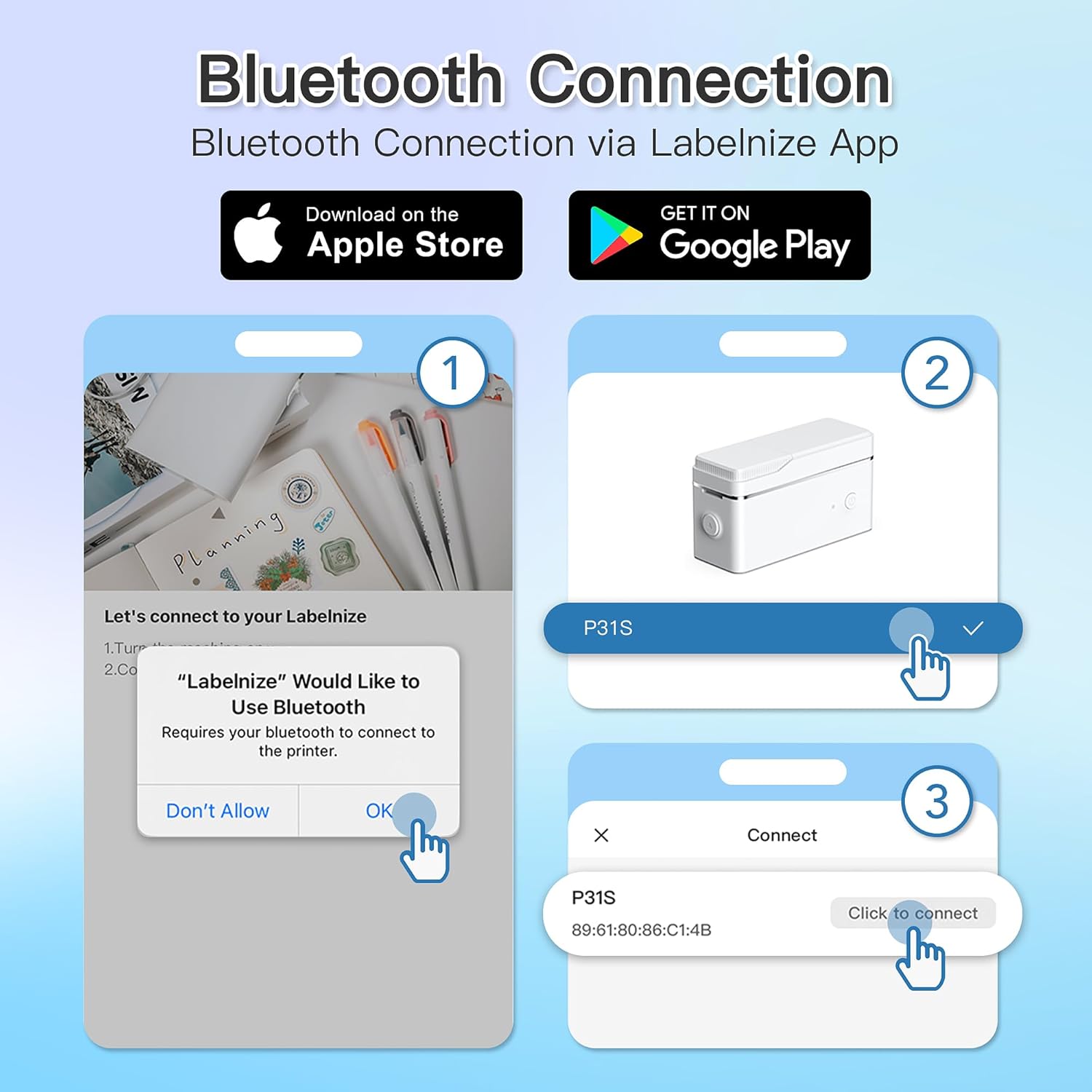
Figure 3 : Steps for Bluetooth connection via the Labelnize App. Download the app, allow Bluetooth access, select "P31S" from the device list, and click "Connect".
5. Mode d'emploi
5.1 Création d'étiquettes avec l'application Labelnize
The Labelnize app offers a variety of tools to design your labels:
- Texte: Enter custom text, choose from over 90 fonts, adjust size, style (bold, italic), and alignment.
- Frontières: Select from over 95 border designs to frame your labels.
- Icons/Graphics: Access a library of over 670 tab icons and other graphics to enhance your labels.
- QR Code/Barcode: Generate QR codes or barcodes for various applications.
- Images: Insert images from your device's gallery.
- Modèles: Utilisez des modèles prédéfinis pour les tâches d'étiquetage courantes.

Figure 4 : The Labelnize app interface for creating labels, offering extensive customization options including borders, fonts, and icons. The app supports multiple languages.
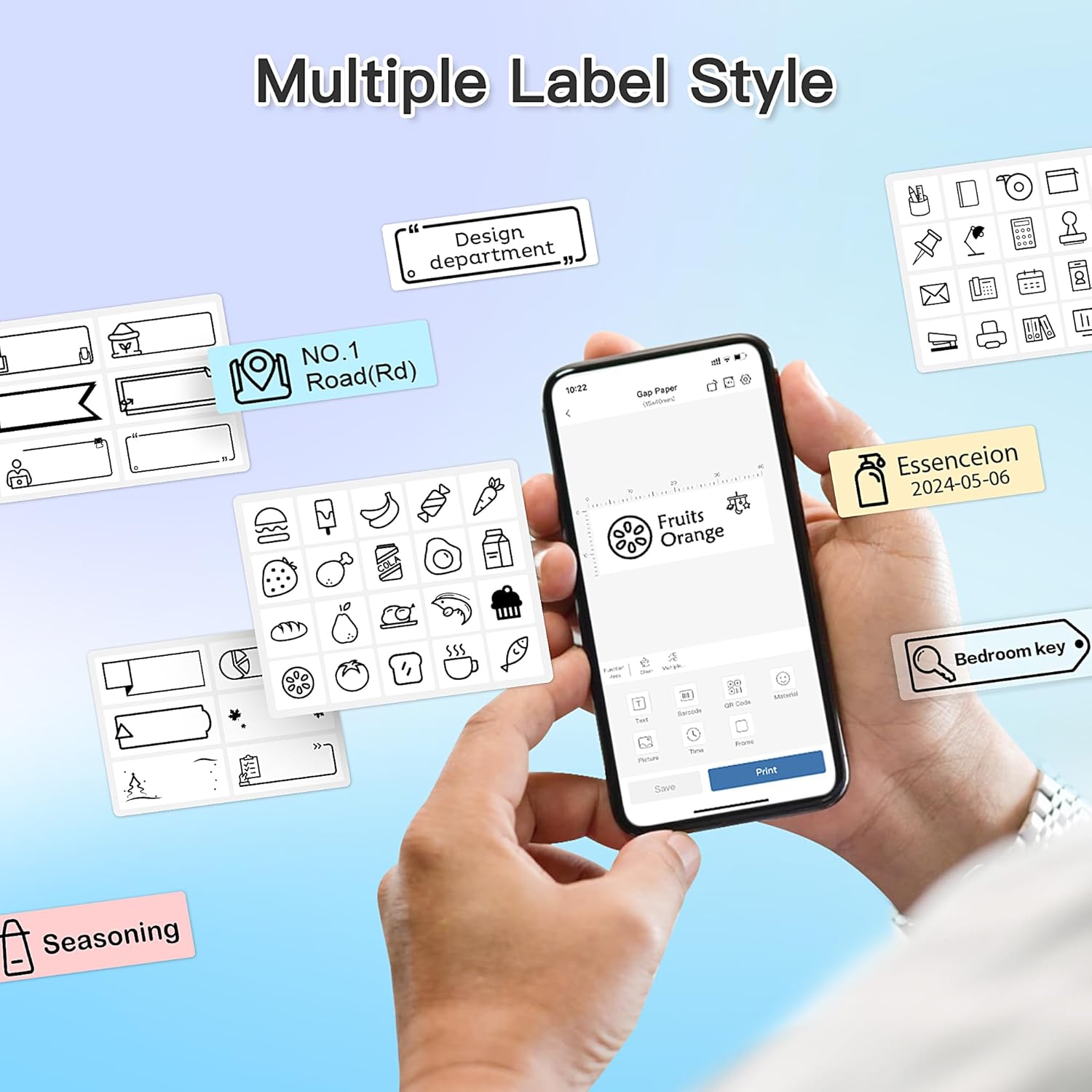
Figure 5 : Examples of diverse label styles achievable with the POLONO P31S, demonstrating the flexibility in design for different organizational needs.
5.2 Impression des étiquettes
After designing your label in the Labelnize app:
- Review Votre étiquette s'affiche sur l'écran de l'application.
- Appuyez sur le bouton « Imprimer » dans l'application.
- Confirm print settings (e.g., number of copies) if prompted.
- L'imprimante alimentera et imprimera automatiquement l'étiquette.
5.3 Utilisation du coupe-légumes intégré
The POLONO P31S features a built-in cutter for clean and precise label separation. After printing, gently press the cutter button or lever (depending on model variation) to cut the label. Do not pull the label manually to tear it, as this may damage the printer or result in uneven cuts.
6. Entretien
6.1 Nettoyage de la tête d'impression
Pour maintenir une bonne qualité d'impression, nettoyez régulièrement la tête d'impression :
- Éteignez l'imprimante et débranchez le câble d'alimentation.
- Ouvrez le couvercle du compartiment à étiquettes.
- Essuyez délicatement la tête d'impression avec un coton-tige.ampenrichi avec de l'alcool isopropylique.
- Laissez la tête d'impression sécher complètement avant de fermer le capot et d'allumer l'imprimante.
6.2 Entretien de la batterie
- Charge the battery regularly, even if the printer is not used frequently, to prolong its lifespan.
- Évitez de décharger complètement la batterie pendant des périodes prolongées.
- Rangez l'imprimante dans un endroit frais et sec lorsqu'elle n'est pas utilisée.
7. Dépannage
| Problème | Cause possible | Solution |
|---|---|---|
| L'imprimante ne s'allume pas. | Batterie faible ou pas d'alimentation. | Chargez l'imprimante à l'aide du câble USB fourni. |
| Impossible de se connecter via Bluetooth. | Bluetooth is off, printer is off, or app issue. | Ensure printer is on, Bluetooth is enabled on your device, and restart the Labelnize app. Try re-pairing. |
| Mauvaise qualité d'impression. | Dirty print head, incorrect label tape, or low battery. | Clean the print head (Section 6.1). Ensure you are using POLONO P31S compatible label tape. Charge the printer. |
| Étiquettes bloquées. | Improper tape installation or foreign object. | Turn off the printer, open the cover, carefully remove any jammed tape. Reinstall tape correctly. |
| L'imprimante ne répond pas. | Problème logiciel temporaire. | Restart the printer and the Labelnize app. |
8. Spécifications
| Fonctionnalité | Détail |
|---|---|
| Modèle | P31S |
| Technologie d'impression | Thermique |
| Connectivité | Bluetooth |
| Résolution d'impression | 203 x 203 DPI |
| Vitesse d'impression maximale (monochrome) | 15 XNUMX ppm |
| Taille maximale du support | Label rolls (2 inches / 24 millimeters) |
| Couleur de l'encre | Noir (impression thermique) |
| Source d'énergie | 1 batterie Lithium Polymère (incluse) |
| Dimensions du produit | 7.2 x 7.4 x 12.7 cm; 260 g |
| Composants inclus | Étiquettes |
9. Garantie et assistance
For warranty information and technical support, please refer to the official POLONO webConsultez leur site web ou contactez leur service client. Conservez votre reçu d'achat comme preuve d'achat pour toute réclamation au titre de la garantie.
Officiel Website: www.polono.com (Remarque : Ceci est un espace réservé URLVeuillez vérifier les informations officielles. website for POLONO products.)