
1. Introduction
This manual provides comprehensive instructions for the setup, operation, and maintenance of your X88 X88-GK29 Android 13.0 TV Stick. This device transforms any compatible television into a smart TV, offering access to streaming services, applications, and multimedia content. Please read this manual thoroughly before using the product to ensure optimal performance and safety.
2. Contenu du colis
Vérifiez que tous les éléments énumérés ci-dessous sont inclus dans votre emballage :
- X88 X88-GK29 Android TV Stick
- Télécommande
- TYPE-C Cable (for power)
- Manuel de l'utilisateur (ce document)
- HD Extender (HDMI extension cable)

Figure 2.1 : Contents of the X88 X88-GK29 package. Includes the TV stick, remote, power cable, user manual, and an HDMI extender.
3. caractéristiques du produit
The X88 X88-GK29 Android TV Stick is designed with advanced features for an enhanced media experience:
- Système opérateur: Android 13.0 for improved speed and efficiency.
- Processeur: RK3528 Quad-Core Cortex-A53 64-bit CPU for powerful performance.
- Stockage de mémoire: 2GB DDR4 RAM and 16GB eMMC ROM, expandable via microSD card or USB devices.
- Connectivité : Dual-band 2.4G/5.8G WiFi 6 for stable network performance and Bluetooth 5.0 for peripheral connections.
- Sortie vidéo : Supports 8K H.265 ultra-high-definition content and 3D video decoding.
- Miroir de l'écran: Integrated Miracast function for casting content from phones and tablets.
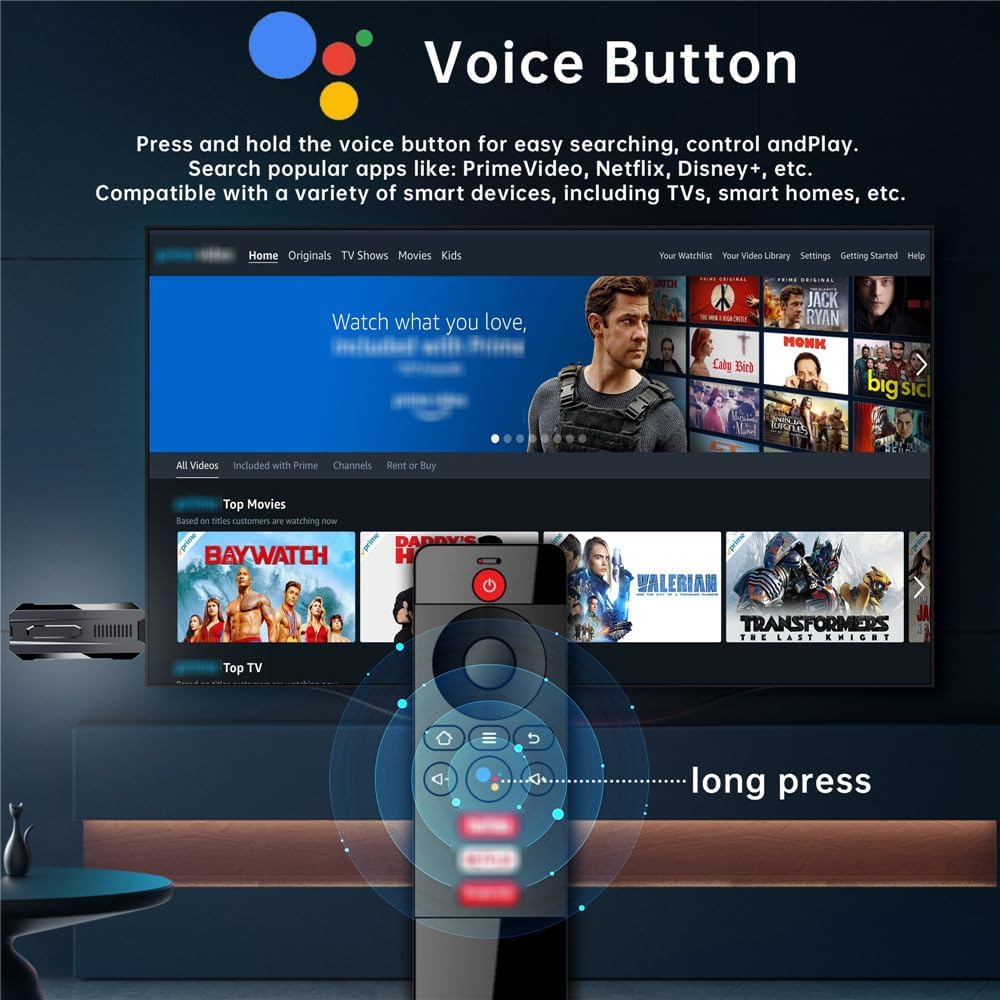
Figure 3.1 : The X88-GK29 operates on Android 13.0, offering enhanced performance compared to earlier Android versions.

Figure 3.2 : The device is powered by a low-power RK3528 Quad-Core 64-bit CPU and Mali-450 MP2 GPU.

Figure 3.3 : High-speed connectivity is provided by WiFi 6 (2.4G/5G) and Bluetooth 5.0.
4. Guide de configuration
Follow these steps to set up your X88 X88-GK29 Android TV Stick:
- Connect TV Stick to TV: Insert the X88-GK29 TV Stick directly into an available HDMI port on your television. If space is limited, use the provided HD Extender.
- Mise sous tension : Connect the TYPE-C cable to the TV Stick and plug the other end into a USB power adapter (not included) or a powered USB port on your TV. The device will power on automatically.
- Se connecter à Internet : Once the device boots up, follow the on-screen instructions to connect to your Wi-Fi network. Navigate to Settings > Network > Wi-Fi and select your network, then enter the password.
- La configuration initiale: Complete any remaining on-screen setup prompts, including language selection and Google account login.
- Démarrer le streaming : Once setup is complete, you can begin downloading apps from the Google Play Store and enjoying your content.

Figure 4.1 : Visual representation of the three main setup steps for the X88-GK29 TV Stick.
5. Mode d'emploi
5.1 Utilisation de la télécommande
The included remote control allows for easy navigation and control of your TV Stick. Key functions include:
- Bouton d'alimentation : Allume ou éteint l'appareil.
- Pavé de navigation : Use the directional buttons to move through menus and the OK button to select.
- Bouton d'accueil: Retour à l'écran d'accueil principal.
- Bouton Retour : Revient à l'écran ou au menu précédent.
- Boutons de volume : Règle le volume audio.
- Bouton vocal : Press and hold to activate voice search and control features. This allows for searching apps, content, and controlling smart devices.

Figure 5.1 : The remote control features a dedicated voice button for easy search and control.
5.2 écran miroir
The X88-GK29 supports screen mirroring technologies like Miracast, Airplay, and DLNA, allowing you to display content from your smartphone, tablet, or laptop directly onto your TV screen.
- Ensure your mobile device and the TV Stick are connected to the same Wi-Fi network.
- On your mobile device, activate the screen mirroring feature (often labeled as 'Cast', 'Screen Mirroring', 'Smart View', ou 'Affichage sans fil').
- Select the X88-GK29 device from the list of available devices.
- Your mobile device's screen will now be mirrored on your television.

Figure 5.2 : Screen mirroring allows you to stream content from your mobile device to your TV.
5.3 Personnalisation de l'interface utilisateur
The Android 13.0 interface allows for customization of the home screen. You can organize your applications and widgets to suit your preferences. To customize UI buttons:
- Click "OK" on the remote control to add any app logo to the UI.
- Long press "OK" to replace or remove app logos.

Figure 5.3 : Customize your user interface by adding or removing app icons.
6. Entretien
To ensure the longevity and optimal performance of your X88 X88-GK29 Android TV Stick, follow these maintenance guidelines:
- Nettoyage: Utilisez un chiffon doux et sec pour nettoyer l'appareil. Évitez les nettoyants liquides ou abrasifs.
- Ventilation: Veillez à placer l'appareil dans un endroit bien ventilé afin d'éviter toute surchauffe. Ne bouchez pas les ouvertures de ventilation.
- Température: Utilisez l'appareil dans les plages de température recommandées. Évitez les températures extrêmes, qu'elles soient chaudes ou froides.
- Stockage: En cas de non-utilisation prolongée, débranchez le câble d'alimentation et rangez l'appareil dans un endroit frais et sec.
- Mises à jour logicielles : Vérifiez et installez régulièrement les mises à jour système afin d'assurer une sécurité et des performances optimales.
7. Dépannage
If you encounter issues with your X88 X88-GK29 Android TV Stick, refer to the following common problems and solutions:
7.1 Pas d'alimentation / Pas d'affichage
- Vérifiez la connexion électrique : Ensure the Type-C power cable is securely connected to the TV Stick and the power source.
- Vérifier la connexion HDMI : Make sure the TV Stick is fully inserted into the HDMI port on your TV. Try a different HDMI port or use the HD Extender.
- Sélectionnez la bonne entrée : Utilisez la télécommande de votre téléviseur pour sélectionner la source d'entrée HDMI appropriée.
7.2 Problèmes de connectivité Wi-Fi
- Redémarrez le routeur : Power cycle your Wi-Fi router and modem.
- Check Password: Assurez-vous de saisir le bon mot de passe Wi-Fi.
- Intensité du signal : Move the TV Stick closer to your Wi-Fi router or ensure there are no obstructions.
- Paramètres réseau : Go to Settings > Network > Wi-Fi on the TV Stick and try forgetting the network and reconnecting.
7.3 App Performance / Buffering
- Vitesse Internet : Verify your internet connection speed meets the requirements for streaming high-definition content.
- Vider le cache : For problematic apps, go to Settings > Apps > [App Name] > Clear Cache.
- Mettre à jour les applications : Ensure all your streaming applications are updated to their latest versions via the Google Play Store.
- Libérez de l'espace de stockage : If storage is low, uninstall unused apps or clear data to improve performance.
7.4 Bluetooth Device Not Found
- Activer Bluetooth : Ensure Bluetooth is enabled on both the TV Stick (Settings > Connected Devices > Pair new device) and the device you are trying to connect.
- Mode d'appariement: Mettez votre appareil Bluetooth en mode d'appairage.
- Distance: Keep the Bluetooth device close to the TV Stick during pairing.
8. Spécifications
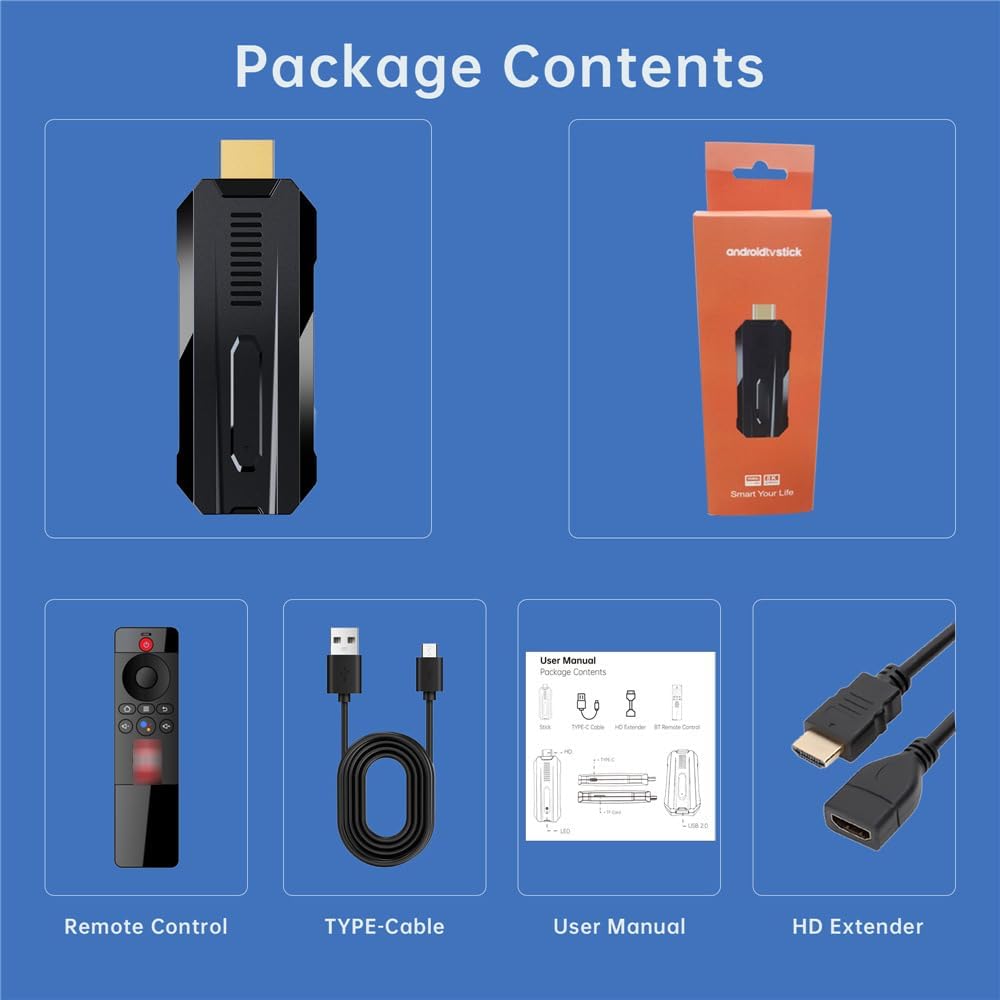
Figure 8.1 : Physical dimensions and interface ports of the X88-GK29 TV Stick.
| Fonctionnalité | Détail |
|---|---|
| Marque | X88 |
| Nom du modèle | X88-GK29 |
| Système opérateur | Android 13.0 |
| Processeur | RK3528 Quad Core Cortex-A53 64bit |
| BÉLIER | 2 Go DDR4 |
| ROM | eMMC 16 Go |
| Wifi | Dual-band 2.4GHz/5.8GHz WiFi 6 |
| Bluetooth | BT 5.0 |
| Prise en charge de la résolution | 8K H.265, 4K, HDR10+ |
| Caractéristiques spéciales | Miracast, 3D Video Decoding |
| Type de connecteur | HDMI |
| Services Internet pris en charge | Play Store, YouTube, Browser, etc. |
| Poids de l'article | 5.6 onces |
| Dimensions du produit | 3.85 x 1.45 x 0.7 pouces |
9. Informations sur la garantie
The X88 X88-GK29 Android TV Stick comes with a standard manufacturer's warranty. Please refer to the product packaging or the seller's terms and conditions for specific warranty duration and coverage details. Keep your proof of purchase for warranty claims.
10. Assistance clientèle
For technical assistance, troubleshooting, or any inquiries regarding your X88 X88-GK29 Android TV Stick, please contact the seller or manufacturer's customer support. Contact information can typically be found on the product packaging or the retailer's website.