
1. Introduction
The Nuroum C50 is an innovative 3-in-1 video conferencing device, integrating a 360-degree panoramic camera, a high-fidelity speaker, and a multi-array microphone system. Designed for seamless group meetings, it offers intelligent features like AI-assisted auto-framing and noise reduction to ensure clear communication and an immersive experience for all participants. This manual provides essential information for setting up, operating, maintaining, and troubleshooting your Nuroum C50.
2. Contenu du colis
Veuillez vérifier que tous les articles sont présents dans votre colis :
- Nuroum C50 Video Conference Camera
- Télécommande
- Câble USB
- Adaptateur secteur

Image: The Nuroum C50 device, its remote control, and the accompanying USB cable.
3. caractéristiques du produit
3.1. 360-Degree Panoramic Camera
The C50 features a unique 360-degree camera with a 'fish-eye' lens, providing a comprehensive panoramic view of your meeting space. This ensures that all participants around a table are visible, creating an inclusive conference experience.

Image : Une explosion view of the camera lens assembly, illustrating its 360-degree panoramic view capacité.
3.2. Hi-Fi Speakers and Noise-Reduction Microphones
Equipped with a 6-MEMS microphone array and a 4Ω/3W Hi-Fi speaker, the C50 delivers crisp voice pickup and clear audio playback. Advanced features like noise and echo reduction, automatic gain control, and full duplex technology ensure voices within a 5-meter radius are captured with equal clarity, enhancing communication quality.
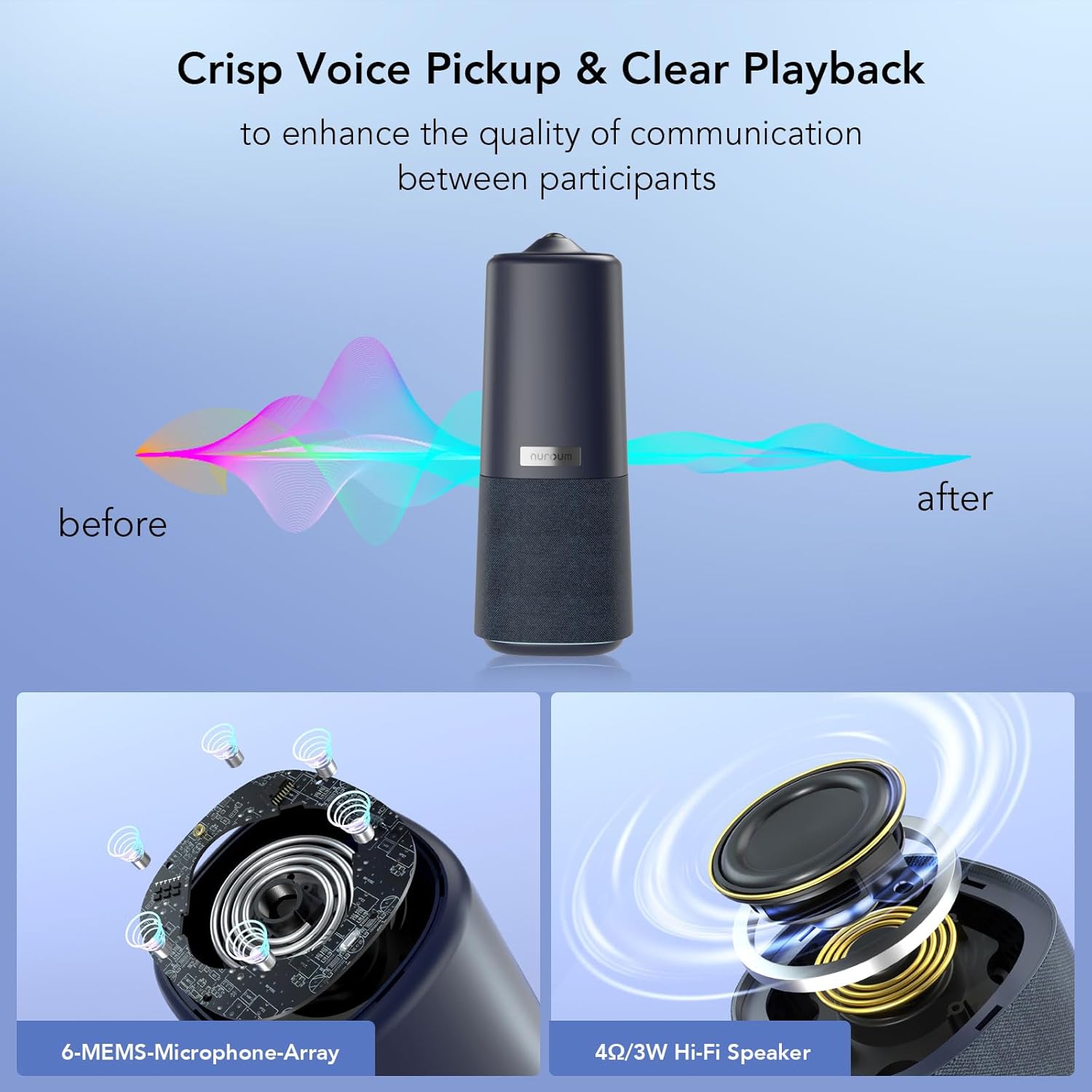
Image: A visual representation of the C50's audio capabilities, highlighting the 6-MEMS microphone array and the Hi-Fi speaker for clear voice pickup and playback.

Image: A diagram showing the C50 placed on a conference table, with sound waves indicating omnidirectional voice pickup within a 5-meter radius, along with icons for Noise & Echo Reduction, Automatic Gain Control, and Full Duplex Technology.
3.3. AI-Assisted Auto Framing and 5x Zoom
The C50 utilizes AI to intelligently frame participants and automatically zoom in on the active speaker. It offers three AI-empowered video display modes to suit various conference scenarios: Gallery Mode, Manual Mode, and Speaker Tracking Mode.

Image: A visual comparison of the three AI-empowered video display modes: Gallery Mode (showing all participants), Manual Mode (fixed view), and Speaker Tracking Mode (focusing on the active speaker), along with illustrations of how to change modes using the soft key or remote control.
3.4. Easy Installation and Flexible Mounting
The device is designed for simple plug-and-play setup. Its compact and vertical design allows for versatile placement options, including on a desk stand, a tripod, or directly on the desktop. It can also integrate with other conference equipment like the A15 speakerphone.
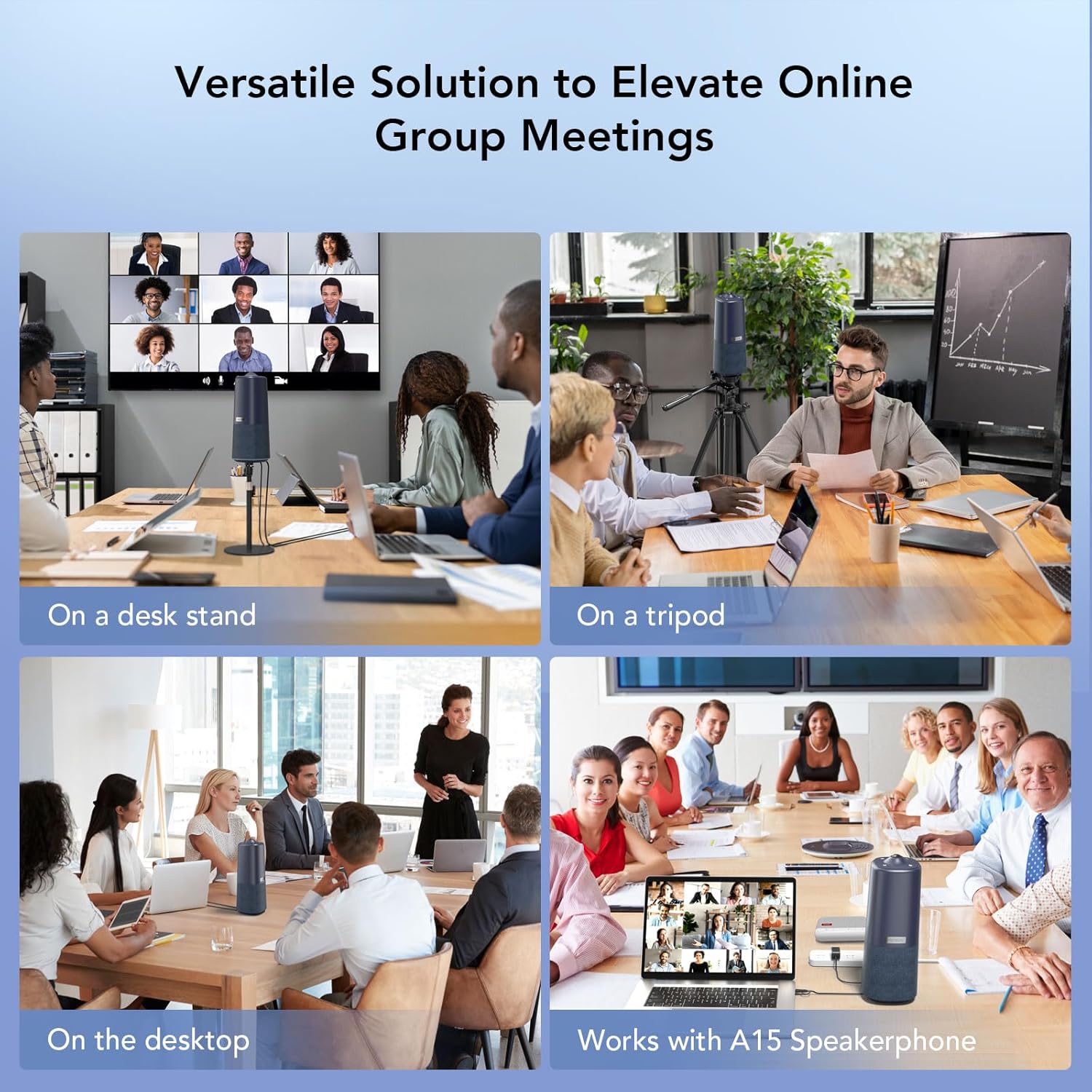
Image: A collage demonstrating versatile placement options for the C50, including on a desk stand, a tripod, directly on a desktop, and integrated with an A15 speakerphone.
3.5. Large compatibilité
The Nuroum C50 is compatible with popular video conferencing platforms such as Zoom, Microsoft Teams, and Google Meet. It supports various operating systems including Windows, macOS, and Linux, ensuring broad usability across different setups.
4. Installation
- Placement: Place the Nuroum C50 in the center of your meeting table or in a position that allows for optimal 360-degree coverage of the participants.
- Connecter l'alimentation : Connect the provided power adapter to the C50's power input port and plug it into a wall outlet.
- Connectez-vous à l'ordinateur : Use the supplied USB cable to connect the C50 to an available USB port on your computer (desktop, laptop, Chromebook, or MacBook).
- Installation du pilote (si nécessaire) : For most operating systems, the C50 is plug-and-play and drivers will install automatically. If prompted, follow the on-screen instructions.
- Sélection de logiciels : Open your preferred video conferencing application (e.g., Zoom, Teams, Google Meet) and select the Nuroum C50 as your camera, microphone, and speaker device in the application's audio/video settings.

Image: A user operating the Nuroum C50 with its remote control, demonstrating easy setup and convenient control during a video conference.
5. Mode d'emploi
5.1. Contrôles
The Nuroum C50 can be controlled via the touch-sensitive buttons on its top panel or using the included remote control.
- Bouton d'alimentation : Allume/éteint l'appareil.
- Volume haut/bas : Règle le volume du haut-parleur.
- Microphone muet : Toggles microphone mute.
- Sélection du mode : Cycles through video display modes (Gallery, Manual, Speaker Tracking).
- Zoom avant/arrière : Digitally zooms the camera view (up to 5x).
5.2. Video Display Modes
The C50 offers three intelligent video modes:
- Mode Galerie : Displays all participants in a panoramic view, suitable for showing the entire room.
- Mode manuel : Provides a fixed 110-degree field of view, allowing you to manually adjust the camera's focus.
- Mode de suivi des haut-parleurs : The AI automatically detects and frames the active speaker, switching focus as different individuals speak.
5.3. Video Output Quality
The Nuroum C50 provides 1080P Full HD video output, ensuring clear and sharp visuals for all participants during group video conferences.
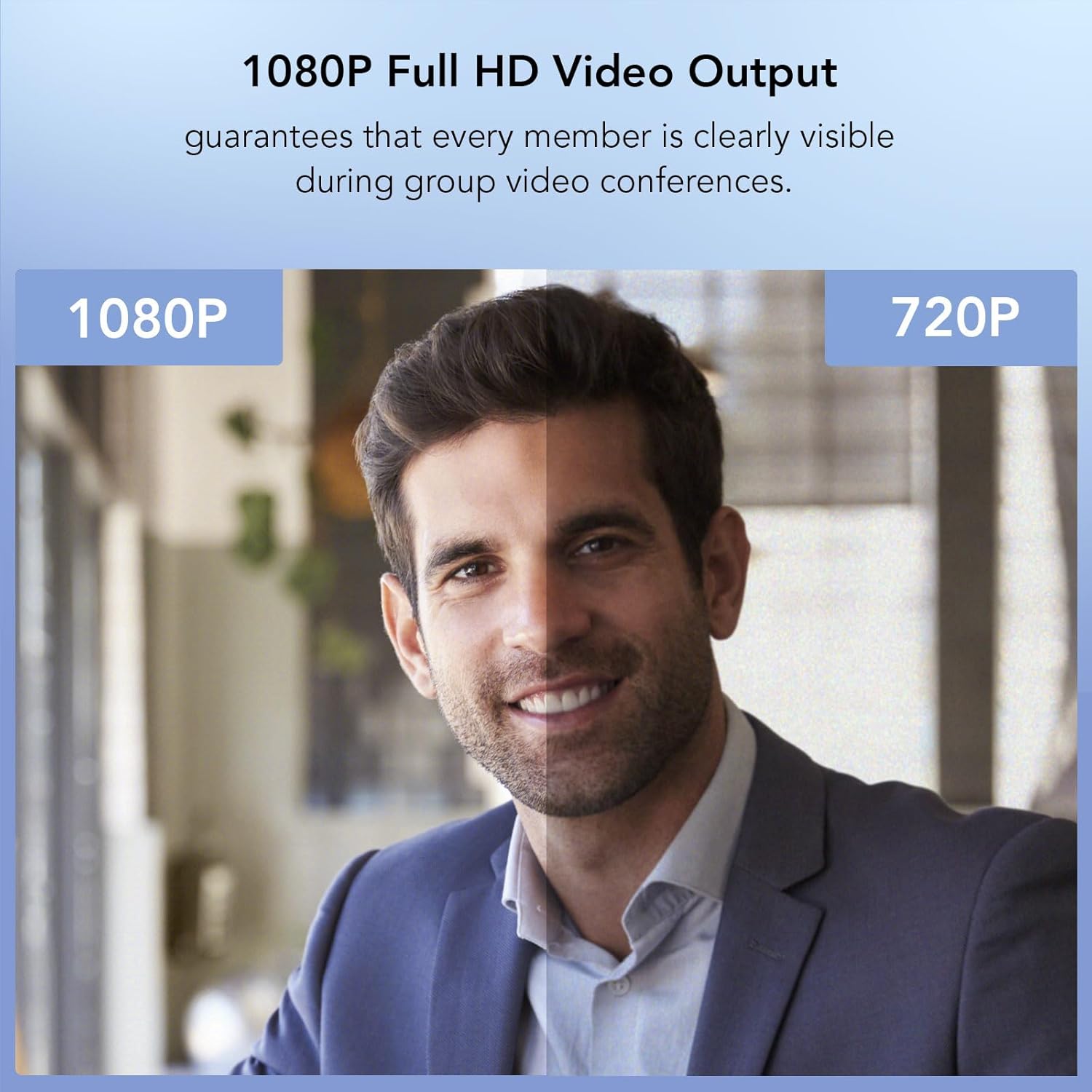
Image: A side-by-side comparison illustrating the superior clarity of 1080P Full HD video output compared to 720P.
6. Entretien
6.1. Entretien et nettoyage
To maintain the performance and appearance of your Nuroum C50, follow these guidelines:
- Always disconnect the power and USB cables before cleaning.
- Utilisez un chiffon doux, sec et non pelucheux pour nettoyer les surfaces extérieures.
- For the camera lens, use a specialized lens cleaning cloth and solution if necessary, being careful not to scratch the surface.
- N’utilisez pas de nettoyants abrasifs, de cires ou de solvants, car ils pourraient endommager la finition.
- Évitez d'exposer l'appareil à une humidité excessive ou à des températures extrêmes.
6.2. Stockage
When not in use for extended periods, store the Nuroum C50 in a cool, dry place, away from direct sunlight and dust. It is recommended to keep it in its original packaging or a protective case to prevent damage.
7. Dépannage
If you encounter issues with your Nuroum C50, please refer to the common problems and solutions below:
| Problème | Cause possible | Solution |
|---|---|---|
| L'appareil ne s'allume pas | Câble d'alimentation non connecté ou prise défectueuse. | Assurez-vous que l'adaptateur secteur est correctement connecté à l'appareil et à une prise de courant fonctionnelle. |
| Pas de sortie vidéo | USB cable loose; incorrect camera selected in software; driver issue. | Check USB connection. Verify 'Nuroum C50' is selected as the camera in your conferencing software. Try restarting your computer. |
| Aucun son (microphone/haut-parleur) | Microphone/speaker muted; incorrect device selected in software; volume too low. | Check mute status on device/remote. Ensure 'Nuroum C50' is selected as microphone and speaker in software. Adjust volume. |
| Le suivi par IA ne fonctionne pas | Incorrect mode selected; poor lighting conditions; obstruction. | Ensure 'Speaker Tracking Mode' is active. Improve room lighting. Remove any obstructions in front of the camera. |
| La télécommande ne répond pas | Batterie faible ; obstruction ; hors de portée. | Replace remote control batteries. Ensure clear line of sight to the device. Move closer to the device. |
If the problem persists after trying these solutions, please contact Nuroum customer support for further assistance.
8. Spécifications
| Marque | Nuroum |
| Modèle | EU-C50-1 |
| Dimensions (L x l x H) | 13.8 x 14.5 x 34.5 cm (5.43 x 5.71 x 13.58 pouces) |
| Poids | 1.2 kg (2.65 lb) |
| Technologie de connectivité | USB |
| Type de caméra | Webcam (360-degree panoramic) |
| Résolution de sortie vidéo | 1080P Full HD |
| Zoom numérique | 5x |
| Réseau de microphones | 6-MEMS Microphone Array |
| Conférencier | 4Ω/3W Hi-Fi Speaker |
| Plage de prise de voix | Jusqu'à 5 mètres |
| Caractéristiques spéciales | Face Detection, AI Auto-Framing, Noise & Echo Reduction, Automatic Gain Control, Full Duplex Technology |
| Appareils compatibles | Chromebook, Desktop, MacBook, Laptop |
9. Garantie et assistance
9.1. Informations sur la garantie
For detailed warranty information regarding your Nuroum C50, please refer to the warranty card included with your purchase or visit the official Nuroum webLes conditions de garantie peuvent varier selon la région et le détaillant.
9.2. Assistance clientèle
If you require technical assistance, have questions about your product, or need to report an issue, please contact Nuroum customer support through their official website or the contact information provided in your product documentation. When contacting support, please have your model number (EU-C50-1) and purchase details ready.


