
1. Introduction
The HP Smart Tank 5106 is a versatile multifunction inkjet printer designed for efficient printing, scanning, and copying. This printer features an integrated ink tank system for high-volume, low-cost printing. It supports wireless connectivity, allowing for convenient printing from various devices. This manual provides essential information for setting up, operating, maintaining, and troubleshooting your HP Smart Tank 5106 printer.
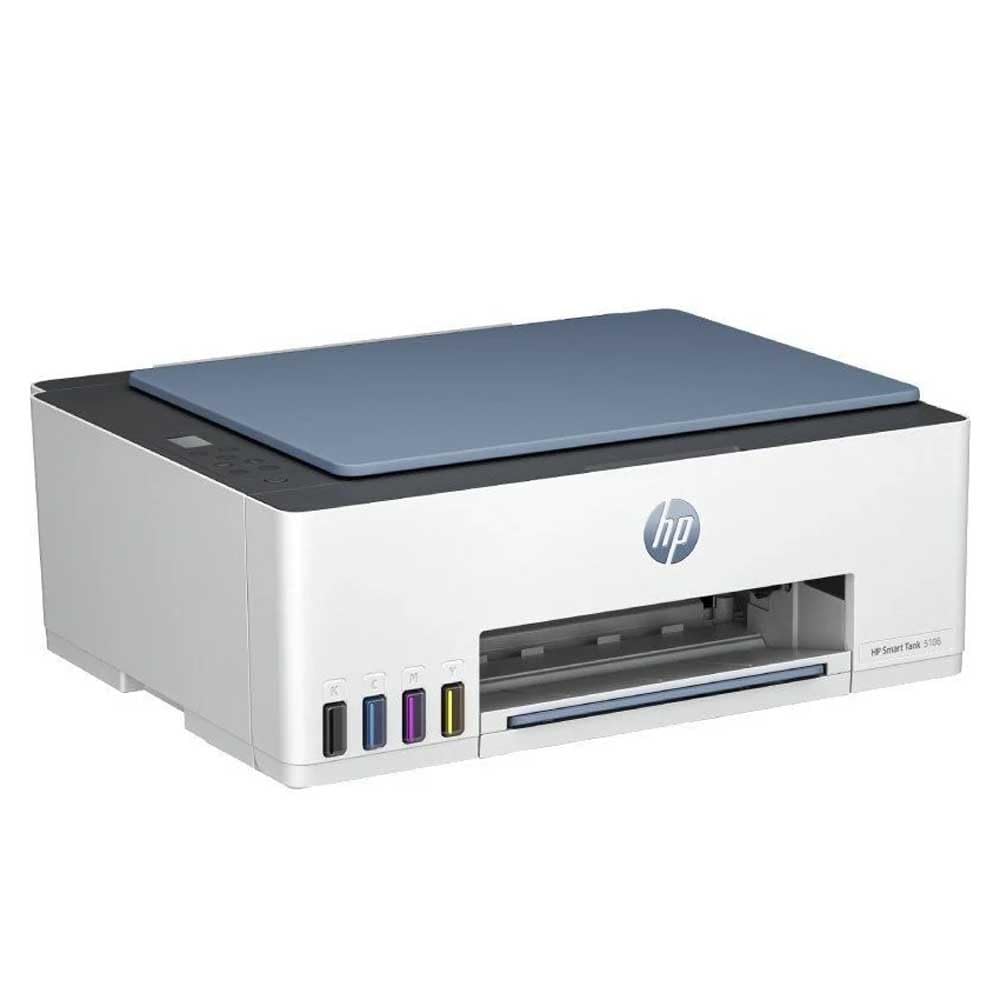
Figure 1 : Face avant view of the HP Smart Tank 5106 Multifunction Printer. This image shows the printer's overall design, including the output tray and the HP logo.
2. Installation
2.1 Déballage de l'imprimante
- Retirez l'imprimante de son emballage.
- Remove all protective tapes and packing materials from the exterior and interior of the printer. Refer to the quick start guide for specific locations.
- Placez l'imprimante sur une surface stable et plane.
2.2 Remplissage des réservoirs d'encre
The HP Smart Tank 5106 uses an integrated ink tank system. Follow these steps to fill the ink tanks:
- Open the ink tank cover located on the left side of the printer.
- Open the cap of the ink tank you wish to fill (Black, Cyan, Magenta, Yellow).
- Uncap the corresponding HP ink bottle and invert it over the tank's nozzle. The ink will flow automatically into the tank. Do not squeeze the bottle.
- Once the tank is full, remove the bottle and close the tank cap securely.
- Repeat for all other ink tanks.
- Fermez le couvercle du réservoir d'encre.
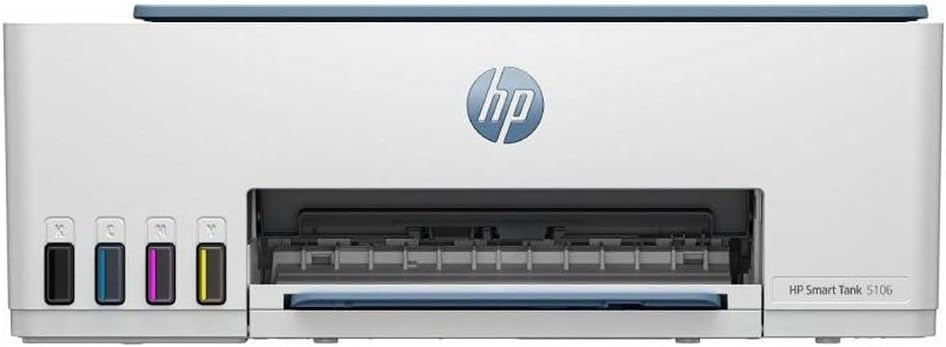
Figure 2 : Face avant view of the HP Smart Tank 5106, highlighting the visible ink tanks on the left side for easy monitoring and refilling.
2.3 Branchement de l'alimentation et mise sous tension initiale
- Connect the power cord to the printer's power port and then to an electrical outlet.
- Appuyez sur le bouton d'alimentation pour allumer l'imprimante.
- Follow the on-screen instructions on the printer's control panel for initial setup, including language selection and print head alignment.

Figure 3 : Arrière view of the HP Smart Tank 5106, showing the power input and USB port for connectivity.
2.4 Installation du logiciel et connexion au réseau
- Téléchargez le Application intelligente HP from your device's app store (iOS, Android) or from hpsmart.com for Windows/macOS.
- Open the HP Smart app and follow the prompts to add your printer.
- Select your Wi-Fi network and enter the password when prompted to connect the printer to your wireless network.
- Alternatively, connect the printer to your computer using a USB cable for a wired connection.
3. Mode d'emploi
3.1 Chargement du papier
- Déployez le bac d'alimentation et étendez les guides papier.
- Chargez une pile de papier blanc ordinaire dans le bac d'alimentation, face imprimable vers le bas.
- Adjust the paper guides until they rest gently against the edges of the paper stack.
- Repoussez le bac d'alimentation dans l'imprimante.
3.2 Impression de documents
- Depuis votre ordinateur ou votre appareil mobile, ouvrez le document ou l'image que vous souhaitez imprimer.
- Sélectionnez le Imprimer option (usually found under File menu or by pressing Ctrl+P/Cmd+P).
- Choose your HP Smart Tank 5106 printer from the list of available printers.
- Adjust print settings such as paper size, print quality, and number of copies. For duplex printing, select the two-sided printing option if available in your print dialog.
- Cliquez Imprimer.
3.3 Copie de documents
- Placez le document face contre la vitre du scanner, en l'alignant avec le guide.
- Fermez le couvercle du scanner.
- Sur le panneau de commande de l'imprimante, sélectionnez le Copie option.
- Choose the number of copies and whether you want a color or black-and-white copy.
- Appuyez sur le Copie de démarrage bouton.
3.4 Numérisation de documents
- Placez le document face contre la vitre du scanner.
- Fermez le couvercle du scanner.
- Ouvrez l'application HP Smart sur votre ordinateur ou votre appareil mobile.
- Sélectionnez le Balayage option.
- Ajustez les paramètres de numérisation tels que la résolution, le mode couleur et le dossier de destination.
- Cliquez Balayage to begin the process. The scanned document will be saved to your specified location.
4. Entretien
4.1 Monitoring and Refilling Ink Levels
Regularly check the ink levels through the transparent ink tanks on the front of the printer or via the HP Smart app. Refill ink tanks as described in Section 2.2 when levels are low to prevent print quality issues.
4.2 Nettoyage des têtes d'impression
If you notice streaky or faded prints, the print heads may need cleaning. This can be done through the printer's control panel or the HP Smart app. Refer to the app's maintenance section for detailed instructions.
4.3 Cleaning the Printer Exterior and Scanner Glass
- Essuyez l'extérieur de l'imprimante avec un chiffon doux non pelucheux.
- For the scanner glass, use a soft cloth lightly dampTerminé avec un nettoyant pour vitres. Évitez de vaporiser le nettoyant directement sur la vitre.
4.4 mises à jour du micrologiciel
Ensure your printer's firmware is up to date for optimal performance and security. Firmware updates can be managed through the HP Smart app.
5. Dépannage
5.1 Problèmes courants et solutions
- L'imprimante ne répond pas : Check power connections, ensure the printer is turned on, and verify network connectivity (Wi-Fi or USB). Restart both the printer and your computer/router.
- Bourrages papier : Carefully open all access doors and remove any jammed paper. Ensure paper is loaded correctly and not overfilled.
- Mauvaise qualité d'impression : Perform print head cleaning and alignment through the HP Smart app or printer control panel. Check ink levels and refill if necessary. Use appropriate paper type and quality settings.
- Problèmes de connectivité : Ensure your printer and device are on the same Wi-Fi network. Restart your router. If using USB, try a different port or cable.
5.2 Messages d'erreur
If an error message appears on the printer's display or in the HP Smart app, consult the HP support website or the app's help section for specific troubleshooting steps related to that error code.
5.3 Réinitialisation de l'imprimante
In some cases, a factory reset may resolve persistent issues. Refer to the HP support documentation for your specific model for instructions on how to perform a factory reset, as this can vary and may clear network settings.
6. Spécifications
| Fonctionnalité | Spécification |
|---|---|
| Nom du modèle | Réservoir intelligent 5106 |
| Dimensions du produit | 50.3D x 125.7W x 121.4H centimètres |
| Poids | 7.01 kilogrammes |
| Technologie de connectivité | USB, Wi-Fi |
| Technologie d'impression | Jet d'encre |
| Dossier spécial | Écran tactile |
| Vitesse d'impression maximale (couleur) | 15 pages par minute |
| Vitesse d'impression maximale (monochrome) | 16 pages par minute |
| Vitesse de copie maximale (monochrome) | 16 pages par minute |
| Capacité maximale des feuilles | 100 |
| Impression recto verso | Oui |
| Taille maximale du support | Legal (216 x 356 mm) |
| Type de scanner | Plate-forme |
| Résolution d'impression couleur maximale | 600 ppp |
| Résolution d'impression maximale en noir et blanc | 1200 x 1200 ppp |
| Appareils compatibles | Computers, Laptops, Tablets, Smartphones |
7. Garantie et assistance
7.1 Garantie du produit
Your HP Smart Tank 5106 printer comes with a standard manufacturer's warranty. Please refer to the warranty card included in your product packaging or visit the official HP website for detailed information regarding warranty terms, conditions, and duration in your region.
7.2 Assistance technique
For technical assistance, troubleshooting beyond this manual, or to order replacement parts and supplies, please contact HP Customer Support. You can find contact information and online resources on the official HP support website:
- Assistance HP Website: support.hp.com
- Application HP Smart : The app provides access to troubleshooting tools, support articles, and direct contact options.
When contacting support, please have your printer's model number (Smart Tank 5106) and serial number ready. The serial number is typically located on a label on the back or bottom of the printer.