
RGBZONE FB0510
RGBZONE 2.4GHz WiFi LED Controller User Manual
Modèle: FB0510
Introduction
This manual provides detailed instructions for the RGBZONE 2.4GHz WiFi LED Controller. This device offers versatile control over RGB LED light strips through both a 24-key IR remote and a smart application via Wi-Fi. It features music synchronization, various color modes, and a timer function, enhancing your lighting experience. Please read this manual thoroughly before operation to ensure proper installation and use.
Qu'y a-t-il dans la boîte
- 1 x 2 Ports IR LED Controller
- 1 x Manuel d'utilisation
- Télécommande 1 x IR
Caractéristiques
| Fonctionnalité | Détail |
|---|---|
| Marque | ZONE RVB |
| Numéro de modèle | FB0510 |
| Vol d'entréetage | DC 5-24V |
| Puissance de sortie maximale | 100 W |
| Méthode de contrôle | Wi-Fi App Control, IR Remote Control |
| Fréquence Wi-Fi | 2.4 GHz (non compatible avec 5 GHz) |
| Distance de la télécommande IR | 5-8 mètres |
| App Control Distance | Within 60 meters (Wi-Fi dependent) |
| Compatibilité | RGB 4-PIN 10MM LED strips (e.g., 3528, 5050, 2835). Not for 3-pin or 5-pin LED strips. |
| Température de fonctionnement | -20~55℃ (Indoor use recommended) |
| Caractéristiques spéciales | Dimmable, Timer, Lightweight, Color Changing, Music Sync |
| Dimensions | 15.8 x 10.6 x 2 inches (Product packaging) |
| Poids de l'article | 2.24 onces |
Installation
1. Controller Components Overview
Familiarize yourself with the main components of the LED controller for proper setup.
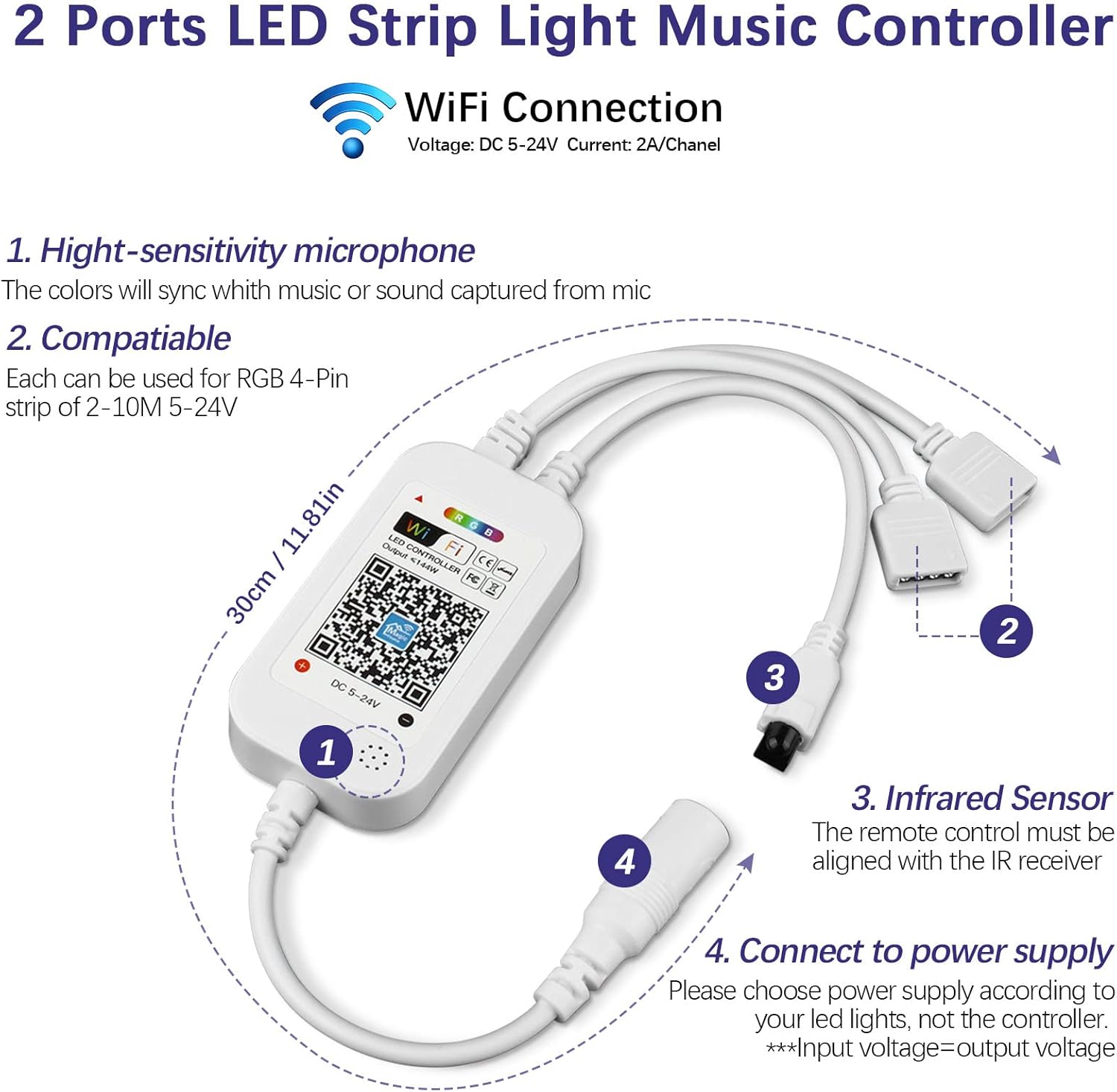
Image: Surview of the 2-Ports LED Strip Light Music Controller, highlighting its high-sensitivity microphone, compatibility with RGB 4-Pin strips, infrared sensor, and power supply connection point. The diagram also indicates the controller's dimensions.
- 1. High-sensitivity microphone: Collects external sound for music synchronization.
- 2. Compatibilité : Designed for RGB 4-Pin LED strips (2-10M, 5-24V).
- 3. Infrared Sensor: For receiving signals from the IR remote control. Ensure the remote is aligned with this sensor.
- 4. Connexion à l'alimentation électrique : Branchez ici votre alimentation CC 5-24V. Important: Input voltage must equal output voltage (e.g., use a DC5V power supply for DC5V LED strips). Power supply is not included.
2. Connecting LED Strips and Power Supply
Follow these steps to connect your LED strips and power supply to the controller.

Image: Visual guide for connecting LED strips to the controller and the controller to a power supply. It emphasizes the "Arrow to Arrow" alignment for correct connection and to avoid short circuits.
- Connect your RGB 4-PIN LED strips (not included) to the controller's output ports.
- Important Connection Notice: Ensure the arrow on the LED strip connector aligns with the arrow on the controller's output port. Misalignment can lead to a short circuit or prevent the lights from illuminating.
- Connect a compatible DC 5-24V power supply (not included) to the controller's input port.
3. Téléchargement de l'application et connexion Wi-Fi
Control your LED lights conveniently using the dedicated mobile application. The app is compatible with both iOS and Android smartphones.

Image: The "Convenient APP Control" image, displaying various functionalities of the mobile application including color selection, timer settings, music synchronization, and DIY customization options. It also indicates availability on Google Play and the Apple App Store.
- Téléchargez l'application : Scannez le code QR ci-dessous ou visitez http://app.magichue.net/download/mgchomepro/AppDown.aspx to download the "Magic Home Pro" free app.


- S'inscrire/Se connecter : Register or log in to your Magic Home account within the app.
- Se connecter au Wi-Fi :
- Open the app and click the "+" button on the top right corner.
- Select "connect device to Wi-Fi network".
- Open your phone's Wi-Fi settings and connect to the "LEDnetxxxx" signal.
- If you cannot find the "LEDnetxxxx" signal, reset your controller by unplugging and plugging it back in 3 times consecutively.
- After successful connection to "LEDnetxxxx", return to the Magic Home Pro app to complete the setup.
Remarque importante concernant le Wi-Fi : The controller only supports 2.4 GHz wireless networks. It is not compatible with 5GHz networks. Ensure your phone is connected to a 2.4GHz Wi-Fi network during setup.

Image: A visual representation clarifying that the controller only supports 2.4GHz Wi-Fi, not 5GHz.
Mode d'emploi
1. Using the IR Remote Control
The included 24-key IR remote control provides direct access to various lighting functions. Ensure the plastic film is removed from the battery compartment before first use. The remote uses a CR2025 battery, which is replaceable.

Image: Detailed layout of the 24-key IR remote control, illustrating the function of each button for light control, music activation, timing, speed, brightness, and color selection.
- Marche/Arrêt : Allumez ou éteignez les lumières.
- Music Activation Mode: Buttons labeled 1, 2, 3 to activate different music modes.
- Timing Off Mode: Buttons for 1H, 2H, 3H to set a timer for the lights to turn off.
- Speed Increase/Decrease: Ajustez la vitesse des modes d'éclairage dynamique.
- Atténuation de la luminosité : Réglez le niveau de luminosité.
- Mode Dynamique : Parcourez différents effets d'éclairage dynamiques.
- Static Color Options: Select from 9 preset static colors (Red, Green, Blue, Yellow, Cyan, Purple, White, etc.).
Portée de la télécommande : The IR remote control has an effective distance of 5-8 meters and requires direct alignment with the controller's infrared sensor.

Image: The remote control with its battery tray pulled out, revealing the CR2025 coin cell battery. This illustrates how to replace the battery.
2. Fonctionnalités de contrôle de l'application
The Magic Home Pro app offers extensive control and customization options for your LED lights.
- Mode couleur : Choose from 16 million colors using a color wheel, or select from preset colors.
- Mode minuterie : Set schedules for your lights to turn on/off at specific times, or change colors automatically.

Image: The app's timer function interface, demonstrating how users can pre-set times for lights to turn on, off, or change color, enabling smart automation.
- Synchronisation de la musique : Synchronize your lights with music. There are two methods:
- Microphone intégré : The controller's integrated microphone captures ambient sound, making the lights react to music or voice.

Image: The "Mic Mode" feature, illustrating how the controller's built-in high-sensitivity microphone enables lights to sync with external music or sound, creating a dynamic visual experience.
- App Music Control: Play music through the app on your phone, and the lights will change rhythmically with the music.

Image: The "Music Mode" in action, showing how both the app and IR remote can control lights to sync with music, allowing users to switch between phone microphone and external microphone freely.
- Microphone intégré : The controller's integrated microphone captures ambient sound, making the lights react to music or voice.
- Mode bricolage : Create and save your own custom lighting effects and color sequences.
Dépannage
Color Mismatch (Remote vs. LED Strip)
If pressing a color button on the remote (e.g., Red) results in a different color on the LED strip (e.g., Green or Blue), you may need to adjust the output channel sequence.

Image: Guide for resolving color mismatches between the remote and LED strip by changing the controller's output channel sequence.
- Step 1: Adjusting via Controller Power Cycle
- Unplug the controller's power supply, then plug it back in.
- When the light illuminates, quickly long-press the B button on the remote for 2 to 3 seconds. A flickering white light indicates the output channel has successfully changed to BRG sequence.
- Similarly, long-press the G button to change the channel to GRB sequence.
- Appuyez longuement sur le R button to set the channel to RGB sequence.
- Step 2: Adjusting via App
If the color mismatch persists, you can modify the pin sequence through the Magic Home Pro app settings.
Conseils généraux de dépannage
- Les lumières ne s'allument pas :
- Vérifiez que l'alimentation est correctement connectée et fournit le volume correcttage (DC 5-24V) for your LED strips.
- Verify that the "Arrow to Arrow" alignment is correct when connecting the LED strips to the controller.
- Check if the remote control's battery (CR2025) is inserted correctly and has sufficient charge. Remove the plastic film if it's new.
- La télécommande ne répond pas :
- Ensure direct line of sight between the remote and the controller's IR sensor.
- Check and replace the CR2025 battery if necessary.
- Problèmes de connexion à l'application :
- Confirm your Wi-Fi network is 2.4GHz, not 5GHz.
- Ensure your phone is connected to the "LEDnetxxxx" Wi-Fi signal during the initial setup phase.
- Try resetting the controller by unplugging and plugging it back in 3 times.
- Restart your phone and Wi-Fi router.
- La synchronisation musicale ne fonctionne pas :
- If using the built-in microphone, ensure there is sufficient ambient sound for the controller to pick up.
- If using app music control, ensure music is playing through the app and your phone's volume is adequate.
Entretien
To ensure the longevity and optimal performance of your RGBZONE LED Controller, follow these simple maintenance guidelines:
- Keep the controller and remote clean by wiping them with a soft, dry cloth. Avoid using abrasive cleaners or solvents.
- Ensure the controller is used in an indoor environment within the specified working temperature range (-20~55℃). Avoid exposure to extreme temperatures, humidity, or direct water.
- Periodically check all connections (LED strips, power supply) to ensure they are secure and free from damage.
- If the remote control's range decreases or buttons become unresponsive, replace the CR2025 battery.
Garantie et assistance
For warranty information or technical support, please refer to the product packaging or contact RGBZONE customer service through the retailer where the product was purchased. Keep your purchase receipt as proof of purchase.
For app-related queries or further assistance, you may also visit the Magic Home Pro app's support section or their official website.
Ask a question about this manual
Ask about setup, troubleshooting, compatibility, parts, safety, or missing instructions. Manuals+ will review the question and use this page’s manual context to help answer it.