
1. Introduction
Thank you for choosing the TMEZON 4G LTE Solar Wireless Outdoor Security Camera. This manual provides detailed instructions for the installation, operation, and maintenance of your camera. Please read this manual thoroughly before use to ensure proper functionality and to maximize the camera's performance.
This camera is designed for outdoor surveillance in areas without Wi-Fi access, utilizing 4G LTE connectivity. It features a built-in rechargeable battery and a solar panel for continuous power, 2K resolution, 355° pan and 90° tilt capabilities, color night vision, PIR motion detection, and two-way audio communication.
2. Contenu du colis
Veuillez vérifier le contenu du colis à réception. Si des articles sont manquants ou endommagés, veuillez contacter le service client.
- TMEZON 4G LTE Solar Wireless Outdoor Security Camera
- Panneau solaire
- Support de montage
- Vis et ancrages de montage
- Câble de chargement USB
- Manuel d'utilisation
- Pre-installed 100MB SIM Card
3. Produit terminéview
Familiarisez-vous avec les composants de l'appareil photo.

Image : Avant view of the TMEZON 4G LTE Solar Wireless Outdoor Security Camera, showing the main camera unit, solar panel, and antennas. This camera operates using 4G LTE signal, eliminating the need for Wi-Fi.
- Objectif de l'appareil photo : Capture une vidéotage.
- LED infrarouges : Pour la vision nocturne en noir et blanc.
- Pleins feux sur : Pour la vision nocturne en couleur et l'éclairage d'alarme.
- Capteur PIR : Détecte les mouvements grâce à la détection des signatures thermiques.
- Microphone: Capture audio pour la communication bidirectionnelle et l'enregistrement.
- Conférencier: Émet des signaux audio pour la communication bidirectionnelle et les alarmes.
- Antennes: For 4G LTE signal reception.
- Panneau solaire : Recharge la batterie interne grâce à l'énergie solaire.
- Emplacement pour carte SIM : For the 4G LTE SIM card.
- Emplacement pour carte micro SD : Pour le stockage vidéo local (jusqu'à 128 Go, non inclus).
- Bouton de réinitialisation : Permet de réinitialiser l'appareil photo aux paramètres d'usine.
- Port de charge USB: For initial charging or manual charging.
4. Installation
4.1 Charge initiale
Before first use, fully charge the camera's built-in battery using the provided USB cable and a 5V/2A power adapter (not included). The charging indicator light will turn solid blue when fully charged.
4.2 Installation de la carte SIM et de la carte microSD
The camera comes with a pre-installed 100MB SIM card. If you wish to use your own SIM card or install a Micro SD card for local storage, follow these steps:
- Locate the SIM card and Micro SD card slots on the camera body. These are typically protected by a rubber cover.
- Ouvrez délicatement le couvercle en caoutchouc.
- Insert the Nano SIM card into the SIM card slot with the gold contacts facing down and the notched corner oriented correctly. Push until it clicks into place.
- Insert a Micro SD card (Class 10 or higher, up to 128GB, not included) into the Micro SD card slot with the gold contacts facing down. Push until it clicks into place.
- Assurez-vous que les deux cartes sont bien en place.
- Close the rubber cover firmly to maintain the camera's IP65 waterproof rating.

Image : Gros plan view of the camera's card slots, showing how to insert a Nano SIM card (included) and a Micro SD card (not included).
4.3 Installation de l'application et création du compte
The camera operates with the UBox app. Download it from your smartphone's app store (iOS App Store or Google Play Store).
- Rechercher "UBox" in your app store and download the application.
- Open the UBox app and register a new account using your email address.
- Suivez les instructions à l’écran pour terminer le processus d’inscription et de connexion.
4.4 Appairage de la caméra
- Ensure your camera is powered on and fully charged.
- Open the UBox app and tap the "+" icon to add a new device.
- Select "4G Camera" or "Add 4G Device" from the options.
- Scannez le code QR situé sur l'appareil photo ou sur son emballage.
- Follow the app's prompts to connect the camera. The camera will emit a voice prompt when successfully connected.
- Nommez votre caméra pour une identification facile.
4.5 Montage de la caméra
Choose a suitable location for mounting the camera. Consider areas with good 4G signal reception and sufficient sunlight exposure for the solar panel.
- Sélectionnez l'emplacement: Identify a mounting spot that provides the desired viewing angle and receives direct sunlight for several hours daily.
- Marquer les trous de perçage : Use the mounting bracket as a template to mark the positions for drilling holes on the wall or surface.
- Trous de forage : Drill holes at the marked positions. Insert wall anchors if mounting on masonry or concrete.
- Fixer le support : Fixez le support de montage au mur à l'aide des vis fournies.
- Attacher la caméra : Mount the camera onto the bracket. Adjust the angle of the solar panel to maximize sun exposure.
- Connexions sécurisées : Ensure all cables (solar panel to camera) are securely connected and protected from weather.

Image: The TMEZON camera mounted outdoors with its solar panel, illustrating its wire-free, solar-powered operation.

Image: The camera being sprayed with water, highlighting its IP65 waterproof rating, suitable for outdoor use in various weather conditions.
5. Mode d'emploi
5.1 En direct View et commande panoramique/inclinaison
Access the live video feed and control the camera's movement through the UBox app.
- Open the UBox app and select your camera from the device list.
- Le flux vidéo en direct s'affichera.
- Use the directional controls (pan/tilt) on the app interface to rotate the camera horizontally (355°) and vertically (90°).

Image : Un smartphone affichant le direct view from the camera, with on-screen controls for 355° horizontal and 90° vertical rotation.
5.2 Détection de mouvement et alertes
The camera uses PIR (Passive Infrared) detection to identify human movement and send alerts.
- Enable motion detection in the camera settings within the UBox app.
- Ajustez les niveaux de sensibilité au besoin afin de minimiser les fausses alarmes.
- When motion is detected, the camera will send an alert notification to your smartphone.
- The camera can also activate its spotlights and siren as an alarm.

Image: A smartphone screen showing a "Motion Detection" alarm message from the UBox app, indicating a person detected by the camera.

Image: The camera's alarm siren and flashes activating in response to an intruder, with a smartphone notification showing "Person is detected from Device 01."
5.3 Audio bidirectionnel
Communiquez avec les visiteurs ou dissuadez les intrus grâce au microphone et au haut-parleur intégrés de la caméra.
- En direct view, tap the microphone icon in the UBox app to speak.
- Votre voix sera transmise par le haut-parleur de la caméra.
- Release the microphone icon to listen to the audio from the camera's location.
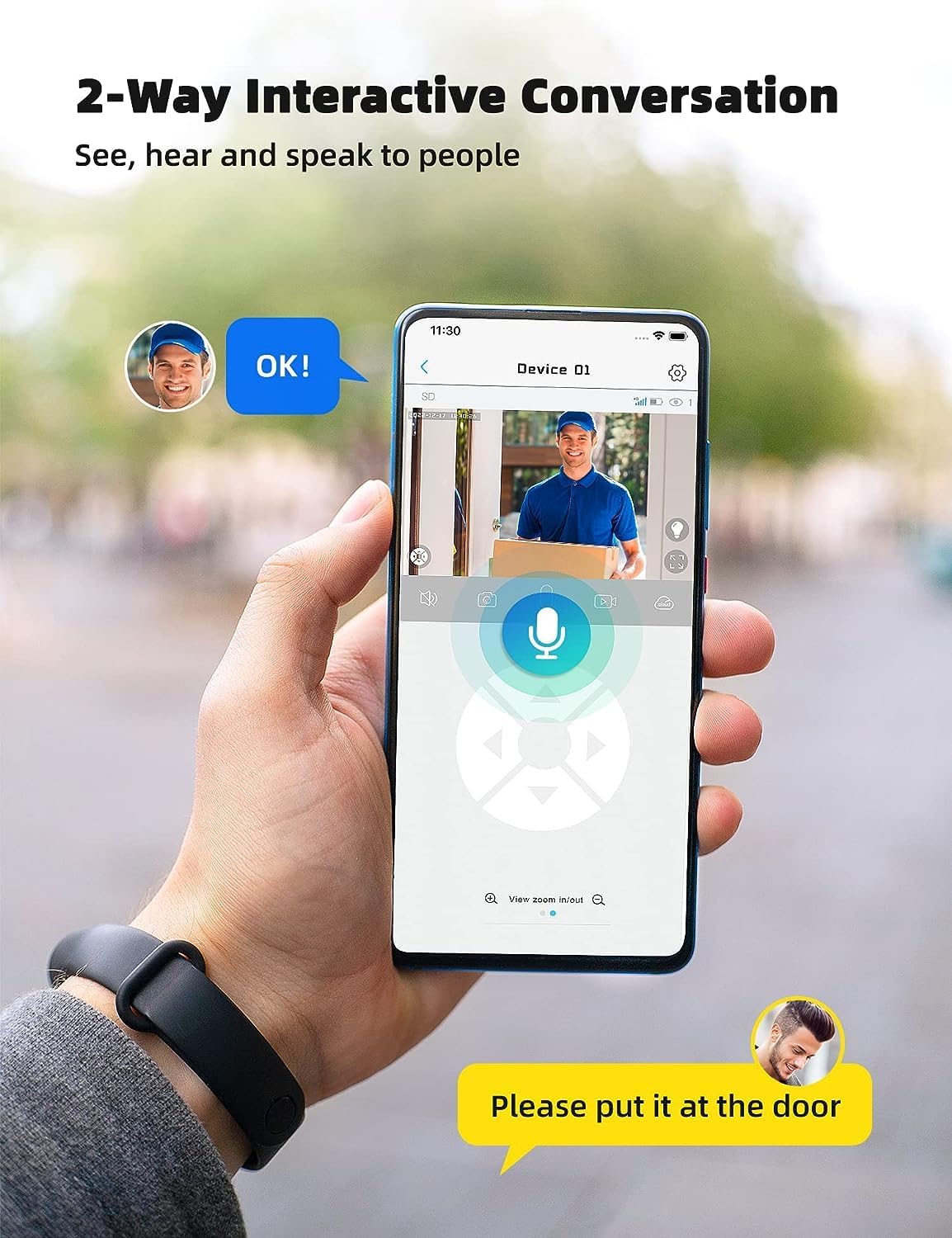
Image: A smartphone displaying the UBox app interface for two-way communication, showing a person speaking through the camera to a delivery person.

Image: A user communicating in real-time with a delivery person via the camera's two-way audio feature, instructing them to place a package by the door.
5.4 Enregistrement et lecture
The camera supports both Micro SD card storage and cloud storage (subscription may be required).
- Motion-triggered events are automatically recorded.
- À view recordings, navigate to the "Playback" section in the UBox app.
- Sélectionnez la date et l'heure pour refaireview enregistré footage.
- If the Micro SD card is full, older recordings will be overwritten by new ones.
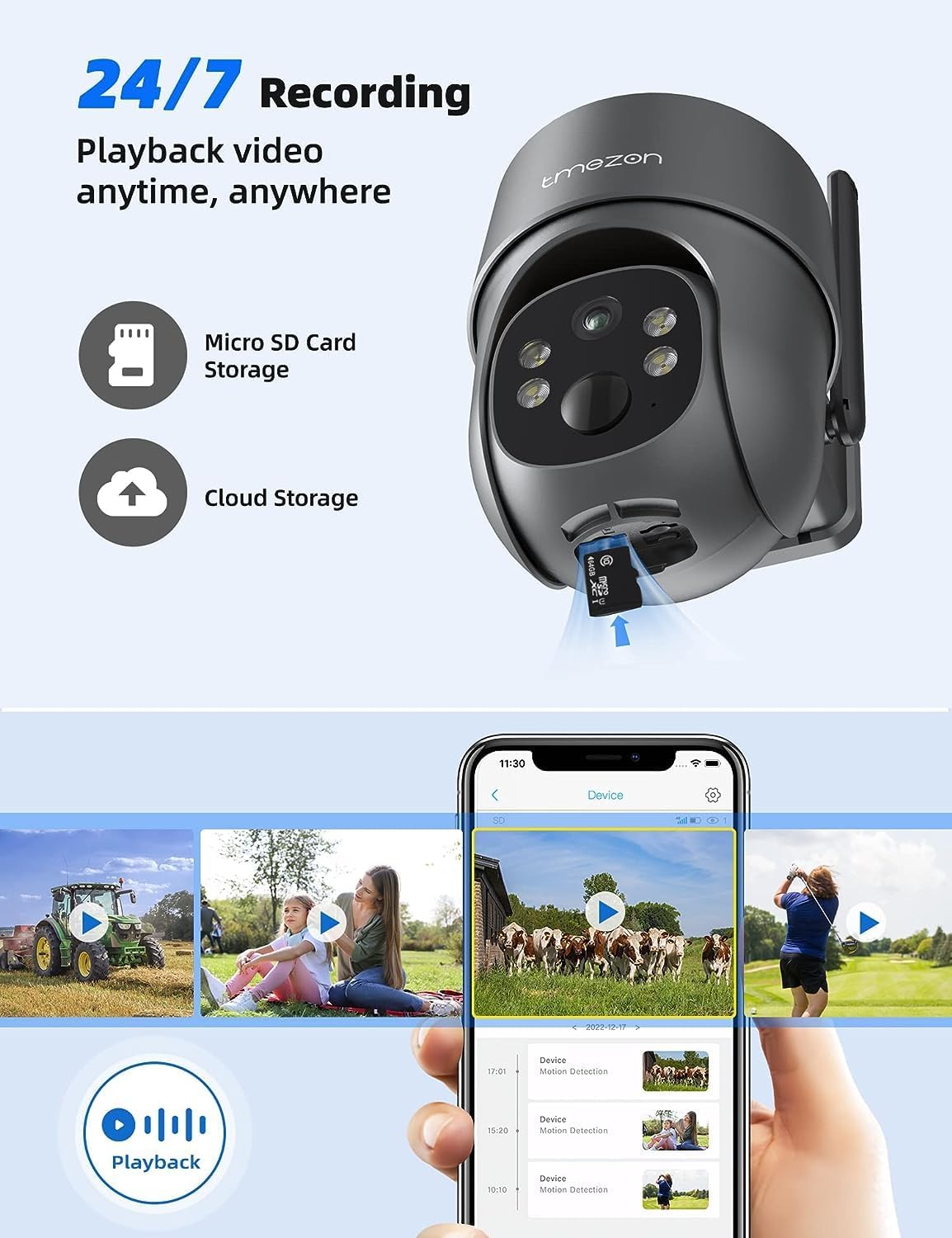
Image: A smartphone displaying the UBox app's playback interface, showing a timeline of recorded events and various video clips.
5.5 Modes de vision nocturne
La caméra propose deux modes de vision nocturne :
- Vision nocturne infrarouge (IR) : Fournit une vidéo nette en noir et blanc même en conditions de faible luminosité.
- Vision nocturne couleur: Activates the camera's spotlights to provide full-color video even in darkness. This mode can be enabled in the app settings.
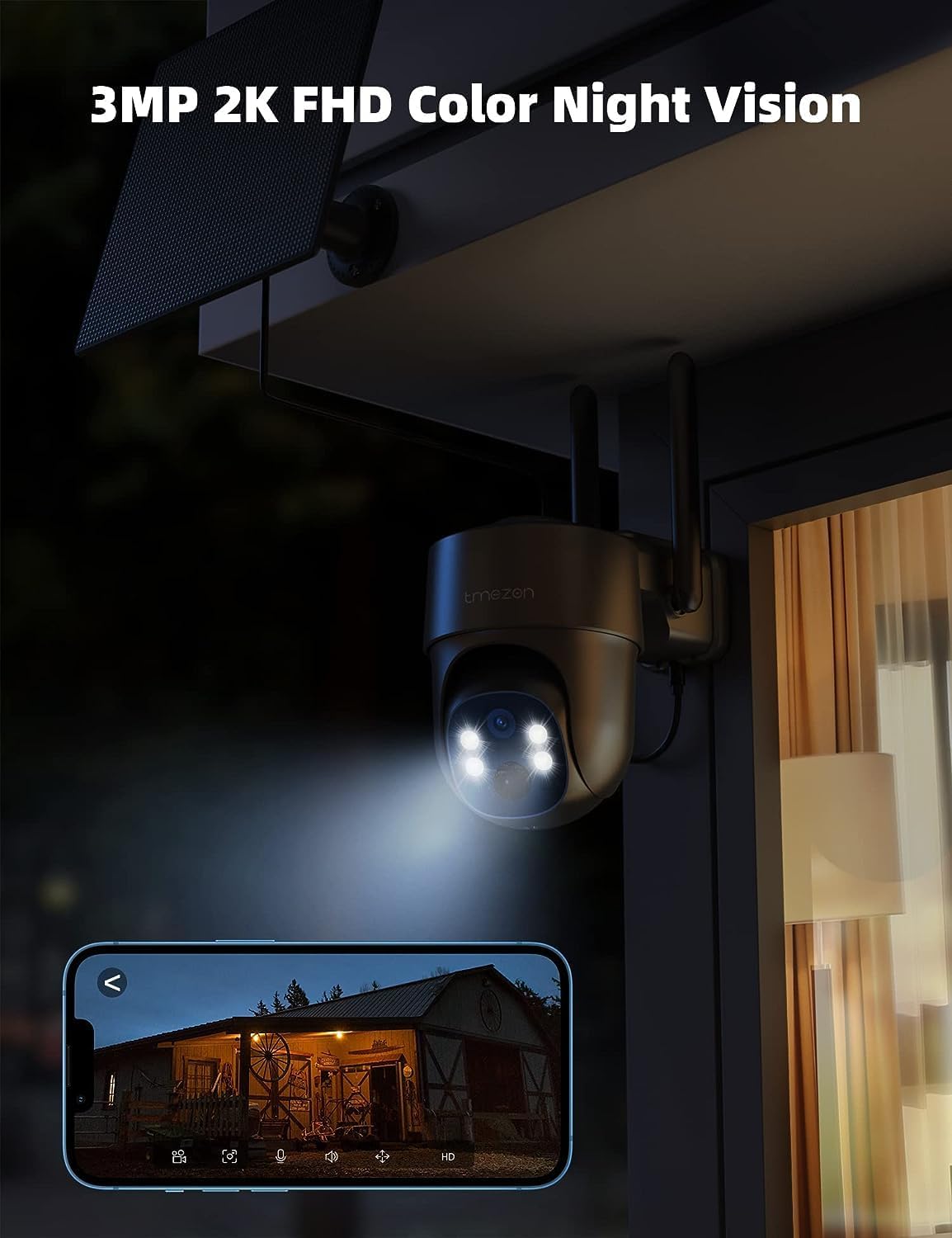
Image: The TMEZON camera operating at night with its spotlights on, providing clear 2K color night vision of the surrounding area.

Image: A split image demonstrating the difference between night vision with spotlights off (monochrome) and spotlights on (color), showcasing the camera's 2K color night vision capability.
6. Entretien
6.1 Battery & Solar Panel Care
- Regularly check the battery level in the UBox app.
- Ensure the solar panel is clean and free from dust, dirt, or obstructions (e.g., leaves, snow) to ensure efficient charging.
- Positionnez le panneau solaire de manière à recevoir un maximum de lumière solaire directe tout au long de la journée.
- If the camera's battery level is consistently low due to insufficient sunlight, consider manually charging it via the USB port.
6.2 Nettoyage
- Utilisez un chiffon doux et sec.amp cloth to clean the camera lens and body.
- Do not use harsh chemicals or abrasive cleaners, as these can damage the camera's finish or lens.
- Ensure the rubber covers for the card slots and charging port are securely closed after any maintenance to maintain waterproofing.
7. Dépannage
7.1 Camera Not Connecting to 4G Network
- Vérifiez que la carte SIM est correctement insérée et activée.
- Vérifiez si la carte SIM dispose d'un forfait de données actif.
- Verify 4G signal strength at the camera's location. Move the camera to an area with better signal if necessary.
- Restart the camera by pressing the reset button or power cycling it.
7.2 Déconnexions fréquentes
- Poor 4G signal strength can cause disconnections. Relocate the camera or consider a 4G signal booster.
- Ensure the camera's battery is sufficiently charged.
7.3 Détection de mouvement défaillante ou trop de fausses alarmes
- Check motion detection settings in the UBox app. Ensure it is enabled.
- Adjust PIR sensitivity levels. Lower sensitivity for fewer false alarms, higher for more sensitive detection.
- Ensure there are no objects (e.g., tree branches, reflective surfaces) that might trigger false alarms in the detection zone.
7.4 Cannot View Enregistrements
- Ensure a Micro SD card is inserted correctly and formatted (if applicable) in the app.
- Check if cloud storage is active and your subscription is valid.
- Verify that motion detection recording is enabled in the app settings.
7.5 La caméra ne se charge pas via le panneau solaire
- Assurez-vous que le panneau solaire est propre et exempt d'obstructions.
- Vérifiez que le câble du panneau solaire est bien connecté à la caméra.
- Check if the solar panel is receiving direct sunlight for several hours daily.
- En cas de ciel couvert prolongé, une recharge manuelle via USB peut être nécessaire.
8. Spécifications
| Fonctionnalité | Détail |
|---|---|
| Numéro de modèle | MZ-C8-4G-EU |
| Technologie de connectivité | Sans fil (4G LTE) |
| Résolution | 2K (2000 Pixels effective capture) |
| Angle de pan | 355 degrés |
| Angle d'inclinaison | 90 degrés |
| Vision nocturne | Vision nocturne en couleur |
| Caractéristiques spéciales | Motion Detector, Two-Way Audio |
| Source d'énergie | Solar Powered (with 9,600 mAh rechargeable battery) |
| Type de batterie | 2 batterie lithium-ion (incluse) |
| Voltage | 5 volts |
| Quoitage | 5 wattheures |
| Indice de protection IP | IP65 (étanche) |
| Stockage | Micro SD Card (up to 128GB, not included), Cloud Storage (subscription optional) |
| Type de contrôleur | Android (UBox App) |
| Type de montage | Support mural |
9. Garantie et assistance
9.1 Informations sur la garantie
TMEZON products typically come with a standard manufacturer's warranty. Please refer to the warranty card included in your package or visit the official TMEZON webConsultez le site pour connaître les conditions générales de garantie détaillées. Conservez votre reçu d'achat comme preuve d'achat pour toute réclamation au titre de la garantie.
9.2 Assistance clientèle
If you encounter any issues or have questions regarding your TMEZON 4G LTE Solar Wireless Outdoor Security Camera, please contact TMEZON customer support. Contact information can usually be found on the official website ou dans l'emballage du produit.
- Support en ligne: Visit the TMEZON official webSite regroupant les FAQ, les guides de dépannage et les formulaires de contact.
- Assistance par e-mail : Veuillez consulter la documentation de votre produit pour obtenir l'adresse électronique du service client.