
Linq LQ48022
Manuel d'utilisation du hub multiport USB-C LINQ by ELEMENTS LQ48022 8-en-1 SSD Pro Studio 8K
Modèle: LQ48022
Produit terminéview
The LINQ byELEMENTS LQ48022 8-in-1 8K Pro Studio SSD USB-C Multiport Hub is a compact and versatile connectivity solution designed to expand the capabilities of your MacBook or laptop. It delivers ultra-sharp 8K video and audio, provides high-speed data transfer, and offers a stable wired internet connection, along with integrated SSD storage options.

Image: The LINQ byELEMENTS LQ48022 8-in-1 8K Pro Studio SSD USB-C Multiport Hub, showcasing son design compact et ses multiples ports.
Caractéristiques principales
- Sortie HDMI 8K : Supports 8K resolution at 30Hz or 4K resolution at 60Hz for crystal clear video and audio.
- SuperSpeed+ USB 3.2 Gen2 Ports: Includes USB-A and USB-C ports with data transfer speeds up to 10 Gbps.
- Multi-Gigabit Ethernet: Provides a wired network connection with speeds up to 2.5 Gbps for fast and stable internet.
- Chargement Power Delivery (PD) : Supports up to 100W PD charging for your laptop.
- Integrated SSD Storage Option: Offers a convenient option for expanding storage.
- Peripheral USB-A Ports: Two USB-A ports for connecting essential peripherals like keyboards, mice, printers, and scanners.
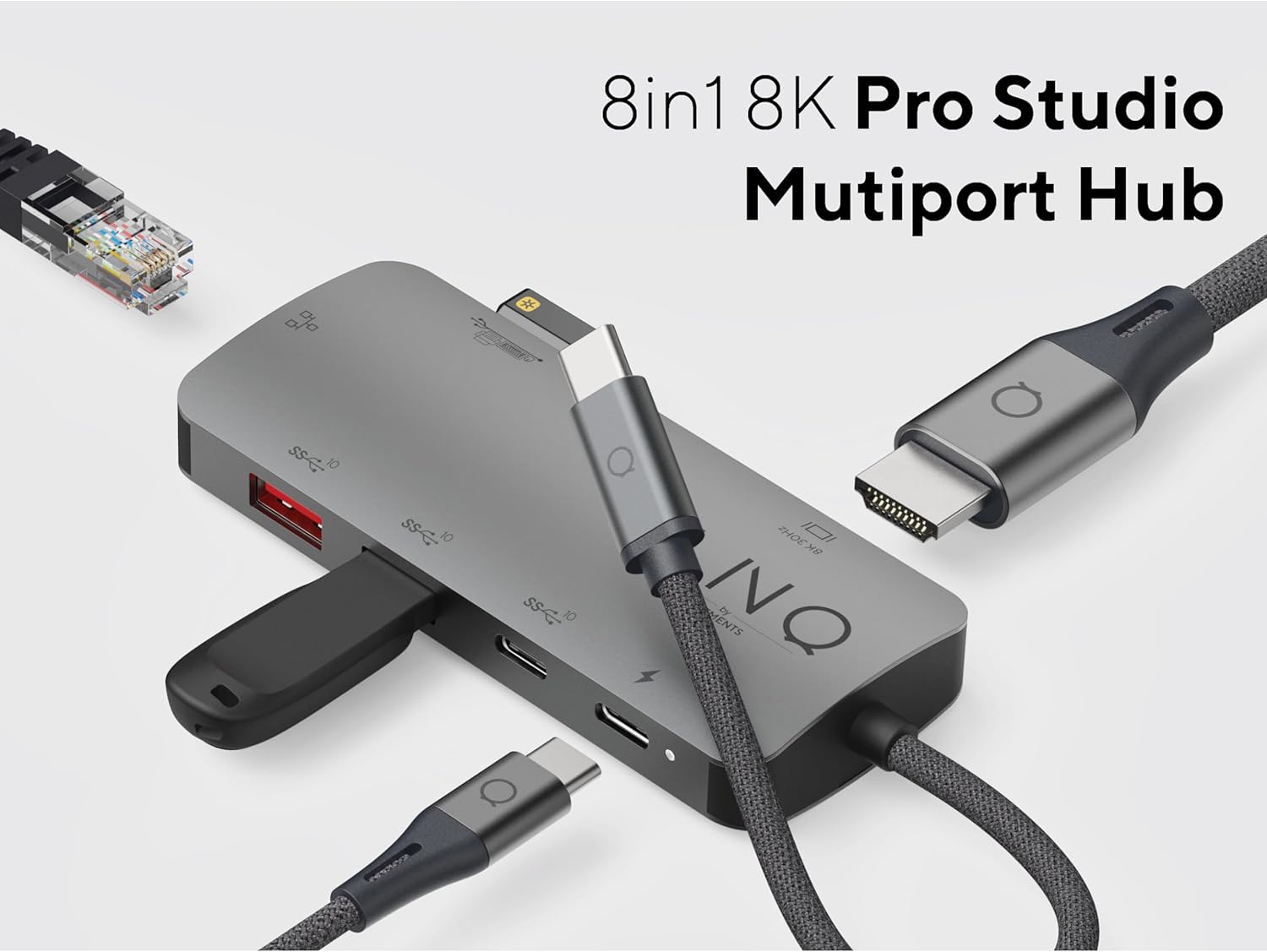
Image: The LINQ Multiport Hub connected to various devices, illustrating its 8-in-1 functionality and multiple port types.
Guide d'installation
- Se connecter au périphérique hôte : Plug the integrated USB-C cable of the LINQ Hub into an available USB-C port on your MacBook or laptop. Ensure the USB-C port on your host device supports DisplayPort Alternate Mode (Alt Mode) and Power Delivery for full functionality.
- Connexion électrique (facultative mais recommandée) : For optimal performance and to charge your laptop, connect your laptop's USB-C power adapter (up to 100W) to the USB-C PD port on the hub.

Image: Close-up of the USB-C Power Delivery port on the LINQ Hub, indicating support for up to 100W charging.
- Compatibilité du système d'exploitation : The hub is compatible with Mac OS 9 and Windows 10. No specific driver installation is typically required for basic functionality (plug-and-play).
Mode d'emploi
Connecting External Displays (HDMI)
Connect an HDMI cable from your external monitor or TV to the HDMI port on the LINQ Hub. Your host device should automatically detect the display. Adjust display settings (resolution, orientation) through your operating system's display preferences.
- Résolutions prises en charge :
- Up to 8K (7680x4320) at 30Hz
- Up to 4K (3840x2160) at 60Hz

Image: Close-up of the 8K HDMI port on the LINQ Hub, highlighting its high-definition video output capability.
Utilisation des ports de données USB
The hub features multiple USB ports for connecting various devices:
- USB 3.2 Gen2 (10 Gbps) Ports: Use the SuperSpeed+ USB-A and USB-C data ports for high-speed data transfer with external SSDs, flash drives, or other compatible devices. These ports support speeds up to 10 Gbps.

Image: Close-up of the USB 3.2 Gen 2 ports on the LINQ Hub, illustrating their high-speed data transfer capabilities.
- Peripheral USB-A Ports: Connect your keyboard, mouse, printer, scanner, or other lower-speed USB peripherals to these dedicated ports.

Image: Close-up of the peripheral USB-A ports on the LINQ Hub, ideal for connecting standard input devices and printers.
Connecting to a Wired Network (Ethernet)
For a stable and secure internet connection, connect an Ethernet cable from your router or modem to the Multi-Gigabit Ethernet port on the hub. This port supports speeds up to 2.5 Gbps.

Image: Close-up of the Multi-Gigabit Ethernet port on the LINQ Hub, designed for ultra-fast and stable wired network connections.
Entretien
- Nettoyage: Utilisez un chiffon doux et sec pour nettoyer la surface du moyeu. Évitez d'utiliser des nettoyants liquides ou des aérosols.
- Stockage: Lorsqu'il n'est pas utilisé, rangez le moyeu dans un endroit frais et sec, à l'abri de la lumière directe du soleil et des températures extrêmes.
- Manutention: Manipulez le moyeu avec précaution. Évitez de le faire tomber ou de le soumettre à des chocs violents.
- Gestion des câbles: Ensure cables connected to the hub are not excessively bent or strained to prevent damage to the ports or cables.
Dépannage
- Aucun affichage via HDMI :
- Assurez-vous que le port USB-C de votre ordinateur portable prend en charge le mode alternatif DisplayPort.
- Vérifiez la connexion du câble HDMI au niveau du hub et du moniteur.
- Essayez un autre câble HDMI ou un autre moniteur pour exclure tout problème matériel.
- Redémarrez votre ordinateur portable.
- Verify display settings in your operating system.
- Périphériques USB non reconnus ou transfert de données lent :
- Assurez-vous que le hub est correctement connecté à votre ordinateur portable.
- If using high-power devices, ensure the hub is connected to a power source via the PD port.
- Pour vérifier son fonctionnement, essayez de connecter le périphérique USB directement à votre ordinateur portable.
- Débranchez puis rebranchez le périphérique USB au concentrateur.
- Problèmes de connexion Ethernet :
- Vérifiez la connexion du câble Ethernet au niveau du hub et de votre routeur/modem.
- Vérifiez que votre routeur/modem fonctionne correctement.
- Vérifiez les paramètres réseau de votre ordinateur portable.
- Essayez un autre câble Ethernet.
- L'ordinateur portable ne se charge pas via le port PD :
- Assurez-vous que le port USB-C de votre ordinateur portable prend en charge la technologie Power Delivery.
- Verify that your power adapter is connected to the hub's PD port and is functioning.
- Vérifiez le wattage of your power adapter; it should be sufficient for your laptop's charging requirements (up to 100W supported by hub).
Caractéristiques
| Fonctionnalité | Détail |
|---|---|
| Numéro de modèle | LQ48022 |
| Marque | Linq |
| Sortie HDMI | 8K à 30 Hz, 4K à 60 Hz |
| Port de données USB-C | 1 ports USB 3.2 Gen2 (10 Gbit/s) |
| Port de données USB-A | 1 ports USB 3.2 Gen2 (10 Gbit/s) |
| Peripheral USB-A Ports | 2 x USB-A (lower speed) |
| Port Ethernet | Multi-Gigabit (up to 2.5 Gbps) |
| Distribution d'énergie (PD) | Jusqu'à 100 W |
| Stockage intégré | SSD option |
| Compatibilité du système d'exploitation | Mac OS 9, Windows 10 |
| Dimensions (L x l x H) | 1.69 x 3.12 x 0.27 pouces |
| Poids | 2.43 onces |
| Couleur | Gris |
Garantie et assistance
For warranty information and technical support, please refer to the official Linq byELEMENTS webConsultez leur site web ou contactez directement leur service client. Conservez votre reçu d'achat comme preuve d'achat pour toute réclamation au titre de la garantie.
Remarque : Les conditions de garantie spécifiques peuvent varier selon la région et le détaillant.
Ask a question about this manual
Ask about setup, troubleshooting, compatibility, parts, safety, or missing instructions. Manuals+ will review the question and use this page’s manual context to help answer it.