
Introduction
Le ViewSonic X1 est alamp-free, high-brightness smart projector designed for Full HD home entertainment. Utilizing 3rd generation LED technology, it offers an impressive lifespan of up to 30,000 hours, eliminating the need for frequent lamp replacements. With 2,300 ANSI lumens of brightness and 125% Rec. 709 color accuracy, the X1 delivers bright and stunning cinematic colors for a large-screen experience. Dual Harman Kardon speakers provide powerful, room-filling sound and Bluetooth compatibility for audio streaming. Embedded Wi-Fi enables screen mirroring from smart devices. Installation is made easy with vertical lens shift, 1.3x optical zoom, H/V keystone, and 4-corner adjustment capabilities.
Qu'y a-t-il dans la boîte
Upon opening your ViewSonic X1 projector package, you should find the following items:
- ViewProjecteur Sonic X1
- Câble d'alimentation (peut varier selon la région)
- Télécommande
- Guide de démarrage rapide

The image above displays the ViewSonic X1 projector along with its standard accessories: a power cable, a quick start guide, and a remote control. Ensure all items are present and in good condition before proceeding with setup.
Configuration et installation
Le ViewSonic X1 projector offers flexible installation options to suit various home theater environments. Follow these steps for initial setup:
- Placement: Position the projector on a flat surface or mount it to the ceiling. Consider the desired screen size and distance from the projection surface. The projector supports screen sizes up to 150 inches from a distance of 4.98 meters (16.3 feet).
- Connexion électrique : Branchez le câble d'alimentation au projecteur, puis à une prise de courant.
- La source d'entrée: Connect your media devices (e.g., laptop, gaming console, streaming dongle) to the projector using the available input ports (HDMI, USB-C).
- Mise sous tension : Appuyez sur le bouton d'alimentation du projecteur ou de la télécommande pour allumer l'appareil.
- Ajustement de l'image :
- Se concentrer: Use the focus ring on the projector to sharpen the image.
- Zoom: Adjust the 1.3x optical zoom to achieve the desired image size without moving the projector.
- Correction trapézoïdale : Utilize the H/V keystone correction and 4-corner adjustment features to correct distorted images, especially when the projector is not perfectly centered or angled.
- Décalage vertical de l'objectif : The vertical lens shift feature provides additional flexibility for adjusting the image height without tilting the projector.

This diagram illustrates the recommended distances for achieving different screen sizes, from 60 inches to 150 inches, providing guidance for optimal projector placement.

The image demonstrates the projector's flexible installation capabilities, including ceiling mounting, allowing for versatile placement within your home theater setup.
Mode d'emploi
Le ViewSonic X1 projector is designed for user-friendly operation. Here are the basic steps to operate your projector:
- Marche/Arrêt : Press the power button on the top panel of the projector or on the remote control to turn on the device. The power indicator light will illuminate.
- Sélectionnez la source d'entrée : Use the "Source" button on the remote or projector's top panel to cycle through available input sources (HDMI 1, HDMI 2, USB-C, Wi-Fi).
- Navigation: Use the arrow keys and "Enter" button on the remote control to navigate through the on-screen menu for settings adjustments.
- Contrôle du volume : Adjust the volume using the dedicated volume buttons on the remote control. The dual Harman Kardon speakers provide powerful, room-filling sound.
- Miroir de l'écran: For wireless content streaming, select the Wi-Fi input source and follow the on-screen instructions to mirror your smart device.
- Audio Bluetooth: Connect Bluetooth headphones or external speakers for personalized or enhanced audio experience.

This image highlights the projector's versatile connectivity, showing how it can connect to various devices via Wi-Fi, Bluetooth, USB-C, and HDMI, enabling seamless content streaming.
Caractéristiques principales
- Résolution Full HD 1080p : Experience crisp and clear images with native 1920 x 1080 resolution, perfect for movies, games, and presentations.
- Luminosité de 2,300 lumens ANSI : Enjoy vibrant and bright images in various lighting conditions, suitable for both day and night viewing.
- 3rd Generation LED Technology: Benefit from a lamp-free design with an extended lifespan of up to 30,000 hours, reducing maintenance and replacement costs.
- 125% Rec. 709 Color Accuracy: Delivers stunning cinematic colors with high accuracy for a true-to-life visual experience.
- Dual Harman Kardon Speakers: Integrated premium speakers provide powerful, room-filling audio, enhancing your entertainment.
- Connectivité Bluetooth : Stream audio directly from your smartphone or connect to Bluetooth headphones for personal listening.
- Embedded Wi-Fi & Screen Mirroring: Easily mirror content from your smart devices to the big screen for seamless streaming.
- Installation flexible : Features like vertical lens shift, 1.3x optical zoom, H/V keystone, and 4-corner adjustment simplify setup and image alignment.
- Connectivité USB-C : Supports direct content streaming from compatible devices like laptops and Nintendo Switch without a docking station.
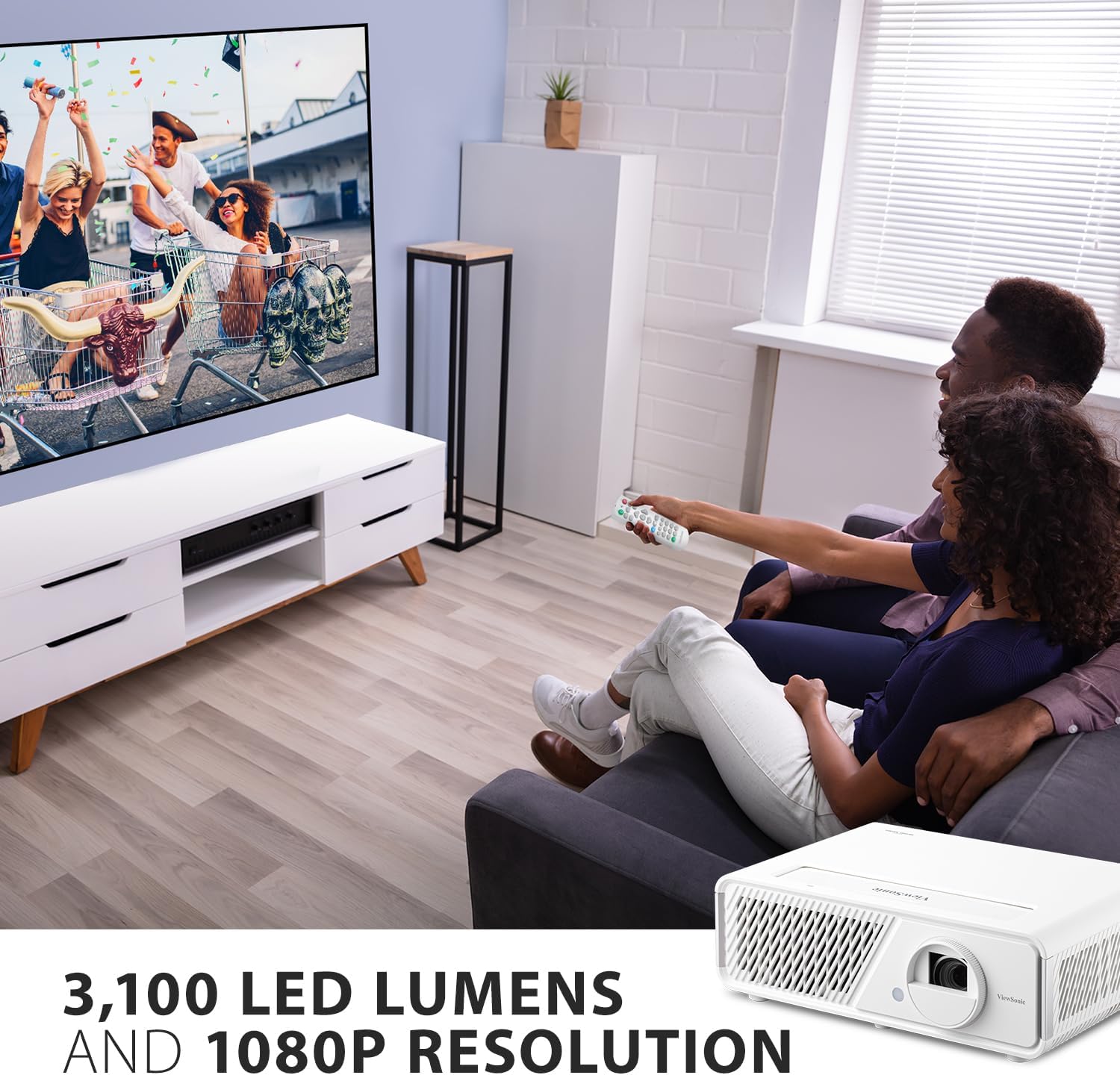
This image showcases the projector's ability to create a large, immersive viewing experience with its Full HD 1080p resolution and high brightness, making it ideal for movies and games.
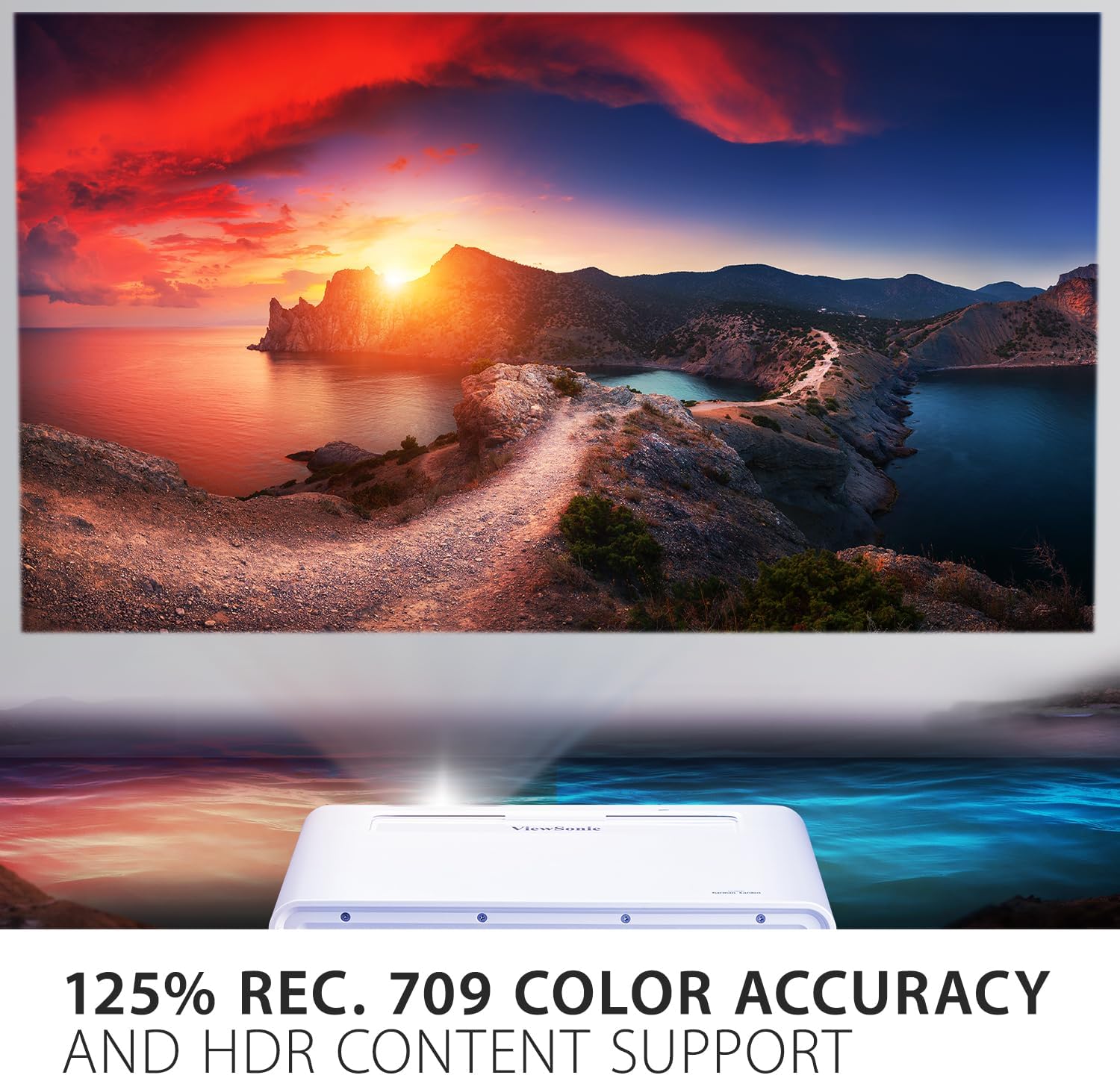
The image illustrates the projector's impressive 125% Rec. 709 color accuracy, which ensures vivid and true-to-life colors for an enhanced viewexpérience de travail.

This close-up highlights the projector's built-in dual Harman Kardon speakers, which deliver powerful and clear audio for an immersive sound experience.
This video provides a detailed look at the ViewSonic LED 1080p Home Theater Projector, demonstrating its performance and various functionalities in a home entertainment context.
Entretien
Un entretien approprié garantit la longévité et les performances optimales de votre appareil. ViewSonic X1 projector. Follow these guidelines:
- Nettoyage de la lentille : Utilisez un chiffon doux non pelucheux, spécialement conçu pour les lentilles optiques, afin de nettoyer délicatement la lentille du projecteur. Évitez d'utiliser des produits nettoyants abrasifs ou des chiffons susceptibles de rayer la lentille.
- Nettoyage du boîtier du projecteur : Essuyez l'extérieur du projecteur avec un chiffon doux et sec. N'utilisez pas de nettoyants liquides ou en aérosol directement sur l'appareil.
- Ventilation: Ensure that the projector's ventilation openings are not blocked to prevent overheating. Maintain adequate space around the projector for proper airflow.
- Stockage: When not in use for extended periods, store the projector in a cool, dry place, ideally in its original packaging or a protective case, to shield it from dust and moisture.
- Source de lumière LED: The 3rd generation LED light source has a lifespan of up to 30,000 hours, significantly reducing the need for lamp replacement. No user-serviceable lamp les pièces sont présentes.
Dépannage
Si vous rencontrez des problèmes avec votre ViewSonic X1 projector, refer to the following common troubleshooting tips:
- Aucune image à l'écran :
- Ensure the projector is powered on and the power indicator light is solid.
- Verify that the input source selected on the projector matches the device connected (e.g., HDMI 1).
- Check all cable connections between the projector and the source device. Try a different cable if possible.
- Confirm the source device (laptop, console) is powered on and outputting a signal.
- Image floue :
- Réglez la bague de mise au point de l'objectif du projecteur jusqu'à ce que l'image soit nette.
- Assurez-vous que la surface de projection est plane et lisse.
- Check if the lens is clean. Gently wipe it with a suitable lens cleaning cloth.
- Image déformée (forme trapézoïdale) :
- Use the keystone correction (H/V) and 4-corner adjustment features in the projector's menu to square the image.
- If possible, reposition the projector to be more directly aligned with the center of the screen.
- Pas d'audio :
- Augmentez le volume du projecteur et de l'appareil source.
- Check audio cable connections if using external speakers via audio out.
- Ensure Bluetooth audio is correctly paired if using wireless headphones/speakers.
- Avertissement de surchauffe :
- Ensure all ventilation openings are clear and not obstructed.
- Éteignez le projecteur et laissez-le refroidir dans un endroit bien ventilé.
For further assistance, please refer to the full user manual available on the ViewSonique website ou contacter le support client.
Caractéristiques
| Fonctionnalité | Détail |
|---|---|
| Marque | ViewSonique |
| Numéro de modèle | X1 |
| Résolution d'affichage | 1920 x 1080 (Full HD) |
| Luminosité | 2300 ANSI Lumens |
| Source de lumière | 3rd Generation LED |
| Source de lumière de la vie | Jusqu'à 30,000 XNUMX heures |
| Précision des couleurs | 125 % Rec. 709 |
| Audio | Dual Harman Kardon Speakers |
| Technologie de connectivité | Bluetooth, HDMI, USB 2.0 Type A, USB-C, Wi-Fi |
| Caractéristiques spéciales | Built-In Speaker, Digital Keystone Correction, Vertical Lens Shift, 1.3X Optical Zoom, H&V Keystone Correction and Corner Adjustment |
| Dimensions du produit | 19.3 x 14.8 x 12.2 pouces |
| Poids de l'article | 12.2 livres |

This image provides a visual representation of the projector's physical dimensions, aiding in planning for placement and installation.
Garantie et assistance
Le ViewSonic X1 projector comes with a manufacturer's warranty. Please refer to the warranty card included in your product packaging for detailed terms and conditions, including coverage period and service procedures. For technical support, troubleshooting assistance, or warranty claims, please visit the official ViewSonique website or contact their customer service department directly. Keep your purchase receipt and product serial number handy when seeking support.