
1. Introduction
This user manual provides comprehensive instructions for the HDSUNWSTD Composite AV to HDMI Converter Cable Adapter. This device is designed to convert analog RCA composite (Yellow, White, Red) signals into a digital HDMI output, allowing older devices with AV outputs to connect to modern HDTVs or monitors. It supports 720P/1080P (60Hz) output resolutions.
The converter is ideal for connecting devices such as PS One, PS2, PS3, N64, WII, WII U, STB, VHS, VCR, and Blue-Ray DVD Players to HDMI-enabled displays.
2. Produit terminéview
The HDSUNWSTD AV to HDMI Converter Cable Adapter integrates the conversion unit directly into the cable, offering a compact and convenient solution. It features male RCA connectors for input and a male HDMI connector for output, along with a USB power port.

Figure 2.1 : Plusview of the HDSUNWSTD AV to HDMI Converter Cable Adapter and its USB power cable.
2.1 Contenu du paquet
Le forfait comprend les éléments suivants :
- 1x HDSUNWSTD Composite AV to HDMI Converter Cable Adapter
- 1x USB Power Cable (adapter not included)

Figure 2.2 : Contenu de l'emballage.
2.2 Principales caractéristiques
- Male RCA to HDMI Conversion: Converts analog RCA composite (Yellow, White, Red) input to HDMI 720P/1080P (60HZ) output.
- Prêt à l'emploi : Aucun pilote supplémentaire n'est requis pour l'installation.
- Conception intégrée : Converter unit is part of the cable for simplified connection.
- Large compatibilité : Supports various legacy devices including PS One, PS2, PS3, N64, WII, WII U, STB, VHS, VCR, and DVD Players.
- Alimenté par USB : Requires a 5V power source via the included USB cable.
- Synchronisation audio : Supports audio synchronization with video output.
2.3 Identification des composants
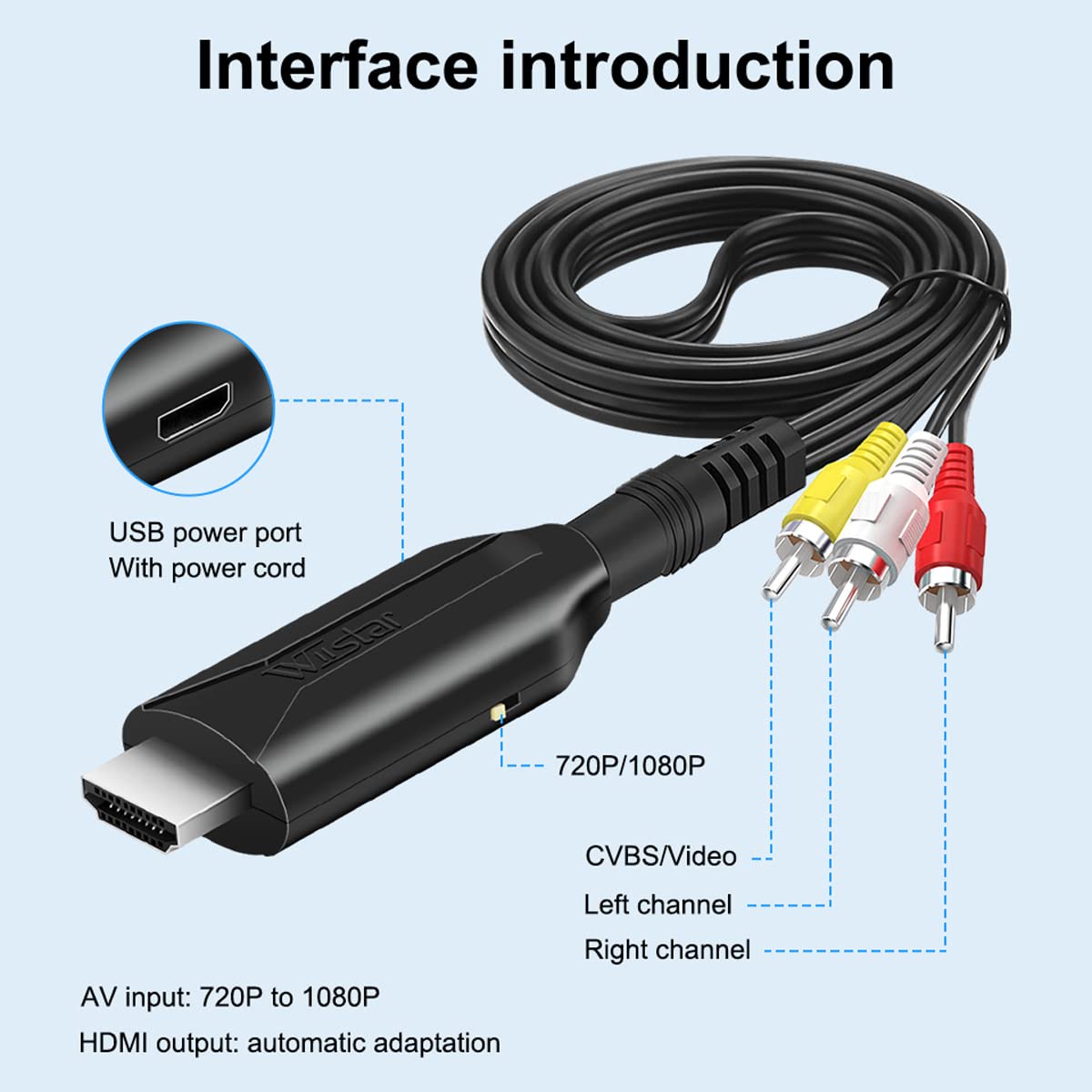
Figure 2.3: Interface diagram of the converter.
- RCA Input Connectors (Yellow, White, Red): Connect to the AV output ports of your source device. Yellow for video, White for left audio, Red for right audio.
- HDMI Output Connector: Connect to the HDMI input port of your display.
- Port d'alimentation USB : Connect the included USB power cable to a 5V power source.
- Commutateur 720P/1080P : A small switch on the converter unit to select the desired output resolution (720P or 1080P).
3. Instructions de configuration
Follow these steps to set up your HDSUNWSTD AV to HDMI Converter Cable Adapter:
- Connect RCA Input: Plug the male RCA (Yellow, White, Red) connectors of the converter cable into the corresponding AV output ports of your source device (e.g., DVD player, game console).
- Connecter la sortie HDMI : Plug the male HDMI connector of the converter cable into an available HDMI input port on your HDTV or monitor.
- Connectez l'alimentation USB : Connect the included USB power cable to the USB power port on the converter unit. Then, plug the other end of the USB cable into a 5V USB power source (e.g., a USB wall adapter, TV USB port, or computer USB port). Important: Ensure the power source is 5V/500mA. Do not use power adapters exceeding 5V.
- Sélectionnez la résolution : Use the 720P/1080P switch on the converter unit to select your desired output resolution.
- Allumer les appareils : Power on your source device and your HDMI display. Select the correct HDMI input on your display.

Figure 3.1: Connecting the USB power cable to the converter.

Figure 3.2: Resolution selection switch.
Note:
- This converter transfers video signals only; it does not improve video quality.
- It converts RCA/CVBS to HDMI. It cannot convert HDMI to AV.
- For PS2, ensure it is set to RGB output for proper functionality.
4. Mode d'emploi
Once the setup is complete, operating the converter is straightforward:
- Ensure all connections are secure and the converter is powered via USB.
- Turn on your source device (e.g., game console, VCR).
- Turn on your HDMI display and select the HDMI input port to which the converter is connected.
- The video and audio from your source device should now be displayed on your HDMI screen.

Figure 4.1 : Example of connecting an old device to an HDMI TV.

Figure 4.2: Connecting an N64 console to an HDMI TV.
5. Dépannage
En cas de problème, veuillez consulter les conseils de dépannage suivants :
- No Signal/No Picture:
- Ensure the USB power cable is connected to a 5V power source and the converter is receiving power.
- Verify all RCA and HDMI connections are secure.
- Check that your TV/monitor is set to the correct HDMI input channel.
- Try switching the 720P/1080P resolution button on the converter.
- Confirm your source device is powered on and outputting an AV signal.
- Pas d'audio :
- Ensure the White (Left Audio) and Red (Right Audio) RCA cables are correctly connected.
- Check the audio settings on your TV/monitor and source device.
- Try switching the 720P/1080P resolution button on the converter.
- Distorted Picture/Poor Quality:
- Remember that the converter transfers the existing video signal; it does not enhance quality. The output quality will depend on the input quality.
- Ensure the 720P/1080P switch is set to a resolution compatible with your display.
- Vérifiez s'il y a des connexions desserrées.
- Converter Not Working with PS2:
- Ensure your PS2 console's video output settings are configured for RGB output.
6. Spécifications

Figure 6.1 : Paramètres du produit.
| Fonctionnalité | Détail |
|---|---|
| Marque | HDSUNWSTD |
| Nom du produit | Composite AV to HDMI Converter Cable Adapter |
| Numéro de modèle | AV2HDMI Converter Cable Adapter |
| Ports d'entrée | 1x RCA Male (Yellow, White, Red) |
| Ports de sortie | 1x HDMI Male (1080p/60HZ) |
| Résolutions prises en charge | 720P, 1080P (60Hz) |
| Alimentation électrique | 5V/500mA via Micro USB |
| Longueur du câble | Environ 65 cm (25.6 pouces) |
| Dimensions du produit | Converter unit: 0.79 x 0.39 x 0.79 inches (approx.) |
| Poids | 1.45 onces (environ) |
| Version HDMI | HDMI 1.4 (as per image) |
7. Entretien
The HDSUNWSTD AV to HDMI Converter Cable Adapter requires minimal maintenance:
- Conservez l'appareil dans un environnement sec, à l'abri de l'humidité et des températures extrêmes.
- Nettoyez l'extérieur avec un chiffon doux et sec. N'utilisez pas de nettoyants liquides ni de solvants.
- Évitez de plier les câbles brusquement ou d'appliquer une force excessive sur les connecteurs.
- Disconnect the power when not in use for extended periods.
8. Garantie et assistance
For warranty information and technical support, please refer to the HDSUNWSTD official webConsultez le site ou contactez votre revendeur. Conservez votre reçu d'achat pour toute réclamation au titre de la garantie.
Pour les problèmes courants, veuillez consulter la section Dépannage de ce manuel.