
Corsair CA-9011201-NA
Contents
CORSAIR VOID RGB ELITE Wireless Gaming Headset User Manual
Model: CA-9011201-NA
Introduction
This manual provides comprehensive instructions for the setup, operation, maintenance, and troubleshooting of your CORSAIR VOID RGB ELITE Wireless Gaming Headset. Please read this manual thoroughly before using the product to ensure optimal performance and longevity.
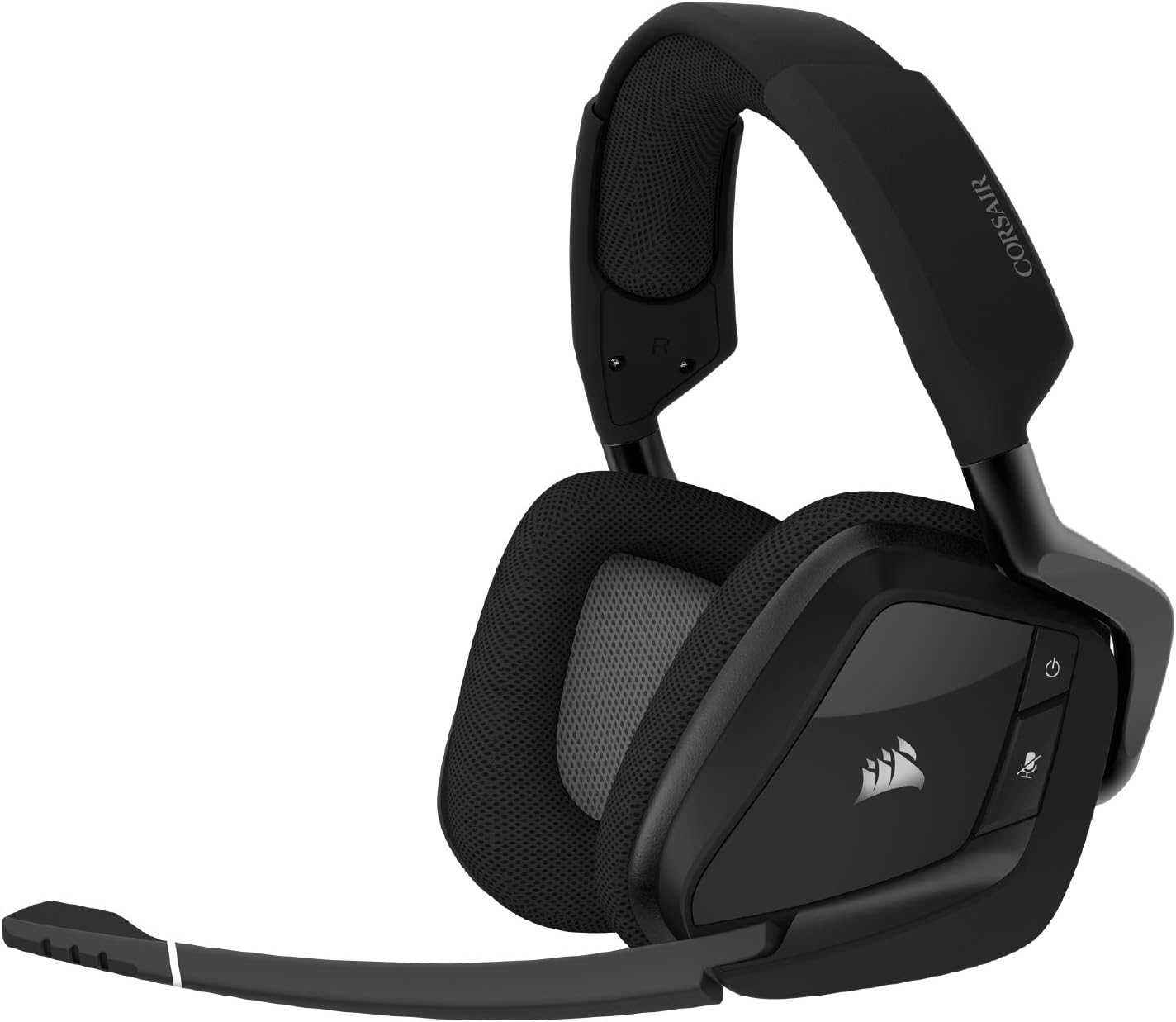
Image: The CORSAIR VOID RGB ELITE Wireless Gaming Headset, black model, showcasing its design with the microphone extended.
Package Contents
Verify that all items are present in the package:
- CORSAIR VOID RGB ELITE Wireless Gaming Headset
- USB Wireless Adapter
- USB Charging Cable
- Quick Start Guide (this document)

Image: The CORSAIR VOID RGB ELITE Wireless Gaming Headset alongside its retail packaging, illustrating the product and its box.
Setup
1. Charging the Headset
Before first use, fully charge the headset. Connect the USB charging cable to the headset's charging port and the other end to a powered USB port (e.g., on your PC or a USB wall adapter). The LED indicator on the headset will show charging status.
- Charging: Amber LED (blinking)
- Fully Charged: Green LED (solid)
A full charge provides up to 16 hours of battery life.
2. Connecting to PC/PS4
The CORSAIR VOID RGB ELITE Wireless Headset connects via a low-latency 2.4GHz wireless connection using the included USB adapter.
- Insert the USB wireless adapter into an available USB port on your PC or PlayStation 4.
- Power on the headset by pressing and holding the power button until the LED indicator illuminates.
- The headset and adapter should automatically pair. A solid blue LED on both the headset and adapter indicates a successful connection.
- On PC, ensure the "CORSAIR VOID RGB ELITE Wireless" is selected as the default audio output and input device in your sound settings.
- On PS4, navigate to Settings > Devices > Audio Devices and select "CORSAIR VOID RGB ELITE Wireless" for both Input and Output Device.
Note: 7.1 surround sound is only available on PC.

Image: The CORSAIR VOID RGB ELITE Wireless Headset, highlighting its 2.4GHz wireless connectivity.

Image: A person wearing the CORSAIR VOID RGB ELITE Wireless Headset while gaming, demonstrating its wireless range and battery life.
Operating Instructions
Headset Controls
- Power Button: Press and hold to power on/off. Short press to check battery status.
- Volume Control: Located on the left earcup, adjust the scroll wheel to increase or decrease audio volume.
- Microphone Mute: Flip the microphone boom up to mute. Flip down to unmute. An LED indicator on the microphone tip will show mute status (Red for muted, Green for active).
- EQ/7.1 Surround Sound Button: Press to cycle through equalizer presets or toggle 7.1 surround sound (PC only).

Image: Close-up of the CORSAIR VOID RGB ELITE Wireless Headset, showing the omnidirectional microphone and on-ear volume controls.
iCUE Software (PC Only)
For advanced customization and control, install the CORSAIR iCUE software from the official CORSAIR website (www.corsair.com/icue).
iCUE allows you to:
- Adjust equalizer settings for personalized audio profiles.
- Enable or disable 7.1 virtual surround sound.
- Customize RGB lighting effects on the earcups.
- Update headset firmware.
- Manage microphone settings and sidetone.

Image: The CORSAIR VOID RGB ELITE Wireless Headset displaying its dynamic RGB lighting, indicating compatibility with iCUE software.
Maintenance
Cleaning
- Use a soft, dry cloth to clean the headset and earcups.
- Do not use harsh chemicals, cleaning solvents, or strong detergents.
- Avoid getting moisture into any openings.
Storage
When not in use, store the headset in a cool, dry place away from direct sunlight and extreme temperatures. Avoid placing heavy objects on the headset.
Battery Care
- To preserve battery life, avoid fully discharging the headset frequently.
- Charge the headset regularly, even if not in frequent use.
Troubleshooting
| Problem | Possible Cause | Solution |
|---|---|---|
| No audio from headset | Headset not powered on; Not paired; Incorrect audio output selected; Low battery. | Ensure headset is powered on. Re-pair headset and adapter. Check PC/PS4 sound settings. Charge headset. |
| Microphone not working | Microphone muted; Incorrect audio input selected; Microphone boom not fully down. | Ensure microphone is unmuted (LED green). Check PC/PS4 sound settings for input device. Ensure microphone boom is fully extended. |
| Poor wireless range or disconnections | Interference from other wireless devices; Obstructions; Too far from adapter. | Move closer to the USB adapter. Avoid placing adapter near other wireless devices (e.g., Wi-Fi routers). Try a different USB port. |
| iCUE software not detecting headset | Headset not connected; iCUE not updated; Driver issues. | Ensure headset is powered on and paired. Update iCUE to the latest version. Reinstall iCUE or headset drivers. |
Specifications
- Model Name: Void ELITE Wireless Carbon
- Model Number: CA-9011201-NA
- Connectivity: Wireless (2.4GHz)
- Drivers: Custom-tuned 50mm Neodymium
- Frequency Response: 20Hz - 30,000Hz
- Impedance: 32 Ohm
- Sensitivity: 116 dB
- Microphone: Omni-directional, Flip-up mute
- Battery Life: Up to 16 hours
- Wireless Range: Up to 40ft (12m)
- Earcups: Microfiber mesh fabric and memory foam
- Frame Material: Aluminum yokes
- Compatibility: PC, PlayStation 4 (7.1 surround sound on PC only)
- Weight: 14.1 ounces (approx. 400g)
- Dimensions (LxWxH): 7.87 x 3.74 x 7.87 inches
Warranty and Support
CORSAIR provides a limited warranty for this product. For detailed warranty information, please refer to the warranty card included with your product or visit the official CORSAIR website (www.corsair.com/support).
For technical support, driver downloads, and frequently asked questions, please visit the CORSAIR support page or contact their customer service directly.
Online Resources:
- Official CORSAIR Website: www.corsair.com
- Support Page: www.corsair.com/support
- iCUE Software Download: www.corsair.com/icue
Documents and downloads
Ask a question about this manual
Ask about setup, troubleshooting, compatibility, parts, safety, or missing instructions. Manuals+ will review the question and use this page’s manual context to help answer it.