
مقدمه
This user guide provides essential information for the HP OfficeJet Pro 8125e printer. It covers initial setup, connecting to networks, performing print, scan, and copy functions, routine maintenance, and troubleshooting common issues. Follow these instructions to ensure optimal performance and longevity of your device.
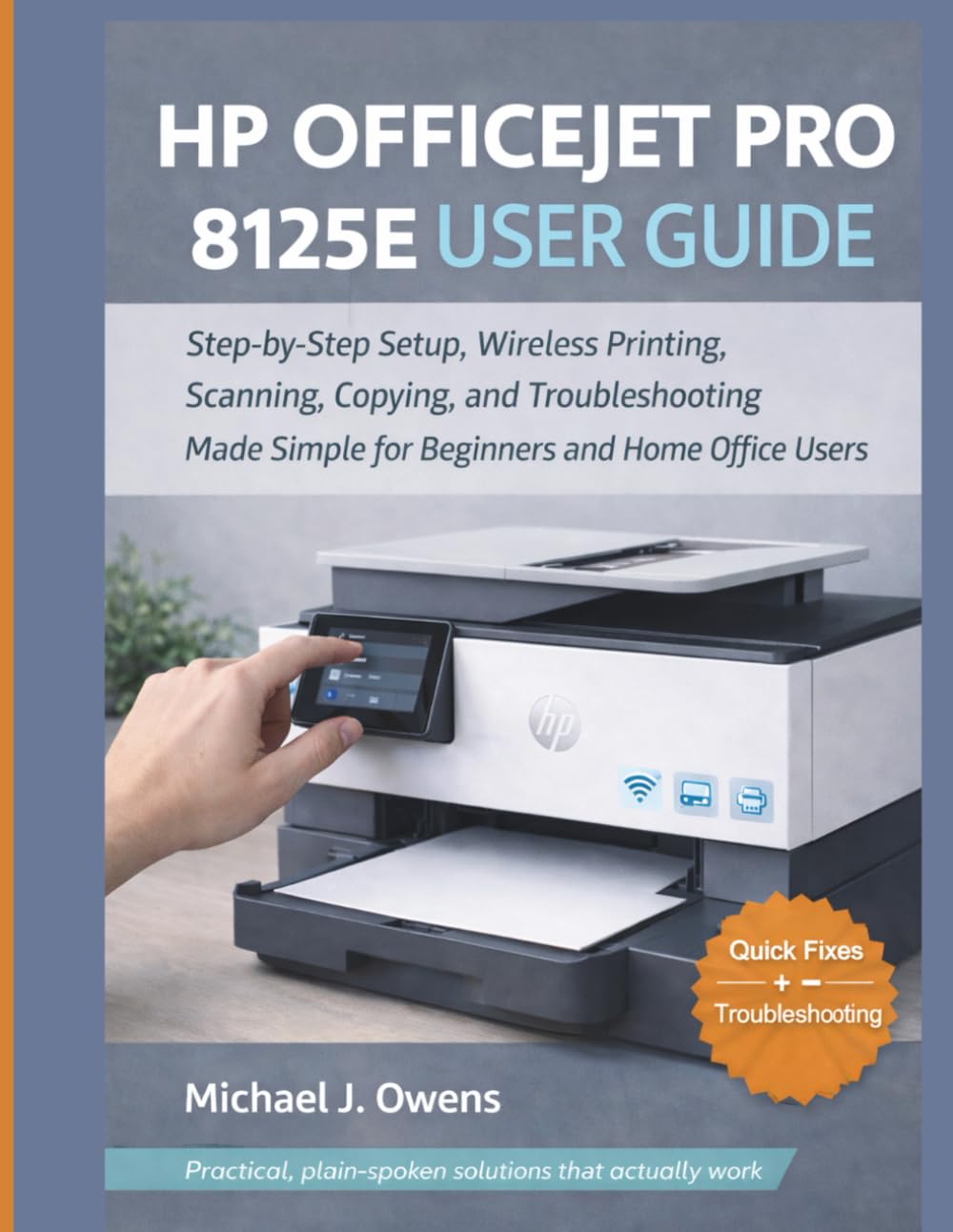
Image: Front cover of the HP OfficeJet Pro 8125e User Guide. This image represents the manual itself, designed to assist users with their printer.
1. راه اندازی
۱.۱ جعبهگشایی و روشن کردن اولیه
- چاپگر را با دقت از بسته بندی آن جدا کنید.
- تمام نوارهای محافظ و مواد بستهبندی را از قسمت بیرونی و داخلی چاپگر جدا کنید.
- سیم برق را به چاپگر و سپس به پریز برق وصل کنید.
- دکمه پاور را فشار دهید تا چاپگر روشن شود.
- Follow the on-screen prompts on the printer's control panel to select your language and region.
۲.۳ نصب کارتریجهای جوهر
- درب دسترسی کارتریج جوهر را باز کنید.
- صبر کنید تا دستگاه چاپ به مرکز حرکت کند.
- کارتریجهای جوهر جدید را از بستهبندی خارج کنید.
- هر کارتریج را در شیار مربوطه قرار دهید و مطمئن شوید که با صدای کلیک در جای خود قرار میگیرد.
- درب دسترسی کارتریج جوهر را ببندید.
1.3 بارگذاری کاغذ
- سینی ورودی را بیرون بکشید.
- راهنماهای کاغذ را با اندازه صحیح کاغذ تنظیم کنید.
- یک دسته کاغذ سفید ساده را در سینی قرار دهید، طوری که سمت چاپ رو به پایین باشد.
- سینی ورودی را دوباره به داخل چاپگر فشار دهید.
- در صورت درخواست، نوع و اندازه کاغذ را در صفحه کنترل چاپگر تأیید کنید.
1.4 اتصال به Wi-Fi
- در پنل کنترل چاپگر، به قسمت تنظیمات بیسیم (Wireless Setup Wizard) بروید.
- شبکه Wi-Fi خود را از لیست شبکه های موجود انتخاب کنید.
- Enter the Wi-Fi password (WPA key) when prompted.
- اتصال را تأیید کنید. چراغ بیسیم روی چاپگر باید آبی ثابت شود.
1.5 نصب درایور
For Windows and Mac computers, download the latest drivers and HP Smart software from the official HP support webسایت. در حین نصب، دستورالعملهای روی صفحه را دنبال کنید.
۵. کار با چاپگر
۴.۱ چاپ اسناد
- از یک کامپیوتر: Open the document, select "Print," choose your HP OfficeJet Pro 8125e, and adjust settings as needed before printing.
- از دستگاههای همراه (برنامه هوشمند HP): Install the HP Smart app, add your printer, and use the app to print photos or documents directly from your smartphone or tablet.
- Email Print: If enabled, send documents to your printer's unique email address.
۳.۳ اسکن اسناد
- Place the document face down on the scanner glass or face up in the Automatic Document Feeder (ADF).
- On the printer's control panel or via the HP Smart app/software on your computer, select "Scan."
- Choose scan settings (e.g., color, resolution, destination).
- اسکن را آغاز کنید.
۳.۴ کپی کردن اسناد
- سند اصلی را روی شیشه اسکنر یا در ADF قرار دهید.
- On the printer's control panel, select "Copy."
- Adjust settings such as number of copies, color/black & white, and size.
- دکمه "شروع کپی" را فشار دهید.
3. تعمیر و نگهداری
۴.۲ تمیز کردن هدهای چاپ
If print quality degrades (streaks, faded colors), perform a print head cleaning from the printer's control panel or the HP Smart software. This process uses ink, so only perform it when necessary.
۵.۱ تعویض کارتریجهای جوهر
When an ink cartridge is low or empty, the printer will notify you. Follow the steps in Section 1.2 to replace cartridges. Use genuine HP ink cartridges for best results.
3.3 نظافت عمومی
قسمت بیرونی چاپگر را با یک پارچه نرم و لطیف پاک کنید.amp, lint-free cloth. Clean the scanner glass regularly with a glass cleaner applied to a cloth (not directly to the glass) to prevent smudges from affecting scan quality.
4 عیب یابی
| مشکل | راه حل |
|---|---|
| پیام آفلاین چاپگر |
|
| جم کاغذ |
|
| کیفیت چاپ ضعیف |
|
| HP Smart App Issues |
|
5. مشخصات
Note: The following specifications are typical for the HP OfficeJet Pro 8125e printer. For precise details, refer to the official HP product page or documentation.
- توابع: Print, Copy, Scan, Fax (optional, depending on region/model)
- فناوری چاپ: جوهر افشان حرارتی HP
- سرعت چاپ (سیاه): تا ۲۵ ppm (ISO)
- سرعت چاپ (رنگی): تا ۲۵ ppm (ISO)
- Print Resolution (Best): تا ۴۸۰۰ در ۱۲۰۰ رنگ بهینه شده با dpi
- Scan Resolution (Optical): حداکثر 1200 نقطه در اینچ
- قابلیت اتصال: Wi-Fi 802.11a/b/g/n, Ethernet, USB 2.0
- جابجایی کاغذ: 250-sheet input tray, 60-sheet output tray, 35-sheet ADF
- چاپ دو رو: خودکار (استاندارد)
- نمایش: صفحه لمسی رنگی
6. گارانتی و پشتیبانی
For warranty information, please refer to the documentation included with your printer or visit the official HP support website. HP provides various support resources, including online FAQs, driver downloads, and contact options for technical assistance.
Image: Back cover of the HP OfficeJet Pro 8125e User Guide. This image provides additional information and ISBN details for the manual.