
1. مقدمه
Thank you for choosing the AULA G7 Pro Wireless Gaming Headset. This manual provides detailed instructions for setting up, operating, and maintaining your headset to ensure optimal performance and an immersive audio experience. Please read this manual thoroughly before using the product.
2. محصول تمام شدview
2.1 محتویات بسته
The AULA G7 Pro package includes the following items:
- AULA G7 Pro Wireless Gaming Headset
- میکروفون بوم جداشدنی
- کابل شارژ USB-C به USB-A
- کابل صوتی 3.5 میلی متری
- 2.4G Wireless USB-A Receiver
- آداپتور USB-C به USB-A
- راهنمای کاربر
2.2 Headset Components and Controls
Familiarize yourself with the various parts and controls of your AULA G7 Pro headset.
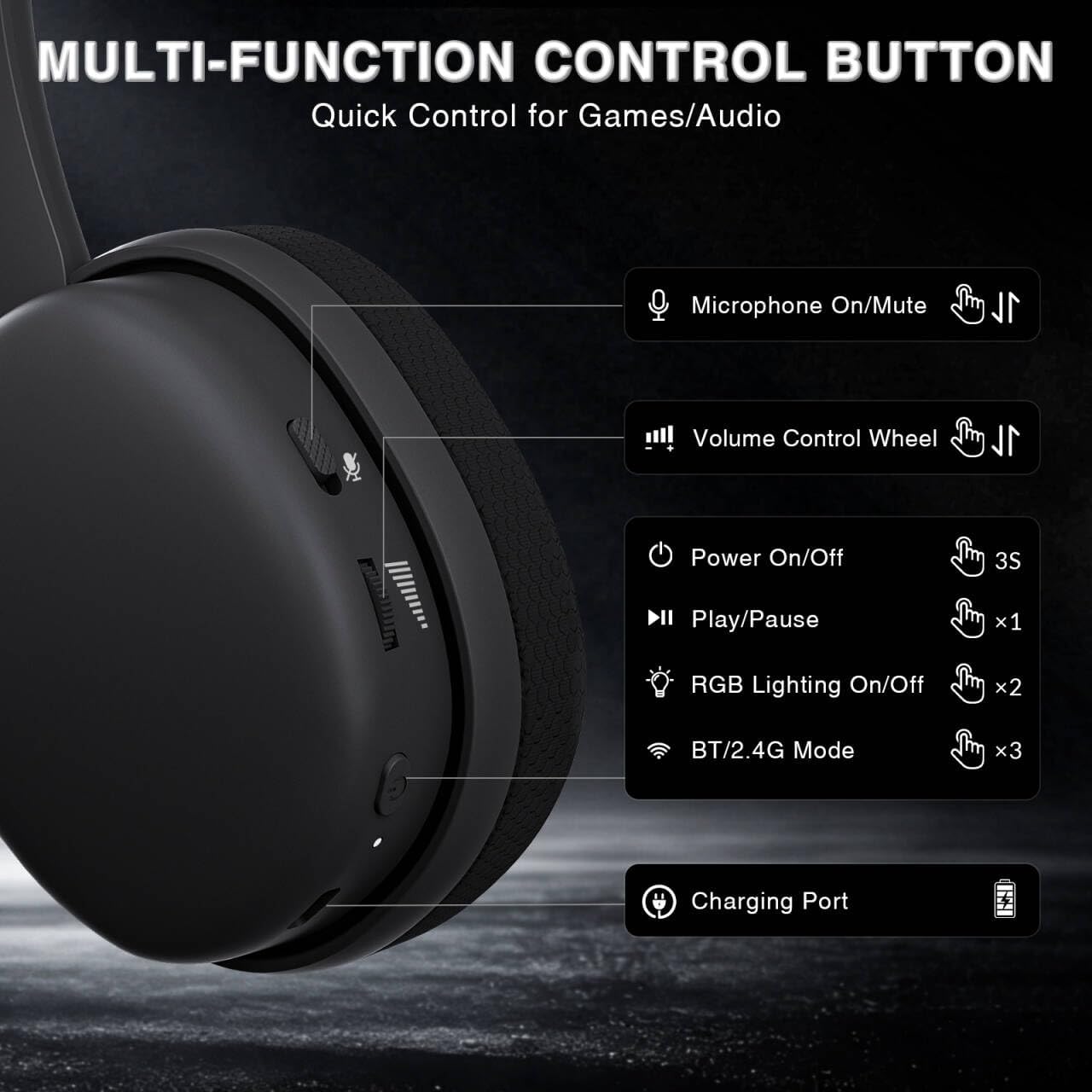
Image: Multi-function control buttons on the AULA G7 Pro headset, showing the microphone on/off toggle, volume control wheel, power switch, play/pause button, RGB lighting on/off button, BT/2.4G mode switch, and charging port.
- Microphone On/Off Toggle: برای بیصدا کردن یا بیصدا کردن میکروفون، آن را بلغزانید.
- چرخ کنترل صدا: میزان صدای خروجی صدا را تنظیم میکند.
- سوئیچ قدرت: برای روشن/خاموش کردن آن را فشار دهید و به مدت 3 ثانیه نگه دارید.
- دکمه پخش/مکث: برای پخش یا مکث صدا یکبار فشار دهید.
- روشن/خاموش روشنایی RGB: Press twice to toggle RGB lighting.
- BT/2.4G Mode Switch: Press three times to switch between Bluetooth and 2.4G wireless modes.
- پورت شارژ: پورت USB-C برای شارژ هدست.
- جک صوتی 3.5 میلی متری: برای اتصال سیمی.
- پورت میکروفون: For attaching the detachable boom microphone.
ویدئو: تمام شدview of the AULA G7 Pro Wireless Gaming Headset, showcasing its design, features, and different color options (black and pink).
3. راه اندازی و اتصال
3.1 2.4G Wireless Connection (PC, PS5, PS4, Switch)
For low-latency gaming, use the 2.4G wireless connection.
- Insert the 2.4G USB-A receiver into an available USB port on your PC, PS5, PS4, or Nintendo Switch dock. If your device only has USB-C ports, use the provided USB-C to USB-A adapter.
- Power on the AULA G7 Pro headset by pressing and holding the power button for 3 seconds.
- The headset will automatically attempt to connect to the receiver. The indicator light on the headset will show a stable color once connected.
- On your device, ensure the audio output is set to the AULA G7 Pro headset.

Image: The AULA G7 Pro headset demonstrating its tri-mode connectivity options: 3.5mm wired, Bluetooth 5.3, and 2.4G wireless with USB-C and USB-A receivers, compatible with various devices including PC, PS5, PS4, Switch, and smartphones.
3.2 Bluetooth 5.3 Connection (PC, Smartphones, Tablets)
Connect your headset via Bluetooth for general use with compatible devices.
- Power on the AULA G7 Pro headset.
- Press the BT/2.4G mode switch three times to enter Bluetooth pairing mode. The indicator light will flash.
- On your device (PC, smartphone, tablet), go to Bluetooth settings and search for available devices.
- Select "AULA G7 Pro" from the list to pair. The indicator light on the headset will become stable once connected.
3.3 3.5mm Wired Connection (Xbox, PC, PS5, PS4, Switch, Smartphones)
Use the 3.5mm audio cable for a universal wired connection, especially for Xbox consoles.
- یک سر کابل صدای ۳.۵ میلیمتری را به جک صدای ۳.۵ میلیمتری روی هدست وصل کنید.
- Connect the other end of the 3.5mm audio cable to the audio output port of your device (e.g., Xbox controller, PC audio jack).
- The headset will operate in wired mode. Note that some advanced features like virtual 7.1 surround sound may not be available in wired mode, depending on the device.
4. دستورالعمل های عملیاتی
۵.۲ استفاده از میکروفون
The AULA G7 Pro features a detachable noise-canceling microphone.
- وصل کردن میکروفون: Align the 3.5mm plug of the boom microphone with the microphone port on the headset and insert it firmly.
- بیصدا کردن/برقراری بیصدا کردن: Use the microphone on/off toggle switch on the headset to quickly mute or unmute your microphone.
- لغو شدن سر و صدا: The 360° omnidirectional microphone filters out approximately 80% of background noise. For enhanced noise cancellation and voice clarity, install the driver software (Windows 2.4G mode only).
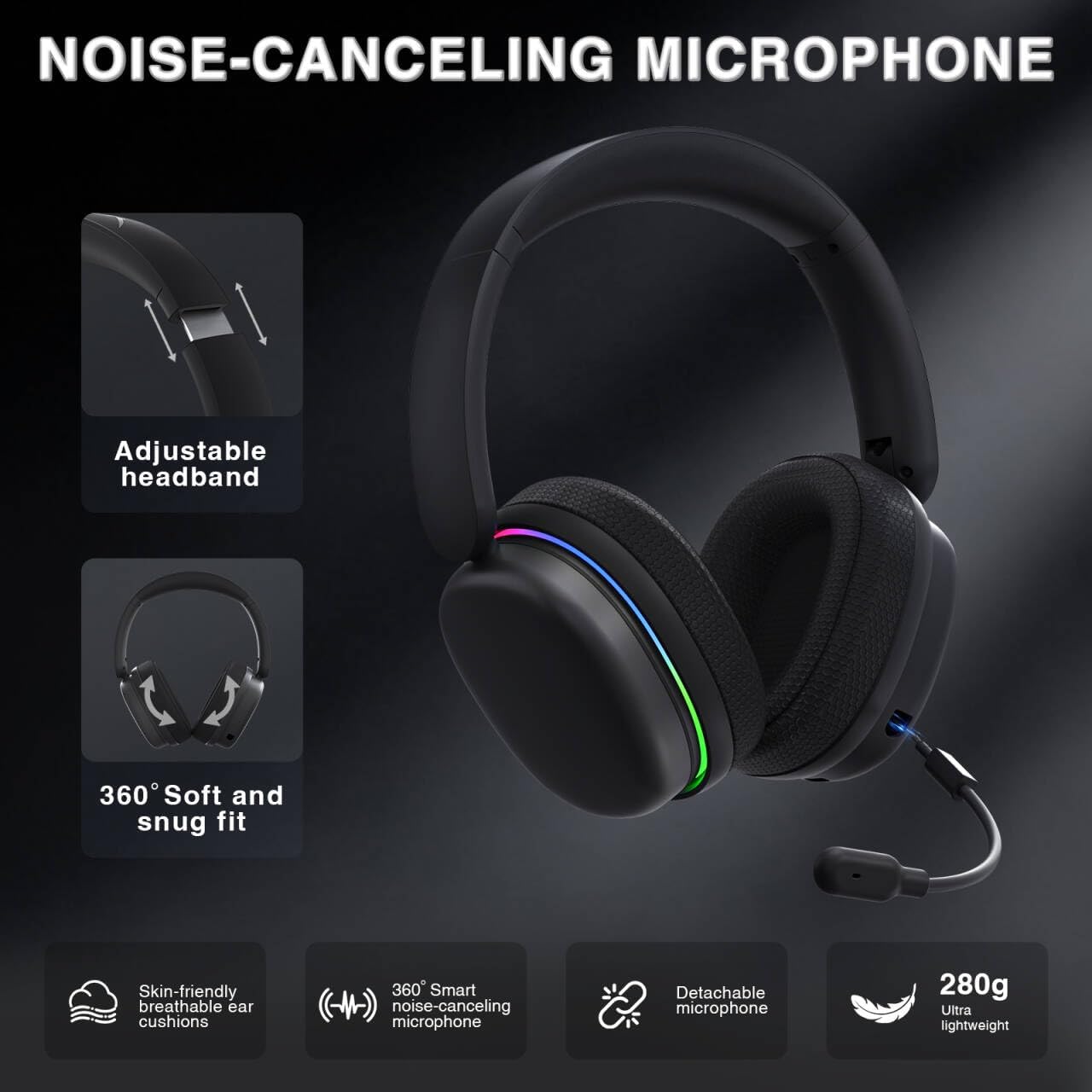
Image: The AULA G7 Pro headset highlighting its adjustable headband, soft and snug fit, skin-friendly breathable ear cushions, 360° smart noise-canceling microphone, detachable microphone, and ultra-lightweight 280g design.
4.2 Virtual 7.1 Surround Sound and EQ Software
Experience immersive audio with virtual 7.1 surround sound and customize your sound profile.
- صدای فراگیر مجازی 7.1: Available in Windows 2.4G mode, this feature provides precise audio positioning for gaming.
- EQ Software: درایور را دانلود و نصب کنید soaidriver.com (Windows 2.4G mode only). The software allows for customizable EQ settings, dynamic bass boost, vocal enhancement, and voice morphing.
- نکته نصب: First, insert the 2.4G receiver into your computer, then install the driver. After entering the driver interface, right-click the icon on the left side of the screen to access the audio settings menu.
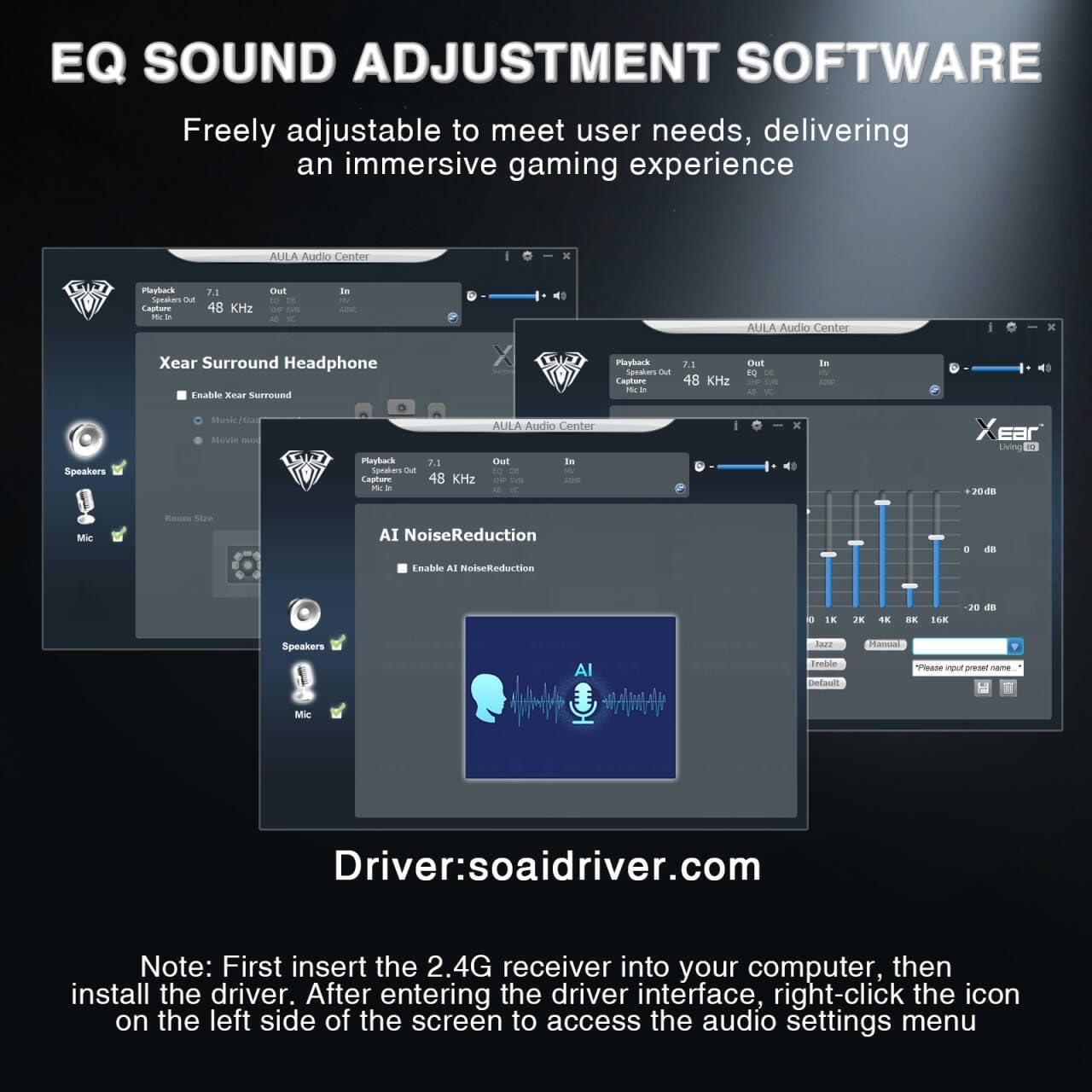
Image: Screenshots of the AULA Audio Center software interface, showing options for Xear Surround Headphone, AI Noise Reduction, and Equalizer settings for sound customization.
۳.۳ نورپردازی RGB
The headset features 16 million-color RGB lighting.
- Toggle RGB: Press the RGB Lighting On/Off button twice to activate or deactivate the lighting.
- همگام سازی: RGB lighting can synchronize with gaming peripherals for an immersive atmosphere.
۷. شارژ و عمر باتری
The AULA G7 Pro is equipped with a 1000mAh rechargeable battery.
- شارژ کردن: Connect the USB-C charging cable to the headset's charging port and the other end to a USB power source (e.g., computer, wall adapter). The indicator light will show charging status.
- عمر باتری: Up to 65 hours of playback with RGB lighting off, and approximately 20 hours with RGB lighting activated.
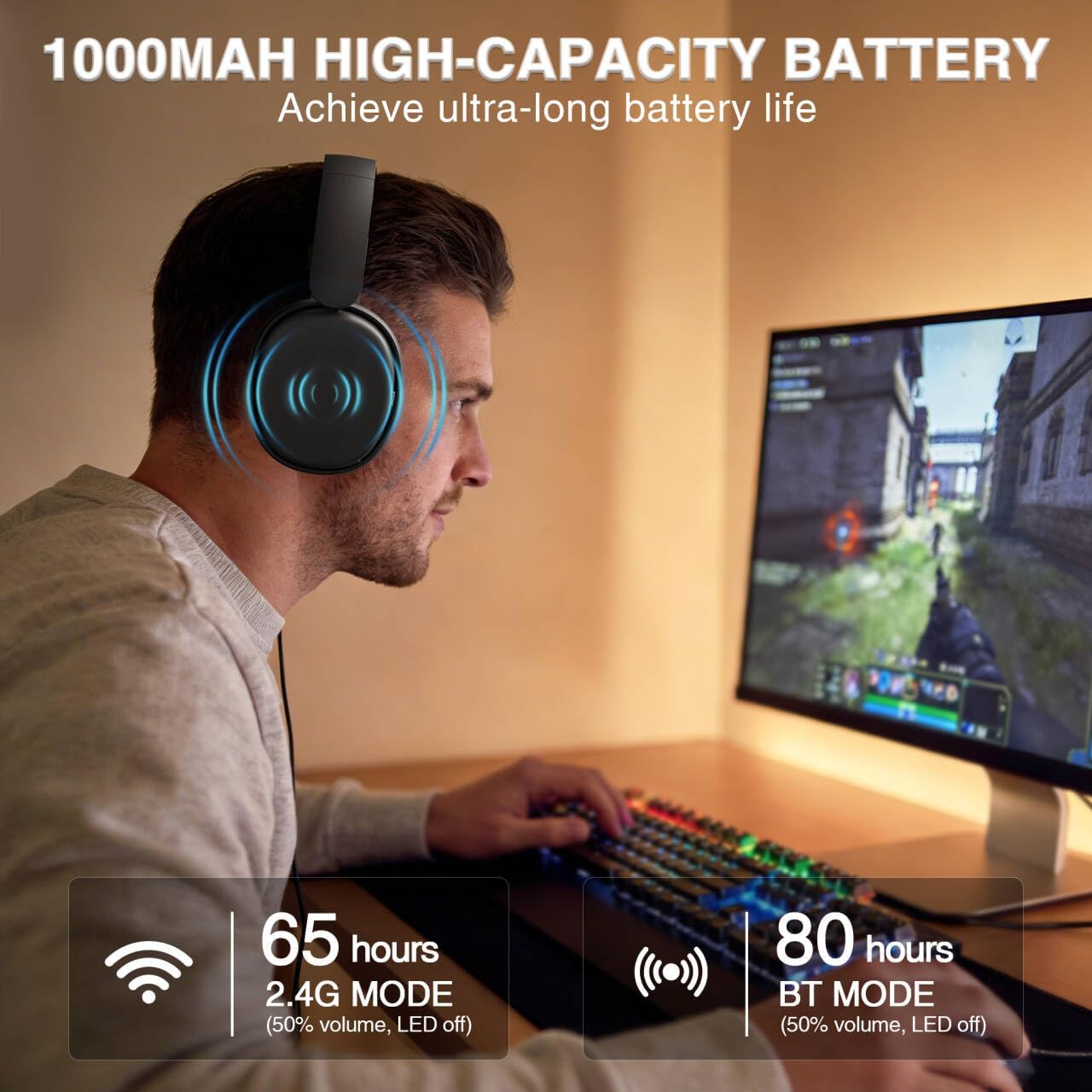
Image: A user wearing the AULA G7 Pro headset while gaming, illustrating the 65 hours of battery life in 2.4G mode (50% volume, LED off) and 80 hours in BT mode (50% volume, LED off).
۴.۲ راحتی و طراحی
The headset is designed for extended wear comfort.
- سبک وزن: Weighing 280g, the headset is designed to minimize pressure during long gaming sessions.
- تناسب ارگونومیک: Features an ergonomic headband with protein leather padding and breathable mesh ear cushions.
- قابل تنظیم: An 8-position adjustable steel frame and 360° acoustic chamber conform to facial contours, with micro-adjustable horizontal angles for a personalized fit.
7. مشخصات
| ویژگی | جزئیات |
|---|---|
| نام تجاری | AULA |
| نام مدل | جی 7 پرو |
| فناوری اتصال | 2.4G Wireless, BT5.3, Wired (3.5mm Jack) |
| نسخه بلوتوث | 5.3 |
| اندازه درایور صوتی | 40 میلیمتر |
| امپدانس | 32 اهم |
| کنترل نویز | حذف نویز فعال (میکروفون) |
| ظرفیت باتری | 1000 میلی آمپر ساعت |
| عمر باتری (RGB خاموش) | Up to 65 Hours (2.4G Mode), Up to 80 Hours (BT Mode) |
| وزن | 280 گرم |
| دستگاه های سازگار | PC, PS5, PS4, Switch, Smartphones, Xbox (wired mode only) |
8 عیب یابی
If you encounter issues with your AULA G7 Pro headset, refer to the following common solutions:
- بدون صدا:
- مطمئن شوید که هدست روشن و شارژ شده است.
- Check that the correct audio output device is selected in your system settings.
- Verify the volume control wheel on the headset is not at minimum.
- For 2.4G/BT modes, ensure the headset is properly paired/connected. Try re-pairing if necessary.
- For wired mode, ensure the 3.5mm cable is fully inserted into both the headset and the device.
- میکروفون کار نمی کند:
- مطمئن شوید که میکروفون جداشدنی محکم وصل شده است.
- Check the microphone on/off toggle switch on the headset is in the 'on' position.
- بررسی کنید که دستگاه ورودی میکروفون صحیح در تنظیمات سیستم شما انتخاب شده باشد.
- Ensure the microphone is not muted in your operating system or communication software.
- مشکلات اتصال (2.4G/بلوتوث):
- Ensure the headset is within range of the receiver/device.
- از تداخل الکترومغناطیسی قوی سایر دستگاههای بیسیم جلوگیری کنید.
- سعی کنید هم هدست و هم دستگاه متصل را مجدداً راهاندازی کنید.
- For 2.4G, try plugging the receiver into a different USB port.
- 7.1 Surround Sound Not Working:
- Ensure you are in 2.4G wireless mode on a Windows PC.
- Verify that the AULA driver software is installed and configured correctly.
9. تعمیر و نگهداری
برای اطمینان از طول عمر و عملکرد بهینه هدست خود، این دستورالعملهای نگهداری را دنبال کنید:
- تمیز کردن: برای تمیز کردن هدست از یک پارچه نرم و خشک استفاده کنید. از پاک کننده ها یا حلال های ساینده استفاده نکنید.
- ذخیره سازی: هدست را در جای خشک و خنک و دور از نور مستقیم خورشید و دمای شدید نگهداری کنید.
- مراقبت از کابل: برای جلوگیری از آسیب، از خم شدن شدید یا کشیدن بیش از حد کابلها خودداری کنید.
- مراقبت از باتری: برای عمر بهینه باتری، از خالی شدن کامل باتری به طور مکرر خودداری کنید. هدست را به طور منظم شارژ کنید، حتی اگر برای مدت طولانی استفاده نمیشود.
10. گارانتی و پشتیبانی
10.1 اطلاعات گارانتی
The AULA G7 Pro Wireless Gaming Headset comes with a 1 سال گارانتی از تاریخ خرید. این ضمانتنامه شامل نقصهای تولیدی و نحوهی ساخت در شرایط استفادهی عادی میشود. خسارات ناشی از سوءاستفاده، حوادث، تغییرات غیرمجاز یا فرسودگی عادی را پوشش نمیدهد.
10.2 پشتیبانی مشتری
For technical assistance, warranty claims, or any questions regarding your AULA G7 Pro headset, please contact AULA customer support through the retailer where you purchased the product or visit the official AULA webسایت برای اطلاعات تماس
Please have your purchase receipt and product model number (G7 Pro) ready when contacting support.