
مقدمه
Thank you for choosing the ProtoArc KM310 Wireless Mechanical Keyboard and Mouse. This combo offers a responsive typing experience with low-profile linear red switches and versatile multi-device connectivity. The ergonomic mouse is designed for comfort and precision. This manual provides detailed instructions for setup, operation, maintenance, and troubleshooting to ensure optimal performance.
آنچه در جعبه است

Image: Contents of the ProtoArc KM310 package, including the keyboard, mouse, charging cable, and user manual.
- صفحه کلید مکانیکی بی سیم ProtoArc KM310
- ماوس بیسیم پروتوآرک
- کابل شارژ USB-C
- راهنمای کاربر
محصول تمام شده استview
ویژگی های صفحه کلید

تصویر: نمای نزدیک view of the ProtoArc KM310 keyboard, highlighting its low-profile keys and linear red switches.
- کم طرفدارfile کلیدهای مکانیکی: Equipped with linear red switches for a smooth, quiet, and responsive typing experience.
- Aluminum Top Case: Provides durability and a sleek, modern aesthetic.
- پایههای شیبدار قابل تنظیم: Ergonomically designed with 2-stage foot mats offering 6° and 9° tilt options for comfortable typing.
- چیدمان در اندازه کامل: A 108-key layout suitable for office and business use.
ویژگی های ماوس

Image: The ProtoArc KM310 mouse being held, showcasing its ergonomic design for a natural grip.
- 63G Ultra-Lightweight: Reduces hand fatigue during extended use and enhances portability.
- طراحی ارگونومیک: Contoured shape for a comfortable and natural grip.
- DPI قابل تنظیم: Three DPI levels (1000/1600/2400) for tailored control and precision.
- کلیک بی صدا: برای عملکرد بیصدا طراحی شده است.
- دکمههای جلو/عقب: Integrated for seamless browsing.
اتصال و قدرت
- اتصال چند دستگاه: Connects up to 3 devices via 2.4G USB receiver or Dual Bluetooth (BT1, BT2).
- قابل شارژ: Both keyboard and mouse feature Type-C charging. The mouse's USB receiver is stored on its bottom.
- عمر طولانی باتری: Up to 150-200 days standby time; 2-3 hours for a full charge.
دستورالعمل های راه اندازی
۲. شارژ کردن دستگاهها

Image: The keyboard and mouse are shown connected to power sources via USB-C cables for charging.
- Connect the provided USB-C charging cable to the charging port on the keyboard (located on the top edge) and the mouse (located on the front edge).
- سر دیگر کابل را به یک منبع تغذیه USB (مثلاً پورت USB کامپیوتر، آداپتور دیواری USB) وصل کنید.
- The indicator lights will show charging status. Allow 2-3 hours for a full charge.
۴.۲ اتصال به دستگاهها

Image: A desk setup showing the ProtoArc KM310 keyboard and mouse connected to a laptop, monitor, and tablet, illustrating multi-device capability.
The KM310 combo supports three connection modes: 2.4G wireless via USB receiver, Bluetooth 1 (BT1), and Bluetooth 2 (BT2).
2.1. اتصال بی سیم 2.4G
- گیرنده USB را که در محفظه پایین ماوس قرار دارد، پیدا کنید.
- گیرنده USB را به درگاه USB موجود در رایانه خود وصل کنید.
- صفحه کلید و ماوس را با استفاده از کلیدهای پاور مربوطه روشن کنید.
- دستگاهها باید بهطور خودکار متصل شوند.
۲.۲ اتصال بلوتوث (BT1 / BT2)
- صفحه کلید و ماوس را روشن کنید.
- در صفحه کلید، را فشار دهید BT1 or BT2 key (usually located on the number pad, indicated by orange keycaps) to select the desired Bluetooth channel. The indicator light will flash.
- On your device (computer, tablet, etc.), go to Bluetooth settings and search for "ProtoArc KM310 Keyboard" and "ProtoArc KM310 Mouse".
- Select the devices to pair. The indicator light will stop flashing once connected.
- همین کار را برای دستگاه بلوتوث دوم که از کانال بلوتوث دیگر استفاده میکند، تکرار کنید.
۱. جابجایی بین دستگاهها
To switch between connected devices, simply press the corresponding connection key on the keyboard (2.4G, BT1, or BT2) and the channel switch button on the bottom of the mouse.
دستورالعمل های عملیاتی
استفاده از صفحه کلید
- تایپ کردن: کم طرفدارfile linear red switches provide a responsive and quiet typing experience.
- سازگاری سیستم عامل: The keyboard is compatible with Windows and Mac OS. Keys like 'Win' and 'Alt' also show 'Option' and 'Cmd' for Mac users.
- تنظیم شیب: Use the adjustable tilt legs on the underside of the keyboard to set your preferred typing angle (6° or 9°).
استفاده از ماوس
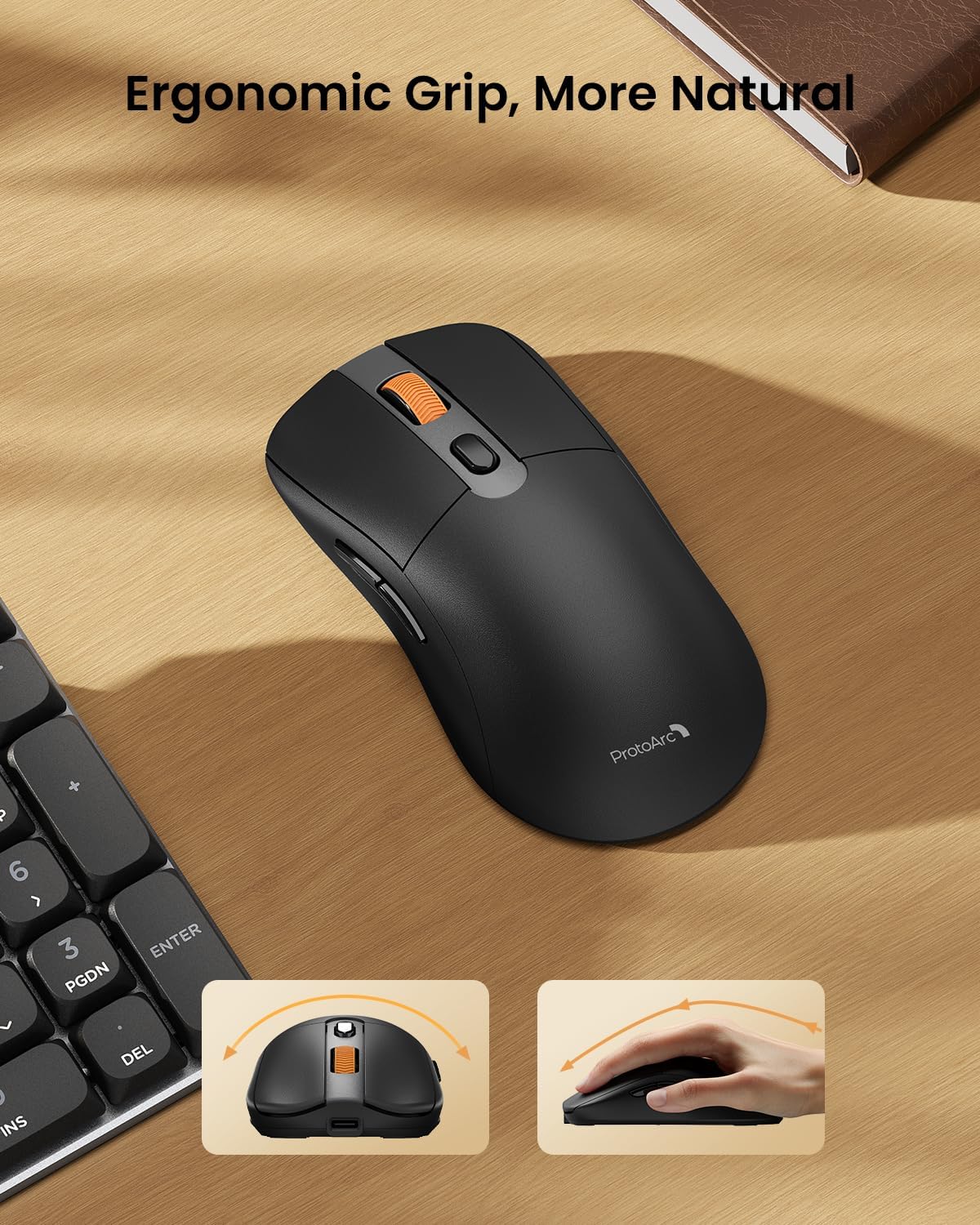
Image: A close-up of the ProtoArc KM310 mouse, illustrating the three adjustable DPI settings (1000, 1600, 2400).
- تنظیم DPI: Press the DPI switch button (usually located near the scroll wheel) to cycle through the 3 DPI levels (1000/1600/2400) to match your preference for cursor speed and precision.
- دکمه های ناوبری: Use the forward and backward buttons on the side of the mouse for quick navigation in web مرورگرها یا file کاشفان
- کلیکهای بیصدا: The mouse features silent click buttons for a quiet working environment.
تعمیر و نگهداری
- تمیز کردن: برای پاک کردن صفحه کلید و ماوس از یک پارچه نرم و خشک استفاده کنید. برای آلودگیهای سرسخت، کمی ...amp میتوان از پارچهای آغشته به صابون ملایم استفاده کرد، البته با این شرط که هیچ مایعی وارد دستگاه نشود.
- مراقبت از باتری: Recharge the devices when the battery indicator is low. Avoid prolonged exposure to extreme temperatures.
- ذخیره سازی: When not in use for extended periods, turn off the devices to conserve battery life. Store the USB receiver inside the mouse to prevent loss.
عیب یابی
Keyboard/Mouse Not Turning On or Stopping Working
- بررسی باتری: Ensure both the keyboard and mouse are sufficiently charged. Connect them to a power source using the USB-C cable.
- دستگاهها را دوباره جفت کنید:
- For 2.4G connection, ensure the USB receiver is securely plugged in and the devices are set to 2.4G mode.
- For Bluetooth connection, ensure the devices are set to the correct BT channel (BT1 or BT2) and re-pair them through your device's Bluetooth settings.
- کابل متفاوتی را امتحان کنید: If charging issues persist, try using a different USB-C cable to rule out a faulty cable.
- تداخل: Move the devices closer to your computer or away from other wireless devices that might cause interference.
- تماس با پشتیبانی: If the issue persists, please contact ProtoArc customer support for further assistance.
مشخصات
| شماره مدل | KM310 |
| نام تجاری | ProtoArc |
| رنگ | خاکستری فضایی |
| فناوری اتصال | بلوتوث، USB (بیسیم ۲.۴ گیگاهرتز) |
| ویژگی های خاص | کم طرفدارfile Keys, Linear Red Switches, Ergonomic Design, Ultra-Light Mouse, Ergonomic Mouse |
| دستگاه های سازگار | Laptop, Personal Computer, Tablet (Windows 7/8/10, Mac OS X 10.12, Android 4.3 or higher) |
| وزن مورد | 2.31 پوند |
| ابعاد بسته بندی | 17.68 x 8.07 x 2.05 اینچ |
گارانتی و پشتیبانی
The ProtoArc KM310 Mechanical Keyboard and Mouse combo comes with a گارانتی 2 ساله.
For any questions, technical support, or warranty claims, please contact ProtoArc customer service:
- ایمیل: support@protoarc.com
- تلفن: +1 866-287-8188
ویدیوی رسمی محصول
ویدیو: نمایش ویدیوی رسمی محصولasing the features and design of the ProtoArc KM310 Aluminum Mechanical Keyboard and Mouse.