
محصول تمام شده استview
The HP DeskJet 4252e All-in-One Printer is designed for home use, offering versatile color printing, scanning, and copying capabilities. It features a 60-sheet paper capacity and an auto document feeder for efficient handling of various tasks. This wireless inkjet printer provides a straightforward and stress-free experience for all your printing needs, from documents to recipes.
ویژگی های کلیدی:
- عملکرد همه در یک: Color print, copy, and scan.
- رسیدگی به اسناد: Flatbed scanner and auto document feeder for easy scanning and copying.
- ظرفیت کاغذ: Equipped with a 60-sheet input tray.
- اتصال بی سیم: Reliable Wi-Fi that automatically detects and resolves connection issues.
- چاپ سیار: Utilize the HP app to print, scan, copy, or fax directly from your smartphone.
- سرعت چاپ: Up to 8 pages per minute (ppm) for black and 5 ppm for color.
راهنمای راه اندازی
Setting up your HP DeskJet 4252e printer is a simple process, often completed within minutes using the HP app. Follow these general steps for initial setup:
- باز کردن بسته بندی چاپگر: چاپگر را با دقت از بستهبندی آن خارج کنید و تمام نوارهای محافظ و مواد بستهبندی را جدا کنید.
- اتصال برق: سیم برق را به چاپگر و سپس به پریز برق وصل کنید.
- کارتریج های جوهر را نصب کنید: Open the ink cartridge access door and install the provided HP ink cartridges according to the instructions on the printer's display or the HP app.
- بارگذاری مقاله: کاغذ سفید ساده را در سینی ورودی قرار دهید.
- برنامه HP Smart را نصب کنید: Download and install the HP Smart app on your smartphone or computer. This app guides you through the wireless setup and registration process.
- اتصال به وای فای: Follow the on-screen instructions in the HP Smart app to connect your printer to your wireless network. The app simplifies the connection process.
- راه اندازی کامل: Once connected, the app will guide you through any remaining steps, such as registering for HP Instant Ink if desired, and performing an alignment page print.
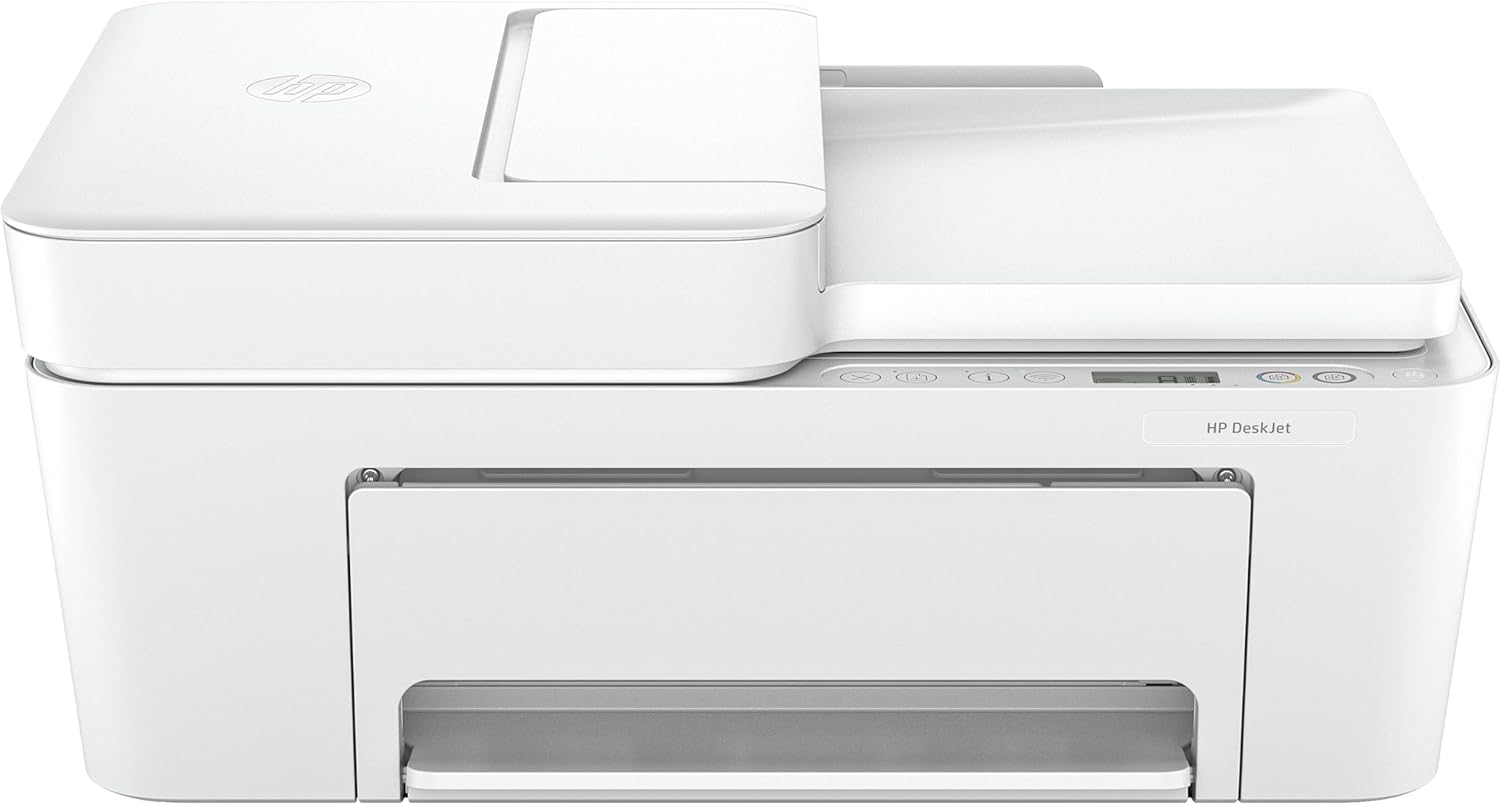
شکل 1: جلو view of the HP DeskJet 4252e All-in-One Printer.
کار با چاپگر
بارگذاری کاغذ:
The HP DeskJet 4252e features an easy-to-access rear paper input tray. Simply lift the paper input tray cover, adjust the paper guides to fit your paper size, and load the paper with the print side facing up. Ensure the paper is properly aligned to prevent jams.
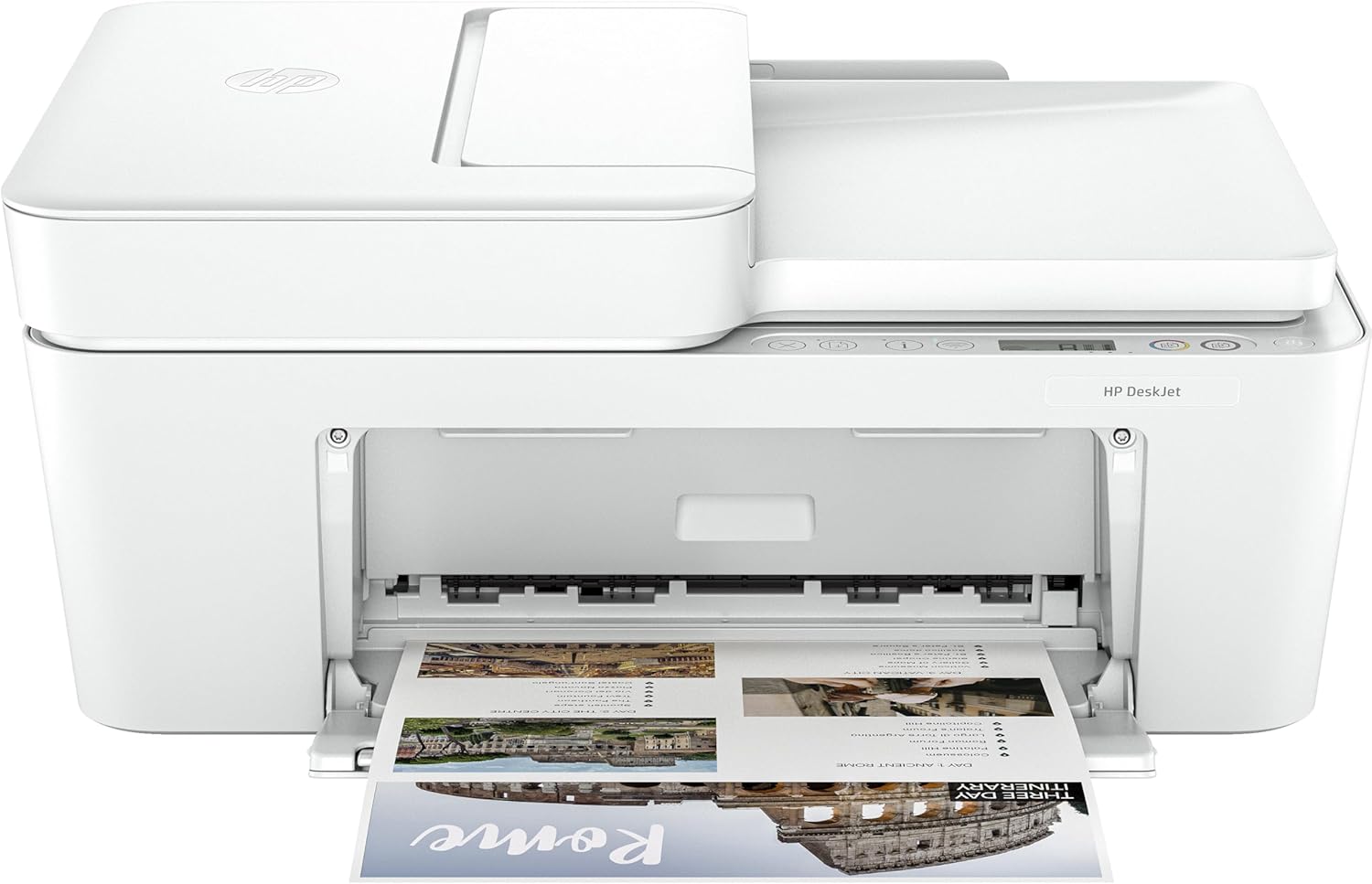
Figure 2: The HP DeskJet 4252e printer with paper loaded in the input tray, ready for printing.
اسکن اسناد:
The printer includes both a flatbed scanner and an auto document feeder (ADF) for scanning. For single pages or delicate items, use the flatbed scanner by lifting the scanner lid and placing the document face down on the glass. For multiple pages, use the ADF by placing the stack of documents face up in the feeder tray. Initiate the scan from the HP Smart app on your device.

شکل 3: بالا view of the printer, highlighting the scanner bed and the automatic document feeder.
کنترل پنل:
The control panel provides intuitive buttons for basic operations and status indicators. These include buttons for canceling jobs, resuming, information, Wi-Fi status, and copy functions. The display shows ink levels and other important alerts.

شکل 4: نمای نزدیک view of the printer's control panel, showing various function buttons and the display screen.
تعمیر و نگهداری
Regular maintenance ensures optimal performance and longevity of your HP DeskJet 4252e printer.
- کارتریج جوهر: Replace ink cartridges when prompted by the printer or the HP Smart app. Consider enrolling in HP Instant Ink for automatic ink delivery when levels are low.
- تمیز کردن: به صورت دورهای قسمت بیرونی چاپگر را با یک پارچه نرم و لطیف تمیز کنید.amp, lint-free cloth. For the scanner glass, use a glass cleaner applied to the cloth, not directly to the glass.
- جابجایی کاغذ: Use recommended paper types and store paper in a dry, cool place to prevent curling or sticking.
- به روز رسانی سیستم عامل: Keep your printer's firmware updated through the HP Smart app to ensure compatibility and access to the latest features.
عیب یابی
اگر با چاپگر خود با مشکل مواجه شدید، مراحل عیبیابی رایج زیر را امتحان کنید:
- چاپگر پاسخ نمیدهد: Ensure the printer is powered on and connected to the network. Restart both the printer and your computer/device.
- مشکلات کیفیت چاپ: Check ink levels. Run a print head cleaning or alignment utility from the HP Smart app or printer software.
- چسب کاغذ: Carefully remove any jammed paper from the input tray, output tray, or inside the printer as indicated by the printer's display.
- مشکلات اتصال بی سیم: Verify your Wi-Fi network is active. Restart your router and printer. Use the HP Smart app's network diagnostic tools.
- مشکلات برنامه هوشمند HP: Ensure the app is updated to the latest version. Restart the app or reinstall it if problems persist.
برای عیبیابی دقیقتر، به پشتیبانی HP مراجعه کنید website or the help section within the HP Smart app.
مشخصات
| ویژگی | جزئیات |
|---|---|
| نام تجاری | HP |
| نام مدل | چاپگر همه کاره HP DeskJet 4252e |
| ابعاد محصول | 13.07 x 16.85 x 7.87 اینچ |
| فناوری چاپ | جوهر افشان |
| فناوری اتصال | وای فای |
| خروجی چاپگر | رنگ |
| حداکثر سرعت چاپ (مشکی) | 8 پی پی ام |
| حداکثر سرعت چاپ (رنگی) | 5 پی پی ام |
| پشتیبانی از اندازه ورق | Plain paper, photo paper, brochure paper, envelopes, and other specialty inkjet papers |
| اجزای شامل | چاپگر |
| UPC | 724129332827 |
گارانتی و پشتیبانی
The HP DeskJet 4252e All-in-One Printer comes with a 90 روز گارانتی محدود. For warranty claims or technical assistance, please contact HP customer support or visit the official HP support website. Ensure you have your product model and serial number ready for faster service.
For additional resources, including drivers, software, and detailed user guides, please visit www.hp.com/support.