
Introduction
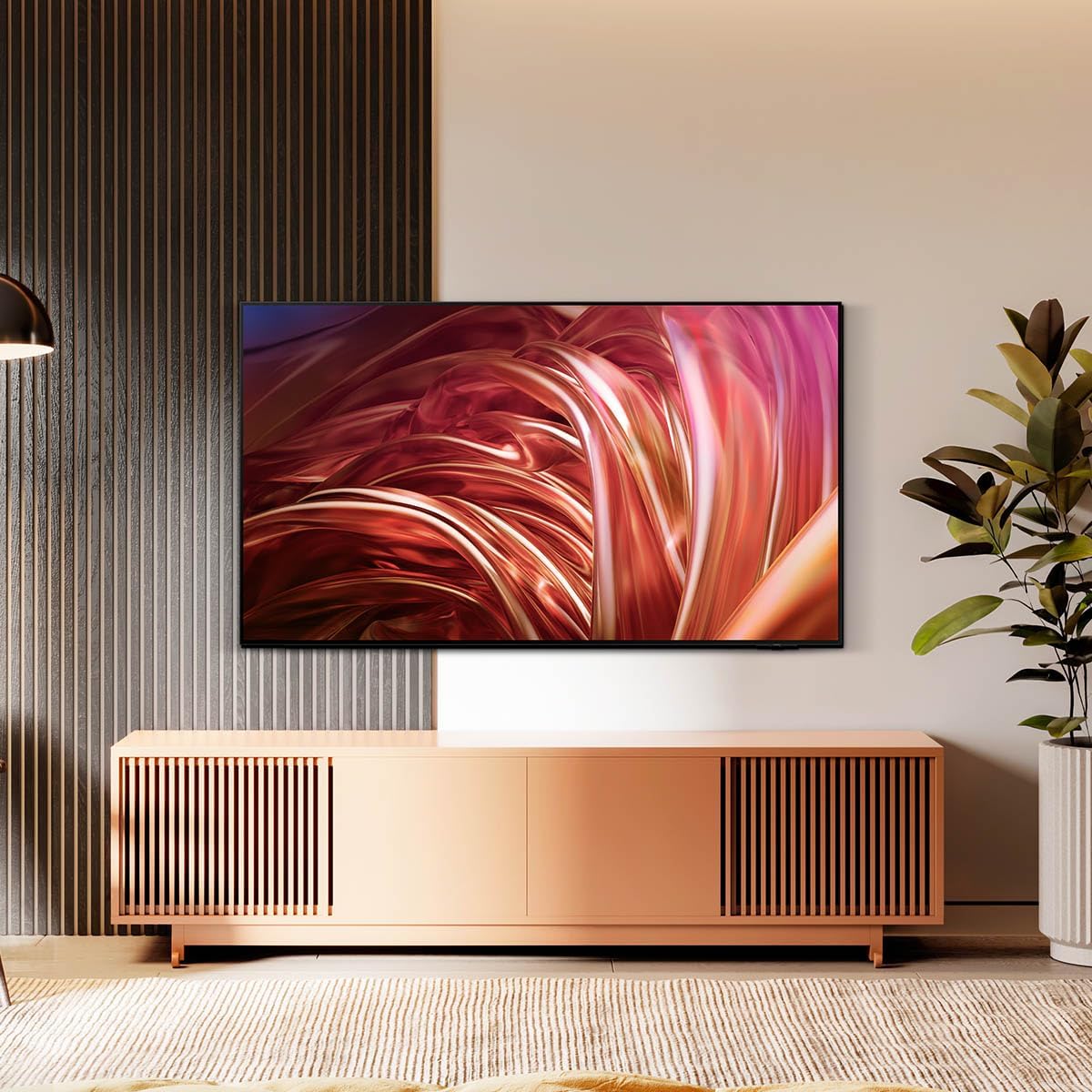
This manual provides essential information for the setup, operation, maintenance, and troubleshooting of your Samsung QN55S85DAEXZX 55-inch 4K OLED Television. The Samsung QN55S85DAEXZX features a 55-inch OLED S85D display, delivering pure blacks, balanced brightness, and Pantone validated color reproduction through its WOLED panel. Powered by the NQ4 AI Gen 2 processor, it optimizes both image and sound in real-time. With a 120 Hz refresh rate, Motion Xcelerator, and HDMI 2.1, it is suitable for gaming and sports. Its bezel-less Contour Design integrates seamlessly into any room. The television includes Tizen OS, voice control, and Dolby Atmos technology for an immersive audio experience.
Setup
1. Unpacking and Inspection
Carefully remove the television and all components from the packaging. Ensure the following items are present:
- Samsung QN55S85DAEXZX 55-inch 4K OLED Television
- Power Cable
- Remote Control
- User Manual (this document)
2. Stand Installation
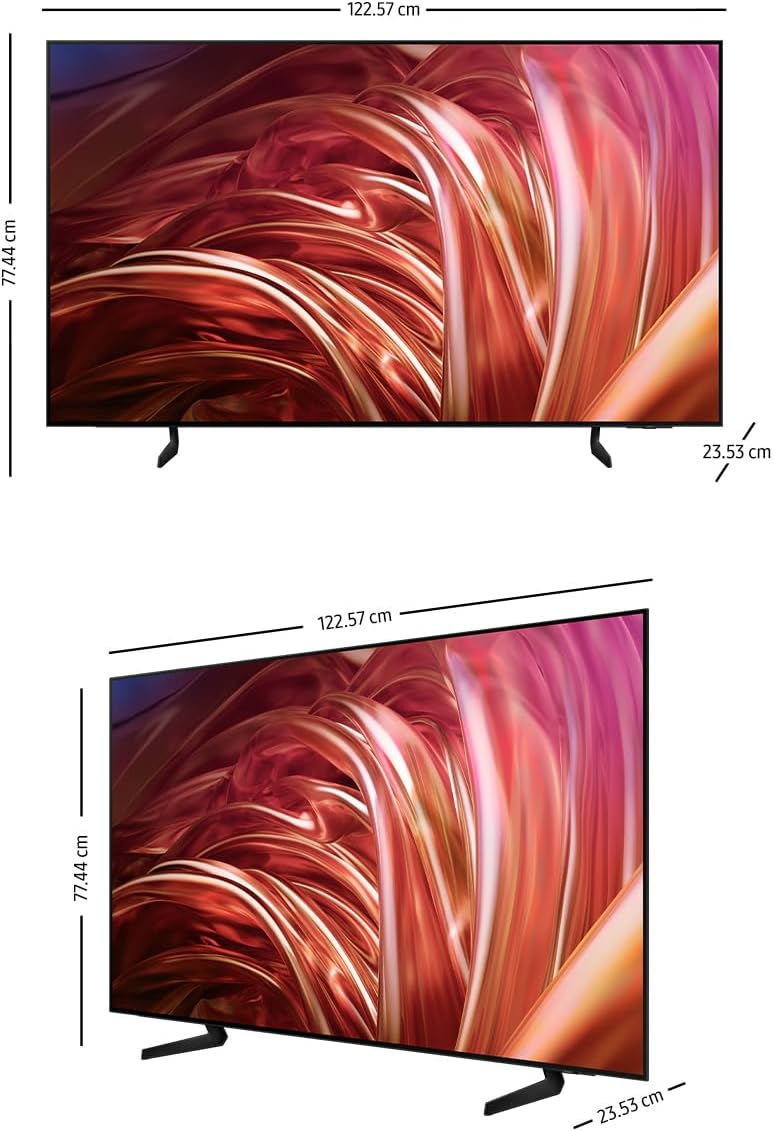
If you are not wall-mounting the television, attach the included stand. Place the television face down on a soft, flat surface to prevent screen damage. Align the stand with the mounting holes on the back of the television and secure it with the provided screws. Refer to the diagram below for proper stand attachment.

3. Connecting External Devices
Connect your external devices (e.g., cable box, Blu-ray player, gaming console) to the appropriate HDMI or USB ports on the back of the television. The QN55S85DAEXZX features 4 HDMI ports and 2 USB ports.
4. Power Connection and Initial Setup
Plug the power cable into the television and then into a wall outlet. Turn on the television using the remote control. Follow the on-screen instructions for the initial setup, which includes language selection, network connection (Wi-Fi or Ethernet), and channel scanning.
Operating Instructions
1. Remote Control Functions
Use the provided remote control to navigate the television's interface. Common functions include power on/off, volume control, channel selection, input source selection, and accessing the Smart Hub.
2. Navigating Tizen OS Smart Hub
Press the Home button on your remote to access the Tizen OS Smart Hub. From here, you can launch applications like Samsung TV Plus and Gaming Hub, manage connected devices via SmartThings, and adjust various settings.
3. Picture and Sound Settings
Access the settings menu to customize picture and sound quality. The television features OLED technology for deep blacks and vibrant colors, and the NQ4 AI Gen 2 processor enhances content to 4K resolution. Dolby Atmos provides immersive audio.


4. Voice Control
The television supports voice control. Press the microphone button on your remote and speak commands to control the TV, search for content, or access features.
Maintenance
1. Cleaning the Screen and Frame
To clean the screen, gently wipe it with a soft, dry microfiber cloth. For stubborn marks, lightly dampen the cloth with water or a screen-specific cleaning solution. Avoid using harsh chemicals or abrasive materials. Clean the television frame with a soft, dry cloth.
2. Software Updates
Ensure your television's software is up to date for optimal performance and security. The TV can be set to update automatically via its network connection. You can also manually check for updates in the settings menu.
3. Power Saving Tips
To reduce power consumption, adjust the brightness settings, enable the Eco Sensor, and set a sleep timer when not actively watching the television.
Troubleshooting
Common Issues and Solutions:
- No Power: Ensure the power cable is securely connected to both the TV and the wall outlet. Check if the outlet is functioning.
- No Picture/Sound: Verify the correct input source is selected. Check all cable connections to external devices. Restart the television.
- Remote Control Not Working: Replace the batteries in the remote. Ensure there are no obstructions between the remote and the TV's sensor.
- Network Connection Issues: Check your Wi-Fi router or Ethernet cable. Restart the router and the television. Re-enter Wi-Fi password if necessary.
Factory Reset:
If issues persist, performing a factory reset may resolve them. This will revert all settings to their default values. Navigate to the settings menu, find 'General' or 'Support', and select 'Self Diagnosis' or 'Reset'. Follow the on-screen prompts.
Specifications
| Feature | Specification |
|---|---|
| Model Name | QN55S85DAEXZX |
| Screen Size | 55 Inches |
| Display Technology | OLED |
| Resolution | 4K (3840 x 2160) |
| Refresh Rate | 120 Hz |
| Processor | NQ4 AI Gen2 |
| Connectivity | Bluetooth, HDMI (4 ports), USB (2 ports), Wi-Fi |
| Audio Technology | Dolby Atmos, Object Tracking Sound+ (OTS+) |
| Operating System | Tizen OS |
| Dimensions (D x W x H) | 23.5 cm x 122.6 cm x 77.4 cm |
| Included Components | Power Cable, Remote Control, User Manual |
Warranty Information
This Samsung QN55S85DAEXZX television comes with a 1-year manufacturer's limited warranty. This warranty covers defects in materials and workmanship under normal use. For specific terms and conditions, please refer to the warranty card included with your product or visit the official Samsung support website.
Support
For further assistance, technical support, or service requests, please visit the official Samsung support website or contact Samsung customer service. You can find contact details and additional resources on the Samsung website.


