
مقدمه
This manual provides essential information for setting up, operating, maintaining, and troubleshooting your Acer AL15-33P laptop. Please read this guide thoroughly to ensure proper use and to maximize the lifespan of your device.
راه اندازی
1. جعبه گشایی و بازرسی اولیه
Carefully remove the laptop and all accessories from the packaging. Check for any visible damage. The package should include the laptop, power adapter, and this user manual.

جلو view of the Acer AL15-33P laptop with the screen displaying the Windows desktop.
2. اتصال برق
- Connect the AC adapter cable to the power adapter.
- Plug the DC output connector of the power adapter into the power input port on the side of your laptop.
- سیم برق AC را به پریز برق وصل کنید.
باتری به طور خودکار شروع به شارژ شدن میکند. توصیه میشود قبل از اولین استفاده، باتری را به طور کامل شارژ کنید.
۳. بوت اولیه و راهاندازی ویندوز
- درب لپ تاپ را باز کنید.
- Press the power button, typically located on the keyboard deck or side, to turn on the laptop.
- Follow the on-screen instructions to complete the Windows 11 setup process. This includes selecting your region, language, accepting terms, and setting up a user account.
کار با لپتاپ
۴.۱. استفاده از صفحه کلید و صفحه لمسی
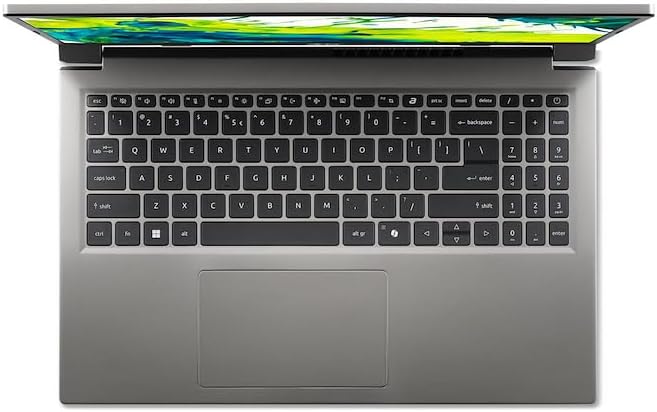
بالا پایین view of the laptop's keyboard and touchpad.
- صفحه کلید: The laptop features a full-size keyboard. Use the function (Fn) key in combination with F-keys for special functions like adjusting brightness, volume, or enabling/disabling Wi-Fi.
- پد لمسی: The integrated touchpad supports multi-touch gestures. Tap to click, use two fingers to scroll, and pinch to zoom.
2. اتصال لوازم جانبی
Your Acer AL15-33P laptop is equipped with various ports for connecting external devices.

Right side of the laptop showing ports including USB and audio jack.

Left side of the laptop showing ports including power, USB-C, HDMI, and USB-A.
- پورت های USB: دستگاههای USB مانند هارد دیسکهای اکسترنال، ماوس یا صفحه کلید را وصل کنید.
- پورت HDMI: Connect an external monitor or TV for a larger display.
- جک صوتی: هدفون یا بلندگوهای خارجی را وصل کنید.
- پورت USB-C: For data transfer and potentially display output or charging, depending on the specific model configuration.
3. اتصال بی سیم
- وای فای: برای اتصال به یک شبکه بیسیم، روی نماد Wi-Fi در نوار وظیفه کلیک کنید، شبکه خود را انتخاب کنید و در صورت لزوم رمز عبور را وارد کنید.
- بلوتوث: To pair Bluetooth devices, go to Windows Settings > Bluetooth & devices, and turn on Bluetooth.
4. مدیریت انرژی
- حالت خواب: درب لپتاپ را ببندید یا از منوی استارت گزینه «خواب» (Sleep) را انتخاب کنید تا لپتاپ در حالت کممصرف قرار گیرد.
- خاموش شدن: To turn off the laptop completely, go to the Start menu, click the Power icon, and select 'Shut down'.
- راه اندازی مجدد: To restart the laptop, go to the Start menu, click the Power icon, and select 'Restart'.
تعمیر و نگهداری
۱. تمیز کردن لپتاپ
- کمی d از یک پارچه نرم و بدون پرز استفاده کنیدampبرای تمیز کردن صفحه نمایش، آن را با آب یا پاک کننده صفحه نمایش آغشته کنید.
- برای صفحه کلید و شاسی، از یک پارچه نرم استفاده کنید. از مواد شیمیایی قوی یا مواد ساینده خودداری کنید.
- Periodically use compressed air to clear dust from the cooling vents to prevent overheating.
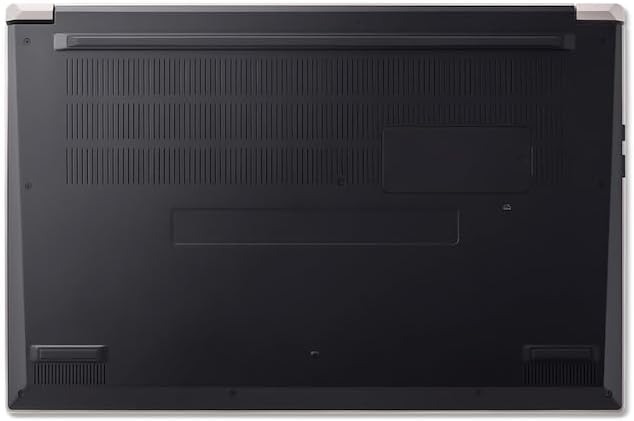
پایین view of the laptop, highlighting the ventilation grilles.
2. مراقبت از باتری
- از تخلیه کامل باتری به طور مکرر خودداری کنید.
- اگر لپتاپ را برای مدت طولانی انبار میکنید، مطمئن شوید که باتری تقریباً ۵۰ تا ۶۰ درصد شارژ دارد.
- Operate the laptop in a moderate temperature environment.
3. به روز رسانی نرم افزار
برای اطمینان از عملکرد و امنیت بهینه، سیستم عامل و درایورهای خود را مرتباً بهروزرسانی کنید. بهروزرسانی ویندوز از طریق تنظیمات > بهروزرسانی ویندوز قابل دسترسی است.
4. مدیریت ذخیره سازی
به صورت دوره ای دوبارهview و موارد غیر ضروری را حذف کنید files to free up storage space. Utilize cloud storage or external drives for backups of important data.
عیب یابی
This section addresses common issues you might encounter with your Acer AL15-33P laptop.
| مشکل | راه حل ممکن |
|---|---|
| لپ تاپ روشن نمی شود. | Ensure the power adapter is securely connected and the outlet is working. Try a different outlet. If the battery is completely drained, it may take a few minutes to show signs of life after plugging in. |
| صفحه نمایش خالی یا سیاه است. | Check if the laptop is powered on. Try pressing Fn + F6 (or the corresponding display toggle key) to cycle through display modes. Connect an external monitor to check if the issue is with the laptop's screen. |
| مشکلات اتصال وای فای. | Ensure Wi-Fi is enabled (Fn + F3 or check Windows settings). Restart your router and modem. Check if other devices can connect to the Wi-Fi network. Update Wi-Fi drivers. |
| لپتاپ کند کار میکند. | Close unnecessary applications. Check Task Manager for processes consuming high CPU or memory. Run a disk cleanup. Ensure Windows and drivers are up to date. |
مشخصات
The following are key specifications for the Acer AL15-33P model. Note that specific configurations may vary.
- مدل: Acer AL15-33P
- پردازنده: Intel Core i3-N355
- RAM: 8 گیگابایت
- ذخیره سازی: 512 گیگابایت SSD
- نمایش: 15.6 اینچ
- سیستم عامل: ویندوز 11
- برند: ایسر
گارانتی و پشتیبانی
Your Acer AL15-33P laptop comes with a standard manufacturer's warranty. Please refer to the warranty card included with your product for specific terms and conditions, including the warranty period and coverage details.
برای پشتیبانی فنی، دانلود درایور یا سوالات مربوط به خدمات، لطفاً از پشتیبانی رسمی ایسر دیدن کنید website or contact Acer customer service directly. Have your laptop's serial number ready when contacting support.
پشتیبانی ایسر Webسایت: www.acer.com/support