1. مقدمه
This manual provides detailed instructions for the setup, operation, and maintenance of your Samsung 32-inch Smart Monitor M7 (M70F) 4K UHD Display. Please read this manual thoroughly to ensure proper use and to maximize the monitor's features.
The Samsung 32-inch Smart Monitor M7 (M70F) offers a 4K UHD display with integrated smart features, including Smart TV apps, AI Picture Optimizer, and Gaming Hub. It also supports USB-C, HDMI, and USB-A connectivity, and incorporates Samsung Vision AI for enhanced user experience.
۲. چه چیزهایی در جعبه است؟
بررسی کنید که آیا همه اقلام در بسته موجود است یا خیر:
- Samsung 32-inch Smart Monitor M7 (M70F)
- کابل برق
- کنترل از راه دور
- باتری برای کنترل از راه دور
- Stand Components (Base and Neck)

Image: The Samsung 32-inch Smart Monitor M7 (M70F) shown with its remote control and stand, displaying various smart TV applications.
3. راه اندازی
3.1 مونتاژ پایه
- برای جلوگیری از خراشیدگی، مانیتور را با احتیاط و رو به پایین روی یک سطح نرم و تمیز قرار دهید.
- Attach the stand neck to the back of the monitor, ensuring it clicks securely into place.
- Connect the stand base to the stand neck, typically by screwing it in from the bottom.
- مانیتور را به آرامی بلند کنید و آن را روی یک سطح صاف و پایدار قرار دهید.
3.2 اتصال برق
- Connect the power cable to the monitor's power input port.
- سر دیگر کابل برق را به پریز برق وصل کنید.
۴.۳ راهاندازی اولیه و اتصال به شبکه
- Press the power button on the monitor or the remote control to turn on the device.
- Follow the on-screen prompts to select your language, region, and connect to your Wi-Fi network.
- Sign in with your Samsung Account to access all smart features, including network-based services and applications.
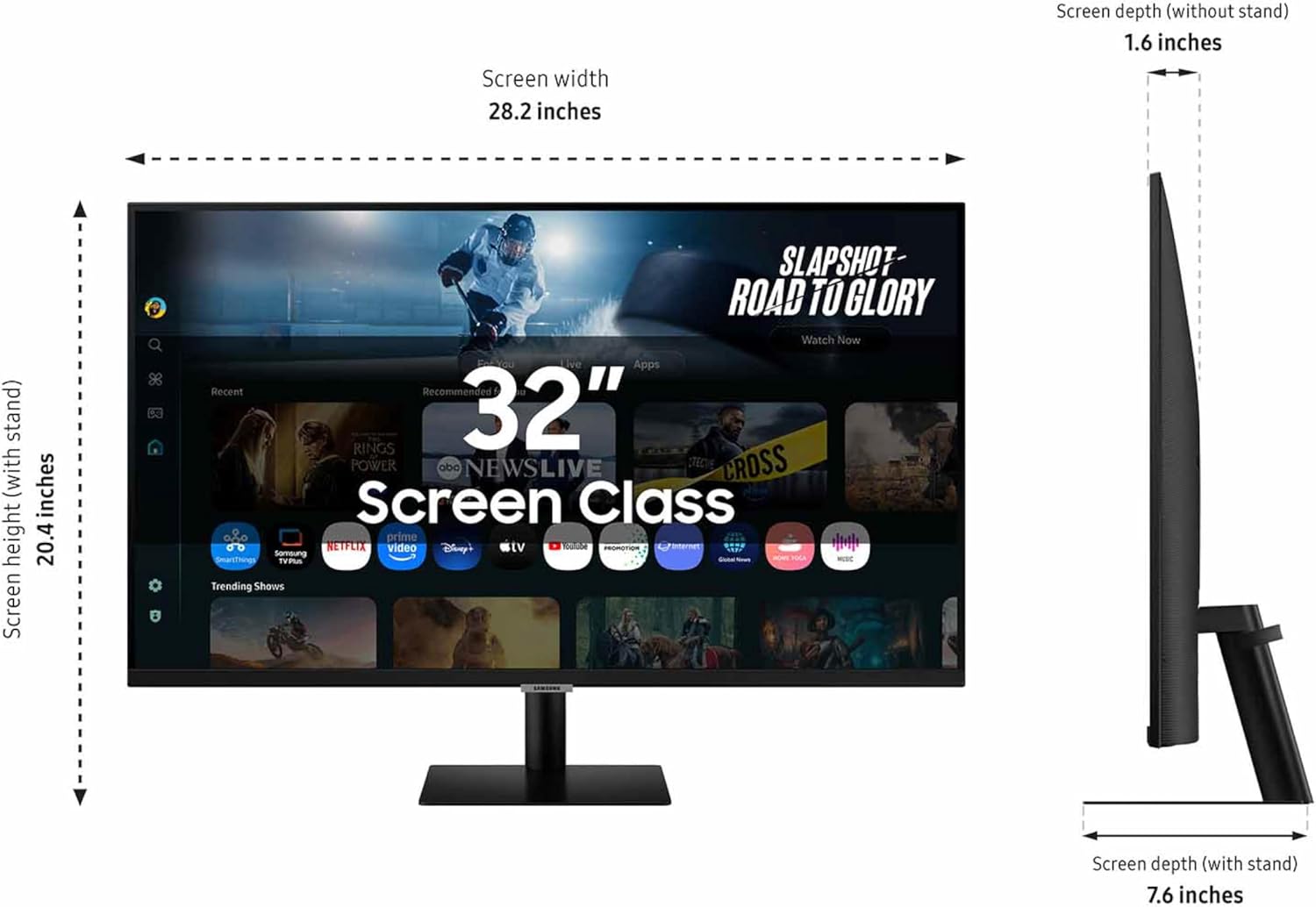
Image: A diagram illustrating the physical dimensions of the 32-inch Smart Monitor M7, including screen width, height with stand, screen depth with and without stand.
4. ویژگی های کلیدی
4.1 Smart TV Experience with AI
The monitor provides instant access to streaming content and live channels via Samsung TV Plus. The integrated AI enhances content discovery and viewing.
- Instant Streaming Access: Stream directly from the monitor or use Samsung TV Plus for additional content.
- Click to Search: Discover content recommendations and details about what you are watching, including actor biographies and filmographies.

Image: The Smart Monitor M7 showcasing various streaming applications and content, highlighting its Smart TV capabilities.
4.2 AI Picture Optimizer
This feature adjusts visuals for optimal quality based on your activity, whether working, gaming, or watching videos.
- Adapts picture settings for documents, games, and videos.
- Ensures comfort for work, immersive gaming, and vibrant video playback.

Image: A visual comparison demonstrating the effect of AI Picture Optimizer for game, document, and video content, showing improved visuals when activated.
۴.۴ ادغام SmartThings
Control connected smart home devices and monitor energy usage through a 3D Map View روی مانیتور شما
- Manage smart home devices via mobile or voice command.
- Monitor energy consumption and activate energy-saving modes.

Image: The Smart Monitor M7 displaying a 3D map view of a smart home, with a user issuing a voice command to control a vacuum cleaner.
4.4 Knox Security
Samsung Knox provides multi-layered security to protect your data and enhance the security of IoT connections made through the monitor.
- Safeguards sensitive data and privacy.
- Enhances security for connected smart devices.

Image: The Smart Monitor M7 displaying a secure login screen with the Samsung Knox security shield icon, indicating data protection.
4.5 4K UHD Display
Experience content in vivid detail with 4K UHD resolution, enhancing clarity and realism.

Image: A split image demonstrating the difference between Full HD (FHD) and 4K UHD resolution, showing enhanced detail in the 4K image.
۴.۴.۲ فعل معلوم Ampزنده تر
This technology analyzes background noise and automatically adjusts content volume, ensuring clear dialogue even in noisy environments.

Image: The Smart Monitor M7 in a home office setting, illustrating how Active Voice Amplifier adjusts sound to compensate for background noise, such as a barking dog.
۴.۵ هاب بازی
Access a wide range of games from top streaming partners without needing a PC or console.

Image: The Smart Monitor M7 showing the Gaming Hub interface with various game titles and streaming partners available.
4.8 Workspace and Multi Control
Access and control your PC remotely, work directly on the monitor with built-in apps like Microsoft 365, and use Multi View for enhanced productivity. Multi Control allows seamless dragging of documents and images across multiple Samsung devices.

Image: The Smart Monitor M7 demonstrating the Workspace feature, showing a split view between a traditional PC setup and the monitor's built-in office applications.

Image: The Smart Monitor M7 illustrating the Multi Control feature, allowing seamless interaction and content transfer between the monitor and other Samsung devices using a single mouse and keyboard.
4.9 AirPlay Integration
Wirelessly connect Apple devices to your Smart Monitor to view media, mirror apps, documents, and websites on a larger screen.

Image: The Smart Monitor M7 showing content mirrored from an iPhone, demonstrating the AirPlay integration feature for Apple devices.
5. دستورالعمل های عملیاتی
5.1 با استفاده از کنترل از راه دور
The included remote control allows you to navigate the monitor's interface, adjust settings, and control smart features. Insert the provided batteries into the remote control before first use.
- دکمه پاور: مانیتور را روشن یا خاموش می کند.
- پد ناوبری: Use the directional buttons to move through menus and select items.
- دکمه خانه: Accesses the Smart Hub, where you can find apps, streaming services, and connected devices.
- دکمههای تنظیم صدا/کانال: Adjust audio volume and change channels (if applicable for streaming services).
- دکمه دستیار صوتی: Activates the integrated voice assistance for commands and searches.
5.2 Navigating the Smart Hub
The Smart Hub is the central interface for all smart features. From here, you can:
- Launch installed applications (e.g., Netflix, YouTube).
- Access Samsung TV Plus for live and on-demand content.
- Manage connected devices via SmartThings.
- Utilize the Gaming Hub for cloud gaming services.
6. قابلیت اتصال
The Samsung Smart Monitor M7 offers various ports for connecting external devices.

Image: A detailed diagram showing the various input and output ports located on the back of the Samsung Smart Monitor M7, including HDMI, USB-C, and USB-A ports.
| بندر | توضیحات |
|---|---|
| HDMI IN 1 (ARC) | Connects to HDMI-enabled devices, supports Audio Return Channel. |
| HDMI IN 2 | Connects to HDMI-enabled devices. |
| USB Type-C Upstream (65W) | Connects to compatible devices for video, data, and power delivery (up to 65W). |
| USB Type-A Downstream (x2) | Connects USB devices such as keyboards, mice, or external storage. |
| USB Type-A Downstream/SERVICE | Additional USB Type-A port, also used for service purposes. |
The monitor also supports wireless connectivity via بلوتوث و وای فای for network access and connecting peripherals.
7. تعمیر و نگهداری
7.1 تمیز کردن مانیتور
- همیشه قبل از تمیز کردن مانیتور را از برق بکشید.
- کمی d از یک پارچه نرم و بدون پرز استفاده کنیدampبا آب یا یک پاککنندهی مخصوص صفحه نمایش، آبکشی شود.
- محلول پاککننده را مستقیماً روی صفحه نمایش اسپری نکنید.
- از استفاده از پاککنندههای ساینده، الکل یا محصولات حاوی آمونیاک خودداری کنید.
7.2 مراقبت عمومی
- مانیتور را از نور مستقیم خورشید، منابع گرما و گرد و غبار زیاد دور نگه دارید.
- از تهویه مناسب در اطراف مانیتور اطمینان حاصل کنید.
- از قرار دادن اشیاء سنگین روی مانیتور یا کابلهای آن خودداری کنید.
8 عیب یابی
| مشکل | راه حل ممکن |
|---|---|
| بدون قدرت | Check if the power cable is securely connected to both the monitor and the power outlet. Ensure the outlet is functional. |
| سیگنال وجود ندارد / صفحه خالی است | Verify that the input source (HDMI, USB-C) is correctly selected in the monitor's menu. Check cable connections to the external device. Ensure the external device is powered on. |
| کیفیت تصویر ضعیف است | Adjust display settings (brightness, contrast, sharpness) in the monitor's menu. Ensure the input resolution from your device matches the monitor's native 4K UHD resolution. Enable AI Picture Optimizer. |
| کنترل از راه دور کار نمی کند | Check and replace the batteries. Ensure there are no obstructions between the remote and the monitor. |
| نمی توان به وای فای متصل شد | Ensure your Wi-Fi router is on and functioning. Re-enter the Wi-Fi password. Try restarting the monitor and router. |
9. مشخصات
| ویژگی | جزئیات |
|---|---|
| نام تجاری | سامسونگ |
| شماره مدل | LS32FM702UNXZA |
| اندازه صفحه نمایش | 32 اینچ |
| فناوری نمایش | LED |
| قطعنامه | 4K UHD (3840x2160) |
| نسبت تصویر | 16:9 |
| شرح سطح صفحه نمایش | مات |
| فن آوری های اتصال | Bluetooth, HDMI, USB Type C, Wi-Fi |
| ویژگی های خاص | بلندگوهای داخلی، تنظیم ارتفاع، محدوده دینامیکی بالا، دستیار صوتی چندگانه، هاب USB |
| رنگ | مشکی |
| وزن مورد | 14.2 پوند |
| ابعاد محصول | ۶۵.۸ در ۱۲.۵ در ۴۰.۸ اینچ (با پایه) |
10. گارانتی و پشتیبانی
برای اطلاعات دقیق گارانتی، لطفاً به کارت گارانتی ارائه شده همراه محصول خود مراجعه کنید یا از پشتیبانی رسمی سامسونگ دیدن کنید. webسایت
For further assistance, troubleshooting, or to download the official user manual in PDF format, please visit the Samsung support webبه سایت مراجعه کنید یا با خدمات مشتریان سامسونگ تماس بگیرید.
دفترچه راهنمای رسمی کاربر (PDF): از اینجا دانلود کنید