
1. مقدمه
This manual provides essential information for the safe and efficient operation of your Canon imagePROGRAF PRO-310 Professional 13-inch Wireless Inkjet Photo Printer. Please read this manual thoroughly before using the printer and keep it for future reference.

شکل 1: جلو view of the Canon imagePROGRAF PRO-310 printer.
2. اطلاعات ایمنی
برای جلوگیری از آسیب یا جراحت به چاپگر، همیشه اقدامات احتیاطی ایمنی زیر را رعایت کنید.
2.1 ایمنی عمومی
- چاپگر را روی سطح ناپایدار قرار ندهید.
- چاپگر را از آب و رطوبت دور نگه دارید.
- از مسدود کردن منافذ تهویه خودداری کنید.
2.2 ایمنی الکتریکی
- فقط از سیم برق ارائه شده همراه چاپگر استفاده کنید.
- پریزهای برق را اضافه بار نکنید.
- Unplug the printer during lightning storms or when unused for long periods.
2.3 Ink Handling
- کارتریجهای جوهر را دور از دسترس کودکان نگه دارید.
- جوهر را قورت ندهید. در صورت بلع، فوراً به پزشک مراجعه کنید.
- Avoid contact with eyes or skin. If contact occurs, rinse thoroughly with water.
3. محتویات بسته
بررسی کنید که همه موارد در جعبه موجود باشند:
- Canon imagePROGRAF PRO-310 Printer
- Set of Ink Cartridges (9 colors + Chroma Optimizer)
- سیم برق
- سیدی رام راهاندازی (برای ویندوز/مک)
- Sampکاغذ عکس
- Setup Guide and other documentation
For detailed information on ink cartridges, refer to the 'Replacing Ink Cartridges' section.
4. راه اندازی
۴.۱ جعبهگشایی و قرارگیری
- Remove the printer from its packaging. Use the clear plastic bag with handles to safely lift the printer.
- Place the printer on a stable, flat surface with adequate space around it for operation and ventilation. The printer dimensions are approximately 28.7"D x 18.6"W x 14.04"H.
- تمام نوارهای محافظ و مواد بستهبندی را از قسمت بیرونی و داخلی چاپگر جدا کنید.

شکل ۲: زاویهدار view of the PRO-310, showing its compact design.
4.2 اتصال برق
- سیم برق را به پورت ورودی برق چاپگر وصل کنید.
- سر دیگر سیم برق را به یک پریز برق متصل به زمین وصل کنید.
- دکمه پاور را فشار دهید تا چاپگر روشن شود.
۳.۲ نصب کارتریج جوهر
- Open the top cover of the printer. The print head carriage will move to the center.
- Unpack each ink cartridge.
- Insert each ink cartridge into its corresponding slot, matching the color labels. Press down firmly until it clicks into place.
- Close the top cover. The printer will begin initial adjustments.

Figure 3: Installing ink cartridges into the PRO-310. The printer uses a 9-color plus Chroma Optimizer pigment-based ink system.
4.4 بارگذاری کاغذ
The PRO-310 offers versatile media handling with two paper paths: the Top Feed and the Manual Feed Tray.
4.4.1 Top Feed
Use the Top Feed for standard paper types and sizes. Lift the paper support and extend the output tray.

Figure 4: The PRO-310 with its top paper feed open, ready for paper loading.
4.4.2 Manual Feed Tray
The Manual Feed Tray is ideal for thicker fine art media and custom sizes up to 13" x 129".

Figure 5: The PRO-310 with its CD/DVD printing tray extended, demonstrating versatile media handling.
۴.۳ راهاندازی اولیه و اتصال به شبکه
- Follow the on-screen instructions on the 3.0-inch Color LCD Monitor to complete the initial setup.
- To connect to a network, navigate to the network settings on the LCD. The printer supports Wi-Fi, Ethernet, and USB connectivity.
- For Wi-Fi setup, select your network and enter the password. For Ethernet, connect a network cable to the Ethernet port.
Video 1: Official Canon USA video demonstrating the Canon imagePROGRAF PRO-310 Wireless Photo Printer's features and connectivity options.
۵. کار با چاپگر
5.1 چاپ اولیه
You can print directly from your computer using the printer driver or from compatible devices via the network connection.
5.2 Using Professional Print & Layout Software
The Canon Professional Print & Layout (PPL) software provides advanced printing options for photographers and artists. It integrates as a plug-in with popular photo editing software like Adobe Photoshop and Lightroom.
5.3 Media Handling
The PRO-310 supports a wide range of paper sizes and types, including square, panoramic, and custom sizes up to 13" x 129". Ensure correct paper settings are selected in the printer driver or LCD for optimal results.

Figure 6: The PRO-310 printing a panoramic image, showcasing its versatile media handling capabilities.
5.4 Understanding the 3.0-Inch Color LCD Monitor
The 3.0-inch Color LCD Monitor allows you to check ink levels, printer status, and adjust settings directly on the printer without a computer. Use the navigation buttons to browse menus and confirm selections.
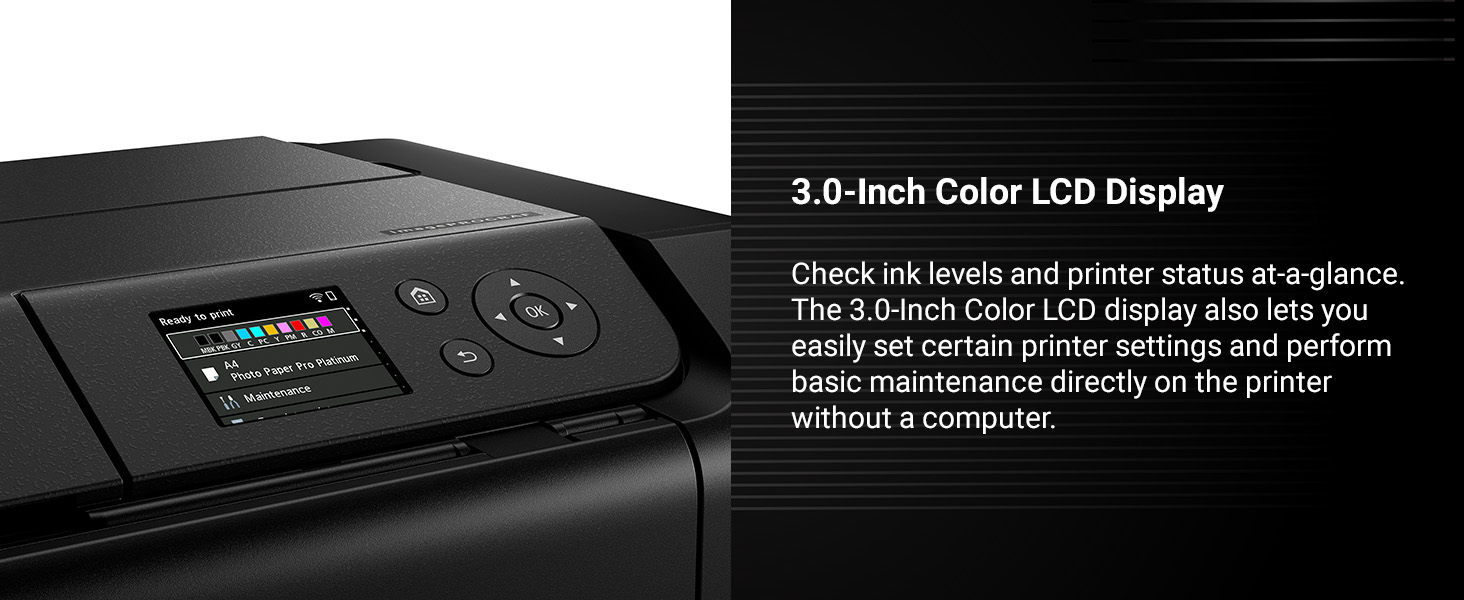
Figure 7: The 3.0-inch color LCD monitor provides easy access to printer status and settings.
6. تعمیر و نگهداری
نگهداری منظم، کیفیت چاپ بهینه را تضمین میکند و عمر چاپگر شما را افزایش میدهد.
۴.۱ بررسی سطح جوهر
Ink levels can be checked on the printer's LCD monitor or through the printer driver software on your computer. Replace cartridges when levels are low to avoid interruptions during printing.
۵.۱ تعویض کارتریجهای جوهر
When an ink cartridge is empty, the printer will prompt you to replace it. Open the top cover, remove the empty cartridge by pressing the tab, and insert a new one until it clicks into place. Close the cover to resume operation.
۴.۳ تمیز کردن هد چاپ
If print quality declines (e.g., missing lines, streaking), perform a print head cleaning from the printer's maintenance menu or through the printer driver. This clears clogged nozzles.
6.4 Nozzle Recovery System
The PRO-310 features a Nozzle Recovery System that helps prevent print failures due to clogged nozzles, ensuring consistent print quality.
6.5 Skew Correction
The printer includes Skew Correction technology to automatically adjust paper alignment, reducing errors and wasted media.
7 عیب یابی
این بخش به مشکلات رایجی که ممکن است با آنها مواجه شوید میپردازد.
7.1 Common Print Quality Issues
- Streaks or Fading: Check ink levels. Perform print head cleaning or deep cleaning.
- رنگهای نادرست: Ensure correct paper type is selected in print settings. Perform print head alignment.
- Grainy Prints: Use higher quality paper or adjust print quality settings to 'High' or 'Fine'.
7.2 گیر کردن کاغذ
If a paper jam occurs, follow the on-screen instructions on the LCD monitor. Carefully remove any jammed paper from the paper paths, ensuring no torn pieces remain inside.
۷.۲ مشکلات اتصال
- قطع وای فای: Check your router and printer's Wi-Fi status. Reconnect the printer to the network via the LCD menu.
- مشکلات اتصال USB: مطمئن شوید که کابل USB به طور محکم به چاپگر و رایانه متصل است. یک پورت یا کابل USB دیگر را امتحان کنید.
- Ethernet Issues: Verify the Ethernet cable is properly connected and your network is active.
7.4 پیام های خطا
Refer to the printer's LCD monitor for specific error codes and messages. Consult the online manual or Canon support website for detailed solutions corresponding to each code.
8. مشخصات
| نام تجاری | Canon |
| نام مدل | imagePROGRAF PRO-310 |
| شماره مدل | 6858C002 |
| فناوری چاپ | جوهر افشان |
| سیستم جوهر | 9 Color + Chroma Optimizer Pigment-Based Ink |
| حداکثر اندازه چاپ | 13" x 19" (A3+), Custom (up to 13" x 129") |
| قابلیت اتصال | وایفای، اترنت، یواسبی |
| نمایش | 3.0-inch Color LCD Monitor |
| ابعاد (D x W x H) | 28.7 اینچ × 18.6 اینچ × 14.04 اینچ |
| وزن | 31.6 پوند |
| حداکثر وضوح چاپ | 1200 x 1200 نقطه در اینچ |
9. گارانتی و پشتیبانی
9.1 اطلاعات گارانتی
چاپگر کانن imagePROGRAF PRO-310 با ... ارائه میشود. 1 سال گارانتی محدوداین ضمانتنامه شامل نقص در مواد و ساخت در شرایط استفاده عادی میشود. لطفاً فاکتور خرید خود را برای موارد گارانتی نگه دارید.
9.2 پشتیبانی محصول
برای کمک بیشتر، پشتیبانی فنی یا سوالات مربوط به خدمات، لطفاً از پشتیبانی رسمی کانن دیدن کنید website or contact Canon customer service. Online resources include FAQs, driver downloads, and additional manuals.
Visit the Canon Store: Canon Official Store