
مقدمه
This manual provides comprehensive instructions for the Akko MG75 ABNT2 Mechanical Keyboard. Designed for efficiency and customization, this 75% layout keyboard features Akko Silver V3 Pro mechanical switches, full RGB backlighting, and hot-swappable switch sockets. Please read this manual carefully to ensure proper use and maintenance of your device.
1. راه اندازی
1.1 محتویات بسته
- Akko MG75 ABNT2 Mechanical Keyboard
- USB-C Cable (Removable)
- کلاهک کش
- کشنده سوئیچ
- کلیدهای اضافی
- راهنمای کاربر (این سند)
۳.۱ اتصال صفحه کلید
- پورت USB-C را در پشت صفحه کلید پیدا کنید.
- کابل USB-C ارائه شده را به صفحه کلید وصل کنید.
- سر دیگر کابل USB-C را به یک پورت USB موجود در رایانه خود وصل کنید.
- صفحهکلید بهطور خودکار توسط سیستم عامل شما شناسایی میشود. معمولاً برای عملکردهای اولیه نیازی به درایور اضافی نیست.

Image: USB-C port for connecting the keyboard.
۲.۲ تنظیم ارتفاع صفحه کلید
The Akko MG75 keyboard features three levels of adjustable height. Flip out the feet located on the underside of the keyboard to select your preferred typing angle.
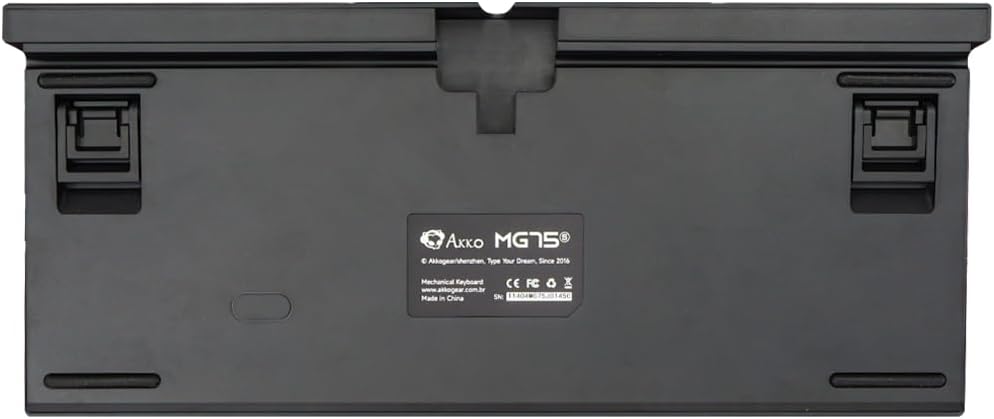
Image: Underside of the keyboard with adjustable feet.
2. دستورالعمل های عملیاتی
۵.۱ کنترل روشنایی RGB
The Akko MG75 keyboard features full RGB backlighting with multiple effects and customization options. Refer to the included quick guide or the official Akko software for detailed instructions on changing lighting modes, colors, and brightness. Typically, lighting effects can be cycled using specific key combinations (e.g., Fn + certain keys).
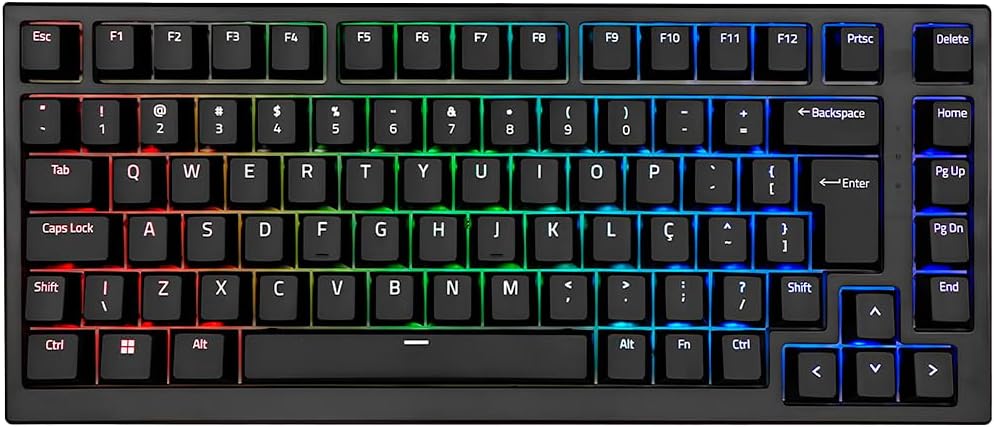
Image: Akko MG75 keyboard displaying RGB lighting.
۴.۴ سوئیچهای قابل تعویض در حین کار
The Akko MG75 supports hot-swappable mechanical switches, compatible with both 3-pin and 5-pin switches. This allows for easy customization of your typing experience without soldering.
Changing Switches:
- Use the provided switch puller to carefully remove the desired switch from the keyboard. Grip the switch firmly and pull straight up.
- پینهای سوئیچ جدید را با سوراخهای روی برد مدار چاپی تراز کنید. مطمئن شوید که پینها صاف هستند.
- Gently press the new switch into place until it clicks securely. Do not force the switch if it does not go in easily; check pin alignment.

Image: Akko mechanical switches, illustrating their design for hot-swapping.
2.3 ABNT2 Layout
This keyboard features the ABNT2 layout, which includes specific keys for Portuguese language characters and punctuation, such as 'Ç' and dedicated keys for accents. This layout is standard for Brazilian Portuguese users.

تصویر: از بالا به پایین view of the Akko MG75 keyboard, highlighting the ABNT2 layout.
3. تعمیر و نگهداری
۷.۱ تمیز کردن صفحه کلید
- قبل از تمیز کردن، کیبورد را از کامپیوتر جدا کنید.
- از یک برس نرم یا هوای فشرده برای پاک کردن گرد و غبار و خرده ریزها از بین کلیدها استفاده کنید.
- برای آلودگیهای سرسخت، کلیدها و سطح صفحه کلید را به آرامی با یک برس نرم پاک کنید.amp cloth (water only). Avoid excessive moisture.
- از مواد شیمیایی خشن یا پاک کننده های ساینده استفاده نکنید.
۷.۳ تعویض سرپوش کلید
To replace keycaps, use the provided keycap puller. Gently hook the puller onto the keycap and pull straight up. To install a new keycap, align it with the switch stem and press down firmly until it is seated.
4 عیب یابی
۷.۱ عدم پاسخگویی صفحه کلید
- مطمئن شوید که کابل USB-C به طور ایمن به صفحه کلید و رایانه شما متصل است.
- Try disconnecting and reconnecting the USB-C cable multiple times. Some users have reported this resolves initial connection issues.
- Test the keyboard on a different USB port on your computer.
- If possible, test the keyboard on another computer to rule out system-specific issues.
- Check if the cable itself is damaged by trying a different USB-C cable if available.
۵.۳ نورپردازی RGB به درستی کار نمیکند
- مطمئن شوید که کیبورد به درستی وصل شده و برق دریافت میکند.
- Refer to the quick guide for key combinations to cycle through lighting modes and adjust brightness.
- If using Akko software, ensure it is up-to-date and correctly configured.
5. مشخصات
| ویژگی | جزئیات |
|---|---|
| نام تجاری | آکو |
| مدل | MG75 |
| طرح بندی | 75% ABNT2 |
| سوئیچ ها | Akko Silver V3 Pro Mechanical |
| تعویض گرم | Yes (3-pin and 5-pin compatible) |
| قابلیت اتصال | USB-C (Removable Cable) |
| نور پس زمینه | RGB |
| ضد شبح | N-keys Rollover |
| کلمات کلیدی | ABS Laser |
| ارتفاع قابل تنظیم | بله ، 3 سطح |
| دستگاه های سازگار | PC |
| رنگ | مشکی |
| تعداد کلیدها | 84 |
| وزن ناخالص | 1582 گرم |
| وزن خالص | 1451 گرم |
| Package Dimensions (L x H x D) | 350mm x 250mm x 50mm |
6. گارانتی و پشتیبانی
6.1 گارانتی محصول
The Akko MG75 Mechanical Keyboard comes with a گارانتی 12 ماهه against manufacturing defects from the date of purchase. Please retain your proof of purchase for warranty claims. This warranty does not cover damage caused by misuse, accidents, unauthorized modifications, or normal wear and tear.
6.2 پشتیبانی مشتری
For technical assistance, warranty claims, or further inquiries, please visit the official Akko website or contact your local retailer. You may find additional resources, FAQs, and software downloads on the manufacturer's support page.
رسمی آکو Webسایت: www.akkogear.com