
ShanWan Q36-XPS-KABRILAN
دفترچه راهنمای کاربر دسته بازی بلوتوث ShanWan مدل جاکلیدی
Model: Q36-XPS-KABRILAN
1. مقدمه
This manual provides comprehensive instructions for the ShanWan Bluetooth Gamepad Keychain Sized Mini Controller. Please read this manual carefully before use to ensure proper operation and to maximize your gaming experience. This device is designed for use with Android phones and tablets, PS4/Slim/Pro, iPhone, iPad, Nintendo Switch, and Windows PCs.
2. محصول تمام شدview
The ShanWan Mini Controller is a compact and versatile gamepad designed for portability and multi-platform compatibility. It features 17 buttons and a D-Pad, all within a keychain-sized form factor.
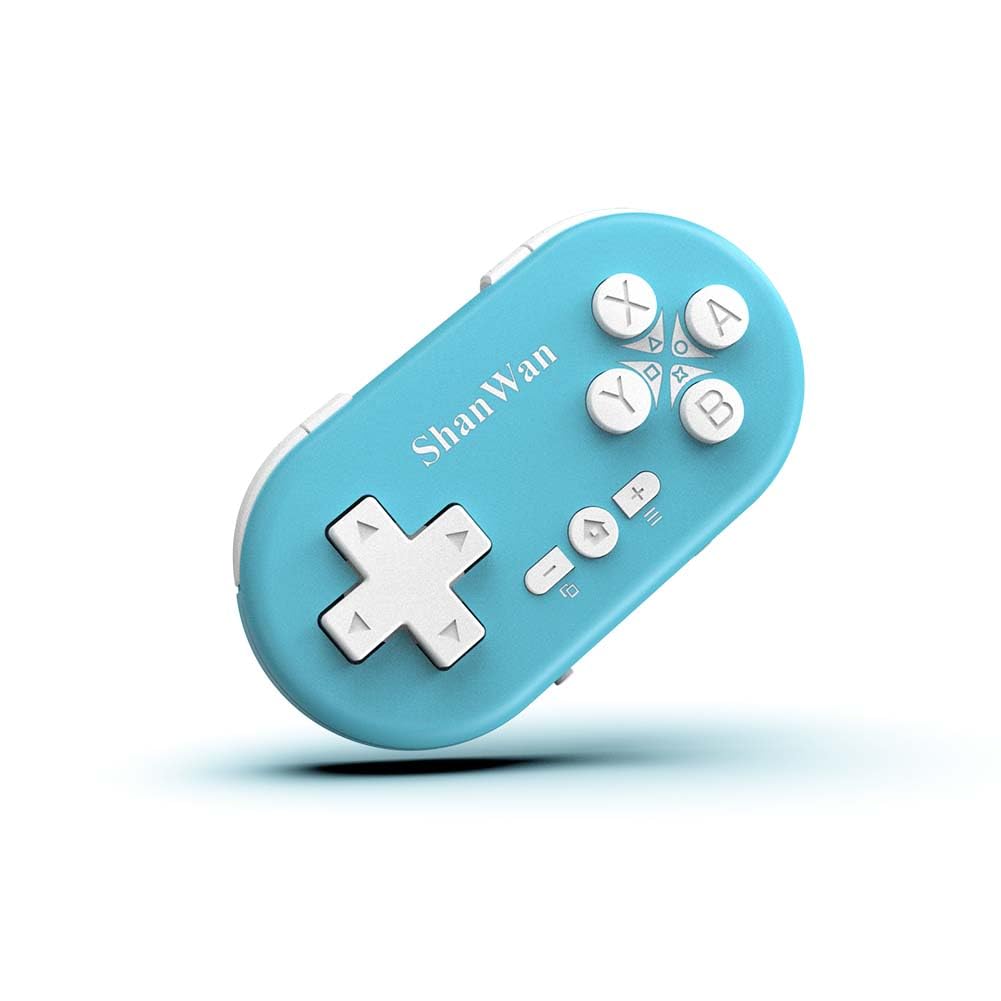
Figure 2.1: ShanWan Mini Bluetooth Gamepad, showcasinطراحی جمع و جور و چیدمان دکمههای آن.

Figure 2.2: Dimensions of the ShanWan Mini Bluetooth Gamepad, measuring 2.83 inches in length, 1.57 inches in width, and 0.55 inches in thickness.
2.1 محتویات بسته
- ShanWan Bluetooth Gamepad Keychain Sized Mini Controller
- کابل شارژ USB
- راهنمای کاربر (این سند)
3. مشخصات
| ویژگی | جزئیات |
|---|---|
| شماره مدل | Q36-XPS-KABRILAN |
| قابلیت اتصال | بلوتوث بی سیم |
| سازگاری | Android, iOS, Windows, Nintendo Switch, PlayStation 4 |
| ظرفیت باتری | باتری لیتیوم پلیمری ۵۰۰۰ میلیآمپرساعت (شامل میشود) |
| زمان شارژ | تقریبا 1 ساعت |
| زمان عملیات | حداکثر 5-6 ساعت |
| محدوده بی سیم | تا 10 متر (33 فوت) |
| ابعاد محصول | 2.83 x 1.57 x 0.55 اینچ |
| وزن مورد | 1.44 اونس (تقریباً 41 گرم) |
| ویژگی های خاص | Gyroscope motion sensing, One-button wake-up function |
۳. راهاندازی و جفتسازی
4.1 شارژ کردن کنترلر
Before first use, fully charge the controller. Connect the provided USB charging cable to the controller's charging port and the other end to a USB power source (e.g., computer, USB wall adapter). The charging indicator light will show the charging status and turn off when fully charged. A full charge typically takes about 1 hour.
4.2 روشن/خاموش کردن
- روشن کردن: Press and hold the Home button (usually the button with a house icon) for a few seconds until the indicator lights turn on.
- خاموش: Press and hold the Home button for approximately 5 seconds until the indicator lights turn off. The controller will also automatically power off after a period of inactivity to conserve battery.
۳.۲ دستورالعملهای جفتسازی بلوتوث
The controller supports multiple platforms. Ensure the mode switch on the controller is set to the correct platform before pairing.
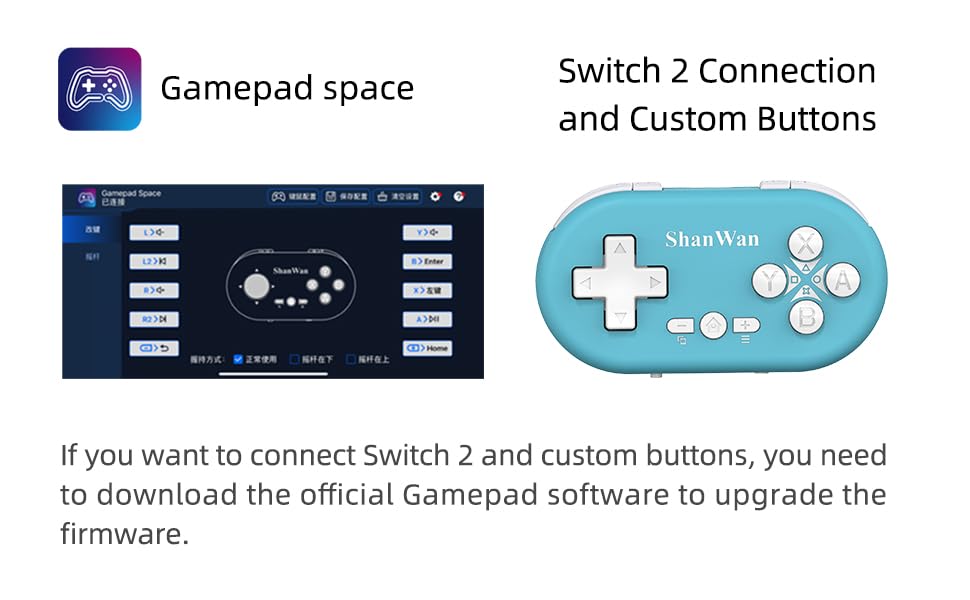
Figure 4.1: The mode switch on the controller, allowing selection between X (Xbox/PC), S (Switch), and P (PlayStation) modes for multi-device compatibility.
۳.۲ جفت شدن با نینتندو سوییچ
- در نینتندو سوییچ خود، به منوی HOME بروید.
- «کنترلکنندهها» و سپس «تغییر دسته/ترتیب» را انتخاب کنید.
- Set the controller's mode switch to "S" (Switch mode).
- Press and hold the "Pair" button on the controller until the indicator lights begin to blink rapidly.
- The Switch will detect the controller. Once paired, the LED indicator on the controller will remain solid, and the controller will be displayed on the Switch host screen.

Figure 4.2: Visual guide for connecting the controller to a Nintendo Switch, showing menu navigation and the pairing button location.
4.3.2 Pairing with Android/iOS Devices
- Set the controller's mode switch to the appropriate mode (e.g., "X" for Android, or a specific iOS mode if available, refer to device-specific instructions).
- On your Android or iOS device, go to Bluetooth settings.
- مطمئن شوید که بلوتوث فعال است.
- Press and hold the "Pair" button on the controller until the indicator lights blink rapidly.
- Select "ShanWan Controller" or a similar name from the list of available devices on your phone/tablet.
- Once connected, the indicator light on the controller will become solid.
4.3.3 Pairing with PS4
- Set the controller's mode switch to "P" (PlayStation mode).
- On your PS4, go to "Settings" > "Devices" > "Bluetooth Devices".
- Press and hold the "Pair" button on the controller until the indicator lights blink rapidly.
- Select "ShanWan Controller" or a similar name from the list of available devices on your PS4.
- Once connected, the indicator light on the controller will become solid.
4.3.4 Pairing with Windows PC
- Set the controller's mode switch to "X" (Xbox/PC mode).
- در رایانه شخصی ویندوزی خود، به «تنظیمات» > «دستگاهها» > «بلوتوث و سایر دستگاهها» بروید.
- Ensure Bluetooth is enabled and click "Add Bluetooth or other device".
- Select "Bluetooth".
- Press and hold the "Pair" button on the controller until the indicator lights blink rapidly.
- Select "ShanWan Controller" or a similar name from the list of available devices.
- Once connected, the indicator light on the controller will become solid.
5. دستورالعمل های عملیاتی
5.1 توابع دکمه
The controller features standard gamepad buttons. Their specific function may vary slightly depending on the platform and game.
- D-Pad: ورودی جهتدار.
- دکمههای A، B، X، Y: دکمههای عملیاتی.
- L1, L2, R1, R2 Buttons: دکمههای شانه و ماشه.
- دکمه خانه: Power on/off, return to home screen (platform dependent).
- دکمههای مثبت (+) / منفی (-): Start/Select or menu functions.
- دکمه جفت: جفتسازی بلوتوث را آغاز میکند.
5.2 ویژگی خاص
5.2.1 One-Button Wake-Up Function
After initial pairing, you can wake up the controller and reconnect it to the last paired device by simply pressing the Home button. This feature allows for quick resumption of gameplay.
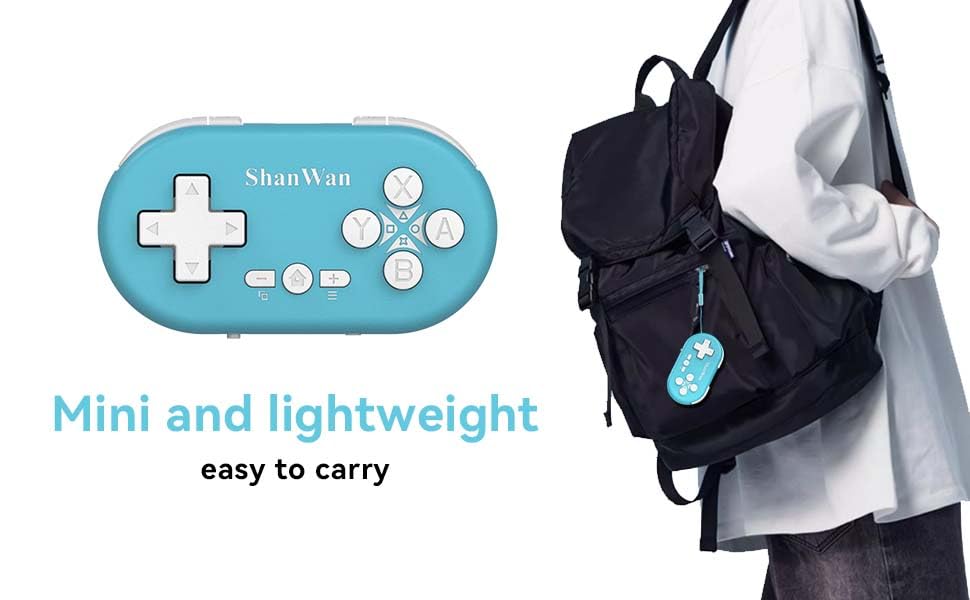
Figure 5.1: Illustration of the one-button wake-up function, highlighting the Home button used to quickly reactivate the controller.
5.2.2 Gyroscope Motion Sensing
The controller is equipped with a gyroscope for motion sensing effects, providing an immersive gaming experience in supported games, particularly on platforms like Nintendo Switch.
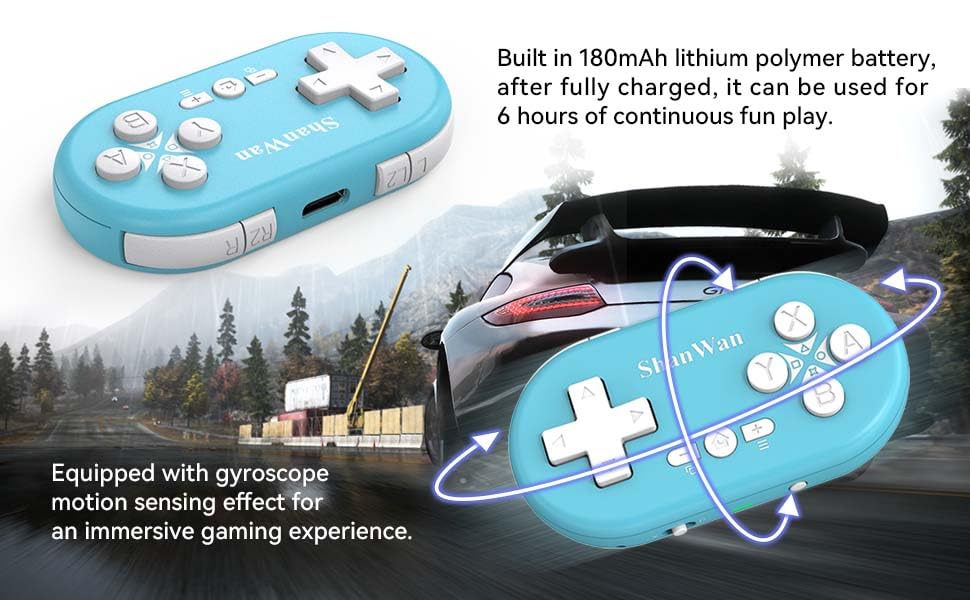
Figure 5.2: Visual representation of the gyroscope motion sensing effect, showing the controller being tilted to influence in-game actions.
5.2.3 Firmware Upgrade for Switch 2 and Custom Buttons
For compatibility with Switch 2 and to customize button mappings, it may be necessary to download the official Gamepad software and upgrade the controller's firmware. Refer to the manufacturer's official website for the latest software and instructions.

Figure 5.3: Screenshot illustrating the "Gamepad Space" software interface, used for firmware upgrades and custom button configurations, particularly for Switch 2 compatibility.
6. تعمیر و نگهداری
- تمیز کردن: برای تمیز کردن کنترلر از یک پارچه نرم و خشک استفاده کنید. از استفاده از مواد شیمیایی قوی یا مواد ساینده خودداری کنید.
- ذخیره سازی: کنترلر را در جای خشک و خنک و دور از نور مستقیم خورشید و دمای بالا نگهداری کنید.
- مراقبت از باتری: برای افزایش عمر باتری، از خالی شدن کامل باتری به طور مکرر خودداری کنید. کنترلر را به طور منظم شارژ کنید، حتی اگر برای مدت طولانی استفاده نشود.
- جلوگیری از تاثیر: Do not drop or subject the controller to strong impacts, as this may damage internal components.
7 عیب یابی
7.1 Controller Does Not Power On
- مطمئن شوید که دسته بازی کاملاً شارژ شده است. آن را به منبع تغذیه وصل کنید و اجازه دهید حداقل 15 دقیقه قبل از تلاش برای روشن کردن مجدد، شارژ شود.
- بررسی کنید که کابل شارژ و منبع تغذیه به درستی کار میکنند.
7.2 Unable to Pair Controller
- Ensure the controller is in pairing mode (indicator lights blinking rapidly).
- Check that the mode switch on the controller is set to the correct platform (S for Switch, X for Android/Windows, P for PS4).
- Make sure Bluetooth is enabled on your device (Switch, phone, PC, PS4).
- Move the controller closer to the device you are trying to pair with.
- هرگونه جفتسازی قبلی کنترلر را از تنظیمات بلوتوث دستگاه خود حذف کنید و دوباره جفتسازی را امتحان کنید.
- هم کنترلر و هم دستگاه خود را مجدداً راه اندازی کنید.
۷.۲ تأخیر یا قطع اتصال ورودی
- مطمئن شوید که دسته بازی در محدوده بیسیم ۱۰ متری دستگاه شما قرار دارد.
- تداخل امواج از سایر دستگاههای بیسیم (روترهای وایفای، سایر دستگاههای بلوتوث) را به حداقل برسانید.
- Ensure the controller is fully charged. Low battery can affect connection stability.
- Try re-pairing the controller with your device.
- Update the controller's firmware if available (refer to Section 5.2.3).
7.4 Buttons Not Responding Correctly
- Test the controller on a different game or application to determine if the issue is game-specific.
- مطمئن شوید که میانافزار کنترلر بهروز است.
- Perform a factory reset if possible (refer to manufacturer's support for specific instructions, as this model may not have a dedicated reset button).
8. گارانتی و پشتیبانی
ShanWan products are designed for reliability and performance. For warranty information, technical support, or further assistance, please visit the official ShanWan webبه سایت مراجعه کنید یا با خدمات مشتریان آنها تماس بگیرید. رسید خرید خود را به عنوان مدرک خرید برای درخواستهای گارانتی نگه دارید.
Official ShanWan Store: ShanWan Store on Amazon
9. اطلاعات اضافی
The ShanWan Mini Controller's compact and lightweight design makes it highly portable, allowing users to carry it easily and enjoy gaming on the go.

Figure 9.1: The ShanWan Mini Bluetooth Gamepad attached to a backpack, illustrating its keychain-sized portability and ease of transport.

Figure 9.2: The ShanWan Mini Bluetooth Gamepad being used outdoors with a portable screen, demonstrating its ease of transport and use anywhere.
Ask a question about this manual
Ask about setup, troubleshooting, compatibility, parts, safety, or missing instructions. Manuals+ will review the question and use this page’s manual context to help answer it.